



Authentication
This feature allows the use of a registered authenticator to verify the identity of the end user.
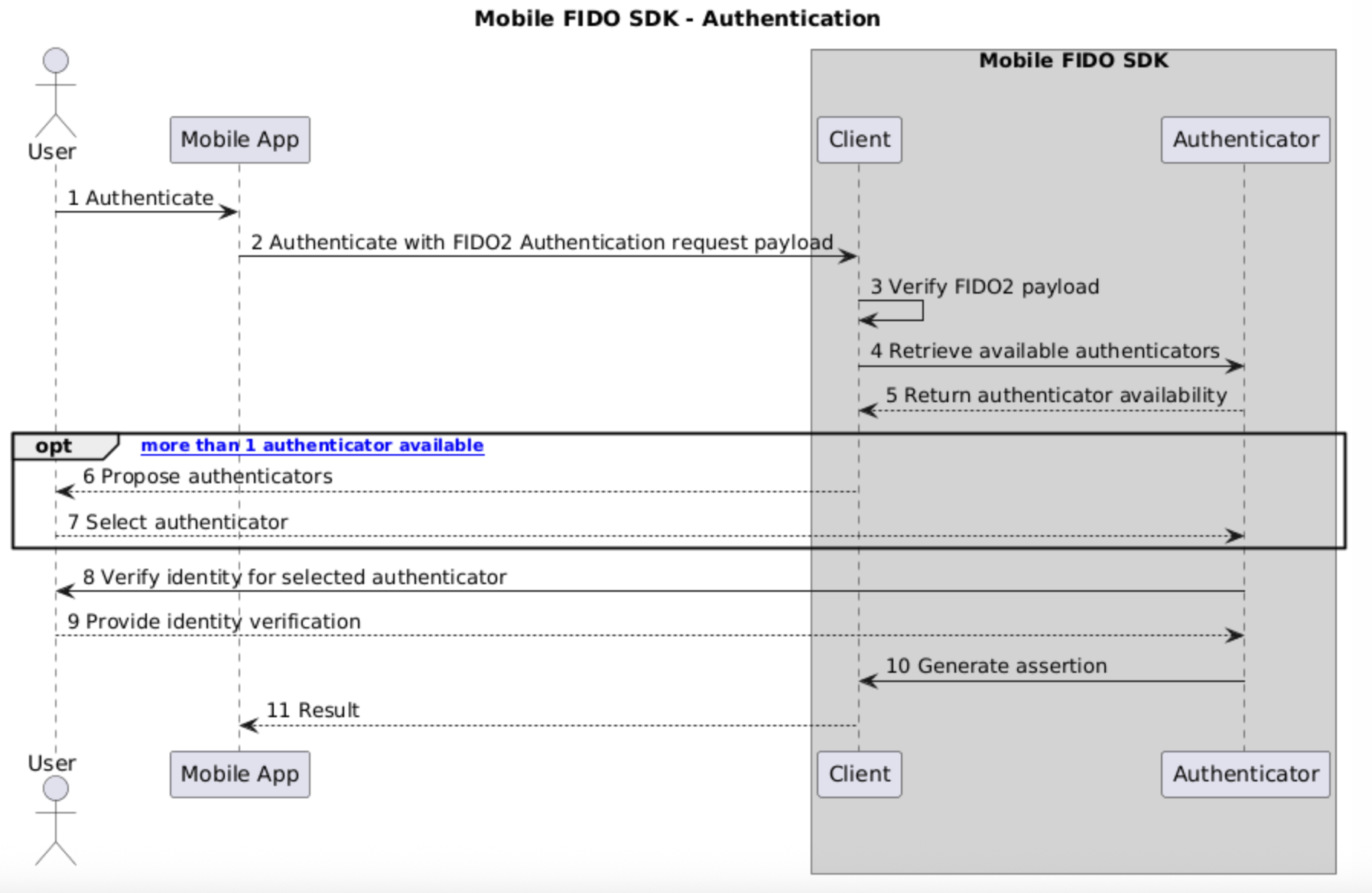
To initiate the authentication flow, these are the steps the end user performs in an authentication process from the mobile perspective:
- The end user initiates the authentication process.
- The end user opens the mobile application to verify their identity.
The following sequence diagram describes the authentication flow:
Use case: SCA with OMI SDK
The FIDO SDK authentication feature can be used alongside the OMI SDK to provide Strong Customer Authentication (SCA) via the custom authenticator flow. For the full integration guide, see SCA with FIDO2.
Authenticate an authenticator
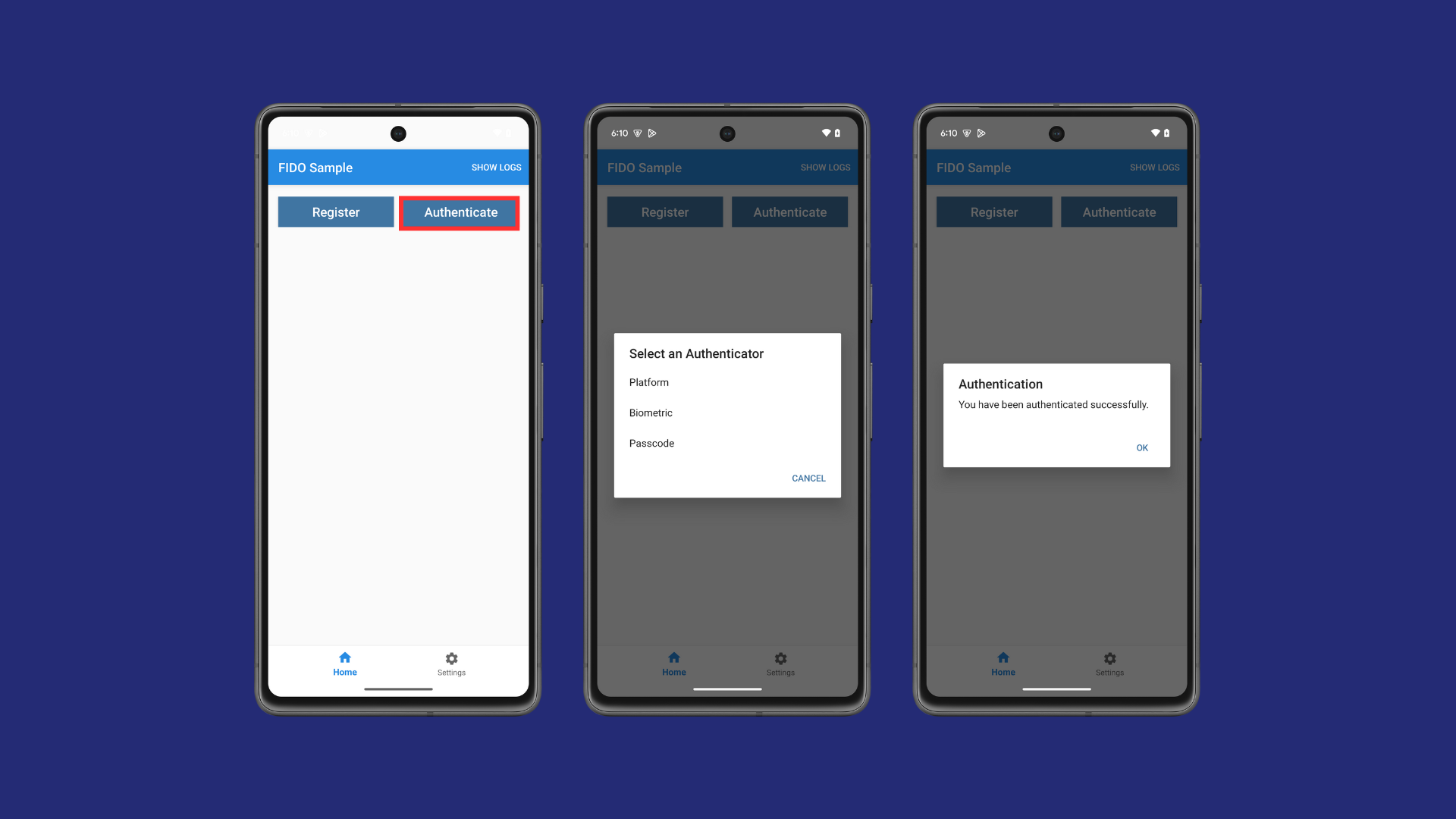
To authenticate an authenticator using the sample app:
-
On the main page, tap Authenticate to initiate this feature.
If multiple authenticators are available, you are prompted to select an authenticator to verify your identity.
-
The authentications process completes and the FIDO2 assertion response can then be forwarded to the respective services.
Tip
Mobile FIDO UI SDK is used as a means for managing the UI callbacks to the individual use cases, allowing the end user to focus on the core application logic.
Authenticator selection
Similar to registration, app integrators must implement the corresponding callbacks to support authenticator selection:
public class SampleFido2UiCallback extends Fido2UiCallback {
    @Override
    public void showAuthenticators(List<Fido2AuthenticatorInfo> authenticators, final AuthenticatorSelectionCallback callback) throws Fido2Exception {
        List<CharSequence> names = new ArrayList<>();
        for (Fido2AuthenticatorInfo info : authenticators) {
            names.add(info.getName());
        }

        // Display list of names or select in the app

        // Callback with the selected authenticator (by index)
        callback.onAuthenticatorSelected(0);

        // OR cancel
        callback.cancel();
    }

}
class SampleUiDelegate: TGFFido2UiDelegate {
    public func showAuthenticators(_ authenticatorList: [TGFFido2AuthenticatorInfo], operationInfo: TGFFido2OperationInfo, authenticatorSelectionHandler: @escaping (TGFFido2AuthenticatorInfo) -> Void, cancelHandler: @escaping () -> Void) {
        let names = authenticatorList.map { $0.name }

        // Display list of names or select in the app

        // Callback with the selected authenticator
        authenticatorSelectionHandler(authenticatorList[0])

        // OR cancel
        cancelHandler()
    }
}
Initiate authentication
The following code snippets demonstrate the usage of the Authenticate feature:
// Create Fido2 Authentication request with json String
Fido2Request fido2Request = Fido2Request.jsonText(request);

// Setup an instance of Fido2RespondArgs, create all required ui callback required by Mobile FIDO SDK.
Fido2UiCallback uiCallback = new SampleFido2UiCallback(activity);
PasscodeAuthenticatorCallback passcodeAuthenticatorCallback = new SamplePinPadAuthenticatorCallback(activity);
BiometricAuthenticatorCallback biometricAuthenticatorCallback = new SampleBiometricAuthenticatorCallback();

Fido2RespondArgs args = new Fido2RespondArgs.Builder()
    .setFido2Request(fido2Request)
    .setUiCallback(uiCallback)
    .setPasscodeAuthenticatorCallback(passcodeAuthenticatorCallback)
    .setBiometricAuthenticatorCallback(biometricAuthenticatorCallback)
    .build();

// Create a Fido2Client
Fido2Client client = Fido2ClientFactory.createFido2Client(activity);
client.setActivity(activity);

client.respondWithArgs(args, new Fido2ResponseCallback() {
@Override
public void onResponded(Fido2Response response) {
    ((SamplePinPadAuthenticatorCallback) passcodeAuthenticatorCallback).dismissPasscodeAuthenticatorDialog();
    // Pass FIDO response to respective FIDO service.
    }

@Override
public void onError(Fido2Exception exception) {
    ((SamplePinPadAuthenticatorCallback) passcodeAuthenticatorCallback).dismissPasscodeAuthenticatorDialog();
    // handle error
    }
}
// Create Fido2 Authentication request with json String
let fidoRequest = try TGFFido2RequestFactory.request(jsonString)
// Setup an instance of TGFFido2RespondArgsBuilder,initialize all necessary UI delegates required by Mobile FIDO SDK.
let respondArgsBuilder = TGFFido2RespondArgsBuilder(request: fidoRequest, uiDelegate: clientConformer)
respondArgsBuilder.uiBiometricAuthenticatorDelegate = clientConformer
respondArgsBuilder.uiPasscodeAuthenticatorDelegate = clientConformer
respondArgsBuilder.passcodeAuthenticator = TGFPasscodeAuthenticator(delegate: clientConformer)
let respondArgs = respondArgsBuilder.respondArgs()

// Fetch a FIDO2 response.
fido2Client.respond(with: respondArgs) {(response, error) in
    if let error = error {
        // Handle error
    } else {
        let responseString: String = response!.raw()
        // Pass FIDO response to respective FIDO service.
    }
}
JSON string content
The expected JSON string content to pass here MUST be the defined CredentialRequestOptions of WebAuthn.
Example of the expected JSON payload:
{
    "challenge": "8WtVkIC-XpEIf6GVxSH9n--DmkoOrsjqRSDjR7QYa7SqoRbWJ8-HFS2Gsf2ALp5n9b66fW4b44OvxIan5kR_Vw",
    "timeout": 60000,
    "rpId": "www.test.com",
    "allowCredentials": [],
    "userVerification": "preferred",
     "extensions": {
     }
}
Using with OMI SDK custom authentication
When integrating with the OMI SDK custom authenticator for SCA, the jsonString (WebAuthn CredentialRequestOptions) comes from the extension engine init script's responsePayload, and the FIDO response is sent back via the OMI SDK:
-
On iOS:
challenge.sender.respond(with:to:) -
On Android:
callback.returnSuccess()
See SCA with FIDO2.

