



Delegated User Management v2
Delegated User Management v2 allows companies to efficiently manage the access rights of external users from customer or business partner organizations. By enabling the delegation of user access management to business partner organizations, companies can scale the management of these external users and deliver a better experience to the users.
User scenarios and use cases
The following scenarios illustrate Delegated User Management capabilities:
-
Working with channel partners (brokers, distributors, resellers)
Companies often work with channel partners who require access to their applications. Delegated User Management enables you to offload access management to trusted users at the channel partner. These partners can, in turn, manage the access requirements of their users.
-
Working with suppliers
Many enterprises regularly outsource specific business tasks to external companies or obtain parts from suppliers. Users at these external companies need access to the enterprise's applications and services, often to collaborate with internal users. Delegated User Management enables you to manage which applications suppliers can access, and for the suppliers to manage their users and associated entitlement assignments.
-
Working with business customers
Delegated User Management enables you to provide timely access to your services. Your organization might need to provide your business customer's users with access to some applications. To do this efficiently, you can delegate access control to a business customer's trusted user, who can then manage the access of the other users within the same customer.
Roles
A role is a collection of permissions that control what data and applications a user can access and what actions they can perform. A user can have multiple roles.
There are two types of roles:
-
Administrator roles grant users permission in the Delegated User Management application, such as example permissions to manage users, assign access roles, create and manage organizations, and so on.
-
Access roles grant users access to applications (outside of Delegated User Management), and can include specific permissions within these applications.
Access roles include permissions to one or many applications. You define your company's access roles based on the different personas or job functions within your population of external users.
Mapping roles
Delegated User Management enables you to define administrator and access roles for the personas in your environment.
The following examples describe typical persons that you might have:
Super administrators
The super administrator role has all permissions and unrestricted access to all Delegated User Management features. Super administrators typically have an IT background. They can model organizations, roles, and applications. For example, the super administrator can add variants of the administrator role that have fewer permissions, according to your needs.
Delegated managers
Delegated managers work in a specific organization. Within their organization, they manage users and entitlements, including the user lifecycle, access roles, and organization membership. For a delegated manager persona, you define and assign an administrator role.
Process owners
Process owners manage the definition of roles, or entitlements, to meet the needs of different categories of business users. They can use Delegated User Management to define a set of roles that map to business personas that need to access applications or resources at third parties and customers. For a process owner persona, you define and assign an administrator role.
Application owners
Application owners manage one or more applications. They can use Delegated User Management to define a set of permissions for the application, and can also be entitled to add application permissions to access roles. For an application owner persona, you define and assign an administrator role.
Help desk users
Help desk users are a dedicated type of administrator with a narrow focus. They receive calls from users, find users, find the organizations that users belong to, check user profiles and role assignments, reset passwords, and reset some authenticators and update profile data. For a help desk persona, you define and assign an administrator role.
Business users
Business users are users from a business customer or business partner who need to access applications. For a business user personas, you define and assign access roles.
Delegation model
The tiered delegation model that is implemented in the Delegated User Management solution brings a scalable approach to the administration of access rights, which allows administrator personas (like a super user administrator, process owner, or application owner) to delegate user management and the associated role assignments.
Administration roles are propagated through the cascading of administrator roles from one user to another, within the same organization or across organization boundaries. Assigning administrator roles can be restricted in scope, for example to apply to only one organization, or to only a specific set of access roles.
Working in the Delegated User Management application
The left navigation pane groups the available features. It can include Users, Organizations, Applications, Access Roles, and Administrators, which contains Administrator roles and Scopes.
You see only the items that your administrator role and scope permit. If your user has no administrative permissions, the application displays an Access Denied message instead of the navigation pane.
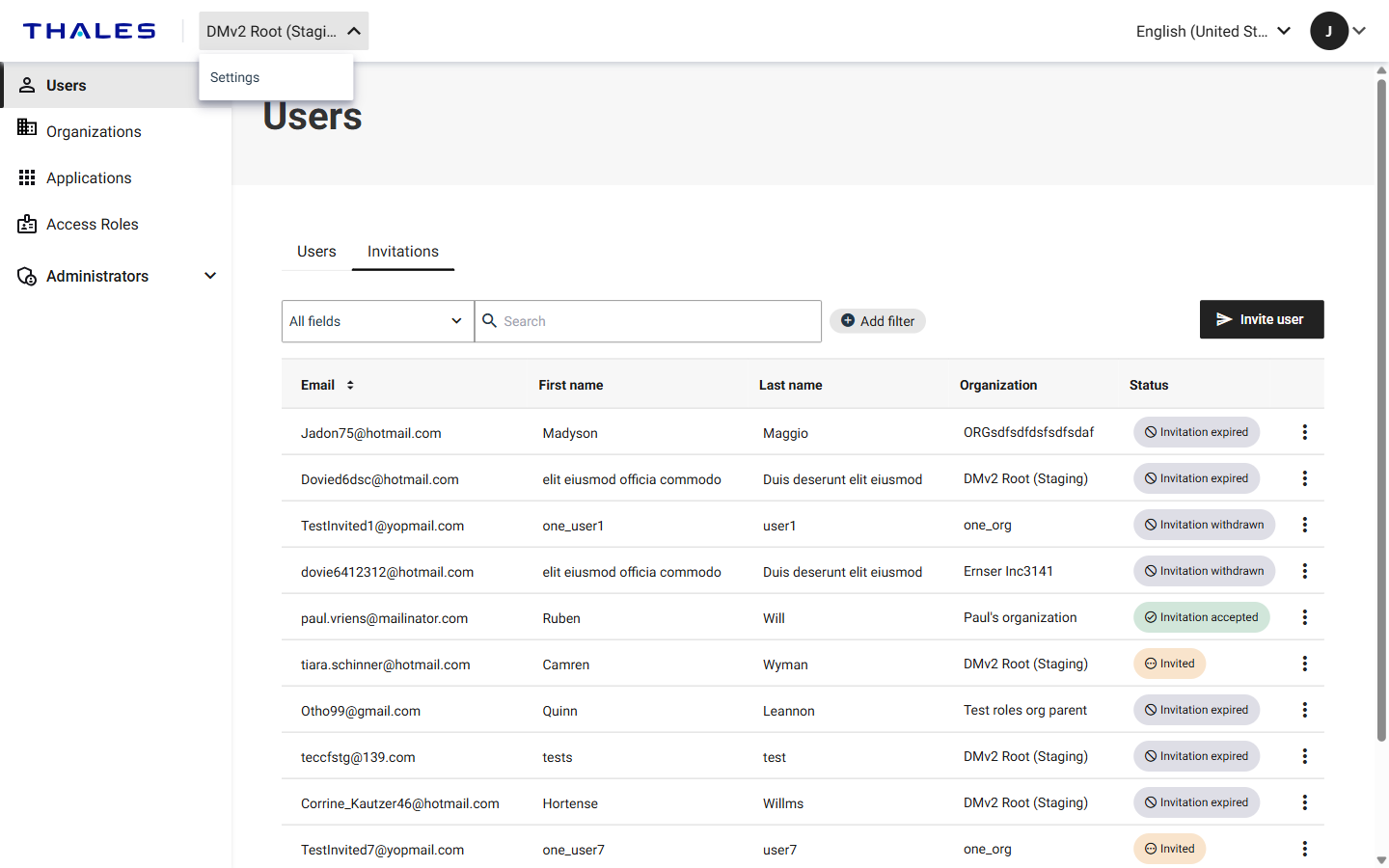
Open the settings for the current organization
The top of the screen always shows the current organization. Select the organization name to open a menu, and then select Settings to open the details page for that organization.
Change the language of the application
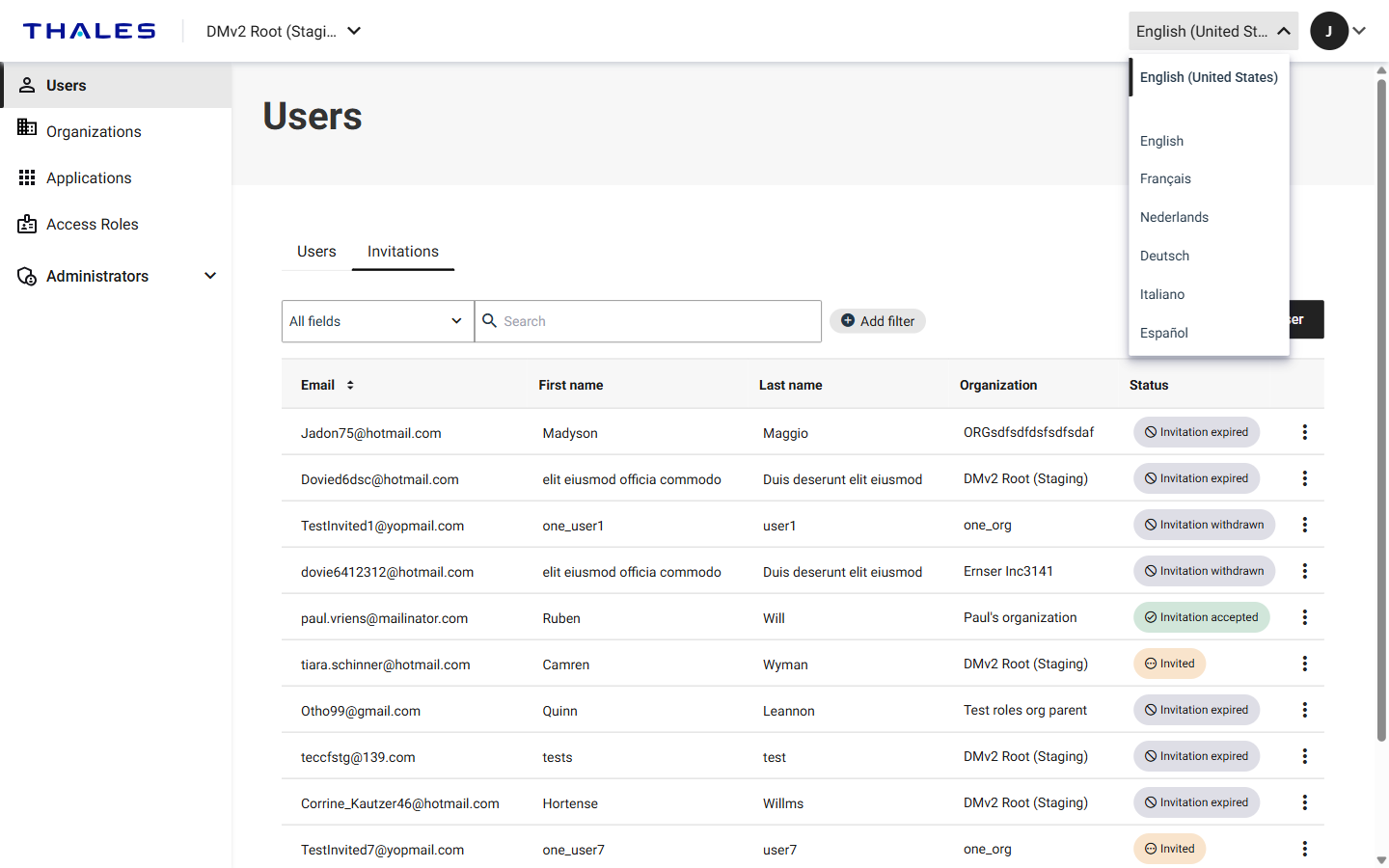
You can change the language used by the application. The language setting applies to the application interface, not to the data in your organizations.
-
In the top-right corner of the screen, select the current language.
-
Select one of the available languages:
- English (United States)
- English
- Français
- Nederlands
- Deutsch
- Italiano
- Español
Sign out
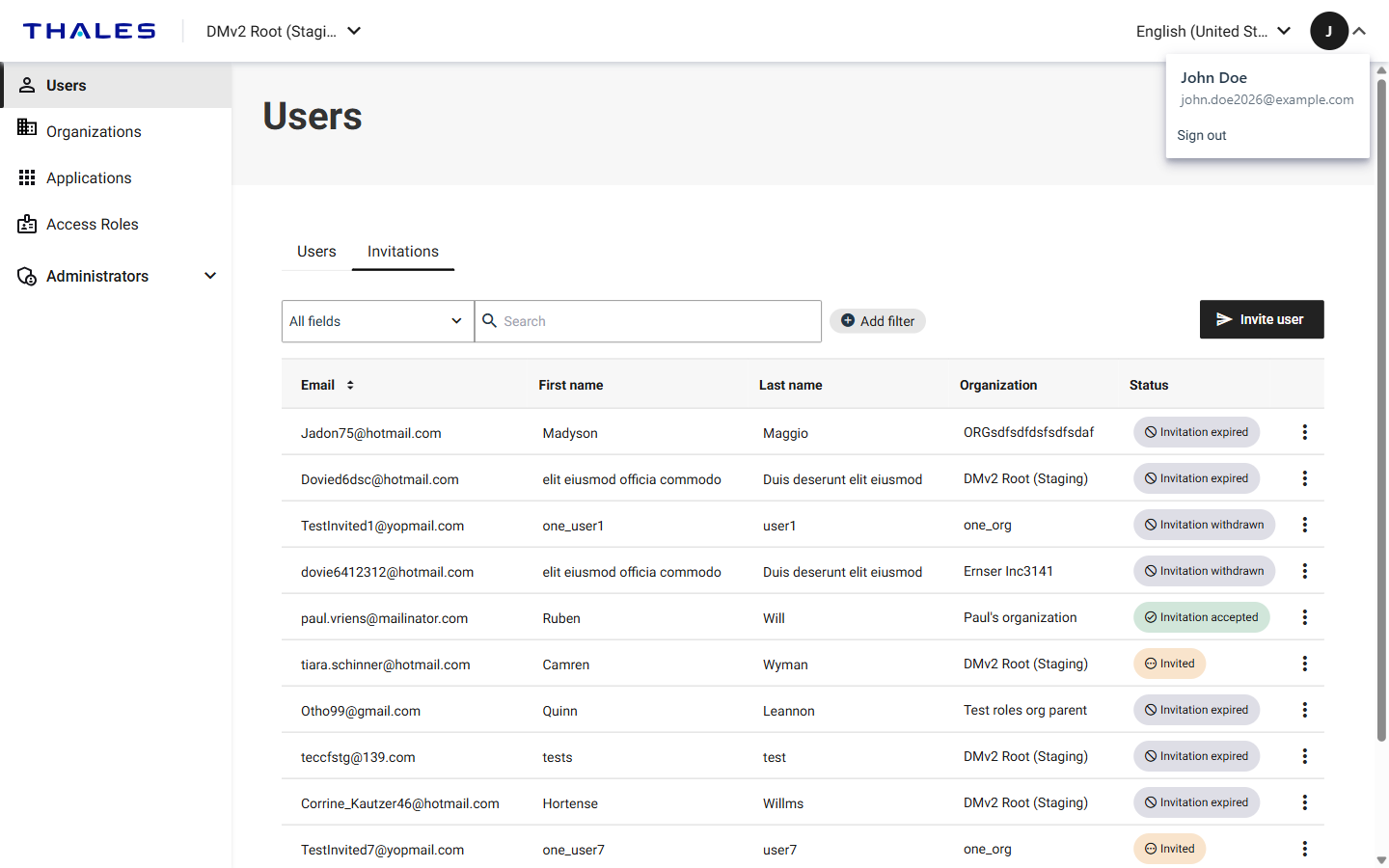
The profile menu shows the name and email address of the signed-in user.
-
To sign out, select the profile icon in the top-right corner of the screen, and then select Sign out.
Note
If you are inactive for an extended period, your session expires and the application displays a Session Expired message. Sign in again to continue.
Search, filter, and page through lists
The Users, Organizations, Applications, Access Roles, Administrator roles, and Scopes pages display their content in a table. The following controls are available, depending on the page:
-
Search: To restrict the search to a single column instead of all searchable fields, select a column from the All fields list.
-
Add filter: Select Add filter, select the column to filter on from the Filter by list, select an operator, and then select a Value. Select Clear filters to remove the filters you applied.
-
Pagination: Tables display a limited number of rows at a time. Use Items per page to change the number of rows displayed on a page. Use Previous page and Next page to move between pages.

