Administrator roles
Administrator roles grant users with entitlements to manage organizations, users, access roles, applications, administrator roles, and scopes in the Delegated User Management v2 application.
Each administrator role is a collection of permissions. These permissions define the access rights for a user and give granularity to the administrative functions that the user is allowed to perform in Delegated User Management.
Only administrators in the root organization can manage (create, edit, or delete) administrator roles, or applications and their associated permissions.
Super administrators
Delegated User Management includes a pre-defined super administrator role. A user with this role has a system-wide view, managing the root organization and overseeing all partner organizations. They can see both authentication (system-level) and authorization (organizational-level) statuses across all organizations.
The first super administrator user is created on the OneWelcome Identity Platform console. You assign the super administrator role to additional users in Delegated User Management. However, only users in the root organization are eligible to be super administrators.
Assigning administrator roles
After you define the administrator roles, you can assign them through one of the following mechanisms:
-
A super administrator can assign any administrator role to any other user. However, only users in the root organization can be super administrators.
-
An administrator who is not a super administrator can assign one of their own administrator roles to other users within their scope of management, if the administrator has cascading rights for that role.
View the list of administrator roles
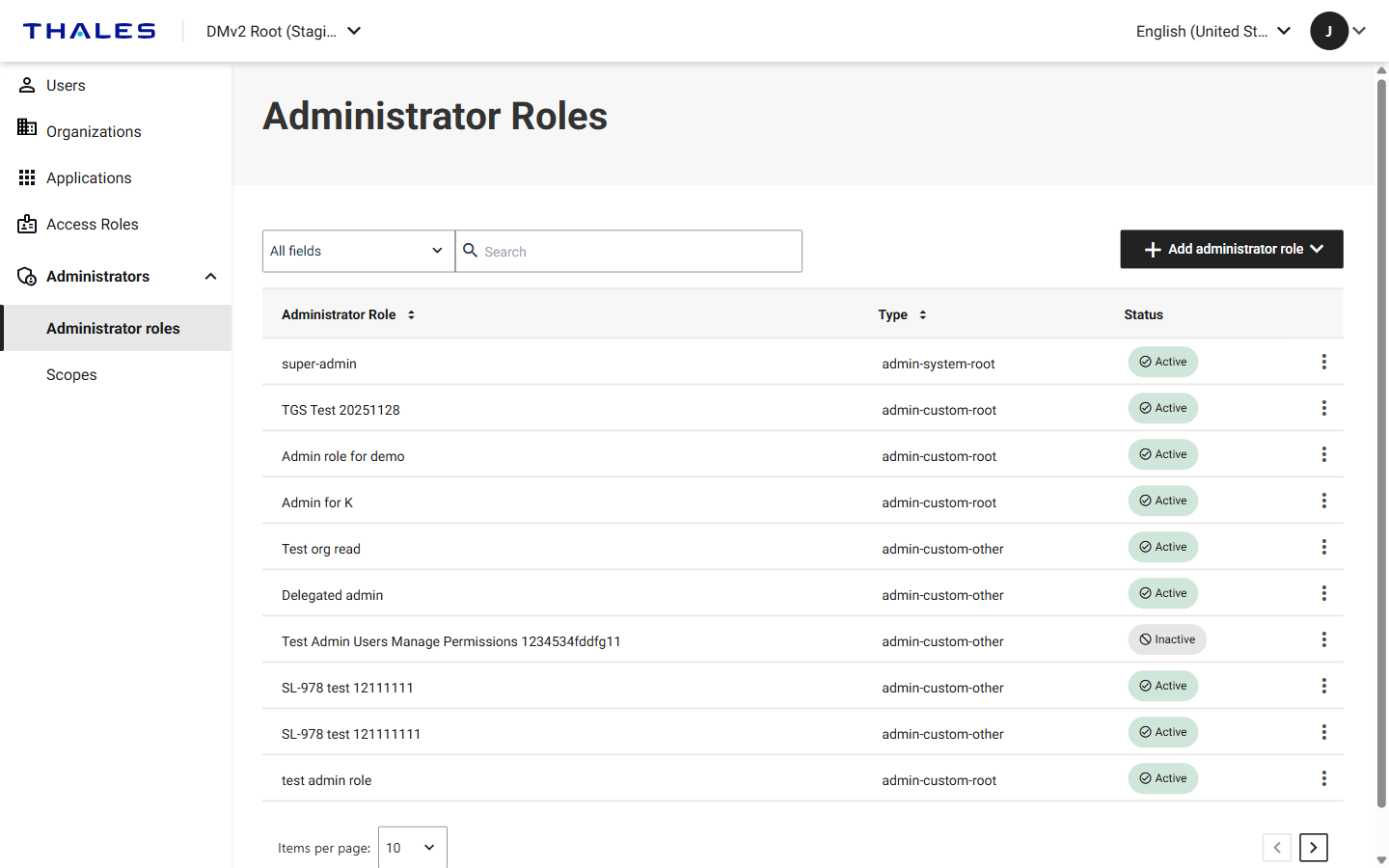
In the left navigation pane, select Administrators > Administrator roles. The table lists the administrator roles defined for your tenant and includes the following columns:
| Column | Description |
|---|---|
| Administrator Role | The name of the administrator role. |
| Type | Indicates whether the role was created and which organizations the role applies to. See the following table. |
| Status | Whether the role is Active or Inactive. You can assign only active administrator roles to users. |
The Type column can contain the following values:
| Type | Description |
|---|---|
admin-system-root |
The predefined super administrator role. This role is supplied with Delegated User Management and cannot be created or deleted. |
admin-custom-root |
A Root administrator role that you created. The role has permissions for managing the root organization. |
admin-custom-other |
An Other administrator role that you created. The role has permissions for managing specific organizations, excluding the root organization. |
For details about how to search, filter, and page through the table, see Search, filter, and page through lists.
Add an administrator role
Administrators in the root organization with sufficient permissions can define administrator roles. An administrator role contains permissions corresponding to the needs of a specific population of users.
-
Log in to the root organization.
-
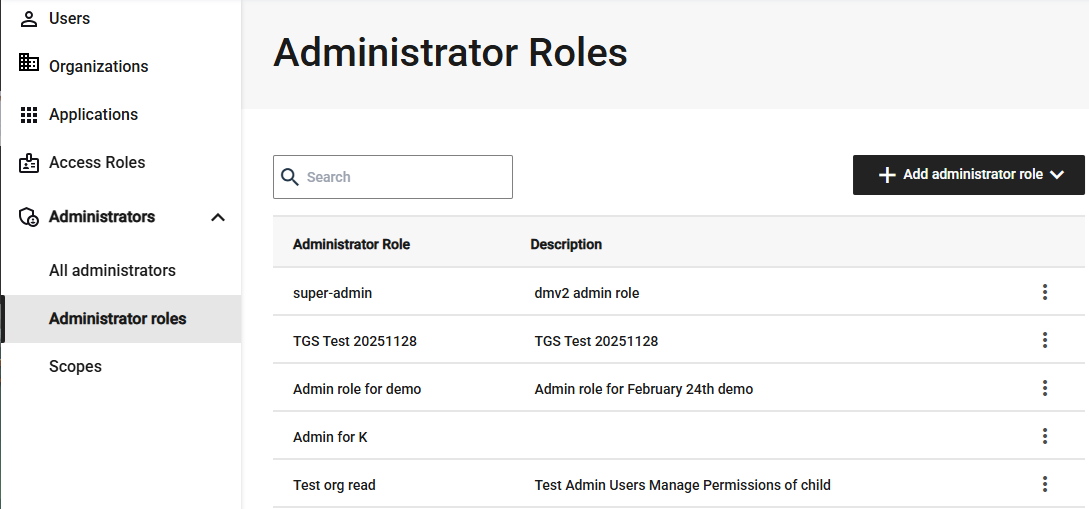
In the left pane, select Administrators > Administrator roles.
-
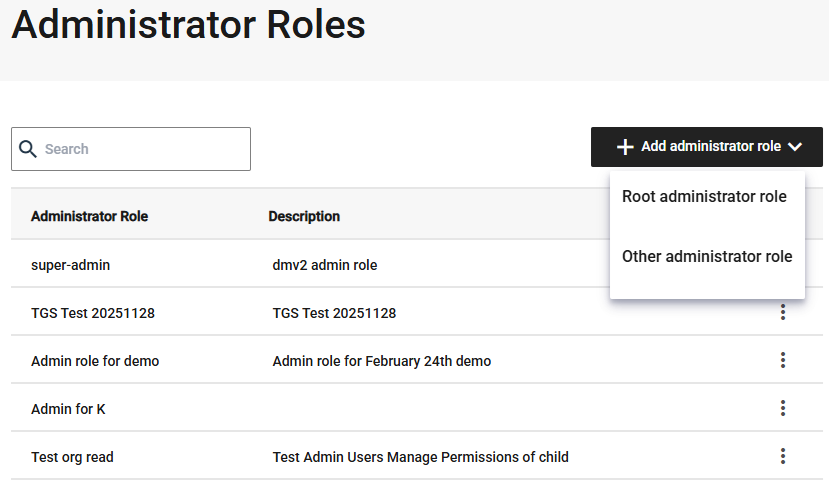
On the Administrator roles page, select Add administrator role, and then select either Root administrator role or Other administrator role.
-
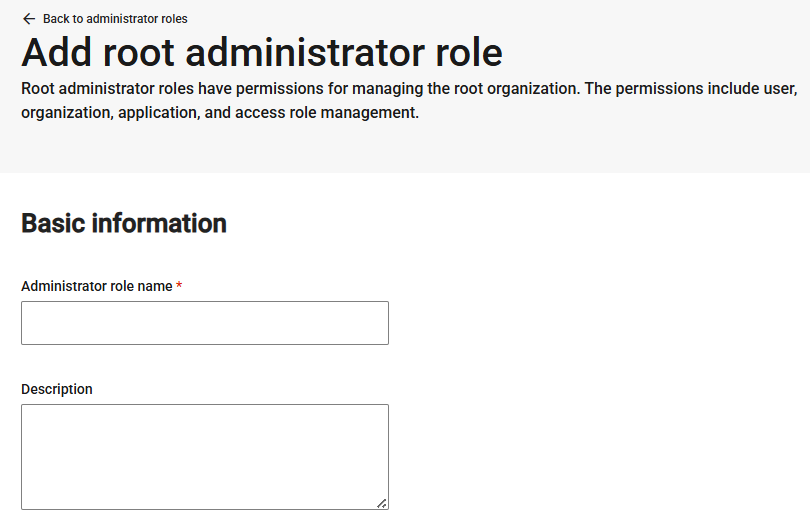
Root administrator roles have permissions for managing the root organization. The permissions include user, organization, application, and access role management.
-
Other administrator roles have permissions for managing specific organizations, excluding the root organization. These permissions include managing users and access roles.
-
-
Enter a name and description for the role.
The name must be unique across all organizations in your tenant.
-
Select the permissions to include in the role. Selecting a permission that contains other permissions also selects those permissions.
-
User management: Manage users, invitations, and role assignments.
- Users
- View user information
- Edit user information
- Block / unblock user
- Delete user
- Reset password
- View user event logs
- View user authenticators
- Update user authenticators
- Delete user authenticators
- Users
-
Invitations
- Invite user
- View invitation
- Resend invitation
- Withdraw invitation
-
Access role assignments
- View user's access role assignments
- Edit user's access role assignments
-
Organization management: Manage organizations and access role assignments.
- Add organization
- View organization
- Edit organization
- Activate / deactivate organization
- Delete organization
- Access role assignment
- View organization's access role assignments
- Edit organization's access role assignments
-
(Root administrator only) Application management: Configure applications and manage application permissions
- Add application
- View application
- Edit application
- Activate / deactivate application
- Delete application
-
Access role management: Create and edit access roles by selecting application permissions.
- Add access role
- View access role
- Edit access role
- Activate / deactivate access role
- Delete access role
-
Administrator management
- Scope
- Add scope
- View scope
- Edit scope
- Delete scope
- Scope
-
-
Select Save.
Edit an administrator role
Administrators in the root organization with sufficient permissions can add or remove permissions for an administrator role.
The administrator role must retain at least one permission. The system does not allow you to remove all permissions from an administrator role.
-
In the left pane, select Administrators > Administrator roles.
-
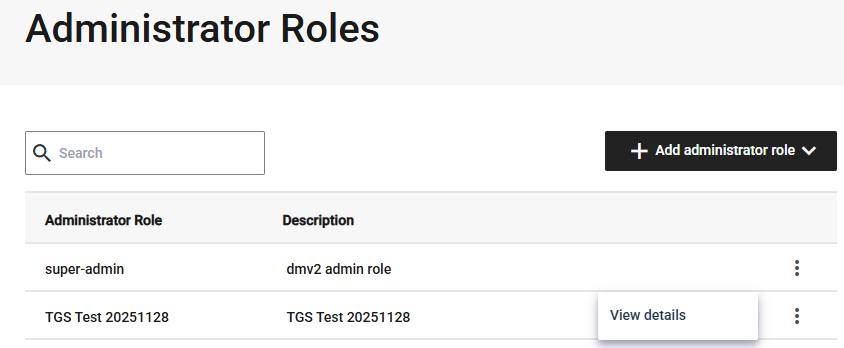
In the menu for the administrator role, select View details.
-
Make the changes as needed.
-
Select Save.
Delete an administrator role
Administrators in the root organization with sufficient permissions can remove an admin role if, for example, it is no longer useful.
You can only delete administrator roles that are not assigned to any users. If the role is assigned, remove it from the users first, and then you can delete the role.
-
In the left pane, select Administrators > Administrator roles.
-
In the menu for the administrator role, select View details.
-
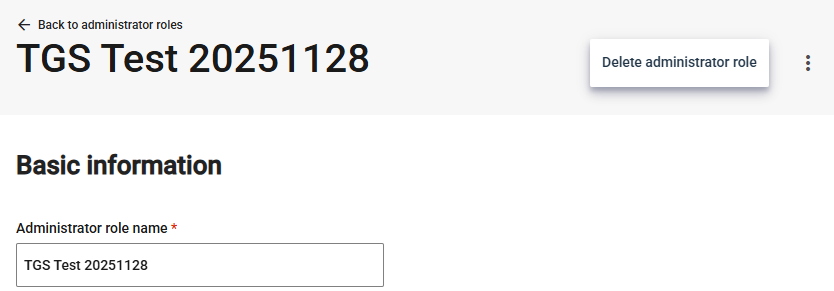
On the administrator role details page, in the menu at the top-right of the page, select Delete administrator role.