Organizations
Delegated User Management v2 allows you to manage access to organizations using a parent-child delegation-model based on roles. A parent organization defines the set of access roles available to its immediate children. A child organization is limited to the access roles that the parent has made available.
In Delegated User Management, an organization can be any distinct entity in the system that groups users. Organizations typically correspond to business groupings like partner or customer companies, or sub-divisions of these companies.
The purpose of organizations is to group users in a way that makes sense for managing users and their access. The organizations define boundaries for administrator scope. For example, a delegated manager might be allowed to manage only users in their own organization, or in their own organization and all child organizations.
Thales provisions you with a root organization. From the root organization, you can create sub-organizations. Each organization can have their own child organizations that reflect hierarchical business relationships.
In the Delegated User Management application, the current organization is always shown at the top of the screen. In the following screen shot, the current organization is named Root.

Note
In the screenshots that follow, tabs such as Access roles and Users display only if your role permits.
View the list of organizations
In the left navigation pane, select Organizations. The table lists the organizations that you have access to, and can include the following columns:
| Column | Description |
|---|---|
| Organization | The name of the organization. |
| Type | The type of the organization. The root organization provisioned by Thales has the type admin-system-root. |
| External Id | An optional identifier that you can use to reference the organization in your own systems. |
| Status | Whether the organization is Active or Inactive. For details, see Make an organization active or inactive. |
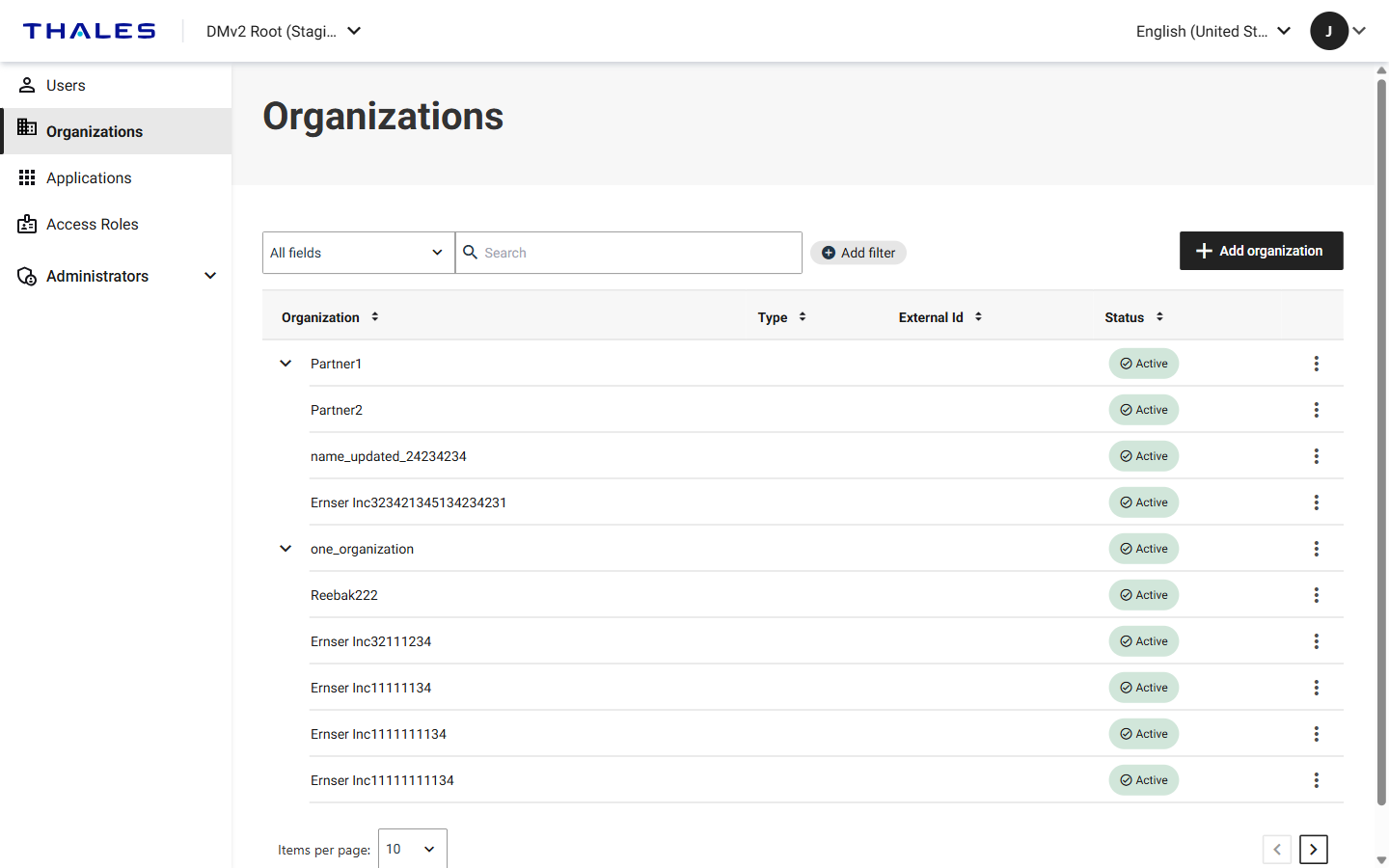
For details about how to search, filter, and page through the table, see Search, filter, and page through lists.
View the organization hierarchy
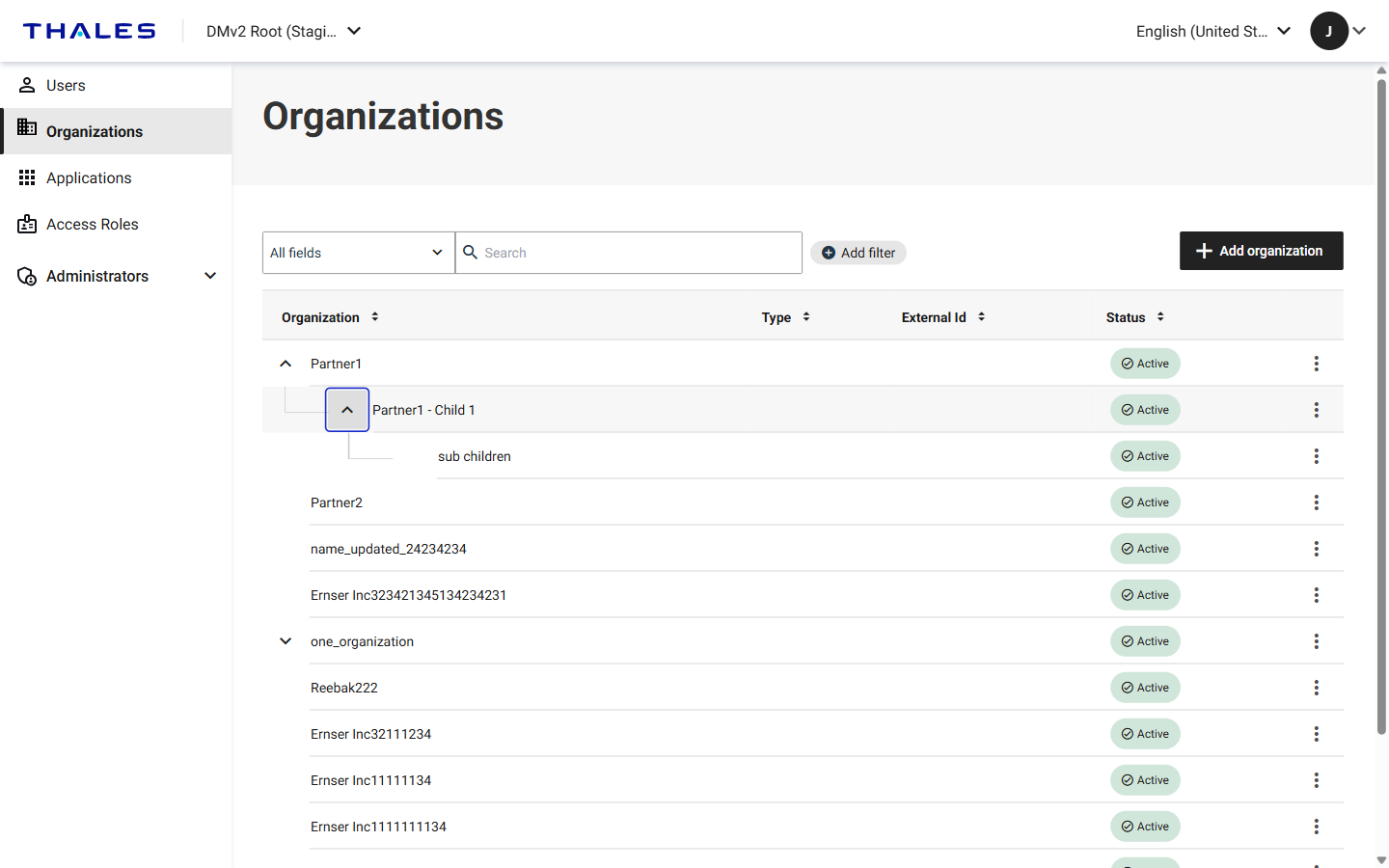
Organizations that have child organizations include an Expand row control. Select Expand row to list the child organizations directly beneath the parent. If a child organization has its own child organizations, you can expand it to view the hierarchy through the levels that you have access to.
View organization details
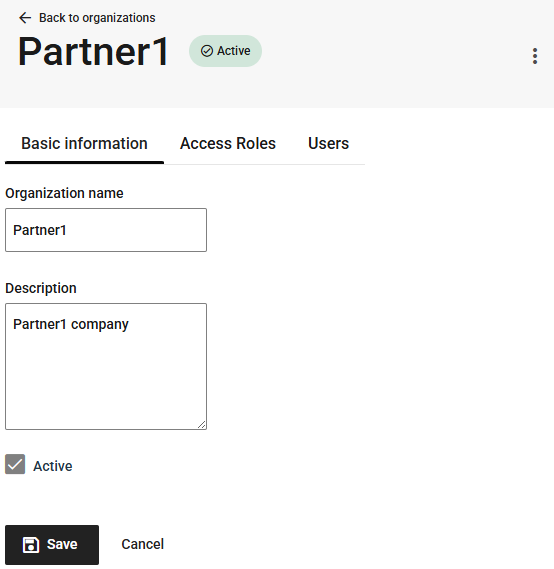
You can view the details for any organization that you have access to. When you view the details for an organization, you can update the basic information, or add or remove access roles.
-
In the left navigation pane, select Organizations.
-
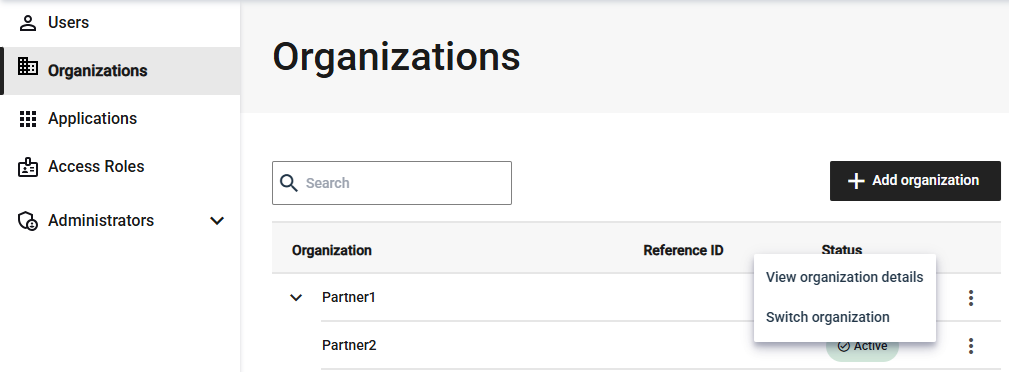
On the Organizations page, select the menu for the organization that you want to view, and then select View organization details.
Switch organizations
In Delegated User Management, you can switch organizations. When you switch organizations, you see only the organization that you switch to and any of its child organizations.
Alternatively, if you are a member of multiple organizations, you can log in to any of those organizations where you have an administrator role. For example, you can log in as a user with access to a child organization.
-
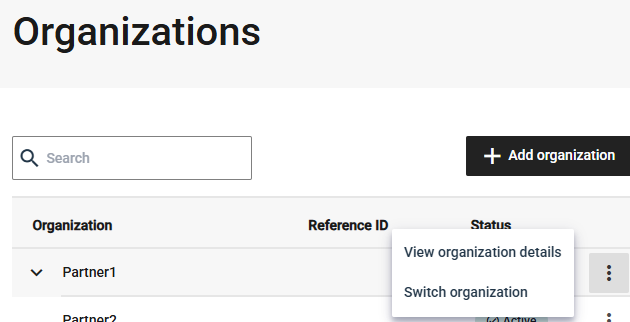
On the Organizations page, select the menu for the organization that you want to switch to, and select Switch organization.
-
When prompted to confirm that you want to switch your context to the selected organization, select Switch organization.
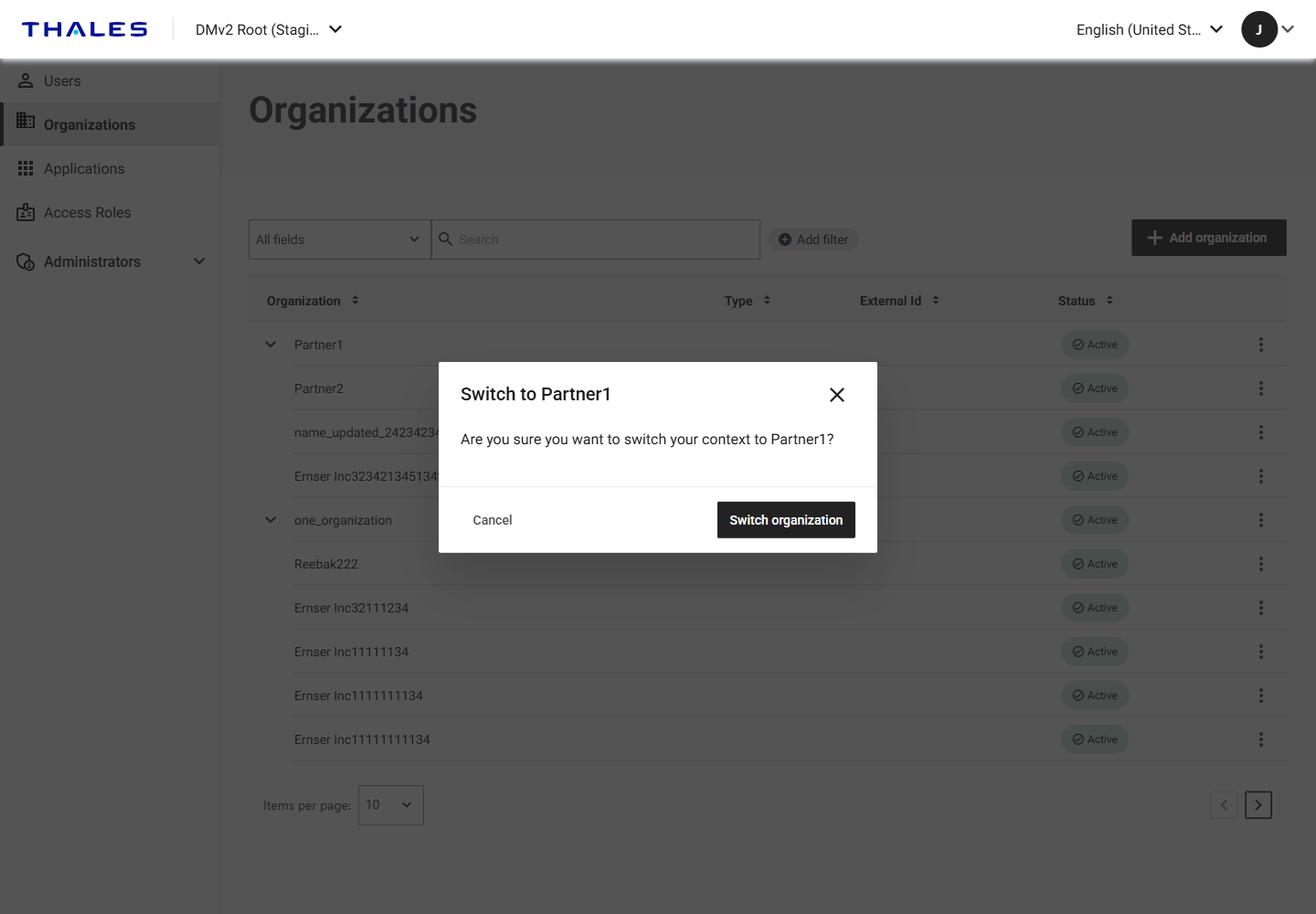
After you switch organizations, the Users page opens, so that you can see the users in that organizations.
The top of the screen shows the name of the organization that you switched to and includes an option to switch back to the previous organization, or the organization that you are logged in to.

Add an organization
You can add an organization, such as an external business partner, to more easily and securely share your protected resources. Each organization can have its own name, its own access role entitlements, and its own delegated administrators (if any).
The system adds the organization as a child of the current organization (either the organization that you logged in to, or the organization that you switched to).
After you add the basic information for an organization, you need to add access roles to the organization.
-
On the DMv2 console, select Organizations.
-
If necessary, switch to the organization under which you want to create a child organization.
-
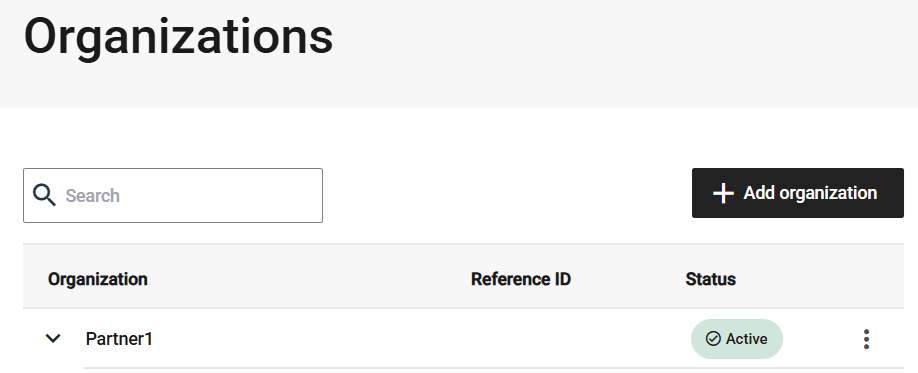
Select Add organization.
-
On the Add organization page, on the Basic information tab, enter an Organization name and any other required information.
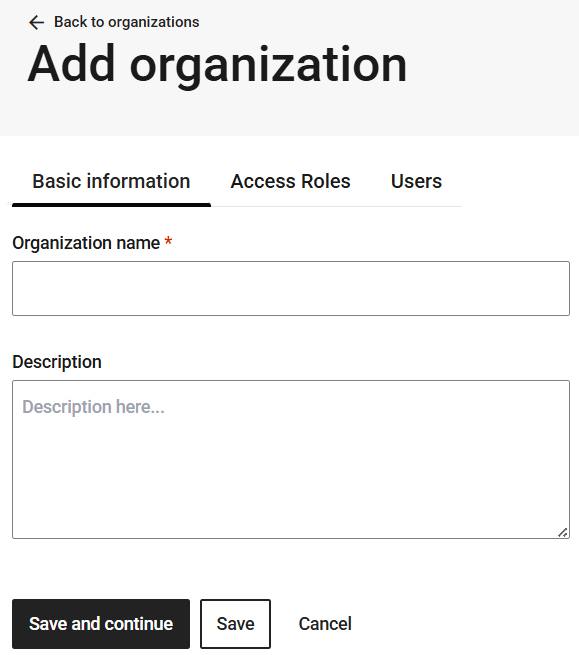
All tenants include the organization name and description, but some tenants might be configured to include additional attributes.
-
Save the organization:
-
To save and add access roles now, select Save and continue.
-
To save and access roles later, select Save. The Organizations overview page includes the new organization.
-
Add access roles to an organization
When an access role is available to an organization, you can assign it to users in that organization. You can only choose from access roles that are available to the parent organization.
-
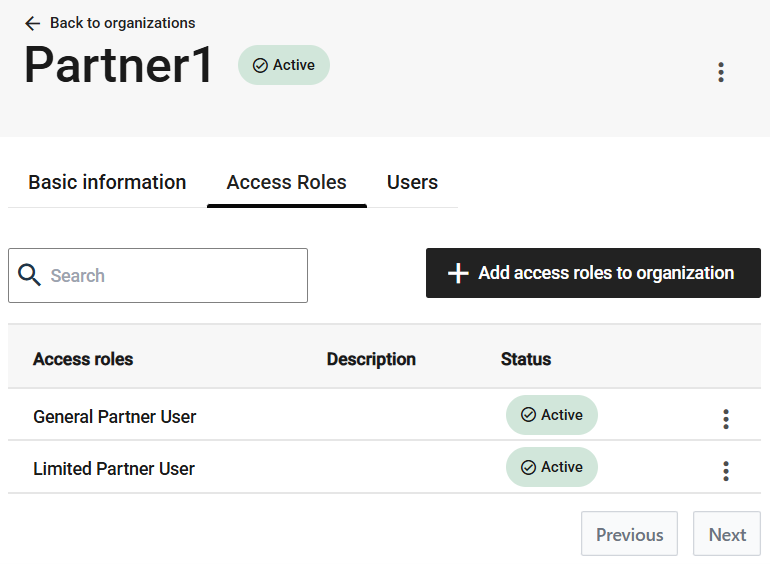
On an organization page, select the Access roles tab.
-
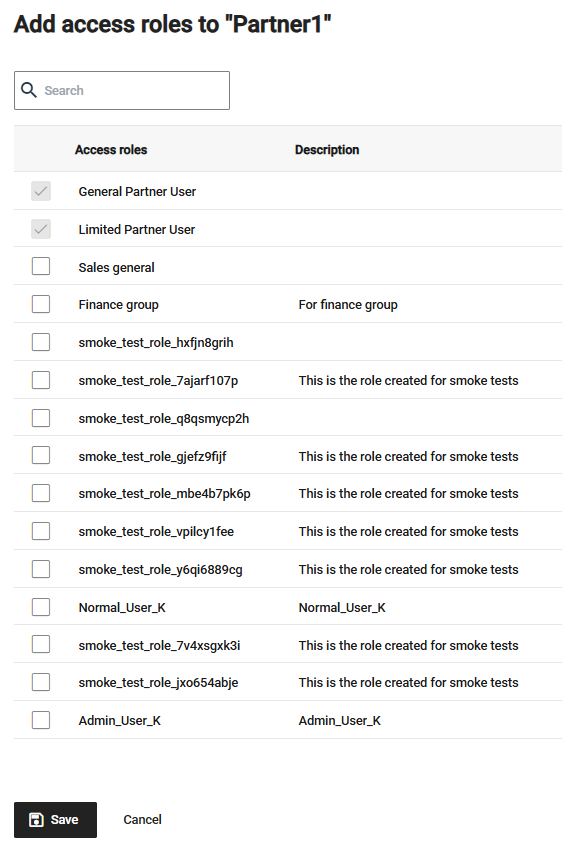
Select Add access roles to organization.
-
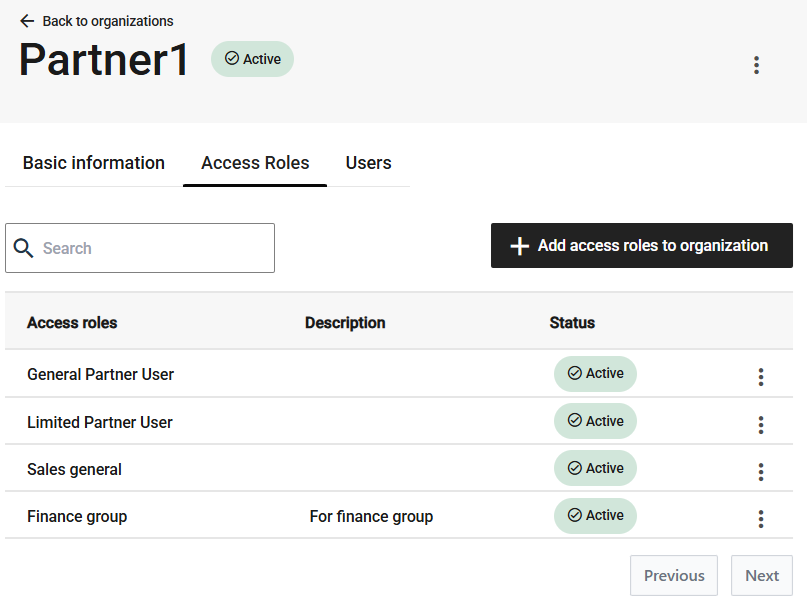
Select the access roles that need to be available to add to users in this organization, and then click Save.
The Access roles tab lists the roles that you selected.
Remove an access role from an organization
You can remove an access role from an organization so that it is no longer available to assign to users in that organization.
You can only remove access roles in the following circumstances:
-
The access roles are not already assigned to any user in the organization.
-
The access roles are not available to any of the organization's sub-organizations.
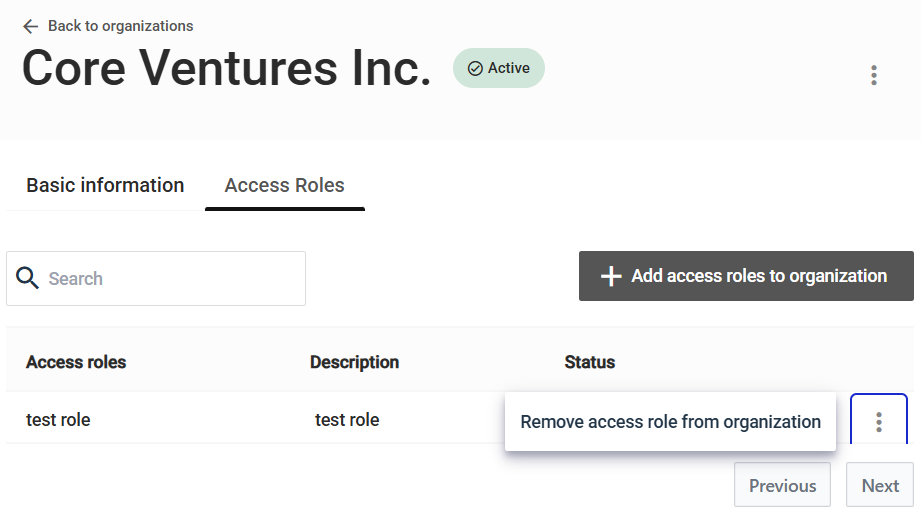
On the Access roles tab, select the menu for the access role that you want to remove, and then select Remove access role from organization.
Manage the users in an organization
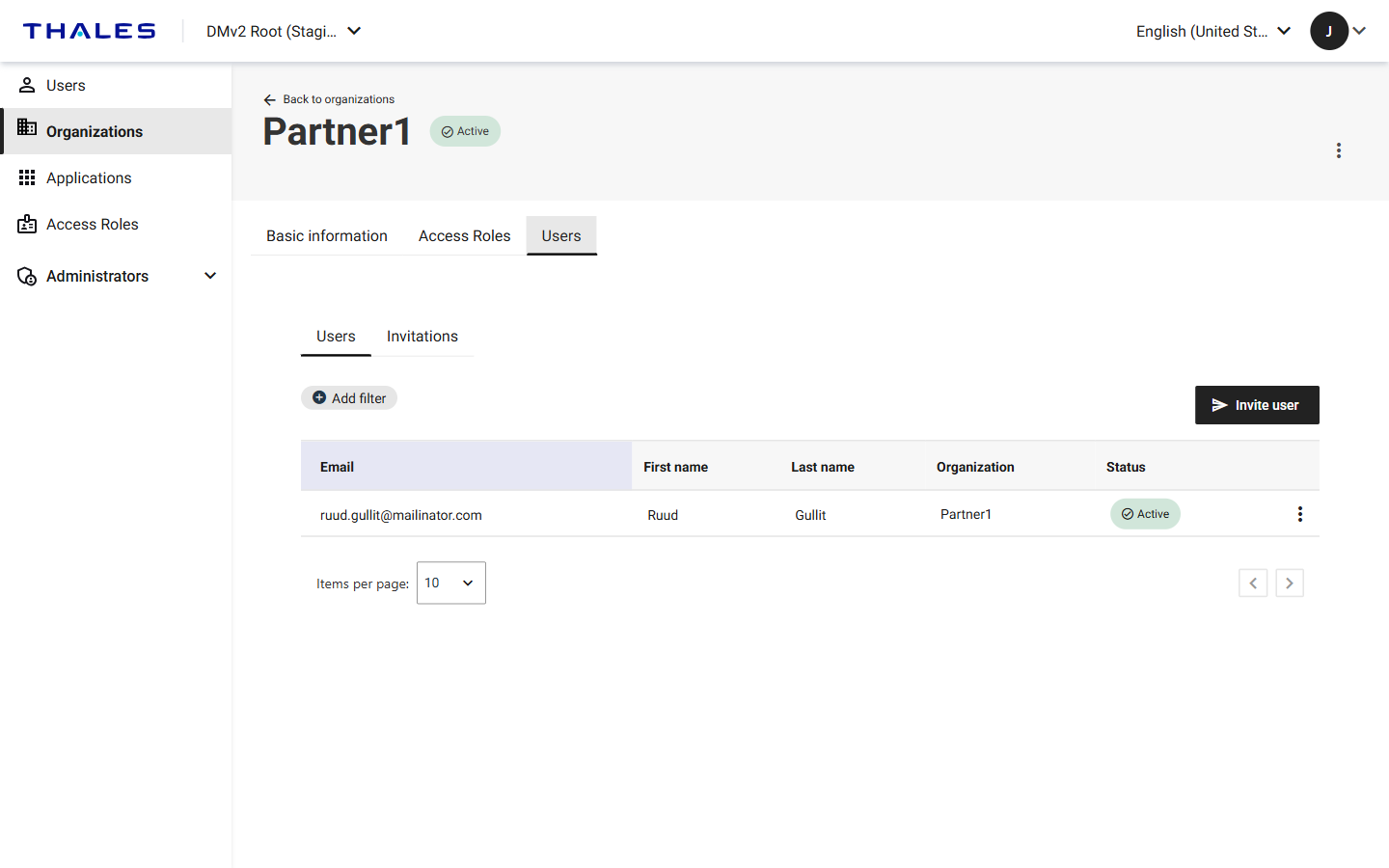
The organization details page includes a Users tab, which lists the users and invitations for that organization. The tab provides the same Users and Invitations views as the Users page, but only for the organization that you are viewing.
Because the tab is already scoped to the organization, you can select Invite user to invite a user to that organization without first switching to it.
-
On the Organizations page, select the menu for the organization, and then select View organization details.
-
Select the Users tab.
Make an organization active or inactive
Users can access resources only through an active organization. An inactive organization still exists in the system but no longer grants access to its users.
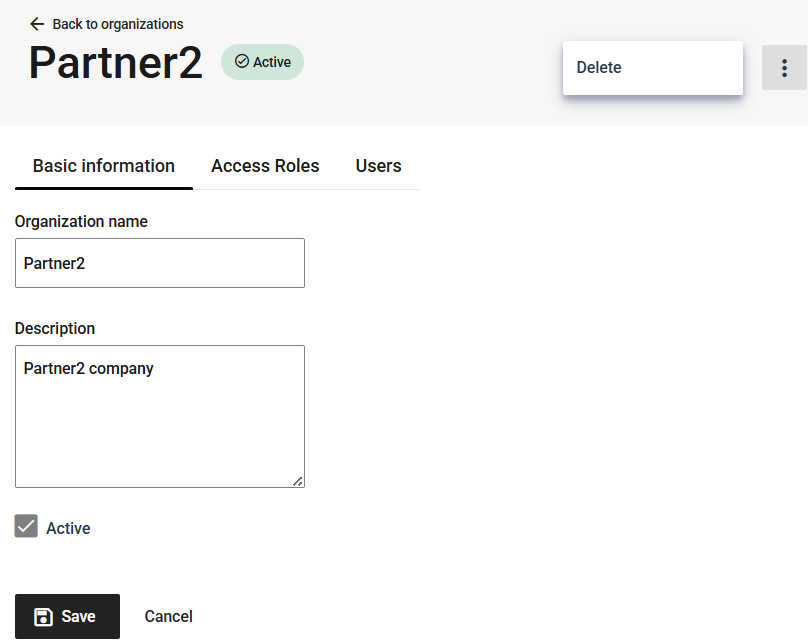
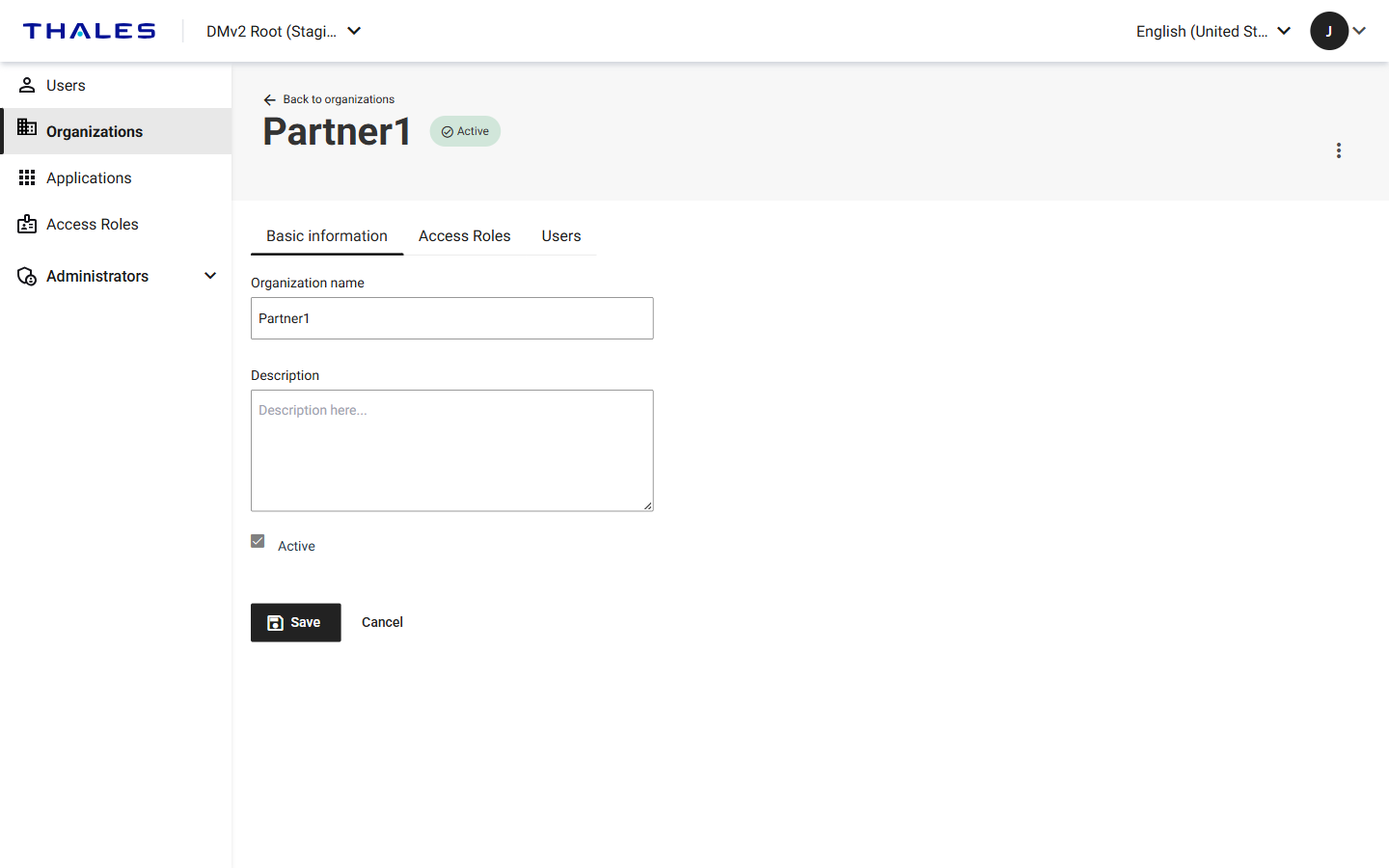
The Status column on the Organizations page and the tag next to the organization name on the details page indicate whether an organization is Active or Inactive.
-
On the Organizations page, select the menu for the organization, and then select View organization details.
-
On the Basic information tab, select or clear the Active check box.
-
Select Save.
Delete an organization
You can delete child organizations that have no users. For example, you might want to delete an organization where the corresponding business entity no longer exist or is no longer relevant.
An organization that has child organizations cannot be deleted. If you try to delete it, the system reports that the organization cannot be deleted because it has child organizations and prompts you to delete or move the child organizations first.
The root organization cannot be deleted.
-
On the Organizations page, select the menu for the organization that you want to delete, and then select View organization details.
-
On the organization details page, in the top-right menu, select Delete.