



iOS hybrid transport
This page explains how to set up your iOS app to support hybrid authentication (cross-device authentication) using the Mobile FIDO SDK.
Warning
Hybrid authentication is only supported on iOS 17 and above.
Backup Eligibility and Backup State enforcement
To support hybrid flows on iOS, the SDK enforces the credential Backup Eligibility (BE) and Backup State (BS) flags to be set to true in order to complete the credential creation and assertion flows. Device-bound passkeys are not eligible for backup and therefore cannot be used over hybrid transport. See known limitation iOS02 in the release notes.
Prerequisites
Before you set up hybrid authentication, you must configure app groups for your application. App groups enable the SDK to share data between your main app and extensions.
Implement hybrid authentication
Configure app groups
First, configure the app groups for your application:
// Configure the app groups
TGFFido2Config.setAppGroup("group.com.example.appgroup")
Enable passkeys extension
Guide the end users to enable this setting when they first set up your app for hybrid authentication.
Users need to enable your passkeys extension in their iOS settings:
- On iOS, open the Settings app.
- Navigate to Apps.
- Tap Passwords
- Tap AutoFill Passwords.
- In the list, enable your app's passkeys extension.
Set up the credential provider extension
In iOS 17 and above, the system camera automatically recognizes WebAuthn QR codes and prompts the end user to select an app to create or sign in with their passkey.
The Mobile FIDO SDK provides a ready-to-use Mobile FIDO UI SDK to simplify the implementation of a credential provider extension for hybrid authentication. You can leverage these components to quickly set up your extension.
Use the Mobile FIDO UI SDK
The Mobile FIDO UI SDK provides two key classes for handling hybrid authentication:
-
TGFCredentialProviderViewControlleris a base class that inherits fromASCredentialProviderViewControllerto handle theCredential Providerhybrid authentication flow. -
TGFFido2AutofillViewControllermanages the FIDO2 operations and UI for authentication and registration.
To implement your credential provider extension:
-
In your Xcode project, create a new
AutoFill Credential Providerextension target.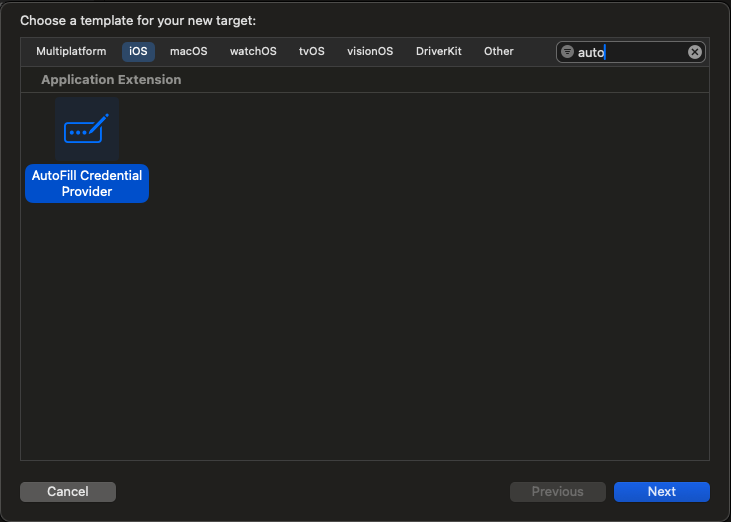
-
In your extension's view controller, use subclass
TGFCredentialProviderViewController. -
Configure the Mobile FIDO SDK with your app groups identifier. Ensure that the same identifier reflected on the app's entitlements file.
import AuthenticationServices
import Fido2
import Fido2Ui

class CredentialProviderViewController: TGFCredentialProviderViewController {

    required init?(coder: NSCoder) {
        super.init(coder: coder)
        setupConfigurations()
    }

    // MARK: - Fido2 Configuration
    private func setupConfigurations() {
        TGFFido2Config.setupSecureLog(nil)
        TGFFido2Config.setAppGroup("group.com.example.appgroup")
    }
}
With this implementation, the app extension automatically supports the hybrid authentication flow with minimal additional code.
To test hybrid authentication:
-
Set up a test website that supports WebAuthn and hybrid authentication (for example, webauthn.io).
-
On a desktop browser, initiate registration or authentication.
-
Select the option to use another device.
A QR code is displayed in the browser.
-
On your iOS 17+ device, open the camera app and scan the QR code.
-
When iOS recognizes the WebAuthn QR code and prompts you, select where to save or use a passkey.
Your extension launches and handles the WebAuthn request using the Mobile FIDO UI SDK.
-
When prompted, complete the user verification process.
-
Verify that the authentication and registration completes successfully on the browser.
Hybrid flow overview
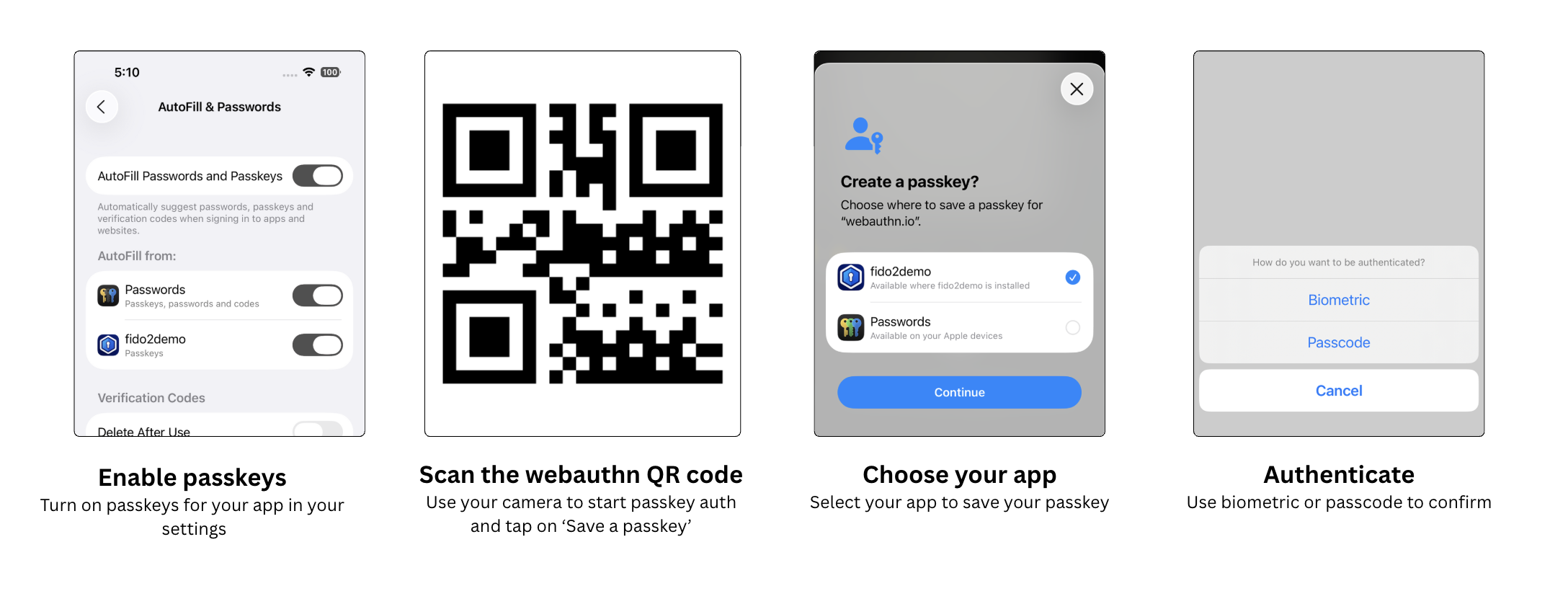
The hybrid flow observed on iOS is as follows:
-
Enable passkeys: Users need to turn on passkeys for the app in their iOS settings.
-
Scan the QR code: Users scan the authentication QR code with their device camera.
-
Choose your app: The system prompts users to select the app to save or use the passkey.
-
Authenticate: Users complete authentication using biometric or passcode verification.
Troubleshooting
-
Passkey extension not appearing: Ensure that the app extension is properly enabled in the iOS settings and that the correct entitlements are provided.
-
QR code not recognized: Ensure that the device is running on iOS 17 or later and that the QR code is a valid WebAuthn request.
-
Data migration failures: If data migration fails, it might be necessary to reset the SDK state using
TGFFido2Client.reset()and guide users through re-registering their credentials. -
App groups configuration: Verify that the app groups identifier matches exactly between the app's entitlements, app extension's entitlements, and SDK configuration.

