Scopes
When you assign an administrator role, you can select the scope. Scopes can be defined along different dimensions:
-
Organizations: Restrict the organizations that an administrator can manage. Administrators can manage only users who belong to the organizations that are included in the scope.
-
Access roles: Restrict the access roles that an administrator role can manage. Administrators can manage only users with the access roles that are included in the scope.
View the list of scopes
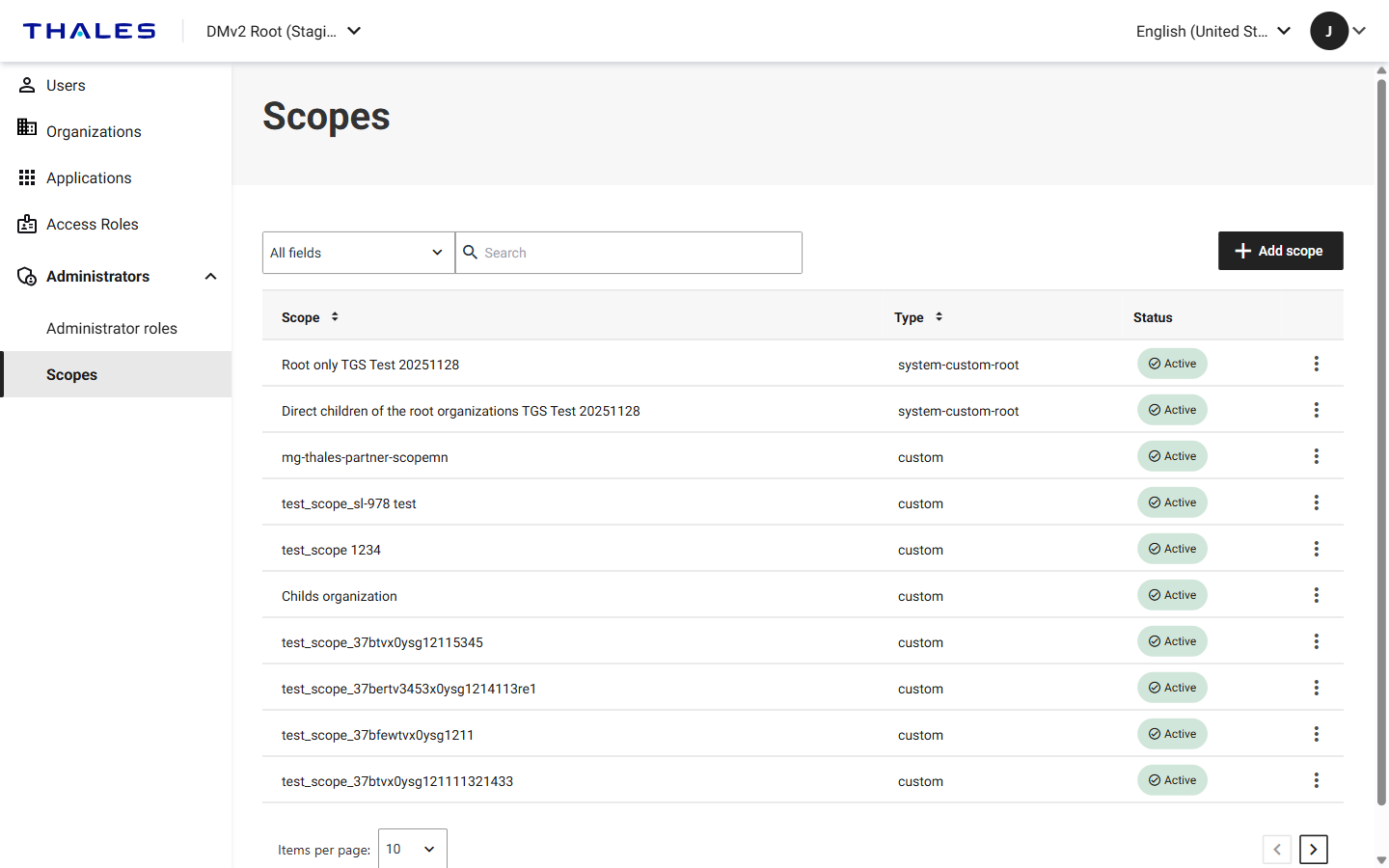
In the left navigation pane, select Administrators > Scopes. The table lists the scopes that are available in the current organization and includes the following columns:
| Column | Description |
|---|---|
| Scope | The name of the scope. |
| Type | Whether the scope is provided with the system or defined by an administrator. See the following table for descriptions of the values. |
| Status | Whether the scope is Active or Inactive. You can only apply active scopes when you assign an administrator role. |
The Type column can contain the following values:
| Type | Description |
|---|---|
system-custom-root |
A scope that is provided with Delegated User Management. These scopes cover standard organization selections, such as only the root organization or the organizations directly under the root organization. |
custom |
A scope that is defined by an administrator. |
For details about how to search and page through the table, see Search, filter, and page through lists.
Add a scope
You define custom scopes within the context of an organization, and those scopes exist only in context of that organization.
-
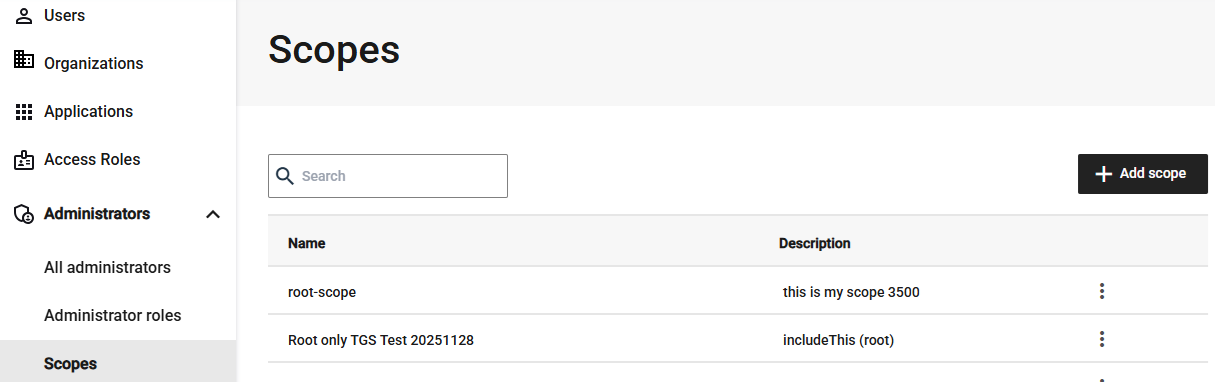
In the left page, select Administrators > Scopes, and then select Add scope.
-
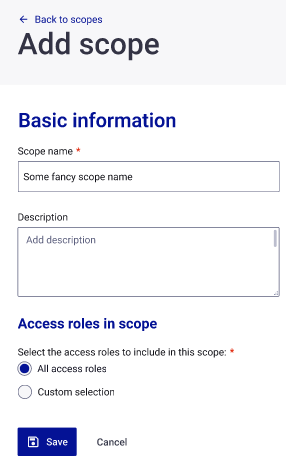
On the Add scope page, enter a Scope name and optional Description.
-
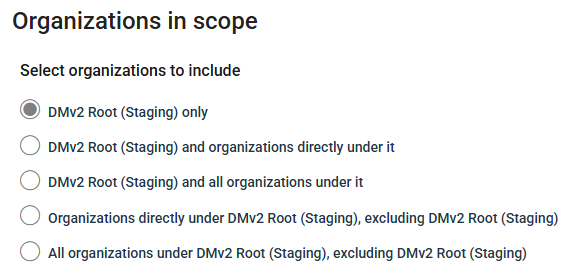
Under Organizations in scope, select the organizations to include in the scope.
The options are relative to the organization that you are currently in, and each option includes the name of that organization. For example, if you are in the root organization and its name is DMv2 Root (Staging), the options are:
- DMv2 Root (Staging) only
- DMv2 Root (Staging) and organizations directly under it
- DMv2 Root (Staging) and all organizations under it
- Organizations directly under DMv2 Root (Staging), excluding DMv2 Root (Staging)
- All organizations under DMv2 Root (Staging), excluding DMv2 Root (Staging)
-
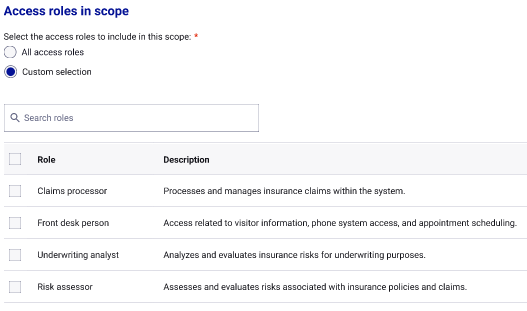
Under Access roles in scope, select the access roles to include in this scope:
-
All access roles: The scope applies to all access roles that are available to the organization.
-
Custom selection: Select the access roles that the scope applies to:
-
-
Select Save.
Edit a scope
You can change the name, description, organizations, and access roles of a scope. For example, you can widen a scope to include additional organizations.
Changing a scope affects every administrator role assignment that uses the scope.
-
On the Scopes page, select the menu for the scope that you want to change.
-
In the menu, select View details.
-
Update the Scope name, Description, Organizations in scope, or Access roles in scope.
-
Select Save.
Delete a scope
-
On the Scopes page, select the menu for the scope that you want to delete.
-
In the menu, select View details.
-
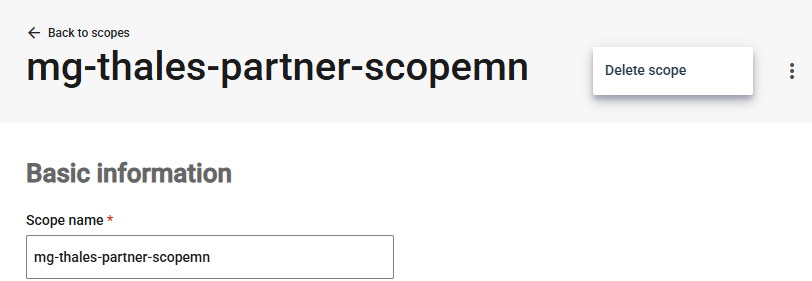
In the top-right menu on the scope details page, select Delete scope.