



Access roles
Access roles grant users with entitlements to access applications. Each access role is a collection of permissions from one or more applications. These permissions define the access rights for a user and give granularity to what the user can do in an application. This becomes part of the user's access token for the app, which includes list of permissions in a form that the application can understand.
After you define the access roles, you add them to organizations. From the organizations, you can assign the roles to users in that organization. If a user belongs to multiple organizations, they can have different roles in each organization.
Only administrators in the root organization can add, edit, or delete access roles.
Add an access role
An access role includes permissions for a set of applications that correspond to the needs of a specific user population. Each application includes a set of permissions that you can choose from.
-
Switch to the root organization.
-
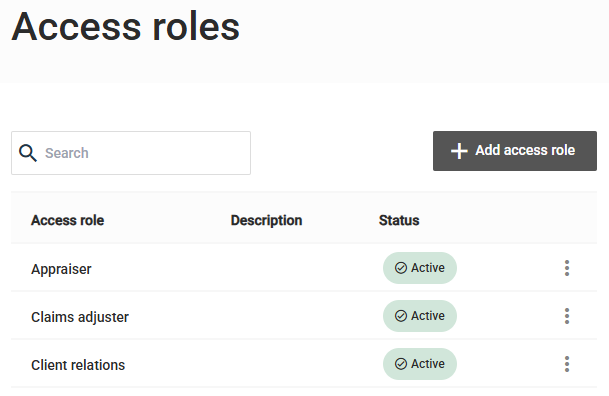
In the left page, select Access roles.
-
On the Access roles page, select Add access role.
-
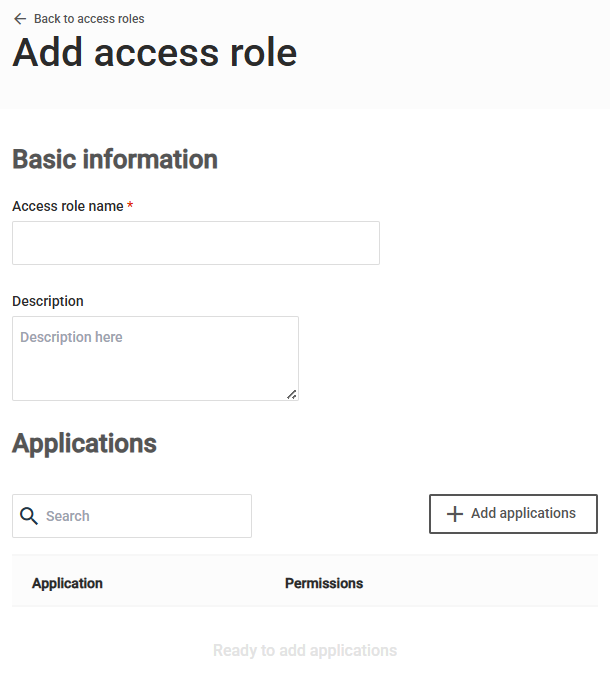
Under Basic information, enter the Access role name and (optional) description.
The access role name must be unique across the tenant.
-
Under Applications, select Add applications.
-
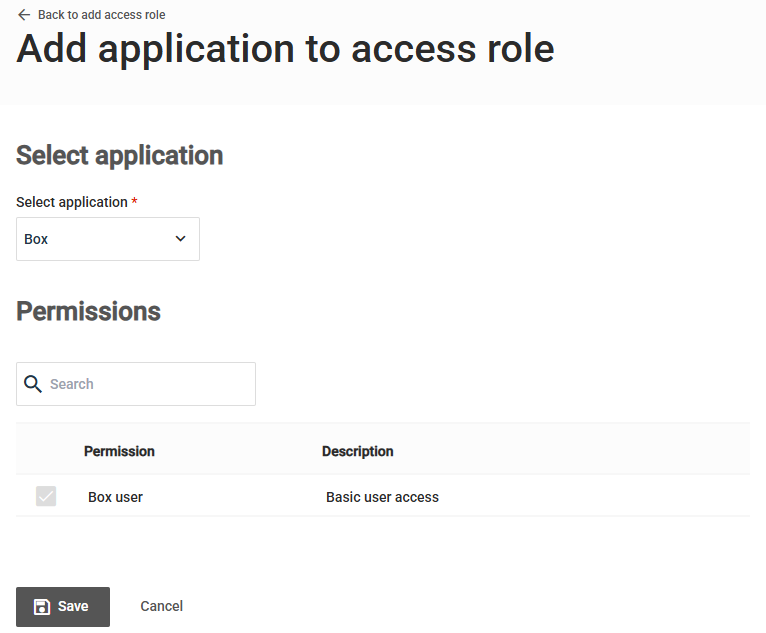
On the Add application to access role page, select the Application.
-
Under Permissions, select the check box for each permission that you want to include in the access role.
-
Select Save.
Edit an access role
The access role must retain at least one application with one permission. The system does not allow you to save an access role with no applications or permissions. if an access roles was previously assigned to a user and is changed to inactive state, then the access role no longer grants that user any permission, until it is reactivated again.
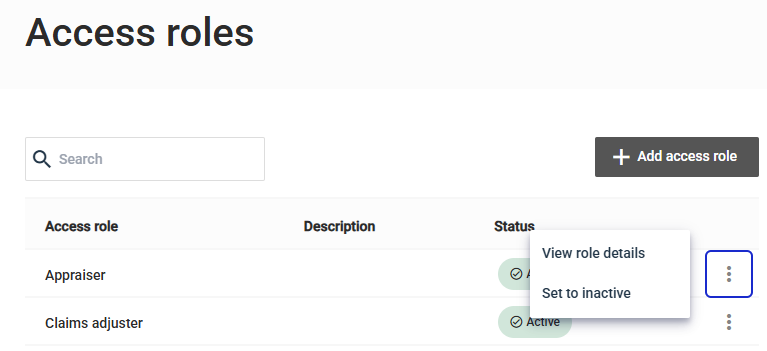
- On the Access roles overview page, in the menu for the access role, select View role details and then update the role.
Update the permissions for an application in an access role
After you add an application to an access role, you can change the permissions that the role grants. For example, you can grant an additional permission to everyone assigned to the role.
-
On the Access roles overview page, in the menu for the access role, select View role details.
-
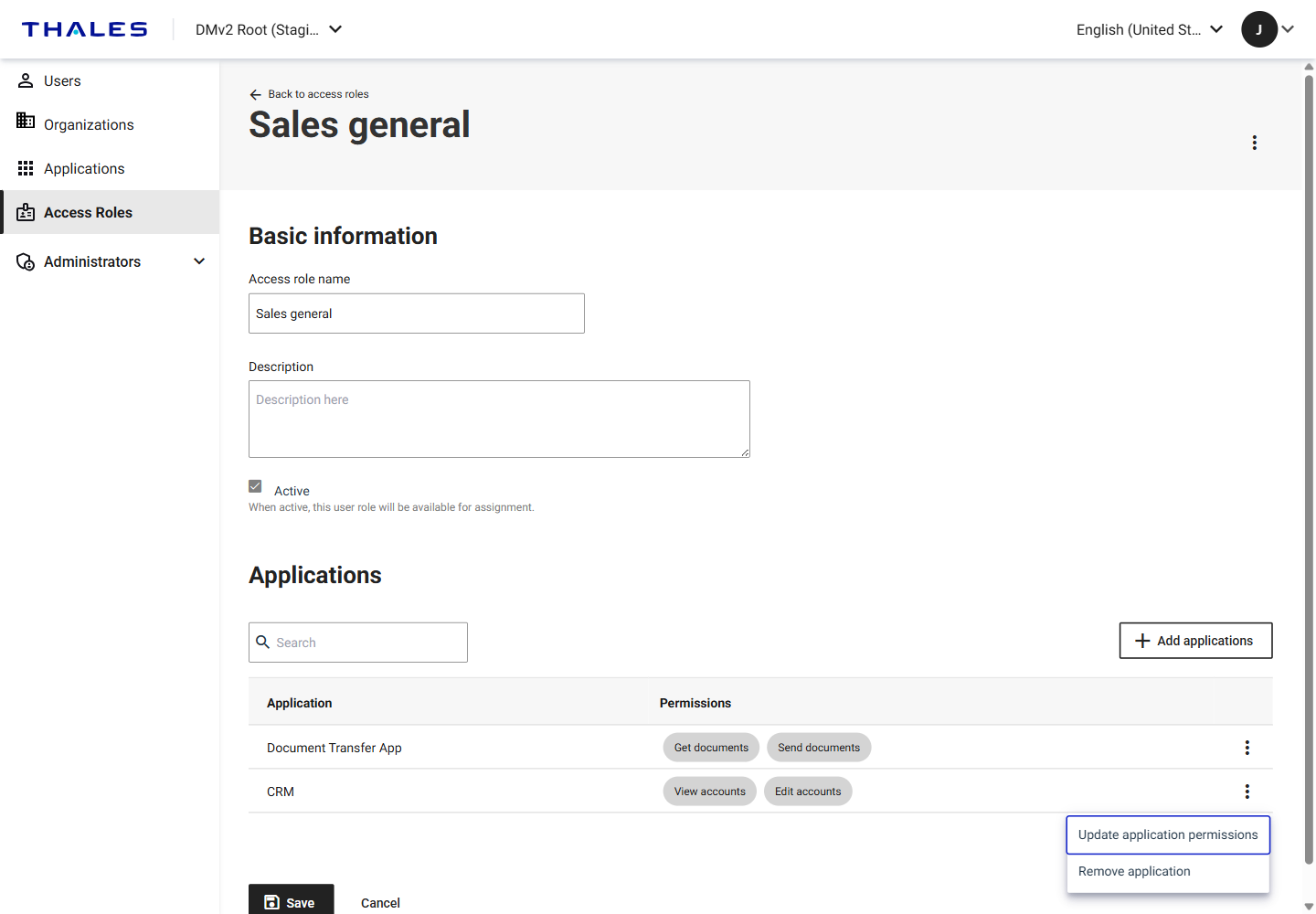
Under Applications, in the menu for the application, select Update application permissions.
-
Select the check box for each permission that you want to include, clear the check box for each permission that you want to remove, and then select Save.
You must keep at least one permission selected. The system does not allow you to save an application in an access role without any permissions.
Remove an application from an access role
You can remove an application from an access role so that the role no longer grants access to the application.
Removing an application affects everyone assigned the access role. These users can no longer use the application. You can add the application to the access role again later.
The access role must retain at least one application. To remove the last application, delete the access role.
-
On the Access roles overview page, in the menu for the access role, select View role details.
-
Under Applications, in the menu for the application, select Remove application.
-
When prompted, select Remove application.
Make an access role active or inactive
You can only assign active access roles to users. You cannot assign inactive access roles, but they still exist in the system.
When an access role is made inactive, it no longer grants permissions to any users that it is assigned to. Those permissions are returned when the access role is made active.
Make an access role active or inactive in either of the following ways:
-
On the Access roles overview page, in the menu for the access role, select Set to inactive or Set to active.
-
On the access role details page, select or clear the Active check box, and then select Save.
When you set an access role to inactive, the system asks you to confirm the change because it affects all users assigned the role.
Delete an access role
Delete an access role to remove it from the system. For example, you might want to delete an access role that is no longer useful and should no longer be used.
You can only delete an access role that is not assigned to a user. If a role is assigned to users, you can remove it from those users and then delete it.
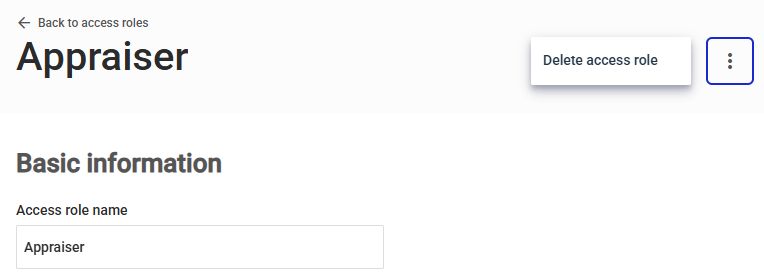
- On the access role details page, in the top-right menu, select Delete access role.
Next steps
-
Add access roles to an organization so that they are available to assign to users in that organization.
-
Assign access roles to users. After you add access roles to an organization, you can assign those roles to users.

