



Running the ADFS solution
This section describes the authentication flows with SafeNet Agent for ADFS when the agent authenticates against SafeNet Trusted Access (STA).
With STA, the agent presents a single authentication method, determined by the Default OTP Policy on the agent's Policy tab. Users are not offered a choice of authenticator at sign-in.
Sign-in flow
For the user, the login flow is as follows:
-
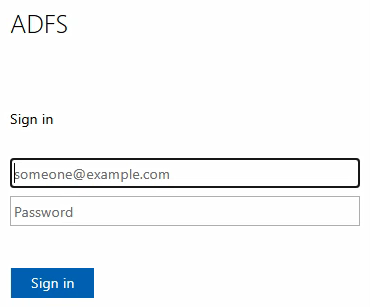
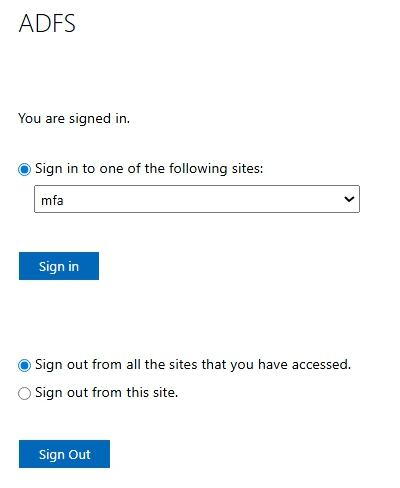
The user goes to the ADFS sign-in page, selects the site to sign in to, and then selects Sign in.
-
The user enters their AD credentials and selects Sign in.
-
After primary authentication succeeds, the agent presents the second factor that you configured in the Default OTP Policy.
Default OTP Policy What the user sees Push Challenge The user receives a push notification on their MobilePASS+ authenticator and approves it to complete sign-in. Manual Challenge The agent prompts for a passcode. The user supplies one from an authenticator app, a hardware token, an SMS or email message, or a temporary static password, and selects Submit. Manual Challenge with Pre-Generate Challenge The agent displays the GrIDsure grid. The user types the characters that correspond to their chosen pattern. 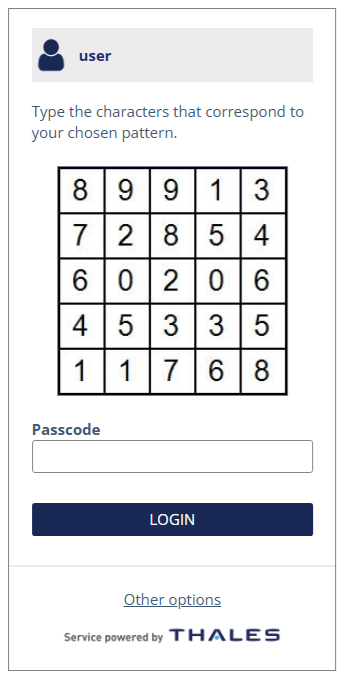
If Pre-Generate Challenge is not selected, a GrIDsure user can still display the grid by leaving the passcode field empty and selecting Submit.
-
After successful authentication, the user is signed in and the protected page is displayed.
Selecting an authenticator with a character prefix
When Manual Challenge is selected, users who hold more than one authenticator type can choose between push, SMS, and GrIDsure by typing a single character in the passcode field instead of a passcode:
| Character | Authenticator |
|---|---|
p |
Push OTP |
s |
SMS |
g |
GrIDsure |
If the user submits an empty passcode field, the behavior follows the Default OTP Policy.
Push with number matching
Available from SafeNet Agent for ADFS version 3.0.1. See the release notes.
In STA, you can configure MobilePASS+ authenticators to use the number matching feature instead of the Approve and Deny buttons. Number matching forces the user to match the number on the sign-in screen with the number in their SafeNet MobilePASS+ authenticator push notification.
Number matching makes push notifications more secure. Adding number matching to push notifications can protect against push fatigue or push bombing attacks, where the user is spammed with multiple push notifications until they eventually approve a notification just to make them stop. Number matching also prevents users from approving push notifications by mistake.
With STA, number matching applies to the push flow that the Push Challenge default OTP policy triggers. For the user, the login flow is as follows:
-
The user enters their AD credentials and selects Sign in.
-
The agent sends a push notification to the user's MobilePASS+ authenticator, and the sign-in screen shows the number that the user needs to match.
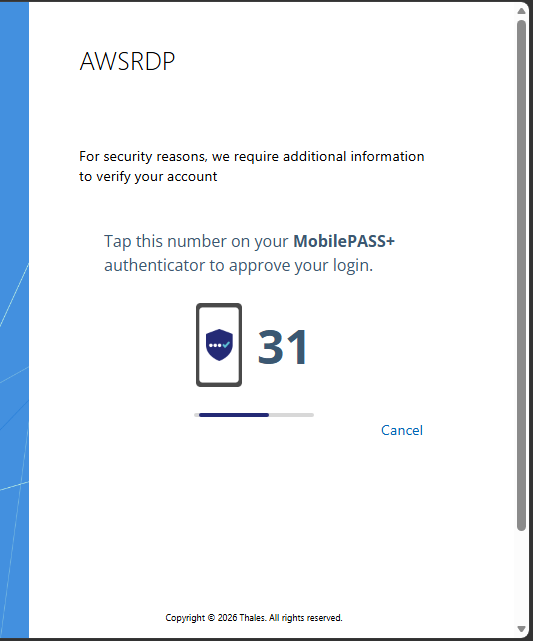
To stop the sign-in attempt without approving it, the user can select Cancel.
-
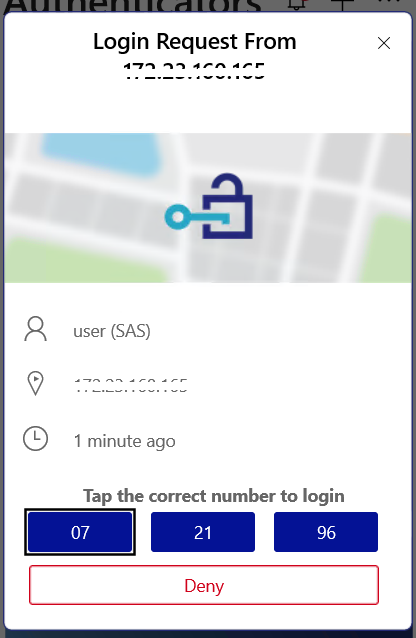
The user opens the MobilePASS+ authenticator on their mobile device or computer.
MobilePASS+ shows some numbers.
-
The user selects the number that matches the number on the SafeNet Agent for ADFS sign-in screen.
Office 365 and SafeNet Agent for ADFS
Ensure that you have registered for the Microsoft Office 365 service and promoted your domain to a federated domain.
Logging in to Office 365
-
Open ADFS Manager.
-
Enable the agent and then enable Forms Authentication as the Primary Authentication method.
-
Force MFA at the Extranet or Internet level.
-
Force MFA at the Global or Individual SP level.
-
Open a browser and log in to Microsoft Online.
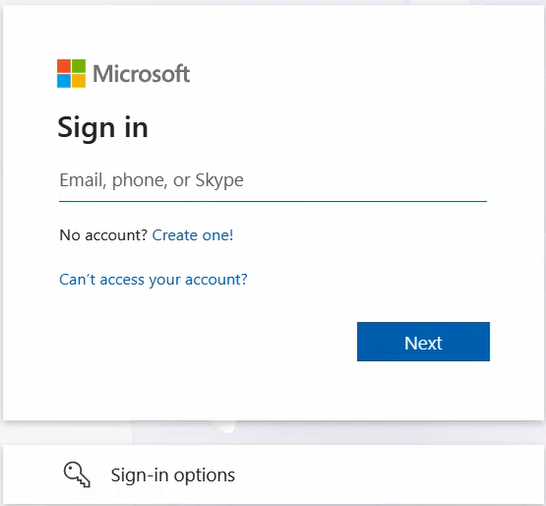
Sign-in Window examples
Primary authentication (Windows credentials)
Secondary authentication (SafeNet GrIDsure authenticator)

