



Passwordless Windows Logon
The Passwordless Windows Logon feature is MFA based on X.509 (PKI) standards, but, without the inherent complexities of a typical PKI solution. Achieving enterprise-wide passwordless authentication is a journey and Passwordless Windows Logon is the first step in that direction. It helps enterprises in:
-
Reducing operational expenses due to minimized help desk calls for password resets.
-
Providing superlative end-user experience to their employee, thereby improving their overall productivity.
-
Onboarding the enterprise-wide passwordless and modern authentication journey.
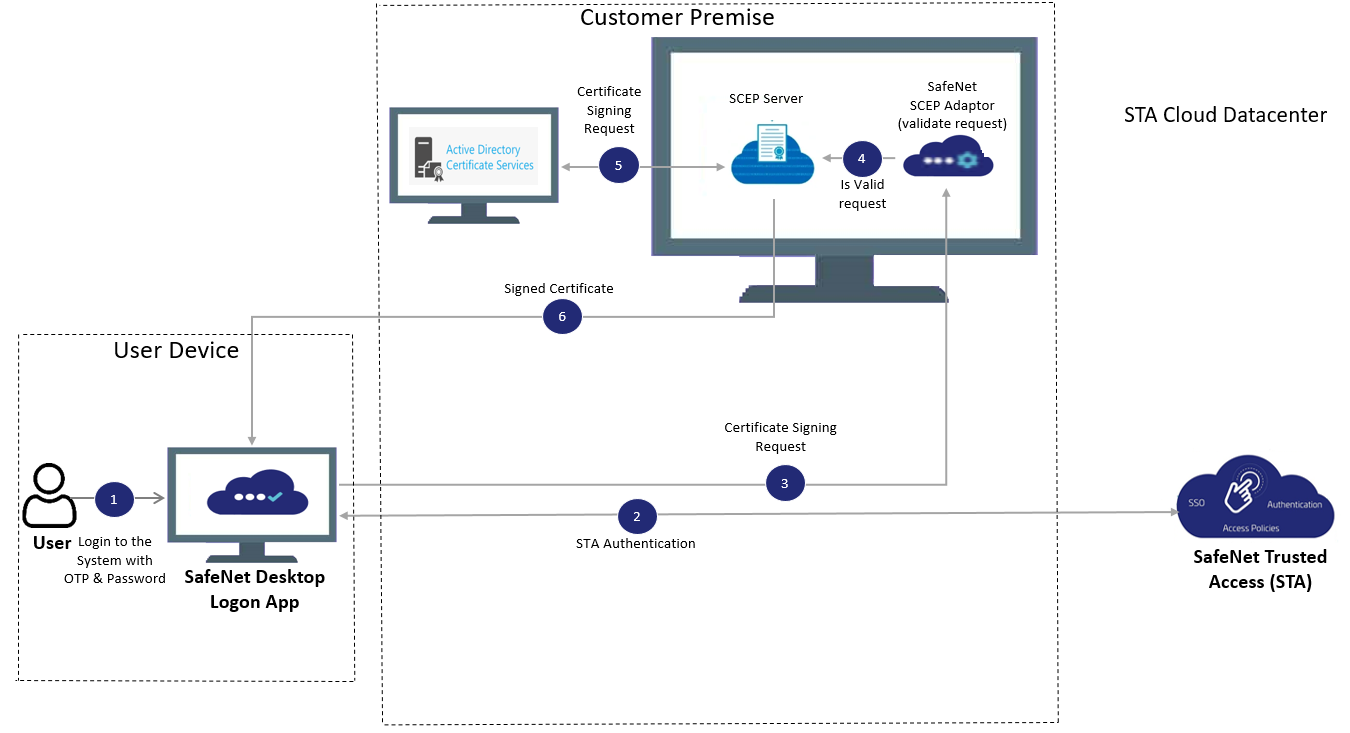 Figure: Passwordless Windows Logon – End-user enrollment
System Requirements
To use the Passwordless Windows Logon feature, the following requirements must be met:
Client-side requirements
| Communication Protocols | HTTPS (TLS1.2 and above) |
| Operating Systems |
NOTE: The Windows machines must be enabled with TPM 2.0. |
| Supported Authentication Tokens | All STA OTP-based authenticators currently supported by SafeNet Trusted Access (STA). For example, MobilePASS+, GrIDsure, and Hardware tokens. |
Server-side requirements
| Communication Protocols | HTTPS (TLS 1.2 and above) |
| Software Prerequisites |
|
For passwordless enrollment, both the client-side and server-side components must be in the corporate network.
Limitations
Following are the limitations of the passwordless solution in this release:
-
Maximum number of users supported on a shared machine is limited to eight.
-
App Sharing is not supported.
Passwordless Windows Logon Setup
To configure Passwordless Windows Logon:
Step 1: Set up Simple Certificate Enrollment Protocol (SCEP) Service:
- Active Directory Certificate Services (ADCS) Configuration: Install and configure Certification Authority Web Enrollment and Network Device Enrollment Service roles on domain joined server.
- Create, configure, and issue certificate template for Passwordless Windows Logon on the CA server.
- Configure SCEP service.
The above steps can be performed by executing the automation utility ADCS_SetupForPwdlessDesktopLogon.zip.
Step 2: Add the Windows Logon application in STA (if not already).
Step 3: Complete the procedure at Pre-installation, beginning at step 8 (Language Selection).
To setup Passwordless Windows Logon, click here.

