



Installation and configuration
Note
Administrative rights to the Windows system are required when installing, configuring, and uninstalling the SafeNet Agent for Microsoft Outlook Web App.
Overview
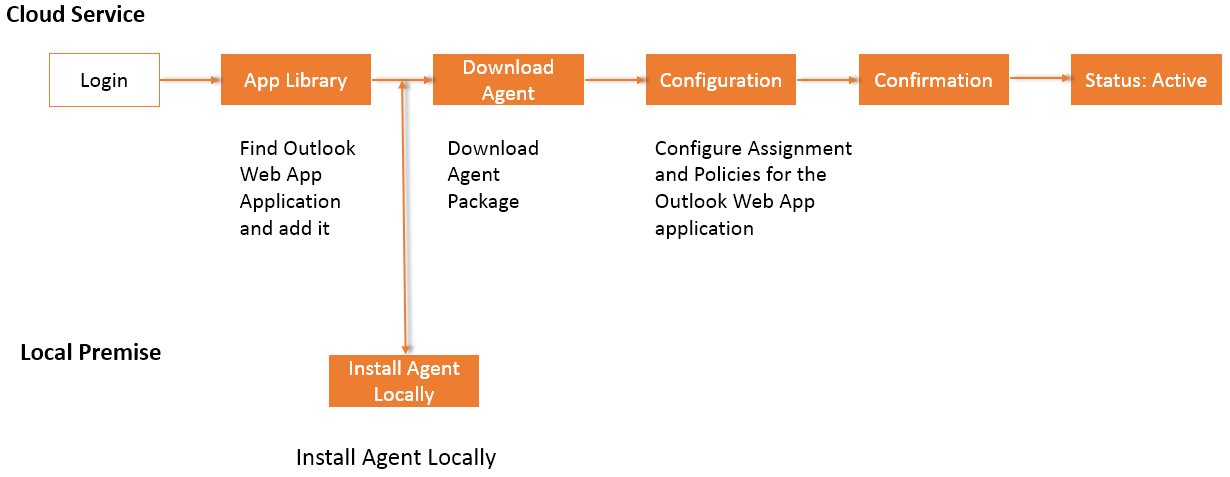
The following steps broadly depict the flow of actions for the agent solution:
-
Operator logs in to SafeNet Trusted Access (STA), searches for Microsoft Outlook Web App (OWA) within applications, and adds it.
-
Operator configures Microsoft OWA within STA. For more information, see Pre-Installation.
-
Operator downloads the SafeNet Agent for Microsoft OWA installation and configuration files.
-
Local Administrator installs the SafeNet Agent for Microsoft OWA.
-
Local Administrator enables the SafeNet Agent for Microsoft OWA from the agent's administrator interface.
-
Microsoft OWA is successfully connected to STA.
Prerequisites
Before installing SafeNet Agent for Microsoft OWA, ensure the following prerequisites are met:
-
Ensure that TCP port 80 or 443 is open on the Exchange Server, which acts as a gateway of communication between SafeNet Agent for Microsoft OWA and STA.
-
Administrative rights to the Windows system are required during installation of SafeNet Agent for Microsoft OWA.
-
The Exchange Server used should be synchronized with the Network Time Protocol (NTP) Server. If the Exchange Server is not synchronized with the NTP Server, authentication may fail.
Note
SafeNet Agent for Microsoft OWA does not provide session stickiness support. To ensure consistent user sessions, session persistence must be configured on the load balancer.
Pre-installation
You must complete the pre-installation process to ensure that you have the required installation and configuration files for an initial installation.
-
Log in to STA as an Operator.
-
After successful login, the STA console displays the Dashboard of the account. On the Operator's dashboard, on the top right-hand side corner, click the drop-down and select the required virtual server account.
-
Click the Applications tab.
-
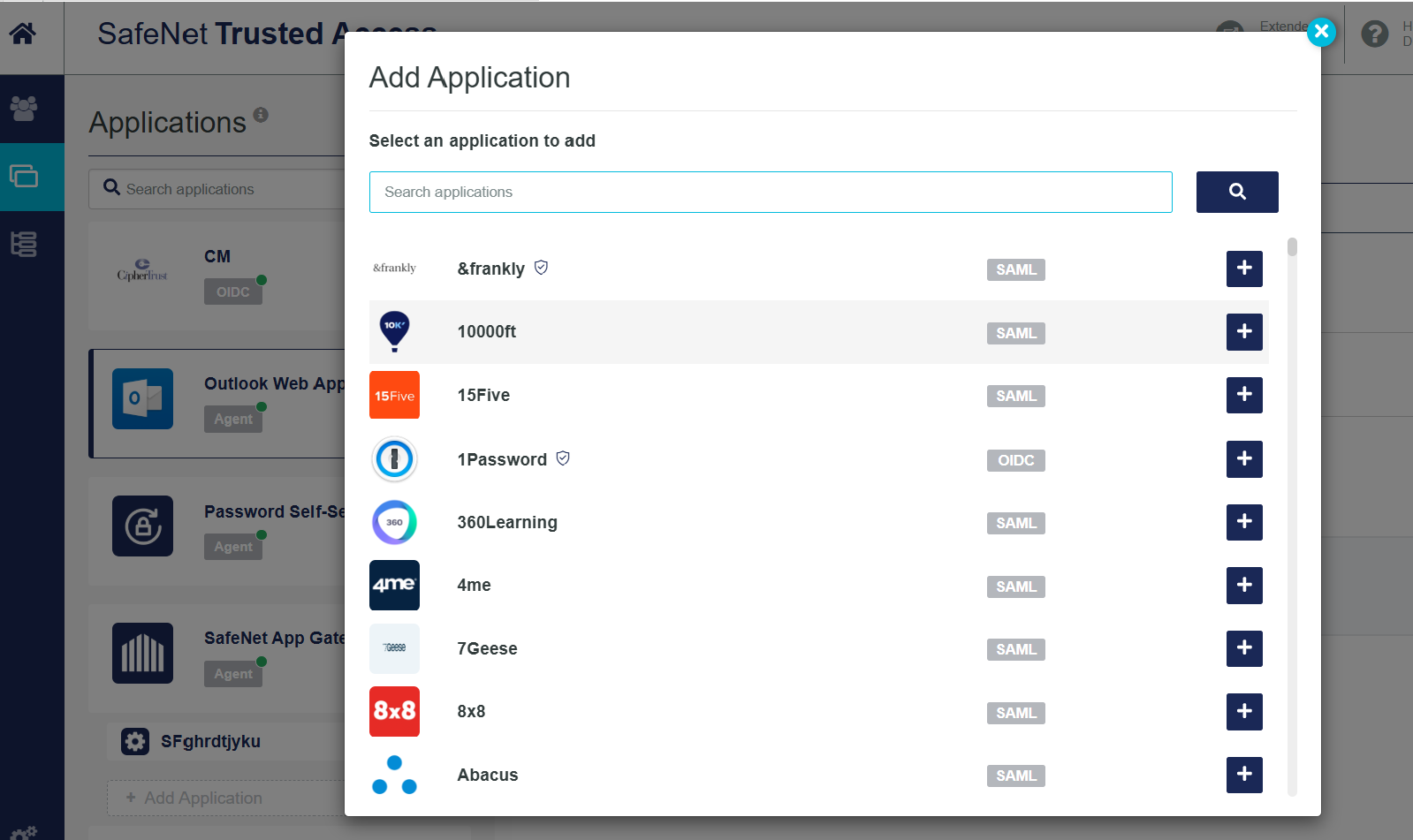
Click Add Application (if no applications have been added) or the + icon (displayed next to Applications) to add an application. The Add Application window is displayed with a list of available applications.
-
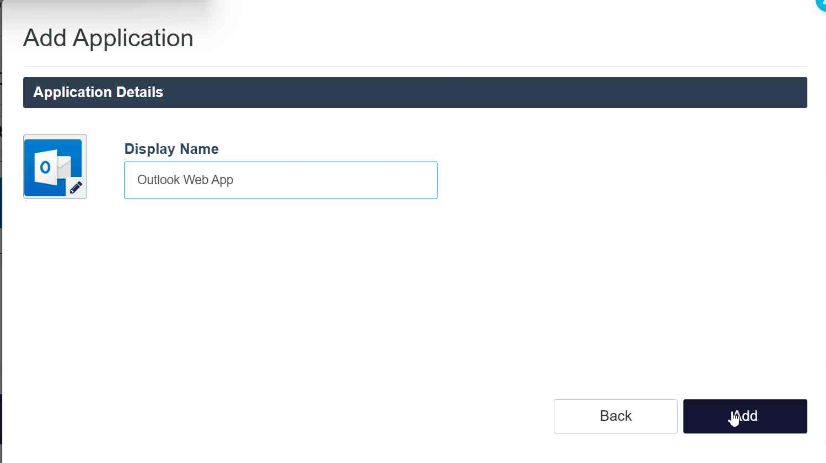
Select Outlook Web App (from the list of available applications) or search for Outlook Web App. Add a Display Name (any name can be used), and click Add.
-
Under Agent Setup, enter the OWA REDIRECT URL. The REDIRECT URL is the hostname address of the machine, followed by
/owa(for example,https://domain.com/owa), where the Outlook Exchange Server or Client Access Server (CAS) is installed. Click Save And Continue.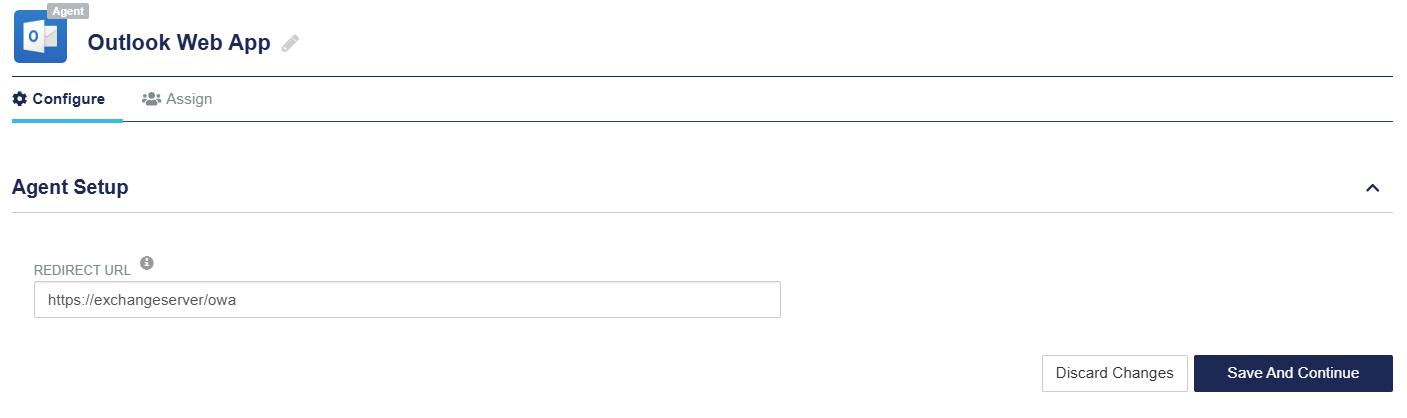
Note
If you need to update the REDIRECT URL after this initial setup, a new Configuration file must be downloaded. For more information, see Updating REDIRECT URL.
-
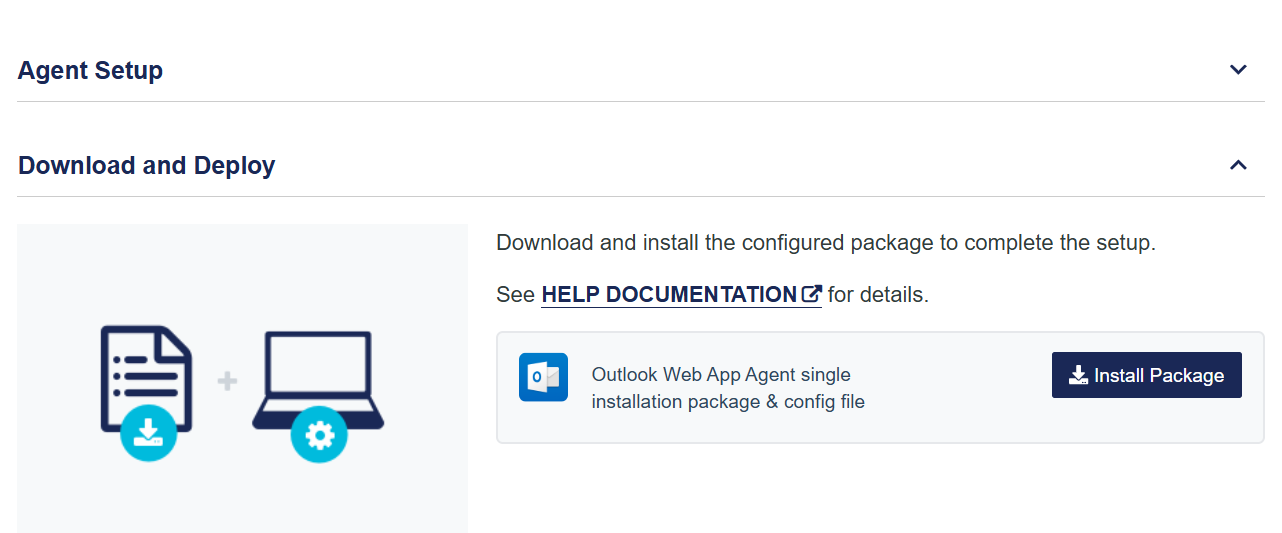
Under Download and Deploy, click the Install Package button to download the installer and the configuration file. You can click HELP to view the agent's documentation.
Note
The following components will be downloaded:
- Installation file
- Configuration file
Place all the components at the path where the Outlook Exchange is present.
Note
Once the agent is successfully downloaded, the application Status will change to active on the STA console. You need to refresh the console page to view any change in the setup Status.
-
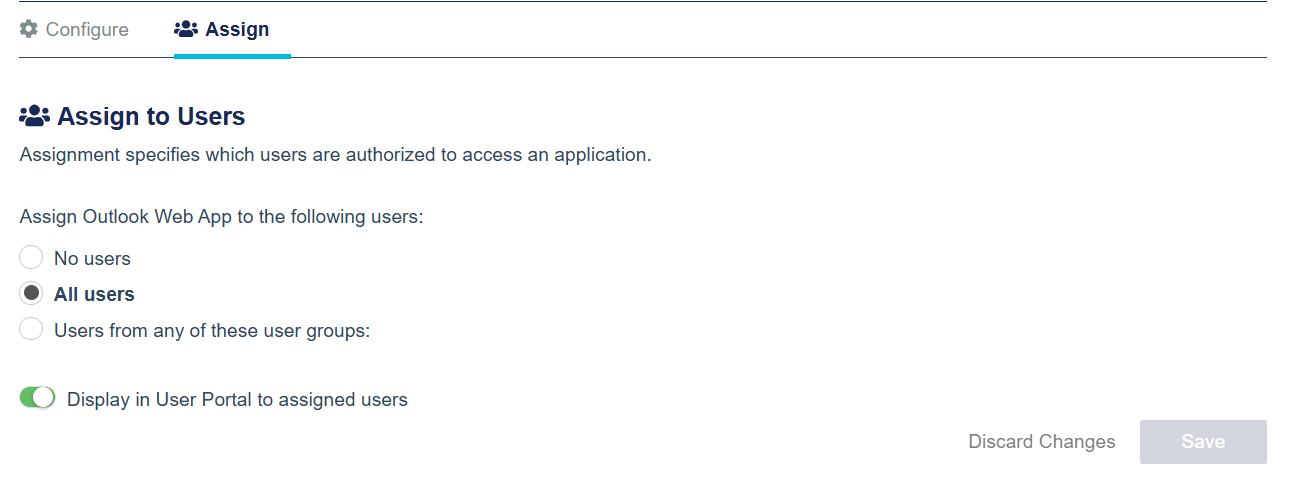
Click the Assign tab. Under Assign to Users, select the type of users to whom you want to assign access to the application (as per your requirements).
-
Install the agent locally (at the client side) using the installation and configuration files.
Installing the agent
Note
Always work in Run as administrator mode when installing, uninstalling, upgrading, enabling, or disabling the SafeNet Agent for Microsoft OWA.
-
Locate and execute the following installation file:
SafeNet Agent for Microsoft Outlook Web App.exe(64-bit) -
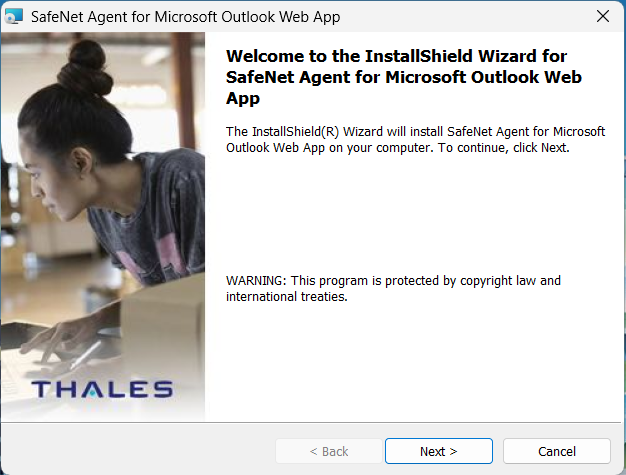
On the Welcome to the InstallShield Wizard window, click Next.
-
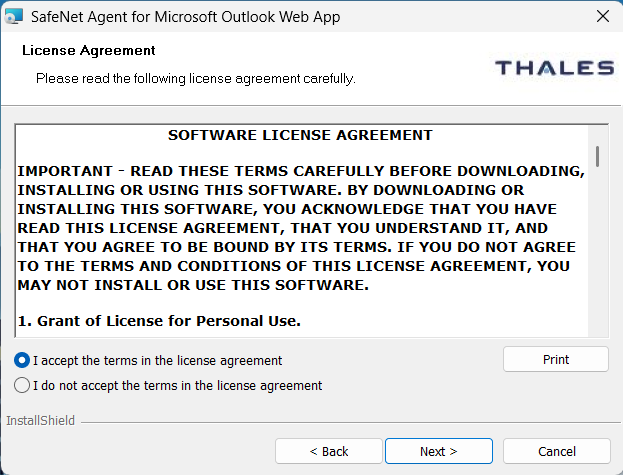
On the License Agreement window, read the software license agreement and to proceed, select I accept the terms in the license agreement option, and click Next.
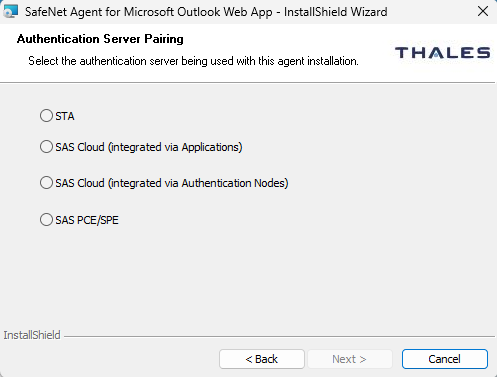
The InstallShield Wizard searches for the agent configuration file (as downloaded from STA) in the background. If the file is available, it skips to step 4. If it is unavailable, it prompts for the following additional requirements:
a. Authentication Server Pairing: Select the Authentication Server type, STA or SAS Cloud (integrated via Applications), and click Next.
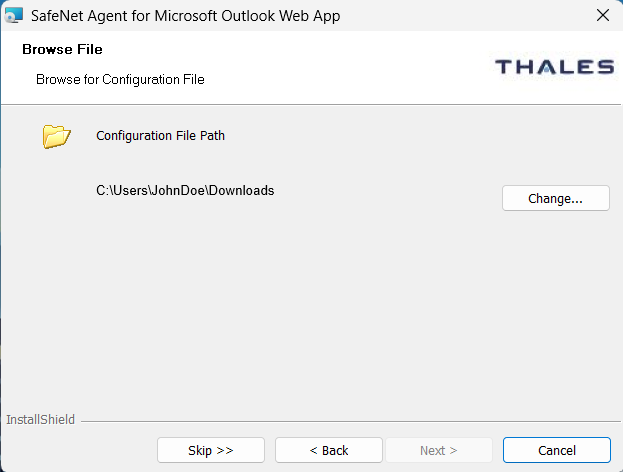
b. Click Change to select the agent configuration file (as downloaded from STA) to update settings. Click Next.
Note
Click Skip to proceed without selecting an agent configuration file. You can provide the same later, in Communications > Agent Configuration.
-
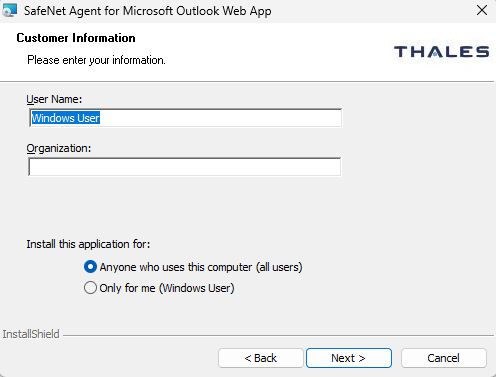
On the Customer Information window, enter User Name and Organization (any names can be used) and click Next.
Note
To determine who will have access to the application, select one of the following:
- Anyone who uses this computer (all users)
- Only for me (Windows User)
-
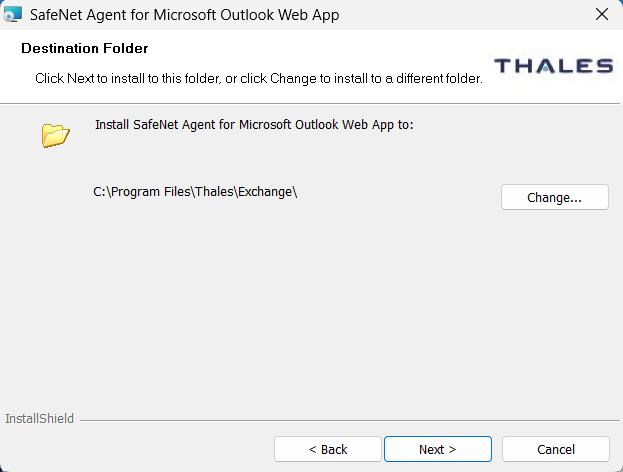
On the Destination Folder window, perform one of the following steps:
- To change the installation folder, click Change and navigate to the required folder, and then click Next.
- To accept the default installation folder as displayed, click Next.
Note
- Auto detected or selected Exchange Server version will be displayed at the installation path.
- We strongly recommend installing the application in a system protected folder accessible only by an account with management (read) privileges. The default location is in the Program Files folder, which is not read protected. This means that the location must be changed to a protected location that cannot be read by non-administrative accounts.
-
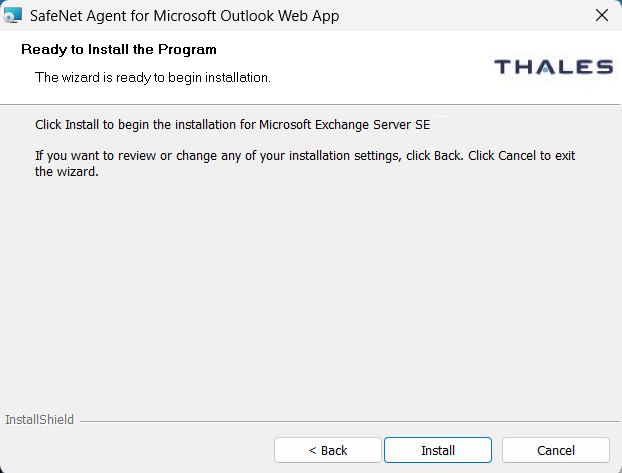
On the Ready to Install the Program window, click Install.
-
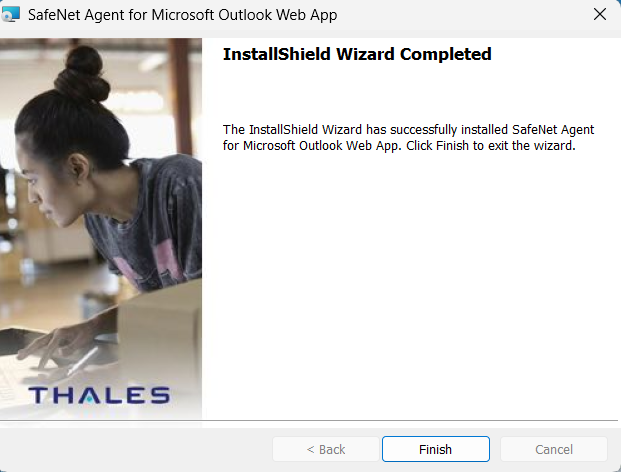
Once the installation is completed, the InstallShield Wizard Completed window is displayed.
Forms-Based authentication
Forms-Based authentication is a simple authentication scheme built into the HTTP protocol. It requires users to provide a username and password that are transmitted in Base64 encoding.
To activate Forms-Based authentication for Outlook Web App:
-
Log in to Exchange Server through ECP or Exchange Admin center.
-
Navigate to servers > virtual directories.
-
Select your server from select server dropdown.
-
Double-click OWA(Default Web Site) to open Virtual Directory.
-
Click Authentication and select Use forms-based authentication radio button.
-
Click save.
-
Repeat above steps for ECP(Default Web Site) also.
Windows authentication
Windows authentication allows users to authenticate using their Windows domain credentials. This method provides integrated authentication and does not require users to enter their credentials separately.
To activate Windows authentication for Outlook Web App:
-
Log in to Exchange Server through ECP or Exchange Admin center.
-
Navigate to servers > virtual directories.
-
Select your server from select server dropdown.
-
Double-click OWA(Default Web Site) to open Virtual Directory.
-
Click Authentication and select Use one or more standard authentication methods radio button.
-
Select Integrated Windows authentication and click save.
-
Repeat above steps for ECP(Default Web Site) also.
Uninstalling the agent
Note
Always disable the agent first, and then uninstall, if required.
To uninstall the SafeNet Agent for Microsoft OWA, use the Windows Control Panel. To uninstall, perform the following steps:
-
Navigate to Start > Control Panel > Programs and Features.
-
Select the SafeNet Agent for Microsoft Outlook Web App program.
-
Click Uninstall.
All installed files will be removed except the log files.
The default location for the log files is C:\Program Files\Thales\Exchange\Log.
Agent interaction with Microsoft Exchange Server upgrades
During Microsoft Exchange Server upgrades (Cumulative Updates or Subscription Edition), configuration files may be overwritten; therefore, disable and then re-enable the SafeNet Agent for Microsoft OWA from the agent's administrator interface.
Upgrading the agent
Note
Disable the agent from the management console before proceeding with the upgrade.
SafeNet Agent for Microsoft OWA 3.0.0 supports upgrades from 2.1.2 (and later).
Versions of SafeNet Agent for Microsoft OWA prior to 2.1.2 can be migrated to the SafeNet Agent for Microsoft OWA 3.0.0 as described in Migrating the Agent.
Migrating SafeNet Agent for Microsoft OWA
In the existing setup of the agent, perform the following steps:
-
Open the SafeNet Agent for Microsoft Outlook Web App Manager and navigate to File > Export Current Configuration. A file of the settings (
Backup.bsidConfig) is created.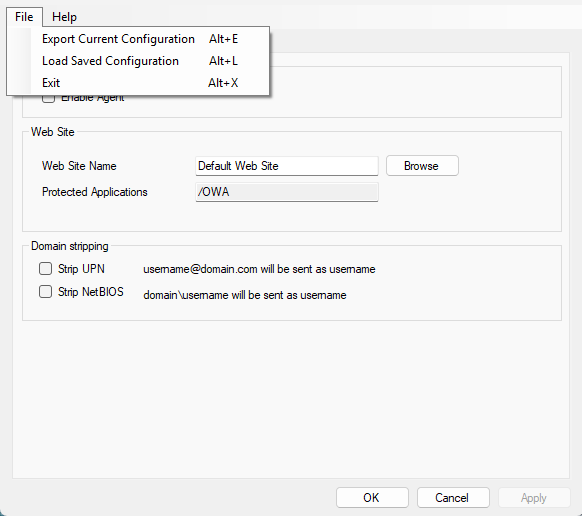
-
Make a copy of the
Backup.bsidConfigfile, and save it to the new environment. -
Edit the Backup.bsidConfig file in the new environment and replace all occurrences of "Gemalto" with "Thales". This is required because the installation directory name has been changed from "Gemalto" to "Thales". Save the file after making these changes.
Note
This step applies only when migrating an existing SafeNet Agent for Microsoft OWA to version 3.0.0 or above.
-
Install the agent on the new environment.
-
Open the newly installed SafeNet Agent for Microsoft Outlook Web App Manager, and navigate to File > Load Saved Configuration.
-
Import the configuration file (as saved in step 2). Navigate to the saved file,
Backup.bsidConfig, click Open and import the configuration into the agent. -
Click Apply to apply the settings.
Note
Upgrades or migration of the SafeNet Agent for Microsoft OWA will only work for the same agent type.

