



Updating REDIRECT URL
If you need to update the REDIRECT URL after the pre-installation setup, a new Configuration file needs to be downloaded. Perform the following steps:
-
Log in to SafeNet Trusted Access (STA) as an Operator.
-
After successful login, the STA console displays the Dashboard of the account. On the Operator's dashboard, on the top right-hand side corner, click the drop-down and select the required virtual server account.
-
Click the Applications tab.
-
From the list of (already) added applications, select the Outlook Web App application.
-
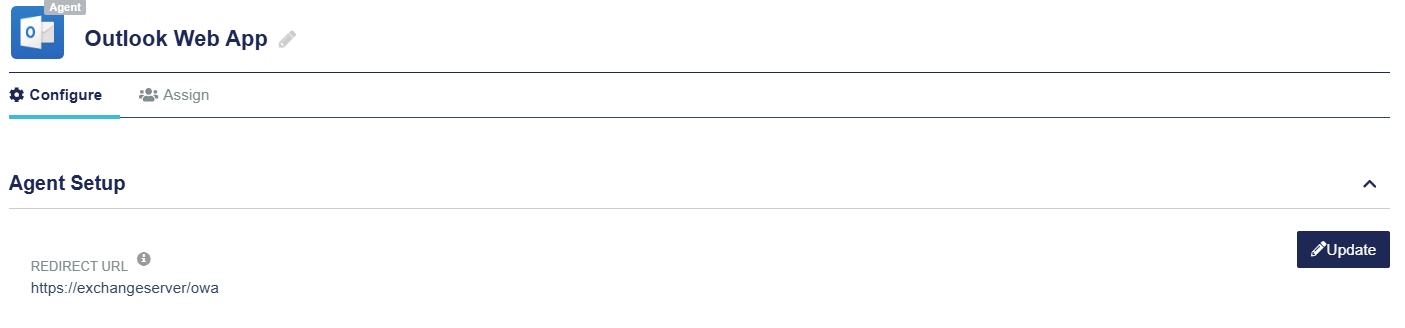
Under Agent Setup, click Update (displayed against the REDIRECT URL field).
-
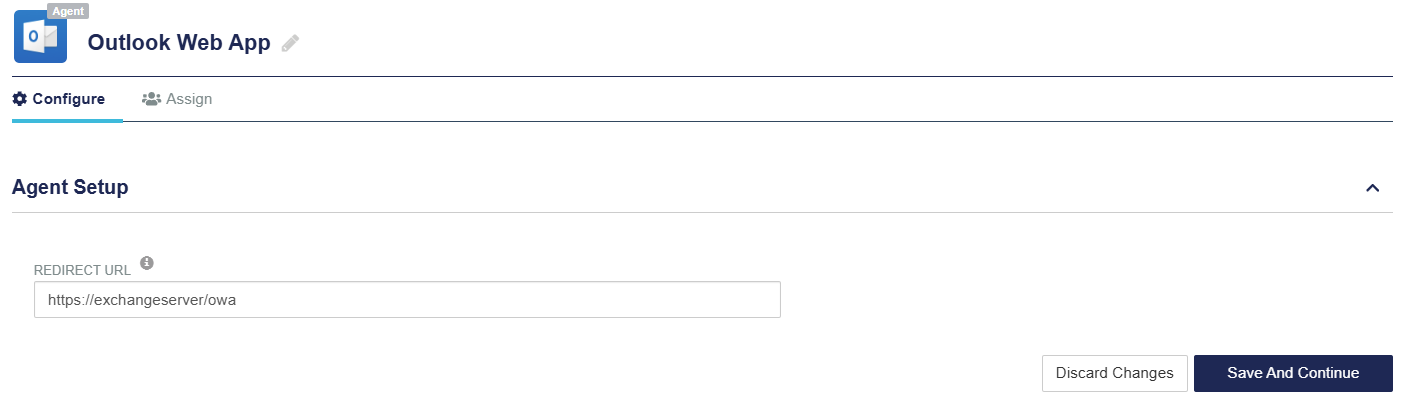
In the REDIRECT URL field, change the redirect URL, and click Save And Continue.
Note
All letters in the REDIRECT URL must be in lowercase.
-
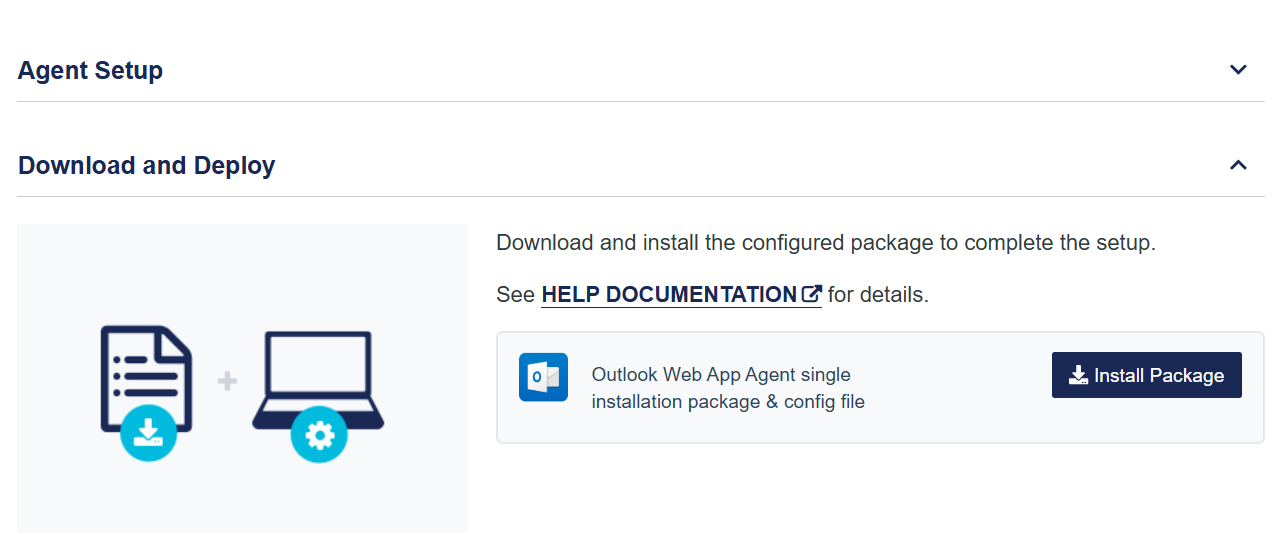
Under Download and Deploy section, click Install Package to download the installer(s) and the configuration file. You can click HELP to view the agent's documentation.
Note
Once the agent's configuration file is successfully downloaded, the application Status will change to active on the STA console. You need to refresh the console page to view any change in the setup Status.

