



SafeNet Agent for Microsoft Outlook Web App Manager
The SafeNet Agent for Microsoft Outlook Web App Manager allows modification of various features available within the SafeNet Agent for Microsoft Outlook Web App. To configure settings, the following tabs are available:
Note
Application management and policy enablement tasks are configured using SafeNet Trusted Access (STA) in the agent type, SafeNet Trusted Access or SafeNet Authentication Service.
- To configure Group, Application Exceptions and Global policies, log in to STA using an Operator account, and select Policies from the left menu. For more details, refer to Access policies.
- To display user details or search for users, log in to STA using an Operator account, and select Users from the left menu. For more details, refer Configure individual users.
Configurations updated in STA will automatically be applied and reflected in the connected agents.
Policy
The Policy tab deals with enabling the SafeNet Agent for Microsoft Outlook Web App and defining the website settings.
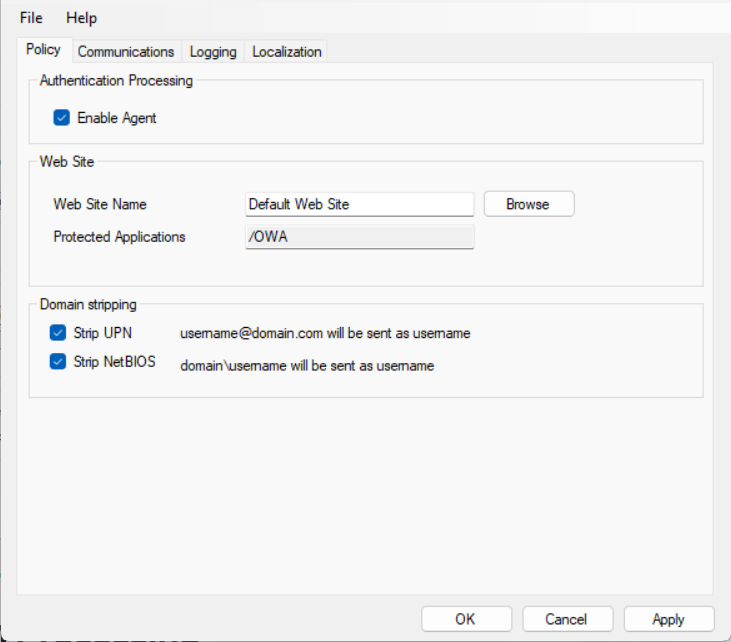
Authentication processing
Enable agent
To activate the SafeNet Agent for Microsoft Outlook Web App, select the Enable Agent check box.
Default value: Disabled
Note
Always work in Run as administrator mode when installing, uninstalling, upgrading, enabling, or disabling the SafeNet Agent for Microsoft Outlook Web App.
Web site
Web site name
Allows selection of the Exchange Server website.
Default value: Default Web Site
Protected applications
Specify the OWA directory on the Exchange Server.
Default value: /owa
Domain stripping
The realm-stripping feature applies to SafeNet usernames only. Active Directory usernames are not affected.
Strip UPN
Select the check box if the SafeNet username is required without the suffix @domain.
Strip NetBIOS
Select the check box if the SafeNet username is required without the domain\.
Communications
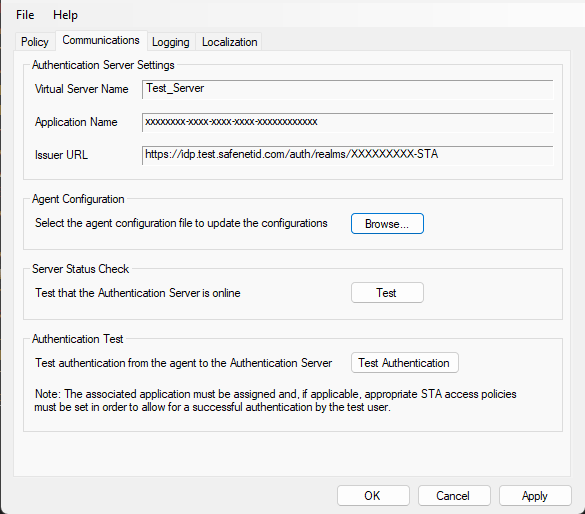
The Communications tab deals with the SafeNet Trusted Access connection options.
Agent configuration
Click Browse to select the agent configuration file (as downloaded from STA) to update settings. If you skipped and did not provide a configuration file during installation, you can provide it here. Clicking Apply will fetch the values from the configuration file to populate fields in Authentication Server Settings.
Authentication server settings
The values in the following fields are populated from the uploaded configuration file:
- Virtual Server Name - The STA account.
- Application Name - The name of the template as provided in STA.
- Issuer URL - The authentication end-point for STA.
Server status check
Click Test to confirm if the Authentication Server is online or not.
Authentication test
Run a communication test verifying the connection between the agent and STA. Clicking Test Authentication opens a browser window with the STA URL to allow connection testing.
Logging
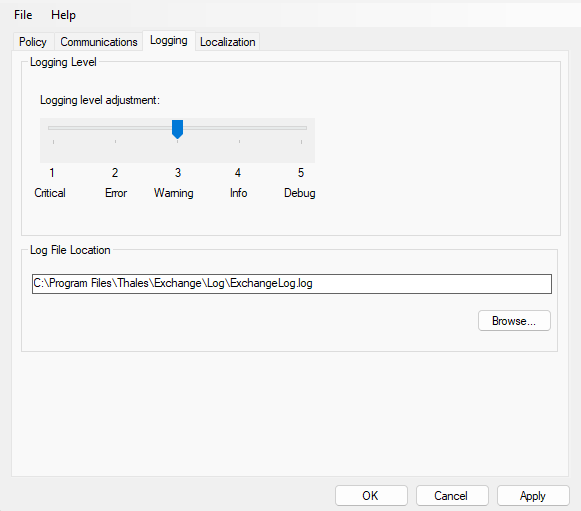
The Logging tab allows administrators to configure logging settings for the SafeNet Agent for Microsoft Outlook Web App.
Logging level
Logging level adjustment
It allows administrators to adjust the logging level. For log levels 1, 2 and 3, only the initial connection between the agent and the server, and any failed connection attempts, are logged. Log level 5 is most detailed and sets the agent in debug mode.
To adjust the logging level, drag the pointer on the Logging level adjustment scale to:
- 1: Critical (Only critical)
- 2: Error (Critical and errors)
- 3: Warning (Critical, errors, and warnings)
- 4: Info (Critical, errors, warnings, and information messages)
- 5: Debug (All available information)
Default value: 3
Log file location
It allows administrators to specify the location where the log file will be saved. The log file is rotated on a daily basis.
The default location is C:\Program Files\Thales\Exchange\Log.
Note
If you change the default log file location, ensure that the folder is accessible to all the required users.
Localization
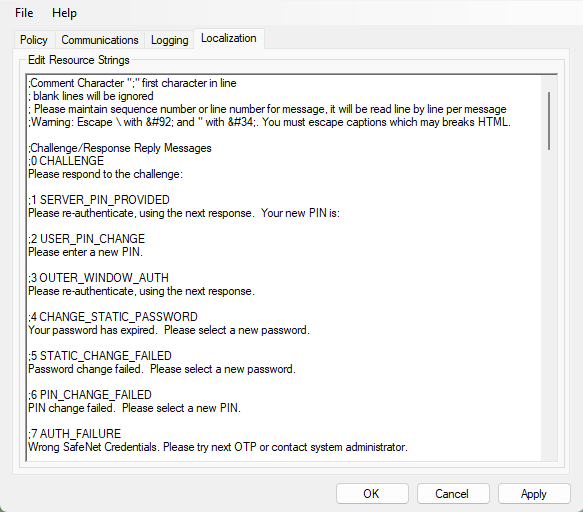
The settings on this tab represent prompts and information messages provided by the SafeNet Agent for Microsoft Outlook Web App. To improve usability, these can be modified using the Messages.txt file, path of which is available in the .INI file. The Messages.txt file needs to be manually modified outside the OWA Manager.
The file can be found at the following default location:
\Program Files\Thales\Exchange\LocalizedMessages
Note
The localized text cannot be edited on the Localization tab interface. It must be edited in the Initialization (.INI) file.

