



Upgrade SafeNet Agent for Microsoft Outlook Web App
This page describes how to upgrade SafeNet Agent for Microsoft Outlook Web App (OWA).
Overview
SafeNet Agent for Microsoft OWA supports upgrade from 2.1.2 (and later). For upgrade, the configurations from the older version must be saved, and then imported into the new installation.
Direct upgrade from versions prior to 2.1.2 to the latest version of the agent is not supported. The earlier versions can be migrated to the latest version of SafeNet Agent for Microsoft OWA. For migrating from one version to another, see Migrating SafeNet Agent for Microsoft OWA using previous configurations.
Note
Disable the agent from the management console before proceeding with the upgrade.
Agent interaction with Microsoft Exchange Server upgrades
During Microsoft Exchange Server upgrades (Cumulative Updates or Subscription Edition), configuration files may be overwritten; therefore, disable and then re-enable the SafeNet Agent for Microsoft OWA from the agent's administrator interface.
Migration procedure
In the existing setup of the agent, perform the following steps:
Export configuration from existing agent
-
Open the SafeNet Agent for Microsoft Outlook Web App Manager and navigate to File > Export Current Configuration. A file of the settings (
Backup.bsidConfig) is created.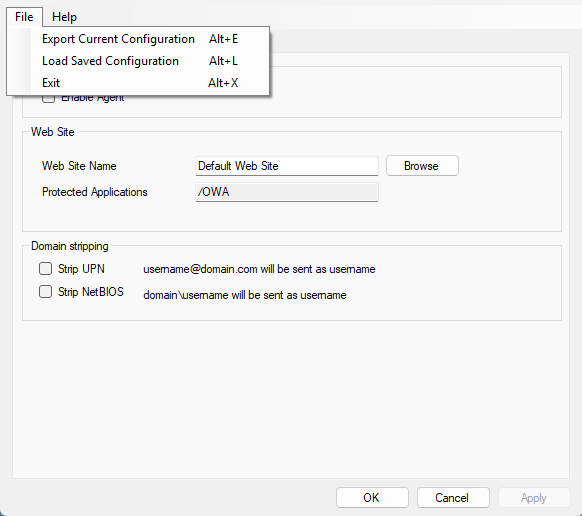
-
Make a copy of the
Backup.bsidConfigfile, and save it to the new environment.
Prepare configuration file for version 3.0.0 and above
Edit the Backup.bsidConfig file in the new environment and replace all occurrences of "Gemalto" with "Thales". This is required because the installation directory name has been changed from "Gemalto" to "Thales". Save the file after making these changes.
Note
This step applies only when migrating an existing SafeNet Agent for Microsoft OWA to version 3.0.0 or above.
Install and import configuration
-
Install the agent on the new environment. See Install SafeNet Agent for Microsoft Outlook Web App.
-
Open the newly installed SafeNet Agent for Microsoft Outlook Web App Manager, and navigate to File > Load Saved Configuration.
-
Import the configuration file (as saved in step 2). Navigate to the saved file,
Backup.bsidConfig, click Open and import the configuration into the agent. -
Click Apply to apply the settings.
Note
Upgrades or migration of the SafeNet Agent for Microsoft OWA will only work for the same agent type.

