Configuring SafeNet Agent for Microsoft IIS
The SafeNet Agent for Microsoft IIS Configuration Tool allows for the modification of various features available within the agent.
Note
Administrative rights to the Windows system are required when installing, migrating, configuring, and uninstalling SafeNet Agent for Microsoft IIS.
Policy
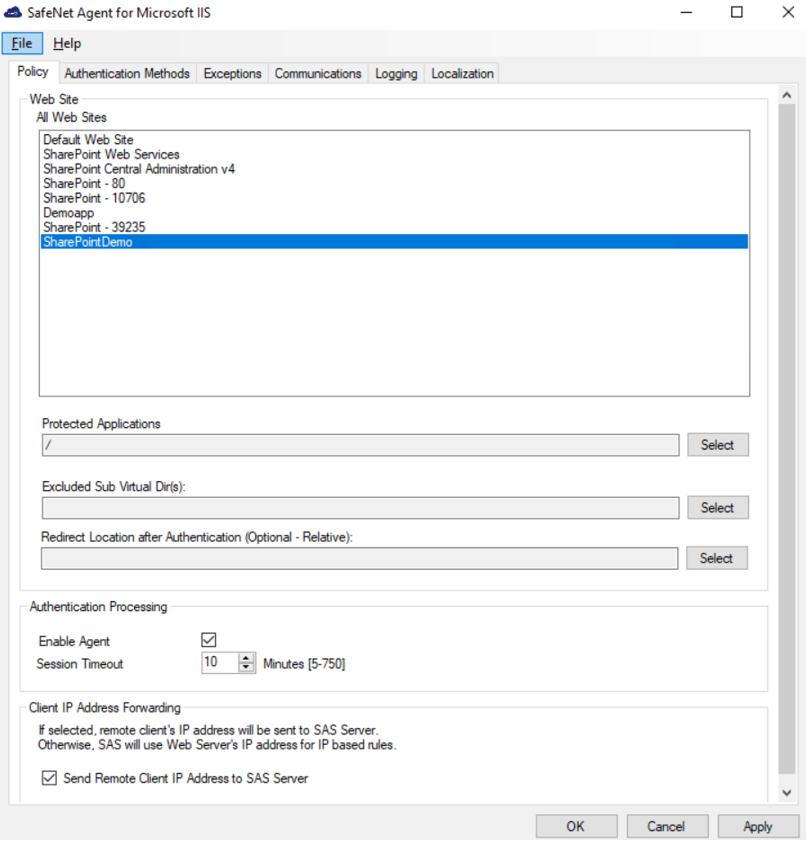
The Policy tab provides the ability to select a website and then protect web-based resources with SafeNet authentication. When a website is selected, all settings defined within each tab apply to the specific website. If another website is selected, all tabs revert to their customized or default settings, allowing a different configuration to be applied.
Web site
-
All Web Sites: Allows the selection of the website. The website selection will determine the list displayed within Protected Applications.
-
Protected Applications: Allows the selection of an application or a virtual directory (single or multiple).
-
Excluded Sub Virtual Dir(s): Allows to select the sub virtual directories that you want to be excluded from the authentication.
-
Redirect Location after Authentication (Optional – Relative): Allows to select the URL to which you want to redirect, after the successful authentication.
Authentication processing
-
Enable Agent: Turns SafeNet Agent for Microsoft IIS on or off. The default value is Disabled.
-
Session Timeout: Specifies the amount of time (in minutes) that the user may remain idle before they are required to re-authenticate with their SafeNet credentials. The default value is 10 minutes.
Client IP address forwarding
If selected, the remote client IP address will be sent to the SafeNet server. Otherwise, the web server’s IP address will be used. The default value is Enabled.
Authentication methods
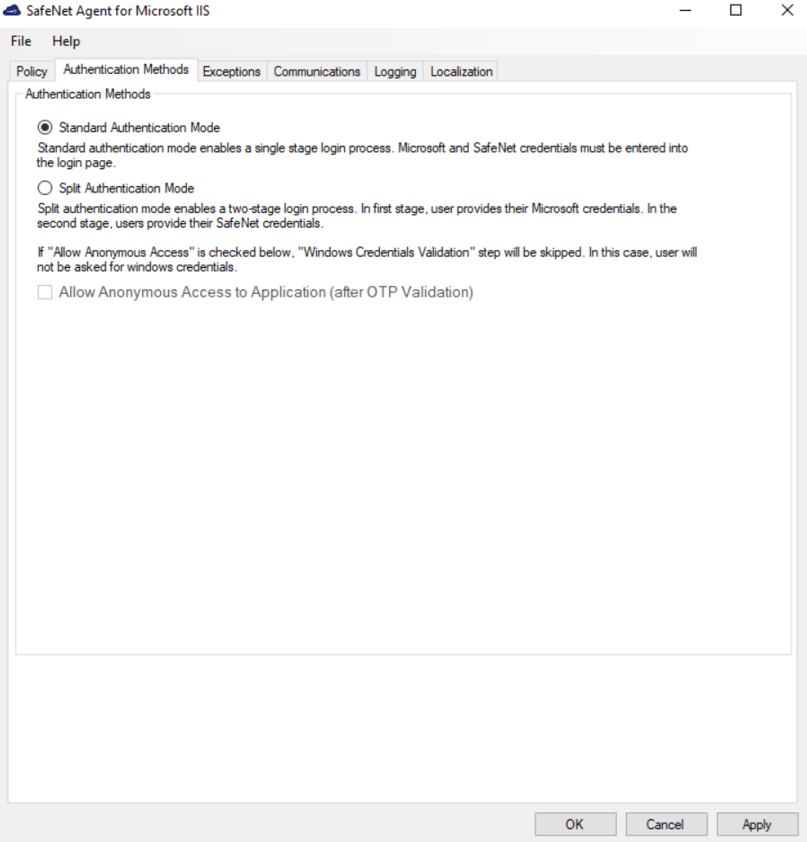
The Authentication Methods tab allows for the selection of the login authentication method and authentication web page.
The following authentication modes are available:
-
Standard Authentication Mode: This mode enables a single step login process. Microsoft and SafeNet credentials must be entered in a single login page. This mode is Enabled by default.
-
Split Authentication Mode: This mode enables a two-stage login process. In the first stage, users provide their Microsoft credentials. In the second stage, users provide their SafeNet credentials. This mode is Disabled by default. This mode provides the following advantages over Standard Authentication Mode:
-
Microsoft group exclusions may be used to migrate users incrementally from static passwords to a combination of static and One-Time Passwords (OTPs).
-
Allows administrators to specify, via Microsoft Groups, users who have been provided with GrIDsure or SMS challenge-response authenticators. This provides a seamless login experience as the agent displays exactly what is required from the user.
-
GrIDsure tab (optional): Allows an administrator to specify a Microsoft group, which contains SafeNet users who have been assigned a GrIDsure authenticator. When the agent detects a user within this group, it will automatically display a GrIDsure grid after they have provided valid Microsoft credentials.
-
SMS Challenge-Response tab (optional): Allows an administrator to specify a Microsoft group, which contains SafeNet users who have been assigned an SMS challenge-response authenticator. When the agent detects a user within the group, it will automatically provide them with an OTP via SMS after they have provided valid Microsoft credentials.
-
Exceptions
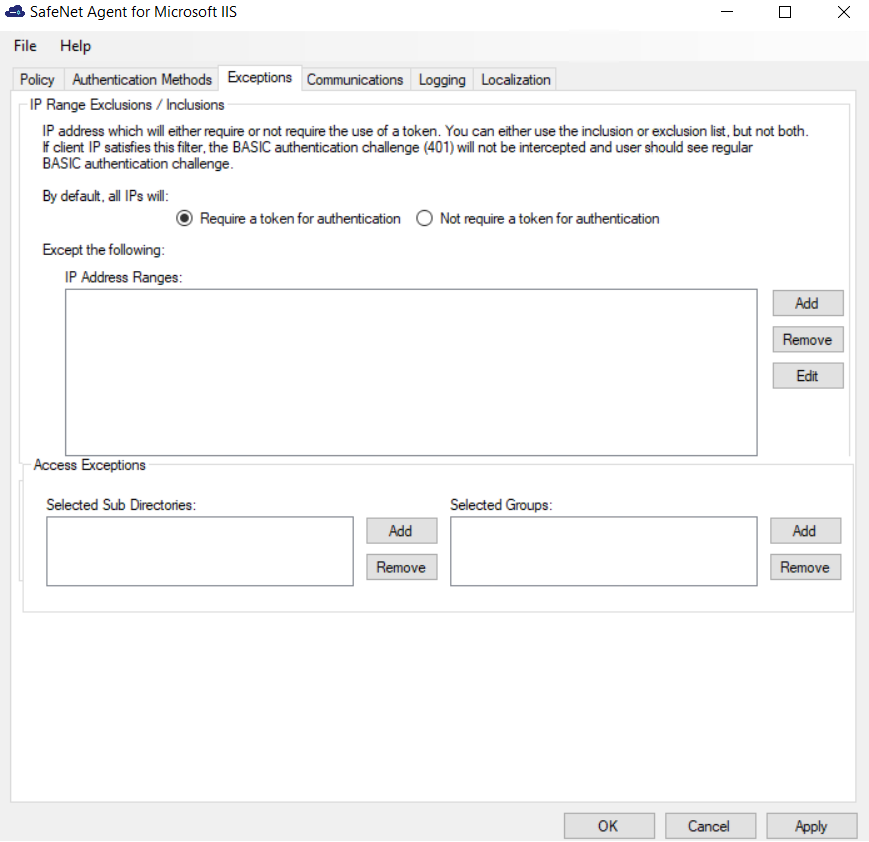
The Exceptions tab allows specific Microsoft groups or network traffic to bypass SafeNet authentication. All users are required to use SafeNet authentication unless otherwise defined by exception.
IP range exclusions/inclusions
This function allows an administrator to define which network traffic requires SafeNet authentication. By default, all networks are required to use SafeNet authentication.
Access exceptions
Access Exceptions blocks access to specified subdirectories in the website selected in the Policy tab.
-
Selected Sub Directories: Select the required subdirectory.
-
Selected Groups: Select the required groups. Users who are members of the selected groups will receive the following error message when attempting to access the blocked location: Access to this URL is blocked by the system administrator.
Group Exceptions omits single and/or multiple domain groups from using SafeNet authentication. Only one group filter option is valid at any given time, and it cannot overlap with another group authentication exception.
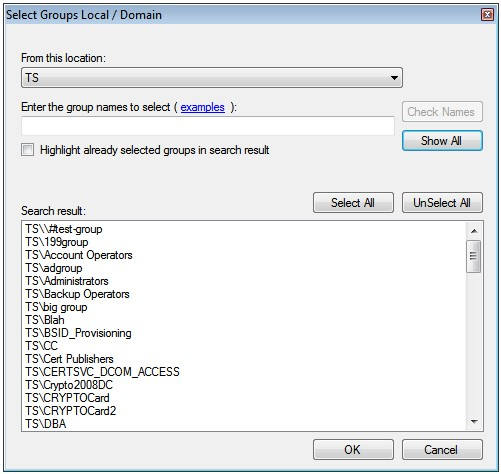
After you enter a group authentication exception, the Select Groups Local / Domain window displays:
-
From this location: Select the location from which the results will be searched.
-
Enter the group names to select: Used in conjunction with Check Names or Show all. Allows searches for Microsoft groups.
-
Highlight already selected groups in search result: If a Microsoft group has already been configured in the exception, it will appear as a highlighted result.
Communications
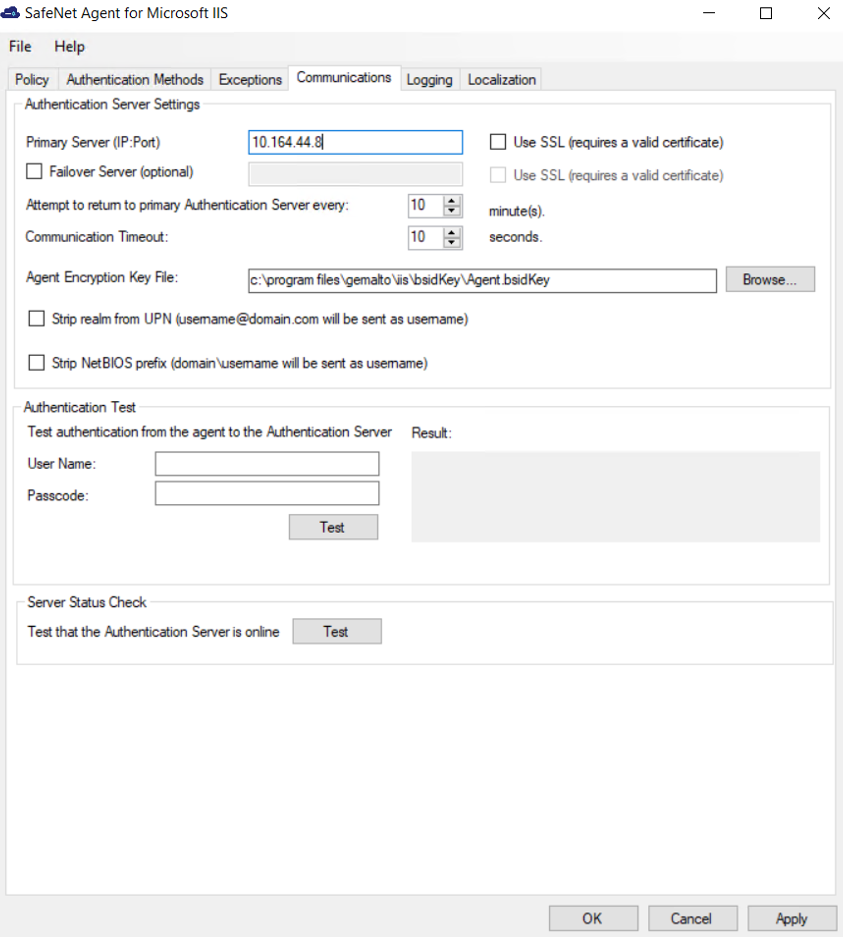
This tab deals with connection options for the SafeNet server.
Authentication server settings
-
Primary Server (IP:Port): Used to configure the IP address/ host name of the primary SafeNet server. The default is port 80. Alternatively, the Use SSL checkbox can be selected. The default TCP port for SSL requests is 443.
-
Failover Server (optional): Used to configure the IP address/ host name of the failover SafeNet server. The default is port 80. Alternatively, the Use SSL checkbox can also be selected. The default TCP port for SSL requests is 443.
-
Attempt to return to primary Authentication Server every: Sets the Primary Authentication server retry interval (in minutes). This setting only takes effect when the agent is using the Failover Server.
-
Communication Timeout: Sets the maximum timeout value (in seconds) for authentication requests sent to the SafeNet server.
-
Agent Encryption Key File: Used to specify the key file location for SafeNet Agent for Microsoft IIS. The encrypted key file is used to communicate between the agent and the authentication server. This file is used to encrypt / decrypt the data, ensuring that all authentication attempts made against the server are from valid, recognized agents. The key file can be downloaded from the SafeNet server, as follows:
-
Login to your SAS account, and navigate to COMMS > Authentication Processing.
-
Under the Task list, click Authentication Agent Settings and download the key.
-
The key file must be kept at a location accessible by all the authorized users:
-
Using Windows Explorer, change your current working directory to the bsidKey directory by typing [INSTALLDIR]\bsidKey** in the address bar, where [INSTALLDIR]** represents the install directory of this agent.
-
Copy and paste the agent key file at the location.
-
-
-
Strip realm from UPN (username@domain.com will be sent as username): Select if the SafeNet username is required without the suffix @domain.
-
Strip NetBIOS prefix (domain\username will be sent as username): Select if the SafeNet username is required without the prefix *domain*.
Note
The realm-stripping feature applies to SafeNet user names only. Active Directory usernames are not affected.
Note
Once stripping has been activated or deactivated for an Microsoft IIS site, the agent stores these values and uses them as default for each new Microsoft IIS site protected by the agent.
Authentication test
This function allows administrators to test authentication between SafeNet Agent for Microsoft IIS and the SafeNet server.
Note
In the IIS Agent Management Console, legacy protocols (TLS 1.1, TLS 1.0, SSL) are no longer supported. When testing authentication through the console, only TLS 1.2 will be used.
Server status check
This function performs a communication test to verify a connection to the SafeNet server.
Logging
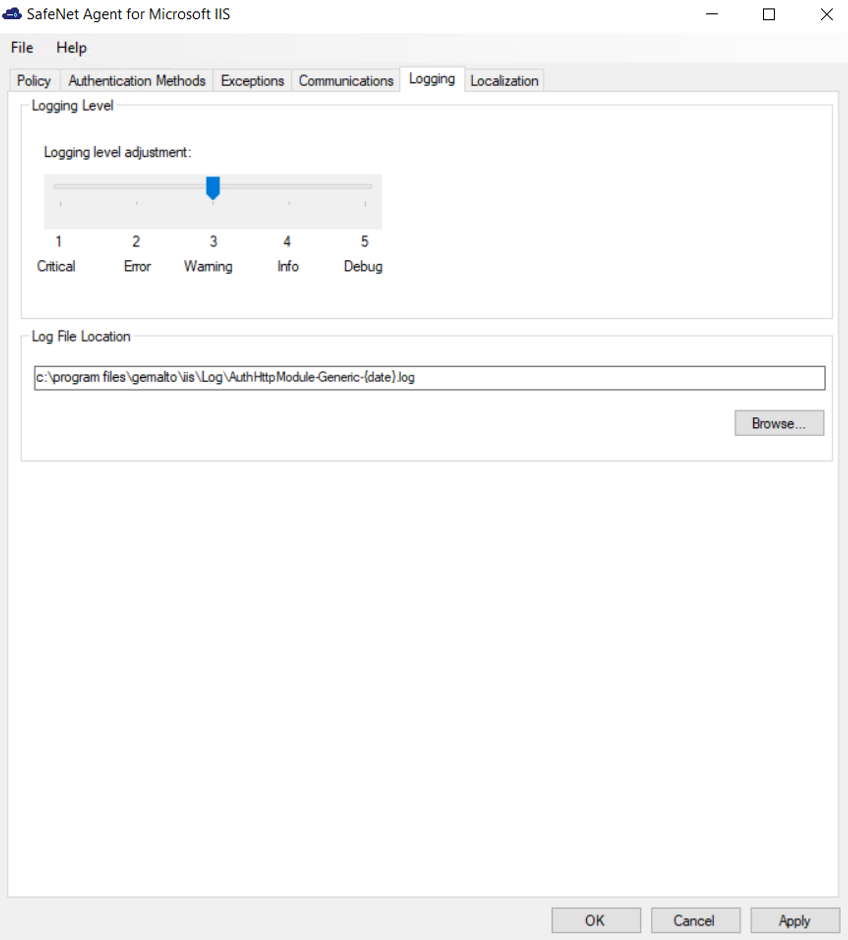
This tab depicts the logging level and specifies the log file location.
Logging level
It helps adjust the logging level. For log levels 1, 2, and 3, only the initial connection between the agent and server attempts are logged. Log level 5 sets the agent in the debug mode. The default value is 3.
Log file location
It helps specify the location of the log file. The log file is rotated on a daily basis. The default log file location is:
Program Files\GEMALTO\IIS\Log
Localization
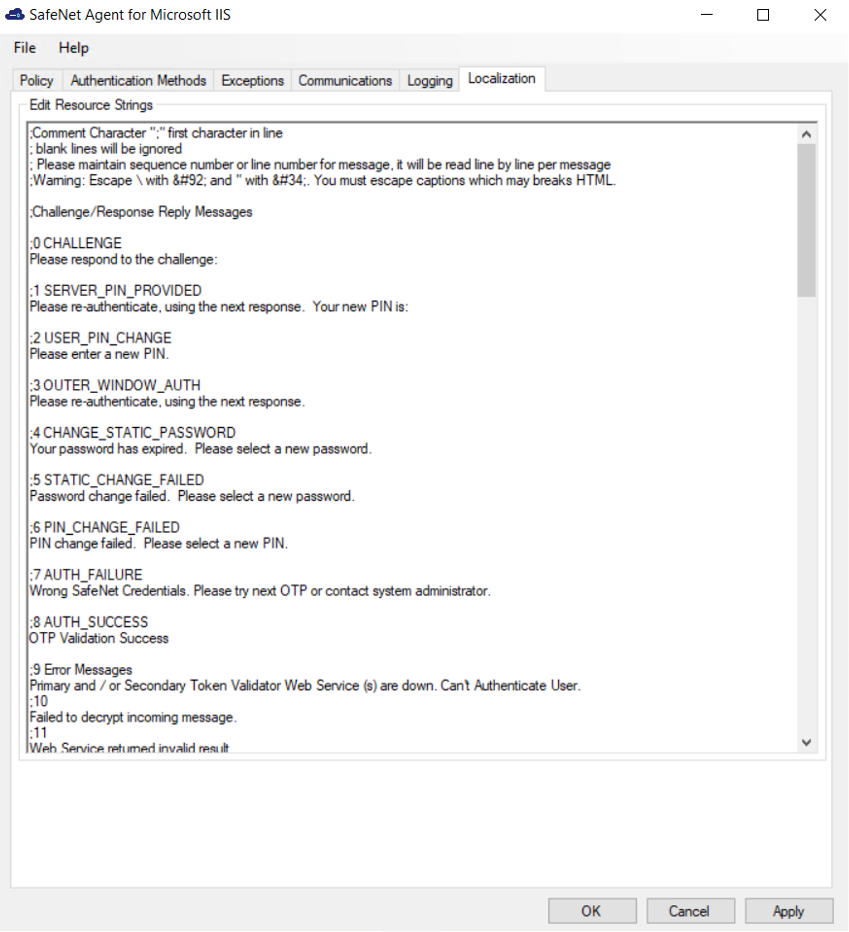
The settings on this tab represent the prompts and information messages supplied by the agent. These can be modified as necessary to improve usability. The Messages.txt file can be modified manually outside of the configuration tool. The default location of this file is: Program Files\GEMALTO\IIS\LocalizedMessages