



Authentication modes
SafeNet Agent for Microsoft Outlook Web App (OWA) supports two modes that control how users authenticate when accessing OWA:
-
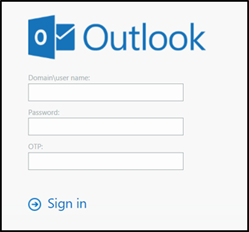
Standard authentication mode enables a single-stage login process where users enter both Microsoft domain credentials and SafeNet credentials in the OWA login page.
-
Split authentication mode enables a two-stage login process. In the first stage, users provide their Microsoft credentials. In the second stage, users provide their SafeNet credentials. This mode allows administrators to control authentication dialogs based on Microsoft groups or authenticator types (such as GrIDsure). This is the preferred mode when migrating from static to one-time passwords.
By default, split authentication mode is enabled. You can modify the authentication mode on the Authentication Methods tab.
Standard authentication mode
Standard authentication mode provides a single-step login process where users enter all credentials at once.
Hardware/software authenticators
- Open SafeNet Agent for Microsoft OWA in your browser.
- Enter Domain/User Name, Password, and OTP, and click Sign in.
Split authentication mode
Split authentication mode provides a two-stage login process for enhanced security and flexibility.
Initial login
- Open SafeNet Agent for Microsoft OWA in your browser.
- Enter Domain/User Name and Password, and click Sign in.
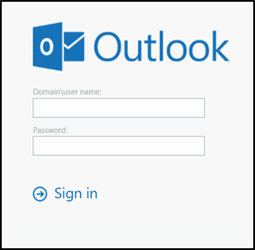
After successful Microsoft authentication, the system determines the appropriate second-factor authentication method based on your configuration.
GrIDsure authentication
If configured for GrIDsure, complete the following steps:
-
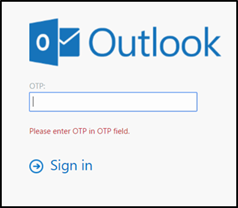
Click Sign In (leaving the OTP field empty).
-
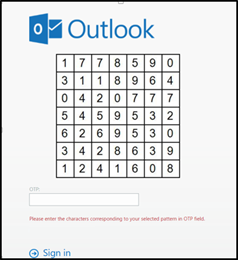
Enter the GrIDsure OTP, derived from your grid pattern, and click Sign in.
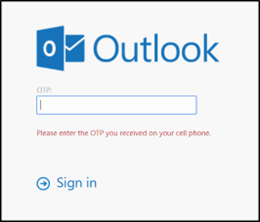
SMS challenge authentication
If your system is configured to send OTP via SMS:
- Enter the authentication code received on your phone and click Sign in.
Challenge-response authentication
If configured to work with Challenge Response:
-
Following login (in either Standard Authentication Mode or Split Authentication Mode), you will be prompted to respond to a challenge.
-
Send the challenge code, as displayed on the screen, to the designated recipient in your organization (typically System Administrator or Help Desk).
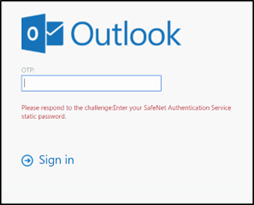
In return, you will receive a response code.
-
Enter the response code into the OTP field and click Sign in.

