



Installing SafeNet Agent for Microsoft OWA
This section describes how to install SafeNet Agent for Microsoft Outlook Web App (OWA).
Prerequisites
Before proceeding with the installation:
-
Ensure that TCP port 80 or 443 is open on the Exchange Server to act as a gateway of communication between SafeNet Agent for Microsoft OWA and the SafeNet solution.
-
Log on to the Windows system as a user with administrative privileges.
-
Download the Exchange Agent installation package. A link to the agents and other software can be found on the Snapshot tab in the References module for users of the SafeNet server.
Install SafeNet Agent for Microsoft OWA
Note
Always work in Run as administrator mode when installing, configuring, upgrading, and uninstalling the agent.
To install SafeNet Agent for Microsoft OWA:
-
Log in to the Microsoft Exchange server.
-
Locate and run the following installation file:
SafeNet Agent for Microsoft Outlook Web App.exe -
On the Welcome to the InstallShield Wizard for SafeNet Agent for Microsoft Outlook Web App window, click Next.
-
On the License Agreement window, read the software license agreement and to proceed, select I accept the terms in the license agreement, and click Next.
-
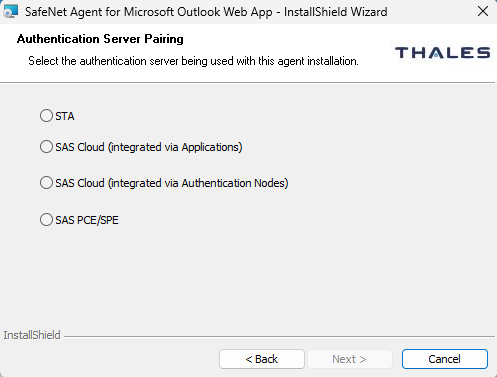
On the Authentication Server Pairing window, select the Authentication Server type, SAS Cloud (integrated via Authentication Nodes) or SAS PCE/SPE and click Next.
-
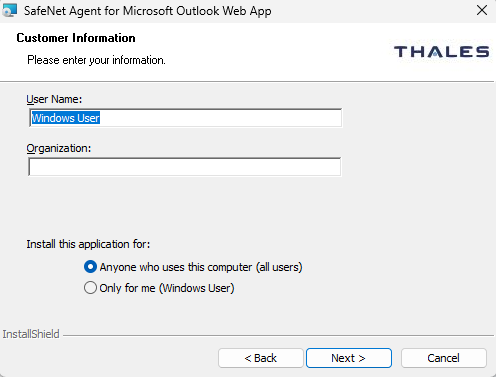
On the Customer Information window, perform the following steps:
-
In the User Name field, enter your user name.
-
In the Organization field, enter the name of your organization.
-
Click Next.
Note
To determine who will have access to the application, select one of the following:
-
Anyone who uses this computer (all users)
-
Only for me (Windows User)
-
-
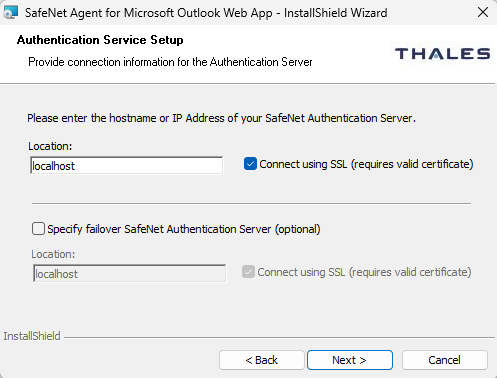
On the Authentication Service Setup window, enter the following details:
-
In the Location field, enter the hostname or IP address of the primary SafeNet server.
-
Select Connect using SSL if SafeNet server is configured to accept incoming SSL connections.
-
If a failover server is available, select the associated checkbox and add the hostname or IP address of a failover SafeNet server.
-
-
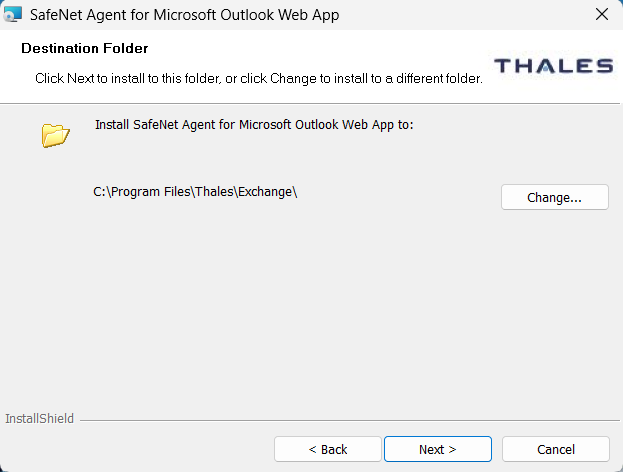
On the Destination Folder window, perform one of the following steps:
-
To change the installation folder, click Change and navigate to the required folder, and then click Next.
-
To accept the default installation folder as displayed, click Next.
-
-
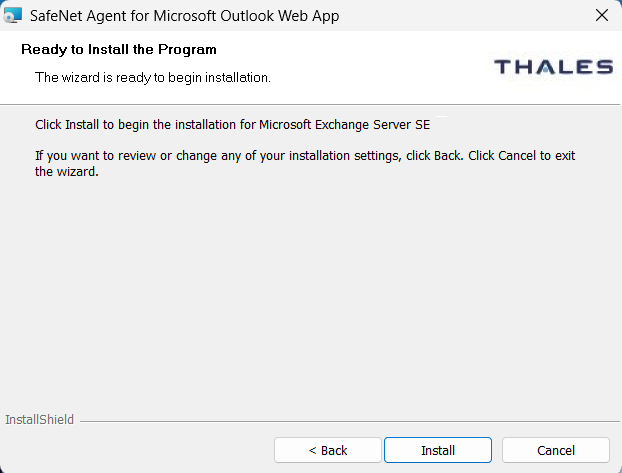
On the Ready to Install the Program window, click Install.
-
Once the installation is completed, the InstallShield Wizard Completed window is displayed. Click Finish to exit the wizard.

