


FIDO
Use the FIDO page to enable or disable FIDO authenticator imports via API for your organization. When this feature is enabled, you can bulk-import FIDO authenticators into the organization through the API, eliminating the need for end users to enroll them individually.
To access this page, click FIDO in the left navigation menu.
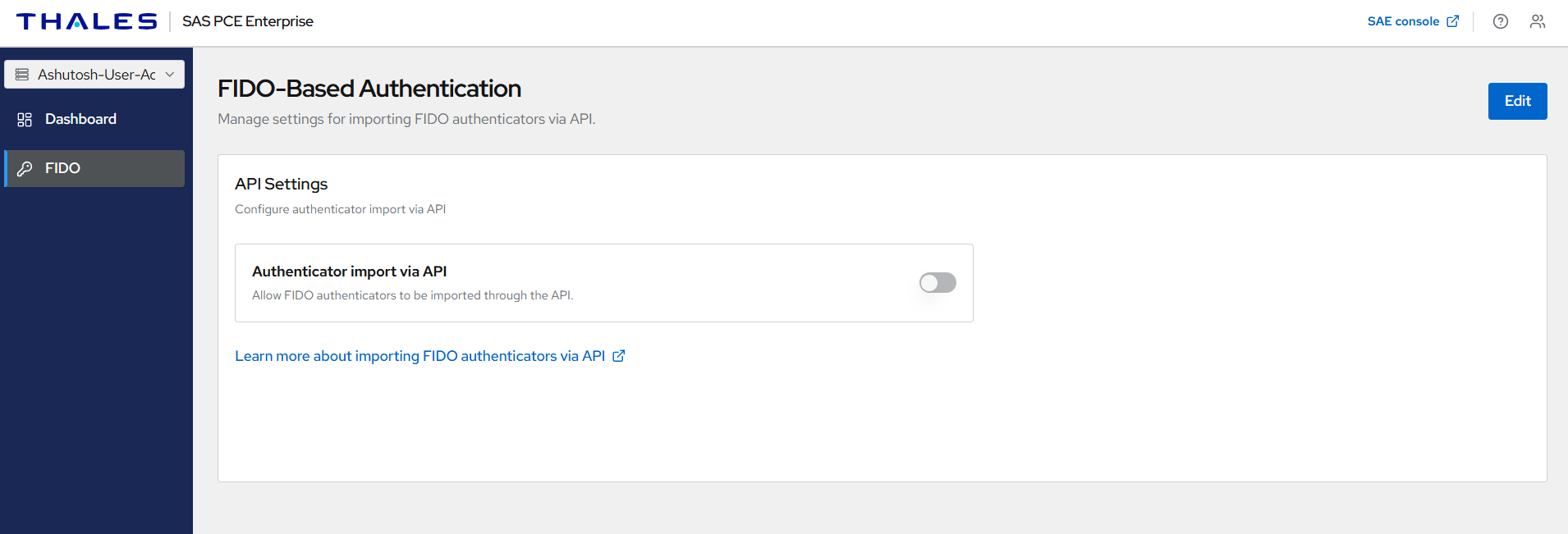
View the current setting
The API Settings section shows the current value of the Authenticator import via API toggle.
Change the setting
-
Click Edit.
The toggle becomes active, and Cancel and Save replace the Edit button.
-
Enable or disable the Authenticator import via API toggle, as required.
-
Click Save.
Note
The Save button remains disabled until the toggle's state differs from its currently saved value.
- If the save is successful, a green confirmation message displays FIDO settings saved successfully, and the page returns to view mode.
- If the save fails, a red error message displays the error returned by the server or the following default message: Failed to save FIDO settings. Please try again.
To discard a change, click Cancel. The unsaved toggle change is discarded, and the page returns to view mode, displaying the previously saved value.
Unsaved changes
If you change the toggle without saving and then navigate to another page, the Discard unsaved changes? dialog appears with the message Your unsaved changes will be lost if you continue.
- Click Keep editing to stay on the page and retain the unsaved change.
- Click Discard changes to discard the unsaved change and continue navigating to the other page.
External FIDO management
Click Learn more about importing FIDO authenticators via API to open the FIDO authenticator import documentation.
To manage FIDO authenticators from an external CMS, see External FIDO management.
For an overview of FIDO authentication, system requirements, and deployment, see FIDO Authentication.

