User Portal help
The user portal provides a single point of access for all of your applications. It displays a tile list of your applications. You simply click an application tile to open the application in a new browser tab.
The first time you visit the portal, there are no applications listed under Favorite Applications. Select View All to display all of your applications.
Select the language
You can select the language for the portal. The text in the portal uses the selected language.
-
In the top-right corner, select the Language
 icon.
icon.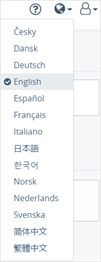
-
Select the language.
Open an application
You can open any application from the portal. Each application opens in a new browser tab.
-
If the application that you want to open is not included under Favorite Applications, display the applications:
- Next to Favorite Applications, select View All.
OR
- Select Applications
-
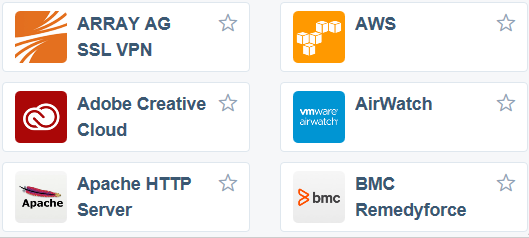
Select the application that you want to open.
-
If prompted, provide your credentials.
Search for an application
If you have a long list of applications, you can search for the application that you want to open.
-
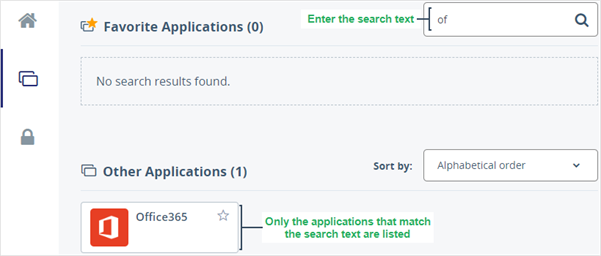
Type the application name in the search field. As you type, the applications that don't match the search text are removed from the list.
-
To clear the search text, click the X in the search field. When you clear the search text, all your applications are listed again.

Sort your applications
To sort the applications in the Other Applications list, select one of the Sort by options:
-
Alphabetical order
-
Most recently used
-
Most frequently used
Sorting has no affect on the applications in your Favorite Applications list.
Add an application to your favorites
You can add the applications that you use the most often to your Favorite Applications list. Favorites are saved only in the browser. If you access the user portal in private mode, your saved favorites aren't available and any favorites that you add aren't saved.
-
Select the Favorite
 icon to add the application to your Favorite Applications list.
The application moves to the Favorite Applications list and the
 icon is selected. The applications are listed in the order in which you add them. You cannot sort the applications in your Favorite Applications list.
-
To remove an application from your Favorite Applications list, click the Unfavorite
icon.The application moves to the Other Applications list and the
icon is cleared.
View your authenticators
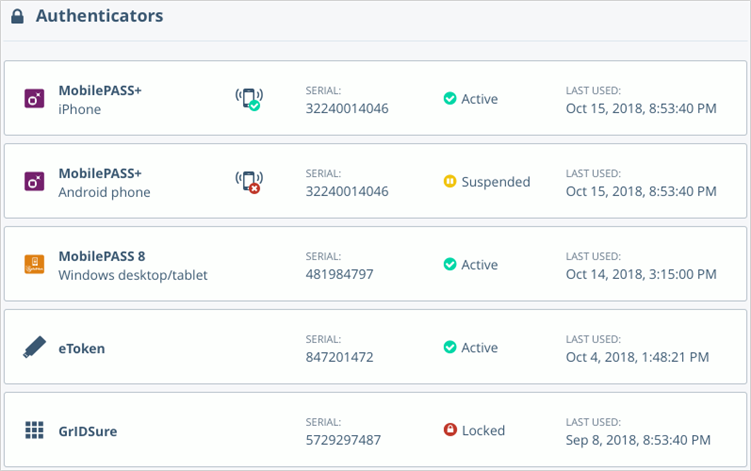
The authenticators list includes all of your tokens. If you have software tokens on several devices, each token and device combination is listed separately.
Log out
You remain logged in to the user portal until you either log out or close your browser, or until it times out.
When you log out of the portal, any applications that you opened from the portal remain active.
-
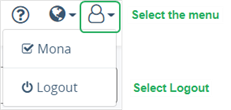
Select the menu
 and then select Logout.