



GaraSign
This guide is tailored for security administrators looking to integrate GaraSign with a Thales Luna HSM or Luna Cloud HSM. GaraSign is a flexible enterprise cryptographic signing platform that balances security with performance, and it can integrate with multiple HSMs simultaneously. In GaraSign, the signing keys are protected by the trusted hardware of the HSM, and clients send only a hash of the data over the network.
This guide provides step-by-step instructions for configuring GaraSign to use Luna HSM as its key container. By implementing this integration, organizations gain the following advantages:
-
Secure generation, storage, and protection of encryption keys using either FIPS 140-2 or FIPS 140-3 Level 3 validated hardware.
-
Full life cycle management of the keys to ensure their integrity and reliability throughout their usage.
-
Maintenance of a comprehensive HSM audit trail for transparency and accountability in key operations. It's important to note that Luna Cloud HSM service does not have access to this secure audit trail.
-
Significant performance enhancements by offloading cryptographic operations from application servers.
GaraSign Overview
Unlike solutions that require clients to upload data to a central location, GaraSign is a remote signing platform. As shown in the figure below, clients hash the data locally and send only the hash to the GaraSign server over a secure channel, keeping network traffic minimal regardless of data size. Once authentication and authorization checks are complete, the server offloads signing to a back-end cryptographic token, such as an HSM or key manager. This design improves performance, enables enterprise features such as advanced authentication, logging, and email notifications, and shields your keys from attack and misuse.
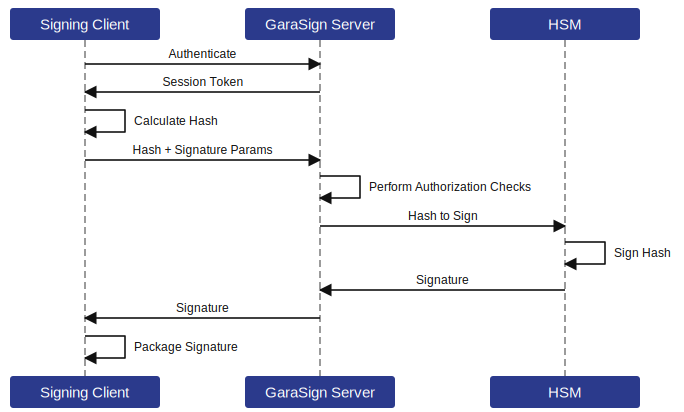
GaraSign is designed to sit on-premises in your network, in your virtual private cloud, or both. Garantir does not have access to any of your infrastructure and does not control your cryptographic keys.
Intended Audience
This guide is intended for qualified personnel responsible for architecting, installing, configuring, operating, or troubleshooting enterprise signing solutions. Readers should be proficient in basic networking, security concepts (such as authentication, authorization, digital signatures, and logging), and the installation, configuration, and use of Luna HSM. Before proceeding, we strongly recommend that you read the GaraSign datasheet.
Prerequisites
The prerequisites for this integration are:
Set up Luna HSM
As the first step in this integration, set up either an On-Premises Luna HSM or a Luna Cloud HSM.
Set up On-Premises Luna HSM
Follow these steps to set up your on-premises Luna HSM:
Ensure that the HSM is set up, initialized, provisioned, and ready for deployment. For more information, refer to Luna HSM documentation.
Create a partition that will later be used by GaraSign.
Create and exchange certificates between the Luna Network HSM and the client system. Register the client and assign the partition to create an NTLS connection.
Initialize the Crypto Officer and Crypto User roles for the registered partition.
Run the LunaCM utility to verify that the partition has been successfully registered and configured.
For PED-authenticated HSMs, enable Partition Policies 22 and 23 to support activation and auto-activation.
Refer to Luna HSM documentation for detailed steps on creating an NTLS connection, initializing the partitions, and assigning user roles.
Record the slot number or token label of the partition. You will need it when you create the key container in GaraSign.
Set up Luna Cloud HSM
Follow these steps to set up your Luna Cloud HSM:
Transfer the downloaded .zip file to your client workstation using pscp, scp, or another secure means.
Extract the .zip file into a directory on your client workstation.
Extract the appropriate client package for your operating system. Do not extract to a new subdirectory; place the files in the client install directory.
Run the setenv script to create a new configuration file containing the information required by the Luna Cloud HSM service.
Run the LunaCM utility and verify that the Luna Cloud HSM service is listed.
If your organization requires non-FIPS algorithms for your operations, ensure that the Allow non-FIPS approved algorithms check box is selected. For more information, refer to Supported Mechanisms.
Record the slot number or token label of the Luna Cloud HSM partition. You will need it when you create the key container in GaraSign.
Set up GaraSign
To set up GaraSign for the integration, perform the following steps on each GaraSign Signing Server and Administration Server:
Install and configure the Luna Client, including the Java (JSP) provider.
Install the appropriate GaraSign software for each server type: the signing software on the Signing Server and the admin software on the Administration Server.
Copy LunaProvider.jar to Tomcat's lib folder.
Start or restart the Tomcat instances on the Signing and Administration servers.
For step 1, refer to the Luna HSM documentation. Be sure to copy the LunaAPI.dll file to the appropriate folder on your host, and use the Luna Client tools to confirm connectivity to the Luna HSM before you proceed.
For step 2, refer to your GaraSign documentation. Your GaraSign professional services personnel typically handle this step.
Integrate Luna HSM with GaraSign
Integrating Luna HSM with GaraSign requires a single task: creating a key container of type Luna in the GaraSign Administrative Console. To launch the console and log in, refer to your GaraSign Admin User Guide. Once you are logged in, complete the following steps:
From the Main Menu, select Key Management, and then select Create Key Container.
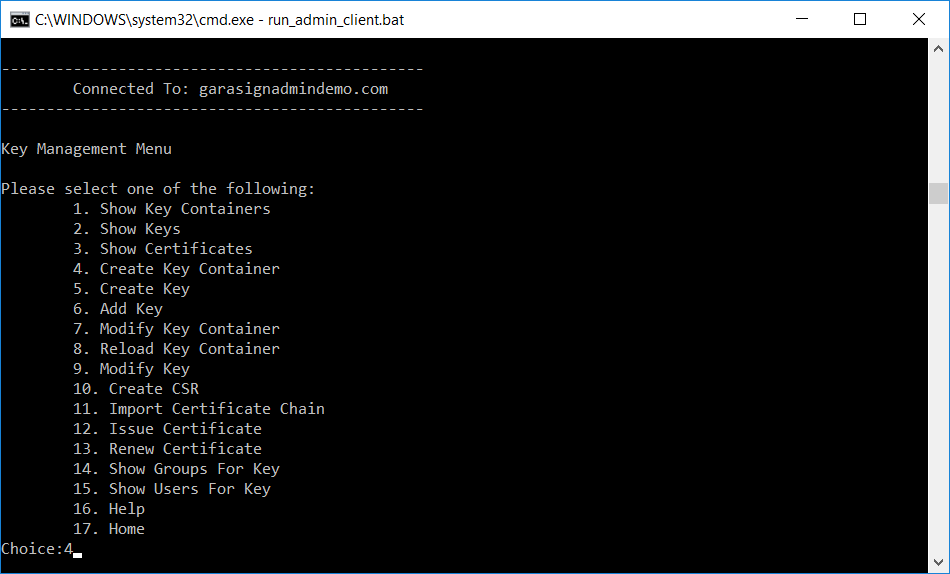
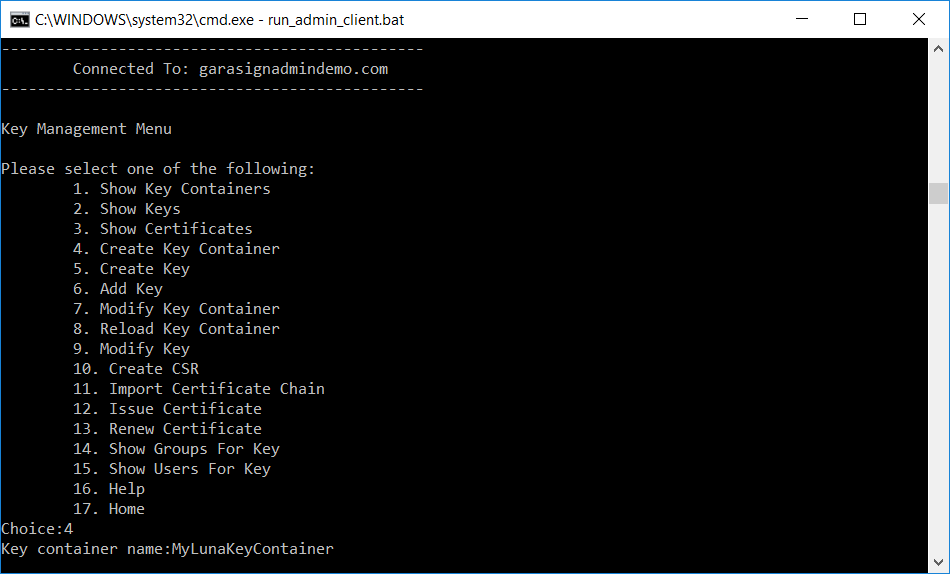
Enter a name for the key container.
The name must be globally unique among all key containers in your GaraSign deployment.
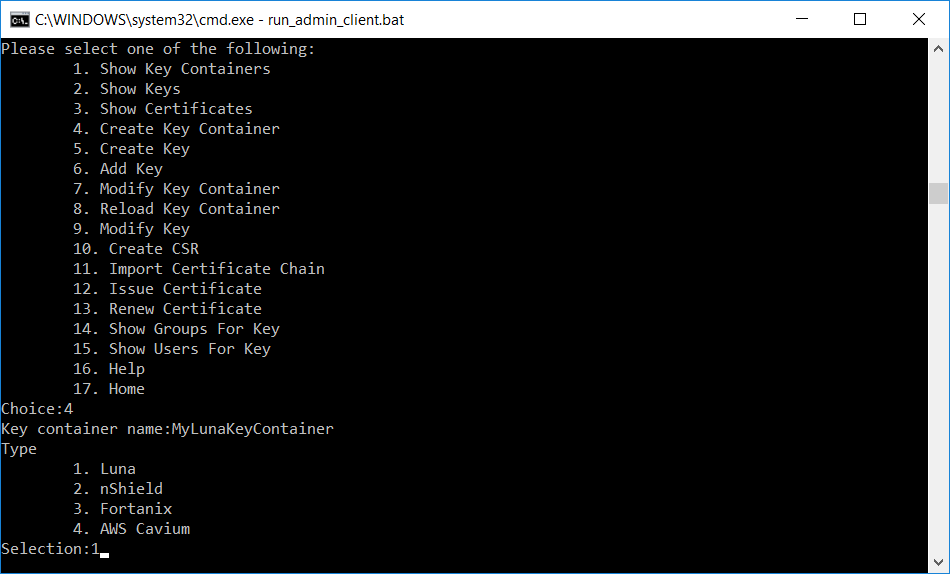
At the Type prompt, select Luna.
At the Slot or Token Label prompt, specify the Luna HSM partition by entering either its slot number in the format slot:<your slot number> (for example, slot:1) or its token label in the format tokenlabel:<your token label> (for example, tokenlabel:mytokenlabel), and then press Enter.
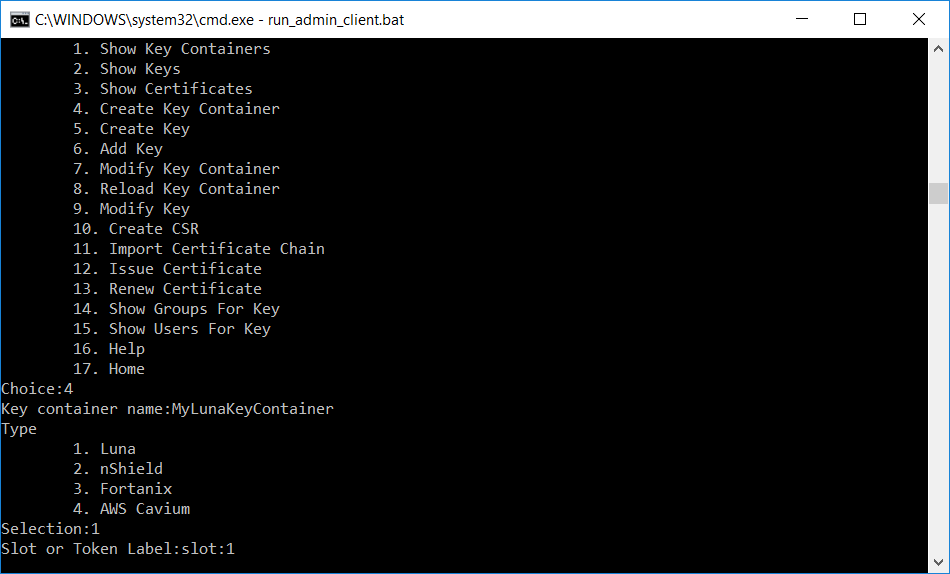
Enter the Partition Crypto Officer Password. You are prompted to enter it twice.
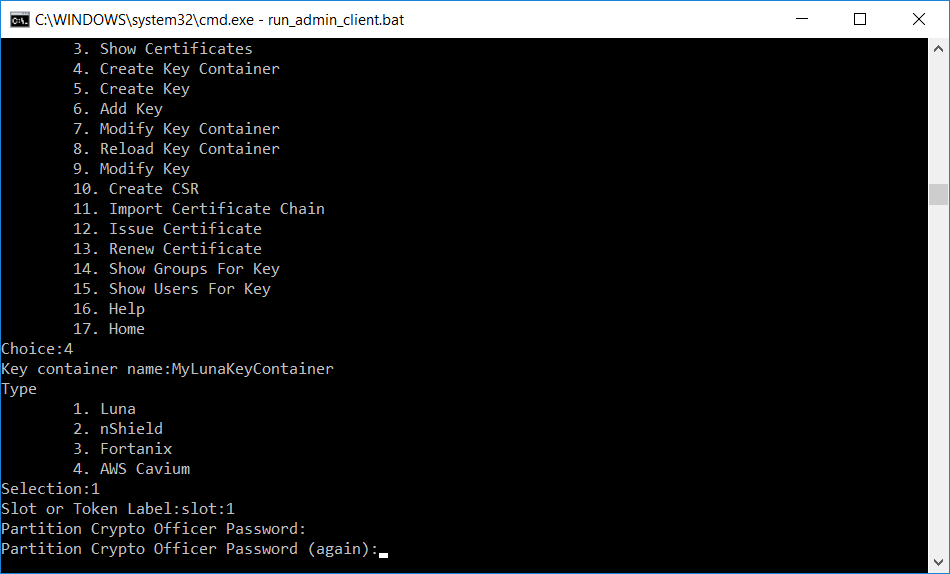
At the Status prompt, select whether the key container is ACTIVE or DISABLED. In most scenarios, the container should be ACTIVE. For more information, refer to your GaraSign Admin User Guide.
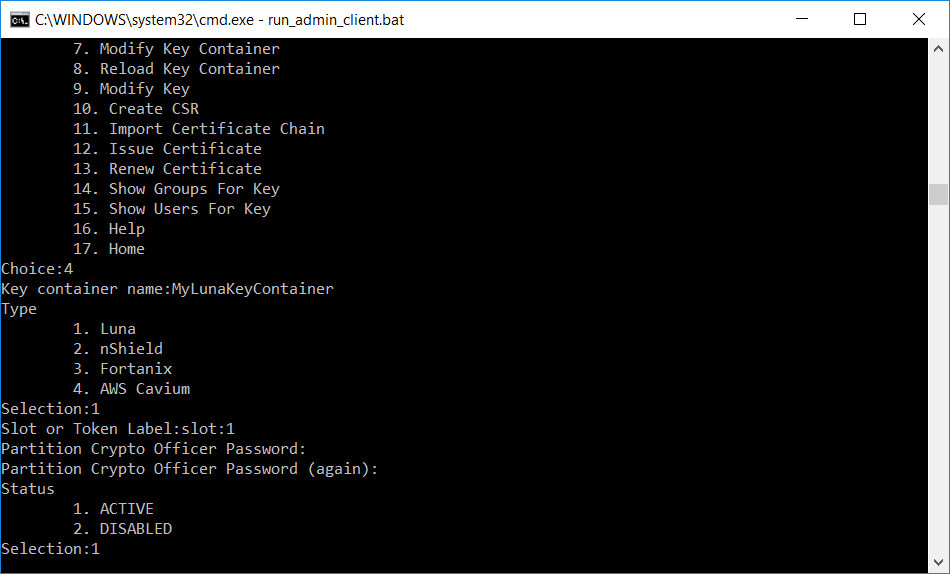
At the confirmation prompt, verify that the information you entered is accurate. If it is, type y and press Enter. Otherwise, press Enter to cancel.
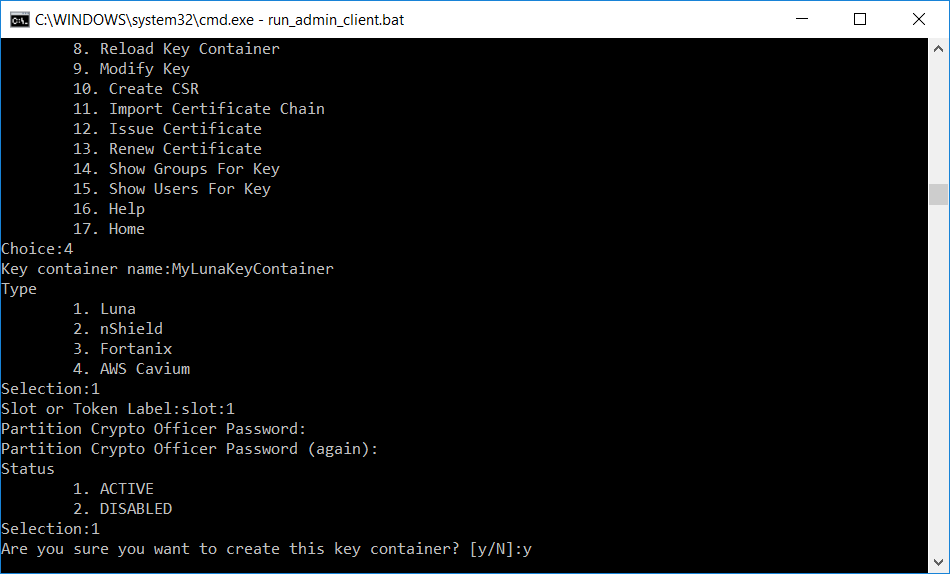
Once you confirm, GaraSign may take several moments to connect to your Luna HSM cluster. Please be patient.
When the process is complete, you can use the Luna HSM like any other key container in GaraSign: create keys, generate certificate signing requests (CSRs), import certificates, sign and decrypt data, and more.
Frequently Asked Questions
Are the Keys Exportable to the Client?
No. Signing keys are generated as non-exportable, and GaraSign exposes no API for retrieving raw key bytes.
How Is High Availability (HA) Achieved with the Luna HSM?
GaraSign relies on the native Luna Client and software, including the HA capabilities of the Luna HSM. For more information, refer to your Luna HSM documentation.
Does Using the Luna HSM Slow Down the Process of Signing?
No. Because GaraSign generates hashes on the client side, network usage is minimal and signatures are fast. Customers no longer have to choose between security and performance.
Is It Possible to Place GaraSign in the Cloud but Still Use a Luna HSM?
Yes. GaraSign is designed to run on-premises, in the cloud, or in a hybrid environment. Customers who want to keep their Luna HSMs on-premises while using the cloud for scaling can have cloud-based GaraSign servers use those HSMs, provided that network connectivity is available. Customers can also connect their GaraSign instance to a cloud-based HSM by using Thales Data Protection on Demand.

