



Microsoft SQL Server
This document provides detailed instructions for integrating Microsoft SQL Server with Thales Luna HSM appliances and Thales Luna Cloud HSM service offerings. It is intended for database administrators, security architects, and system administrators who are responsible for deploying and managing secure database environments. A working knowledge of SQL Server architecture and administration is assumed.
Integration between SQL Server and Luna HSM is achieved through the Extensible Key Management (EKM) Provider. The EKM feature in SQL Server enables the use of external cryptographic devices for secure key storage and cryptographic operations. The Luna EKM Provider enables SQL Server to communicate with Luna HSM partitions through the Luna Client software. Once configured, cryptographic keys can be securely generated, stored, and managed within the HSM boundary, while SQL Server performs encryption and decryption operations using externally protected keys.
This integration supports secure key lifecycle management and strengthens protection of sensitive database assets. The benefits of integrating Luna HSMs with Microsoft SQL Server include:
-
Secure generation, storage, and protection of the identity signing private keys using either FIPS 140-2 or FIPS 140-3 Level 3 validated hardware.
-
Full life cycle management of the keys to ensure their integrity and reliability throughout their usage.
-
Maintenance of a comprehensive HSM audit trail for transparency and accountability in key operations. It's important to note that Luna Cloud HSM service customers do not have access to the HSM audit logs.
-
Improved security and key protection by offloading key management operations to the HSM.
Compatibility Summary
Thales Luna HSM firmware version 7.7.2 introduces enhanced enforcement of FIPS 140 compliance requirements that directly affect integrations with Microsoft SQL Server, including environments that use the Luna Cloud HSM service. When Microsoft SQL Server is integrated with Luna HSM through the EKM Provider and configured to operate in FIPS mode, the supported integration model is determined by the firmware version running on the HSM.
-
Firmware versions up to v7.7.1: These firmware versions maintain compatibility with earlier releases of the Luna EKM Provider, including v1.5 and prior versions, while operating in FIPS mode.
-
Firmware versions v7.7.2 and later (including Luna Cloud HSM deployments): These firmware versions enforce stricter FIPS compliance requirements and require Luna EKM v1.6 or later to ensure a supported and fully functional SQL Server integration in FIPS-enabled environments.
If an existing SQL Server deployment is operating in FIPS mode on firmware v7.7.1 or earlier using Luna EKM v1.5 or lower, a structured upgrade procedure must be completed before migration to firmware v7.7.2. Refer to the section Upgrade Procedure for Luna Firmware v7.7.2 or Later in FIPS Mode for detailed instructions. Following the documented upgrade procedure ensures continued regulatory compliance, preserves access to encrypted database assets, and maintains operational continuity of SQL Server Extensible Key Management integrations after the firmware upgrade.
Tested Platforms
The following platform combinations have been tested and verified for integration between SQL Server and Thales Luna HSM offerings.
Tested Platforms on Luna HSM
The following combinations have been tested with Luna HSM appliances:
| Platforms Tested | EKM Version | Universal Client | Microsoft SQL Server |
|---|---|---|---|
| Windows Server 2025 | EKM v1.6 | UC v10.8+ | SQL 2025, 2022 |
| Windows Server 2022 | EKM v1.6 | UC v10.7+ | SQL 2025, 2022, 2019 |
| Windows Server 2019+CU2 (KB4536075) | EKM v1.5 EKM v1.4 |
UC v10.3+ | SQL 2022, 2019, 2017 |
| Windows Server 2016 | EKM v1.4 | UC v10.1+ | SQL 2019, 2017, 2016 |
These integrations have been tested in both High Availability (HA) and FIPS mode configurations.
Tested Platforms on Luna Cloud HSM
The following combinations have been tested with Luna Cloud HSM services:
| Platforms Tested | EKM Version | Microsoft SQL Server |
|---|---|---|
| Windows Server 2019+CU2 (KB4536075) | EKM v1.5 | SQL 2022, 2019 |
| Windows Server 2016 | EKM v1.4 | SQL 2019, 2017, 2016 |
Prerequisites
Before integrating, ensure that the following prerequisites are met:
Set up Luna HSM
As the first step to accomplish this integration, you need to set up either on-premises Luna HSM or Luna Cloud HSM.
Set up on-premises Luna HSM
Follow these steps to set up your on-premises Luna HSM:
Ensure that the HSM is set up, initialized, provisioned, and ready for deployment. For more information, refer to Luna HSM documentation.
Create a partition that will later be used by Microsoft SQL Server.
Create and exchange certificate between the Luna Network HSM and client system. Register client and assign partition to create an NTLS connection.
Initialize Crypto Officer and Crypto User roles for the registered partition.
Run the following command from a Windows command prompt on the HSM client system to verify that the partition is accessible:
C:\Program Files\SafeNet\LunaClient>lunacm.exe
A successful configuration will display output similar to the following:
lunacm.exe (64-bit) v10.5.0-470.

        Available HSMs:

        Slot Id ->              0
        Label ->                sql01
        Serial Number ->        1312109862216
        Model ->                LunaSA 7.7.1
        Firmware Version ->     7.7.1
        Bootloader Version ->   1.1.2
        Configuration ->        Luna User Partition With SO (PW) Key Export
                                With Cloning Mode
        Slot Description ->     Net Token Slot
        FM HW Status ->         Non-FM

        Current Slot Id: 0
Enable partition policies 22 and 23 on PED-authenticated HSMs to allow partition activation and auto-activation.
Refer to Luna HSM documentation for detailed steps on creating NTLS connection, initializing the partitions, and assigning various user roles.
Set up Luna HSM in High Availability Mode
If High Availability (HA) is required, configure an HA group consisting of two or more Luna HSM appliances. This configuration provides redundancy and ensures continued availability of cryptographic services if one HSM becomes unavailable. To enable automatic failover, configure the HA group and ensure that the HAOnly setting is enabled. When HAOnly is enabled, all cryptographic operations are routed through the HA group. If the primary HSM becomes unavailable for any reason, requests are automatically redirected to a secondary HSM until the primary device recovers and rejoins the group.
Before proceeding with SQL Server integration, verify that all HSMs in the HA group are synchronized and that the HA group status reports all members as active. For detailed instructions on configuring HA groups and managing HA deployments, refer to the Luna HSM documentation.
Set up Luna HSM in FIPS Mode
To configure Luna HSM in FIPS Mode, update the configuration file by adding or modifying the following setting within the [Misc] section:
RSAKeyGenMechRemap=1
This setting ensures that older calling mechanisms are redirected to the approved RSA key generation methods (186-3 with primes and 186-3 with aux primes) required for FIPS compliance. By making this configuration change, Luna HSM will be properly set up to operate in FIPS mode, adhering to the approved RSA key generation standards.
The configuration setting mentioned above, RSAKeyGenMechRemap=1, is not required for the Universal Client. It is applicable only for Luna Client 7.x.
Set up Luna Cloud HSM
The following steps are applicable for setting up the Luna Cloud HSM on a Windows environment:
Transfer the downloaded .zip file to your client workstation using pscp, scp, or other secure means
Extract the .zip file into a directory on your client workstation.
Extract or untar the appropriate client package for your operating system. Do not extract to a new subdirectory; place the files in the client install directory.
cvclient-min.zip
Run the setenv script to generate a new configuration file with the necessary information for the Luna Cloud HSM service. Right-click setenv.cmd and select Run as Administrator.
To add the configuration to an already installed UC client, use the –addcloudhsm option when running the setenv script.
Run the LunaCM utility and verify that the Cloud HSM service is listed.
If your organization requires non-FIPS algorithms for your operations, ensure that the Allow non-FIPS approved algorithms check box is checked. For more information, refer to Supported Mechanisms.
Configure Luna EKM
Follow these steps to install and configure Luna EKM on the host system:
Install the Luna EKM software on the SQL Server host system using the Windows-based installation wizard provided with the Luna EKM installation package. The installation package contains the Luna EKM provider library, configuration utilities, and supporting components required for SQL Server integration. You can download the appropriate Luna EKM installation package from the Thales Customer Support Portal using the following document IDs:
When using multiple TDE databases in SQL Server, apply the Luna EKM v1.6 Patch. This patch resolves an issue in the Luna EKM v1.6 GA release where improper PKCS#11 session reuse prevented Microsoft SQL Server from decrypting TDE databases during service restart when more than two TDE databases were enabled, causing the databases to enter a Pending Recovery state. To apply the patch, download the patch package from the Thales Customer Support Portal and replace the existing files in the Luna EKM installation directory with the files included in the patch package. Doc ID for the Luna EKM v1.6 Patch: KB0030558.
Luna EKM v1.5 and later introduce support for the Crypto User (CU) role of the partition. The Crypto User can perform cryptographic operations such as encryption and decryption but cannot create, delete, or rotate keys.
Luna EKM v1.5 and later also support silent installation. Execute the following command on the host system to install Luna EKM silently:msiexec.exe /i LunaEKM.msi /qn INSTALLLEVEL=101 /l* EKM.txt
After installation, use the LunaEKMConfig command-line utility to register and configure the Luna EKM provider. This utility is available in the Luna EKM installation directory and provides commands to register HSM slots, view configured slots, and configure logging. Execute the following commands using LunaEKMConfig:
- Register a slot with Luna EKM.
RegisterSlot
- View the list of HSM slots configured for the client.
ViewSlots
- Configure logging settings.
LogSettings
LogLevel (NONE=0,INFO=1,DEBUG=2): <LogLevel>
LogFile name: <Name and location of LogFile>
Configure SQL Server
Install SQL Server on the designated machine. If you intend to set up a High Availability (Always On) SQL Server group, it's essential to install SQL Server on all the nodes and verify that each node has access to Windows Failover Clustering Services (WFCS). For comprehensive installation procedures, consult the Microsoft SQL Server documentation.
Integrate Luna HSM with SQL Server
Follow these steps to establish and optimize the integration between Luna HSM and SQL Server for various key management and encryption functionalities:
Create and register Luna EKM Provider
Set up credential for Luna EKM Provider
Enable TDE using asymmetric key
Enable EKM Provider option
To activate the EKM Provider option, follow these steps:
Launch the SQL Server Management Studio.
Connect to the SQL Server.
Open a new query window and run the following query:
sp_configure 'show advanced', 1
GO
RECONFIGURE
GO
sp_configure 'EKM provider enabled', 1
GO
RECONFIGURE
GO
The sp_configure is compatible with the Enterprise, Developer, and Evaluation editions of SQL Server. Executing the command on a different version may result in an error.
Create and register Luna EKM Provider
To create and register the Luna EKM Provider, follow these steps:
Launch the SQL Server Management Studio.
Connect to the SQL Server.
Open a new query window and execute the following command:
CREATE CRYPTOGRAPHIC PROVIDER <provider_name>
FROM FILE = '<full_path_to_LunaEKM_provider_library>'
-
provider_name— User-defined unique name for the cryptographic provider. This name is referenced later when creating credentials and performing key management operations through the Luna EKM Provider. -
full_path_to_LunaEKM_provider_library— Absolute path to the LunaEKM.dll file installed with the Luna Client.
Example:
CREATE CRYPTOGRAPHIC PROVIDER LunaEKMProvider
FROM FILE = 'C:\Program Files\SafeNet\LunaClient\EKM\LunaEKM.dll'
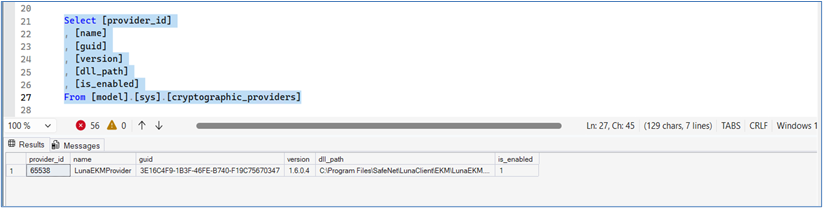
Verify the list of EKM providers:
SELECT [provider_id], [name], [guid], [version], [dll_path], [is_enabled]
FROM [model].[sys].[cryptographic_providers]
The query output should display the registered Luna EKM Provider, similar to the example shown below.
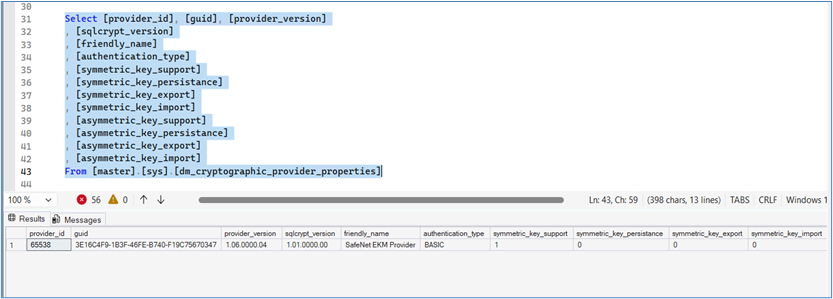
Verify the provider properties:
SELECT [provider_id], [guid], [provider_version], [sqlcrypt_version], [friendly_name], [authentication_type],
[symmetric_key_support], [symmetric_key_persistance], [symmetric_key_export], [symmetric_key_import],
[asymmetric_key_support], [asymmetric_key_persistance], [asymmetric_key_export], [asymmetric_key_import]
FROM [master].[sys].[dm_cryptographic_provider_properties]
The output should display the Luna EKM Provider properties, similar to the example shown below.
Set up credential for Luna EKM Provider
After registering the Luna EKM Provider, you must create a SQL Server CREDENTIAL that allows the SQL Server service account or a specific login to authenticate to the Luna HSM partition. This credential establishes the mapping between SQL Server and the Luna HSM user identity that is permitted to perform cryptographic operations.
In Luna EKM v1.5 or later, support was added for the Crypto User (CU) role of a partition. When creating a credential for a crypto user, the IDENTITY value must include the prefix CU_. If this prefix is not specified, SQL Server defaults to using the Crypto Officer (CO) role when authenticating to the HSM partition.
Open a new SQL query window and execute the following command:
CREATE CREDENTIAL <credential_name>
WITH IDENTITY = '<ekm_user_name>',
SECRET = '<hsm_partition_password>'
FOR CRYPTOGRAPHIC PROVIDER LunaEKMProvider
-
credential_name— User-defined unique name for the SQL Server credential. -
ekm_user_name— Luna HSM partition user name. Use the prefixCU_when creating a credential for the Crypto User (CU) role. If no prefix is specified, the Crypto Officer (CO) role is used by default. -
hsm_partition_password— Password of the Crypto Officer (CO) or Crypto User (CU) for the HSM partition. -
LunaEKMProvider— Name of the cryptographic provider defined during Luna EKM registration.
Credentials created using the CU role provide read-only cryptographic capabilities. Logins mapped with a CU credential *annot create, delete, or rotate keys on the HSM. They can only perform cryptographic operations such as encryption and decryption.
Create a credential for a crypto-officer (CO):
CREATE CREDENTIAL EKMCredential
WITH IDENTITY='EKMUser', SECRET='userpin1'
FOR CRYPTOGRAPHIC PROVIDER LunaEKMProvider
Create a credential for a crypto-user (CU):
CREATE CREDENTIAL EKMCredential
WITH IDENTITY='CU_EKMUser', SECRET='userpin2'
FOR CRYPTOGRAPHIC PROVIDER LunaEKMProvider
Map the credential with the SQL service account or login:
ALTER LOGIN [Domain\Login Name] ADD CREDENTIAL '<Name of Credential created>';
Make sure to reopen the EKM session when there are changes to user credentials or the HSM service, or when the client machine is deleted from the service, or in the event of a network disconnection on the machine.
Use Luna EKM Provider option
The Luna EKM Provider has been prepared and is now available for use. This provider facilitates the generation and deletion of both symmetric and asymmetric keys within a Luna HSM partition. The keys generated can then be employed for encryption and decryption operations. Specifically, the SQL Server is capable of creating symmetric keys of different lengths within the Luna HSM. These keys can be pivotal in securing sensitive data through encryption processes within the SQL Server environment. The following types of symmetric keys can be created on Luna HSM from the SQL Server:
-
AES_128
-
AES_192
-
AES_256
Manage symmetric keys
The following sections describe how to create, view, and manage symmetric keys using the Luna EKM Provider.
The examples provided below use AES_256 algorithms. To explore other algorithms, replace AES_256 with an alternate algorithm tag.
Create symmetric keys
To create a symmetric key using the Luna EKM Provider, execute the following command from the SQL query window:
CREATE SYMMETRIC KEY SQL_EKM_AES_256_Key
FROM Provider LunaEKMProvider
WITH ALGORITHM = AES_256,
PROVIDER_KEY_NAME = 'EKM_AES_256_Key',
CREATION_DISPOSITION = CREATE_NEW
Once a key is created on the Luna HSM, it can be referenced by name within the SQL Server. In the test case above, SQL_EKM_AES_256_Key serves as the unique name for the key in the SQL Server, applicable for encrypting and decrypting operations.
View symmetric keys
Execute the following command from the SQL query window to view the symmetric keys configured in SQL Server:
SELECT * FROM [master].[sys].[symmetric_keys]
The output should display the symmetric key created using the Luna EKM Provider, similar to the example shown below.

Encrypt a database table with symmetric keys
Follow these steps to encrypt a database table with symmetric keys:
Create a test table in the MASTER database with fields:
CREATE TABLE test (
id NUMERIC(10),
name VARCHAR(50),
data VARCHAR(MAX)
)
Execute the following command from the SQL query window:
INSERT INTO dbo.test
VALUES (1, 'some text', EncryptByKey(Key_GUID('SQL_EKM_AES_256_Key'), 'text to be encrypted'))
Decrypt a database table with symmetric keys
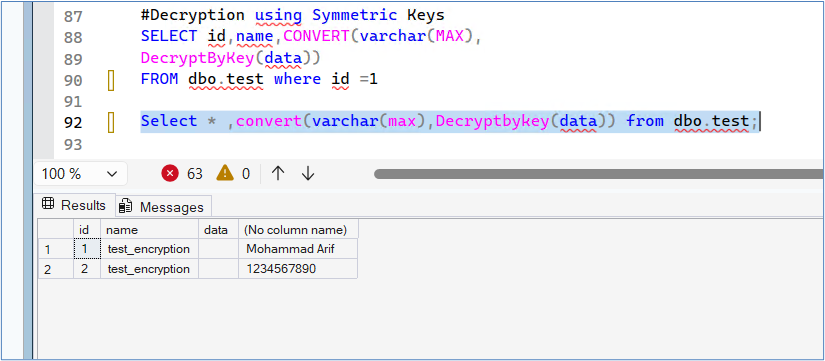
Execute the following command from the SQL query window to decrypt the entire column of the table:
SELECT *, CONVERT(VARCHAR(MAX), DecryptByKey(data)) FROM dbo.test;
The output should display the decrypted values from the data column, similar to the example shown below.
Drop symmetric keys
To remove symmetric keys, execute the following command from the SQL query window:
DROP SYMMETRIC KEY SQL_EKM_AES_256_Key REMOVE PROVIDER KEY
Manage asymmetric keys
The Luna EKM Provider allows SQL Server to create and manage the following asymmetric key types on the Luna HSM:
-
RSA_2048
-
RSA_3072
-
RSA_4096
The examples that follow focus on RSA_2048 algorithms for illustrating asymmetric key operations. Feel free to effortlessly swap RSA_2048 with any alternative algorithm tag of your choice.
Create and map asymmetric keys
To create and map asymmetric keys using the Luna EKM Provider:
Run the following SQL command:
CREATE ASYMMETRIC KEY SQL_EKM_RSA_2048_Key
FROM Provider LunaEKMProvider
WITH ALGORITHM = RSA_2048,
PROVIDER_KEY_NAME = 'EKM_RSA_2048_Key',
CREATION_DISPOSITION=CREATE_NEW
Once a key is created on Luna HSM, it becomes accessible by its name from SQL Server. For instance, in the test case above, SQL_EKM_RSA_2048_Key serves as the unique key name in SQL Server, applicable for encryption and decryption operations.
View asymmetric keys
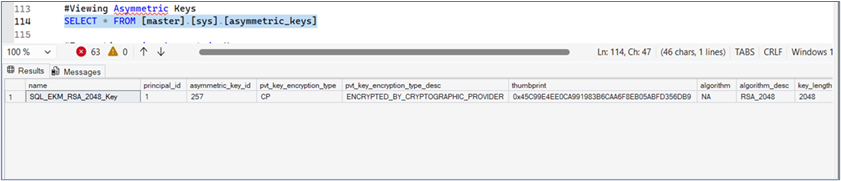
Execute the following command from the SQL query window to view the asymmetric keys configured through the Luna EKM Provider:
SELECT * FROM [master].[sys].[asymmetric_keys]
The output should display the asymmetric keys available in SQL Server, including those stored in the Luna HSM through the Luna EKM Provider, similar to the example shown below.
Encrypt a database table with asymmetric keys
To encrypt a database table with asymmetric keys:
Create a test table in the MASTER database with fields:
CREATE TABLE test (
  id NUMERIC(10),
  name VARCHAR(50),
  data VARCHAR(MAX)
)
Execute the following command from the SQL query window:
INSERT INTO dbo.test
VALUES (1, 'some text', EncryptByAsymKey(AsymKey_Id('SQL_EKM_RSA_2048_Key'), 'text to be encrypted'))
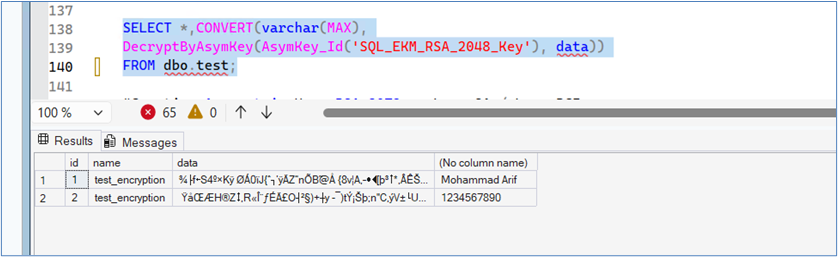
Decrypt a database table with asymmetric keys
To decrypt a database table with asymmetric keys, execute the following command from the SQL query window:
SELECT *, CONVERT(VARCHAR(MAX),
DecryptByAsymKey(AsymKey_Id('SQL_EKM_RSA_2048_Key'), data))
FROM dbo.test;
The output should display the decrypted values from the data column, similar to the example shown below.
Drop asymmetric keys
To drop asymmetric keys using Luna EKM Provider, execute the following command from the SQL query window:
DROP ASYMMETRIC KEY SQL_EKM_RSA_2048_Key REMOVE PROVIDER KEY
Create symmetric key encrypted by asymmetric key
Follow these steps to create a symmetric key encrypted by an asymmetric key:
Execute the following command in the SQL query window:
CREATE SYMMETRIC KEY key1
WITH ALGORITHM = AES_256
ENCRYPTION BY Asymmetric Key SQL_EKM_RSA_2048_Key;
SQL_EKM_RSA_2048_Key refers to an existing asymmetric key on the Luna HSM. For details on generating an asymmetric key, consult the Manage asymmetric keys section.
Execute the following command from the SQL query window to verify that the symmetric key has been created:
SELECT * FROM [master].[sys].[symmetric_keys]
The output should display the newly created symmetric key, similar to the example shown below.

Open the key before you can use it for decryption operations:
OPEN SYMMETRIC KEY key1 DECRYPTION BY Asymmetric Key SQL_EKM_RSA_2048_Key;
For Microsoft SQL Server 2017, apply the recommended patch, as described in the Troubleshooting Tips section.
Create a test table in the master database with the following fields:
CREATE TABLE test (
  id NUMERIC(10),
  name VARCHAR(50),
  data VARCHAR(MAX)
)
Encrypt the table data using the symmetric key:
INSERT INTO dbo.test
VALUES (1, 'some text', Encryptbykey(KEY_GUID('key1'), 'text to be encrypted'))
Decrypt the data using the symmetric key:
SELECT id, name, CONVERT(VARCHAR(MAX), DecryptByKey(data))
FROM dbo.test
WHERE id = 1;
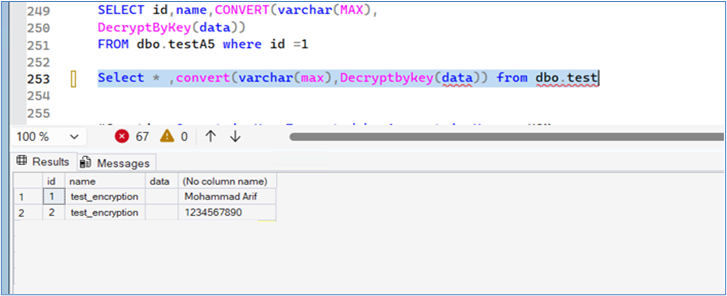
Execute the following command from the SQL query window to decrypt the entire column of the table:
SELECT *, CONVERT(VARCHAR(MAX), DecryptByKey(data))
FROM dbo.test;
The output should display the decrypted values for all rows in the data column, similar to the example shown below.
Close the symmetric key:
CLOSE SYMMETRIC KEY key1
Enable TDE using asymmetric key
TDE can be enabled using an asymmetric key stored on a Luna HSM. This allows the database encryption key (DEK) to be protected by a key that resides securely inside the HSM.
Support for higher-length asymmetric keys such as RSA_3072 and RSA_4096 is available from Luna EKM v1.3 onwards. However, during integration testing an issue was identified when encrypting the DEK using RSA_4096. Until Microsoft resolves this issue, it is recommended to use a maximum key length of RSA_3072 for TDE deployments.
Encryption operations cannot be executed on the following system databases: master, model, tempdb, msdb, or resource.
Create an asymmetric key using the Luna EKM Provider:
CREATE ASYMMETRIC KEY SQL_EKM_RSA_2048_Key_TDE
FROM Provider LunaEKMProvider
WITH ALGORITHM = RSA_2048,
PROVIDER_KEY_NAME = 'EKM_RSA_2048_Key_TDE',
CREATION_DISPOSITION = CREATE_NEW;
Create a credential for the Luna EKM Provider:
CREATE CREDENTIAL <Name of credential>
WITH IDENTITY='<Name of EKM User>', SECRET='<HSM partition password>'
FOR CRYPTOGRAPHIC PROVIDER LunaEKMProvider;
Create a login based on the asymmetric key:
CREATE LOGIN <Name of login>
FROM ASYMMETRIC KEY SQL_EKM_RSA_2048_Key_TDE;
Map the credential to the login:
ALTER LOGIN <Name of login>
ADD CREDENTIAL <Name of credential>;
Create a database for encryption testing:
CREATE DATABASE TDE;
Create the database encryption key (DEK):
USE TDE;
CREATE DATABASE ENCRYPTION KEY
WITH ALGORITHM = AES_256
ENCRYPTION BY SERVER ASYMMETRIC KEY SQL_EKM_RSA_2048_Key_TDE;
Enable Transparent Data Encryption:
ALTER DATABASE TDE
SET ENCRYPTION ON;
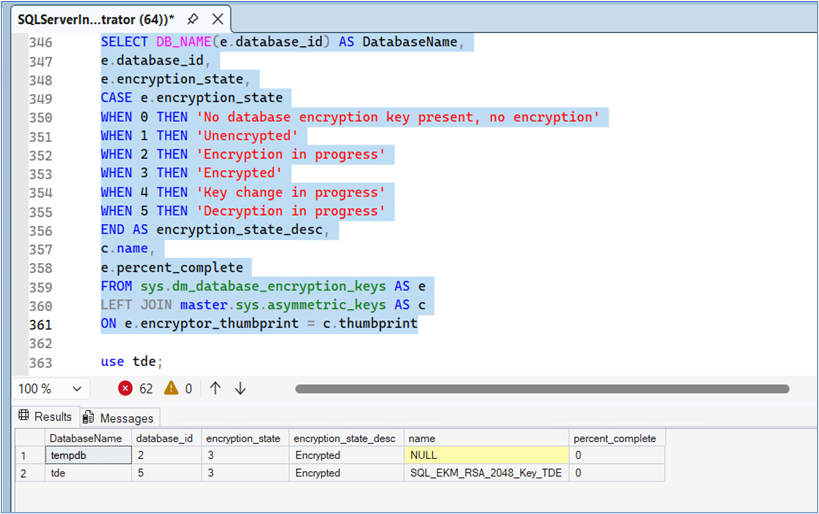
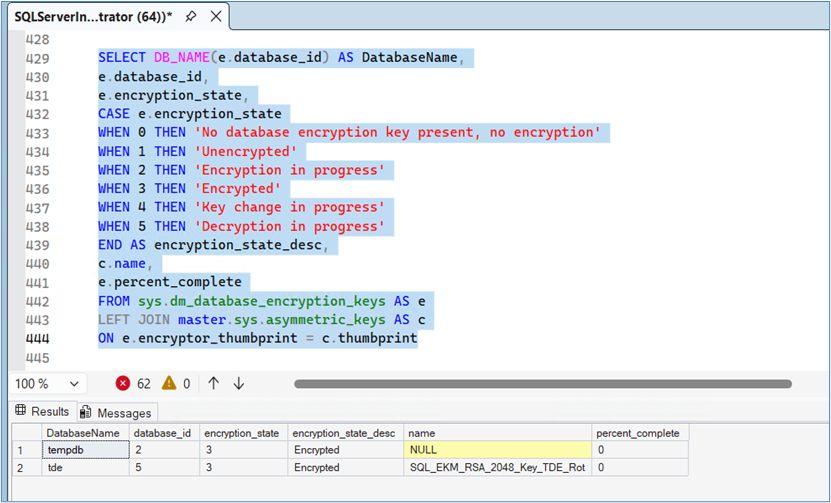
Query the status of database encryption and monitor progress:
SELECT DB_NAME(e.database_id) AS DatabaseName,
e.database_id,
e.encryption_state,
CASE e.encryption_state
WHEN 0 THEN 'No database encryption key present, no encryption'
WHEN 1 THEN 'Unencrypted'
WHEN 2 THEN 'Encryption in progress'
WHEN 3 THEN 'Encrypted'
WHEN 4 THEN 'Key change in progress'
WHEN 5 THEN 'Decryption in progress'
END AS encryption_state_desc,
c.name,
e.percent_complete
FROM sys.dm_database_encryption_keys AS e
LEFT JOIN master.sys.asymmetric_keys AS c
ON e.encryptor_thumbprint = c.thumbprint;
The query output displays the encryption status of the database along with the completion percentage of the encryption process, similar to the example shown below.
Rotate keys for TDE
Microsoft recommends periodically rotating TDE keys to maintain strong cryptographic hygiene. Key rotation can involve regenerating the Database Encryption Key (DEK) or rotating the asymmetric key (Key Encryption Key – KEK) stored on the Luna HSM.
Generate a new asymmetric key using the Luna EKM Provider:
CREATE ASYMMETRIC KEY SQL_EKM_RSA_2048_Key_TDE_Rot
FROM Provider LunaEKMProvider
WITH ALGORITHM = RSA_2048,
PROVIDER_KEY_NAME = 'EKM_RSA_2048_Key_TDE_Rot',
CREATION_DISPOSITION = CREATE_NEW;
Create a credential for the Luna EKM Provider:
CREATE CREDENTIAL <Name of credential>
WITH IDENTITY='<Name of EKM User>', SECRET='<HSM partition password>'
FOR CRYPTOGRAPHIC PROVIDER LunaEKMProvider;
Create a login based on the newly created asymmetric key:
CREATE LOGIN <Name of login>
FROM ASYMMETRIC KEY SQL_EKM_RSA_2048_Key_TDE_Rot;
Map the credential to the login:
ALTER LOGIN <Name of login>
ADD CREDENTIAL <Name of credential>;
Rotate the Database Encryption Key (DEK):
This operation decrypts the database using the existing DEK and re-encrypts it with a newly generated DEK. The process may take time depending on the size of the database.
USE TDE;
ALTER DATABASE ENCRYPTION KEY
REGENERATE
WITH ALGORITHM = AES_192;
Rotate the asymmetric key (Key Encryption Key – KEK) used to protect the DEK:
This operation replaces the asymmetric key used to encrypt the DEK without re-encrypting the entire database. It completes quickly because only the DEK is re-encrypted.
ALTER DATABASE ENCRYPTION KEY
ENCRYPTION BY SERVER ASYMMETRIC KEY SQL_EKM_RSA_2048_Key_TDE_Rot;
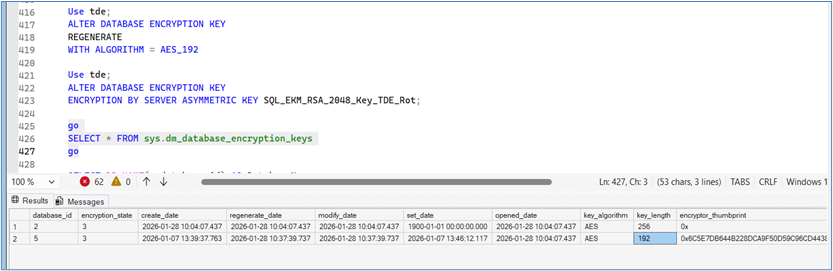
Query the status of the database encryption keys:
GO
SELECT * FROM sys.dm_database_encryption_keys;
GO
The output displays the current status of the Database Encryption Key (DEK) and its encryption state, similar to the example shown below.
Query the database encryption state and monitor key rotation progress:
SELECT DB_NAME(e.database_id) AS DatabaseName,
e.database_id,
e.encryption_state,
CASE e.encryption_state
WHEN 0 THEN 'No database encryption key present, no encryption'
WHEN 1 THEN 'Unencrypted'
WHEN 2 THEN 'Encryption in progress'
WHEN 3 THEN 'Encrypted'
WHEN 4 THEN 'Key change in progress'
WHEN 5 THEN 'Decryption in progress'
END AS encryption_state_desc,
c.name,
e.percent_complete
FROM sys.dm_database_encryption_keys AS e
LEFT JOIN master.sys.asymmetric_keys AS c
ON e.encryptor_thumbprint = c.thumbprint;
The query output displays the encryption state and progress of the TDE key rotation operation.
Migrate TDE from SQL EKM to Luna EKM
In earlier deployments, the Database Encryption Key (DEK) was protected by a certificate or asymmetric key generated within SQL Server. You can migrate this configuration so that the DEK is protected by a Key Encryption Key (KEK) stored securely in a Luna HSM.
Two migration approaches are supported:
-
Rotate the Database Encryption Key (DEK) and migrate to a Key Encryption Key (KEK) stored on Luna HSM.
-
Migrate the DEK protection to a Luna HSM KEK without rotating the DEK.
The first approach decrypts and re-encrypts the database using a new DEK, while the second approach simply re-encrypts the DEK with the KEK stored in the HSM.
The example below uses the database AdventureWorks.
Create an asymmetric key on the Luna HSM using the Luna EKM Provider:
CREATE ASYMMETRIC KEY SQL_EKM_RSA_2048_Key_AW
FROM Provider LunaEKMProvider
WITH ALGORITHM = RSA_2048,
PROVIDER_KEY_NAME = 'EKM_RSA_2048_Key_AW',
CREATION_DISPOSITION = CREATE_NEW;
Create a credential for the Luna EKM Provider:
CREATE CREDENTIAL <Name of credential>
WITH IDENTITY='<Name of EKM User>', SECRET='<HSM partition password>'
FOR CRYPTOGRAPHIC PROVIDER LunaEKMProvider;
Create a login based on the asymmetric key:
CREATE LOGIN <Name of login>
FROM ASYMMETRIC KEY SQL_EKM_RSA_2048_Key_AW;
Map the credential to the login:
ALTER LOGIN <Name of login>
ADD CREDENTIAL <Name of credential>;
Back up the database and transaction logs before performing the migration.
Option 1 – Rotate the DEK and migrate to KEK on Luna HSM
Rotate the Database Encryption Key (DEK):
USE AdventureWorks;
ALTER DATABASE ENCRYPTION KEY
REGENERATE
WITH ALGORITHM = AES_256;
Migrate the DEK protection to the KEK stored on Luna HSM:
ALTER DATABASE ENCRYPTION KEY
ENCRYPTION BY SERVER ASYMMETRIC KEY SQL_EKM_RSA_2048_Key_AW;
Option 2 – Migrate to KEK on Luna HSM without rotating the DEK
Re-encrypt the DEK using the KEK stored on the Luna HSM:
USE AdventureWorks;
ALTER DATABASE ENCRYPTION KEY
ENCRYPTION BY SERVER ASYMMETRIC KEY SQL_EKM_RSA_2048_Key_AW;
Verify the status of the Database Encryption Key (DEK):
GO
SELECT * FROM sys.dm_database_encryption_keys;
GO
Check the status of Transparent Data Encryption after migration:
SELECT DB_NAME(e.database_id) AS DatabaseName,
e.database_id,
e.encryption_state,
CASE e.encryption_state
WHEN 0 THEN 'No database encryption key present, no encryption'
WHEN 1 THEN 'Unencrypted'
WHEN 2 THEN 'Encryption in progress'
WHEN 3 THEN 'Encrypted'
WHEN 4 THEN 'Key change in progress'
WHEN 5 THEN 'Decryption in progress'
END AS encryption_state_desc,
c.name,
e.percent_complete
FROM sys.dm_database_encryption_keys AS e
LEFT JOIN master.sys.asymmetric_keys AS c
ON e.encryptor_thumbprint = c.thumbprint;
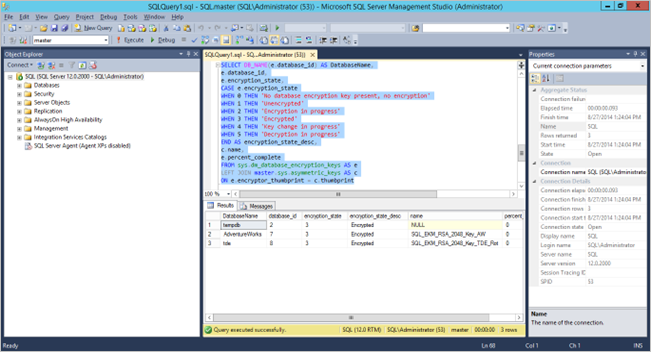
The query output displays the database encryption status and completion percentage of the migration process, similar to the example shown below.
Use EKM on SQL Server failover cluster
This section describes how to prepare and validate the environment for using the Luna EKM Provider with a two-node SQL Server Failover Cluster deployed on Windows Server.
Install and configure a SQL Server Failover Cluster. Refer to the Microsoft SQL Server documentation for detailed instructions on installing and configuring a SQL Server Failover Cluster. Ensure that shared storage is properly configured and sized according to the number and size of the databases that will be protected by TDE.
Install either the Luna Network HSM Client or the Luna Cloud HSM Client on both nodes participating in the SQL Server cluster.
Configure the Luna HSM client on each node and register the same HSM partition (or Luna Cloud HSM service partition) so that both nodes can access the cryptographic keys stored in the HSM.
Install the Luna EKM Provider on both nodes:
Install the Luna EKM Provider on each node of the SQL Server cluster.
Configure the Luna EKM Provider on both nodes. Run the LunaEKMConfig utility on both nodes to register the HSM slots and verify connectivity to the Luna HSM partition.
Register the Luna EKM Provider on the primary node. Open SQL Server Management Studio (SSMS) on the primary node and register the Luna EKM Provider using the SQL commands described in the earlier section.
Create a credential that maps the SQL Server login or service account to the Luna HSM partition credentials.
Generate symmetric or asymmetric keys using the Luna EKM Provider on the primary node.
Create a test table and encrypt one of its columns using the encryption key stored in the Luna HSM.
Simulate a failover scenario. Shut down or fail over the primary node to transfer SQL Server operations to the secondary node.
Verify decryption on the secondary node. Log in to the secondary node and attempt to decrypt the data that was encrypted on the primary node.
Validate cluster operation. If the encrypted data can be successfully decrypted on the secondary node, the EKM integration using the Luna EKM Provider is functioning correctly in the SQL Server failover cluster environment.
Integrate Luna HSM with SQL Server HA group
To seamlessly integrate Luna HSM with SQL Server in a HA Group, follow these steps:
Create and register Luna EKM Provider
Set up credential for Luna EKM Provider
Create Always On Availability Group
Validate Luna EKM Integration with Availability Group
Enable TDE using asymmetric key on Luna HSM
Enable EKM Provider Option
To enable the EKM Provider option on all nodes in the HA configuration, follow these steps:
Launch the SQL Server Management Studio (SSMS) application.
Connect to the SQL Server.
Open a query window, and execute the following commands:
sp_configure 'show advanced', 1;
GO
RECONFIGURE;
GO
sp_configure 'EKM provider enabled', 1;
GO
RECONFIGURE;
GO
Ensure that you are using the Enterprise, Developer, or Evaluation editions of SQL Server. The sp_configure command may not be supported on alternative versions, leading to an error if executed.
Create and register Luna EKM Provider
Install and register the Luna EKM Provider on all nodes participating in the SQL Server high-availability configuration. This ensures that each node in the cluster can access the Luna HSM for cryptographic operations.
Open SQL Server Management Studio (SSMS) and connect to the SQL Server instance.
Execute the following command to create and register the Luna EKM Provider:
CREATE CRYPTOGRAPHIC PROVIDER <Name of Cryptographic Provider>
FROM FILE = '<Location of Luna EKM Provider Library>';
<Name of Cryptographic Provider> can be any unique user-defined name. The file path should point to the Luna EKM Provider library (for example, LunaEKM.dll) installed with the Luna Client software.
Verify that the Luna EKM Provider has been registered:
SELECT [provider_id],
[name],
[guid],
[version],
[dll_path],
[is_enabled]
FROM [model].[sys].[cryptographic_providers];
Verify the provider capabilities and properties:
SELECT [provider_id], [guid], [provider_version],
[sqlcrypt_version],
[friendly_name],
[authentication_type],
[symmetric_key_support],
[symmetric_key_persistance],
[symmetric_key_export],
[symmetric_key_import],
[asymmetric_key_support],
[asymmetric_key_persistance],
[asymmetric_key_export],
[asymmetric_key_import]
FROM [master].[sys].[dm_cryptographic_provider_properties];
The query output should display the capabilities and configuration details of the Luna EKM Provider, similar to the example shown below.
Set up credential for Luna EKM Provider
To set up credential for Luna EKM Provider:
Execute the following command to create the credential:
CREATE CREDENTIAL <credential_name>
WITH IDENTITY = '<ekm_user_name>',
SECRET = '<hsm_partition_password>'
FOR CRYPTOGRAPHIC PROVIDER LunaEKMProvider;
-
credential_name— User-defined unique name for the SQL Server credential. -
ekm_user_name— Luna HSM partition user name. Use the prefixCU_when creating a credential for the Crypto User (CU) role. If no prefix is specified, the Crypto Officer (CO) role is used by default. -
hsm_partition_password— Password of the CO or CU for the HSM partition. -
LunaEKMProvider— Name of the cryptographic provider defined during Luna EKM registration.
Map the credential to the SQL service account or login:
ALTER LOGIN [Domain\Login Name]
ADD CREDENTIAL <Name of Credential created>;
We recommend using a domain user on all SQL Server nodes. Ensure to reopen the EKM session if the user changes the HSM service, or the client machine is deleted from the service, or the machine suffers a network disconnection.
Create Always On Availability Group
Create an Always On Availability Group to enable high availability and automatic failover for SQL Server databases. This configuration allows multiple SQL Server nodes to communicate with each other and maintain synchronized copies of the protected databases.
For detailed installation and configuration instructions, refer to the official Microsoft documentation for Always On Availability Groups.
Open Microsoft SQL Server Management Studio (SSMS) on the primary node and connect to the SQL Server instance.
Create a database that will participate in the Always On Availability Group.
Back up the database to a shared network location that is accessible by all SQL Server nodes in the cluster.
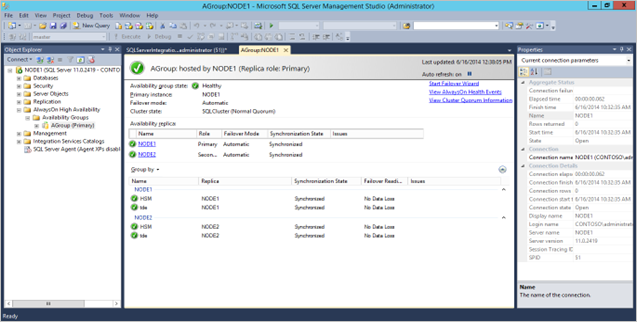
Launch the Always On Availability Group Creation Wizard in SQL Server Management Studio and configure the Availability Group by selecting the participating nodes and the database created earlier. After the Availability Group is successfully created, the dashboard displays the participating nodes and their synchronization status.
An example of the Always On Availability Group dashboard is shown below. In this example, two nodes are configured: Primary and Secondary.
Validate Luna EKM Integration with Availability Group
After the Availability Group is configured, verify that the Luna EKM Provider functions correctly across replicas. The following steps demonstrate how to create and use symmetric and asymmetric keys stored on the Luna HSM and confirm that encrypted data can be accessed from both primary and secondary replicas.
Create a Symmetric Key using Luna EKM Provider
Open SQL Server Management Studio (SSMS) on the primary node and connect to the SQL Server instance.
Switch to the database participating in the Availability Group.
USE HSMDB;
Create a symmetric key stored on the Luna HSM:
CREATE SYMMETRIC KEY SQL_EKM_AES_256_Key
FROM Provider LunaEKMProvider
WITH ALGORITHM = AES_256,
PROVIDER_KEY_NAME = 'EKM_AES_256_Key',
CREATION_DISPOSITION = CREATE_NEW;
Verify the symmetric keys available in the database:
SELECT *
FROM [HSMDB].[sys].[symmetric_keys];
Encrypt and Decrypt Data using Symmetric Key
Create a test table:
CREATE TABLE test (
id NUMERIC(10),
name VARCHAR(50),
data VARCHAR(MAX));
Encrypt data using the symmetric key stored on the Luna HSM:
INSERT INTO dbo.test
VALUES (1, 'some text',
EncryptByKey(Key_GUID('SQL_EKM_AES_256_Key'), 'text to be encrypted'));
Decrypt the encrypted data:
SELECT id,name,CONVERT(VARCHAR(MAX),
DecryptByKey(data))
FROM dbo.test WHERE id = 1;
Execute the same query on the secondary replica and verify that the output matches the primary replica.
Create Asymmetric Keys on Luna HSM
Switch to the Availability Group database.
USE HSMDB;
Create an asymmetric key using the Luna EKM Provider:
CREATE ASYMMETRIC KEY SQL_EKM_RSA_2048_Key
FROM Provider LunaEKMProvider
WITH ALGORITHM = RSA_2048,
PROVIDER_KEY_NAME = 'EKM_RSA_2048_Key',
CREATION_DISPOSITION = CREATE_NEW;
Verify the asymmetric keys available in the database:
SELECT * FROM [HSMDB].[sys].[asymmetric_keys];
Encrypt and Decrypt Data using Asymmetric Key
Encrypt data using the asymmetric key:
INSERT INTO dbo.test
values ( 2,'some text',
EncryptByAsymKey (AsymKey_Id ('SQL_EKM_RSA_2048_Key'), 'text to be encrypted'));
Decrypt the encrypted data:
SELECT id, name, CONVERT (varchar (MAX),
DecryptByAsymKey (AsymKey_Id ('SQL_EKM_RSA_2048_Key'), data))
FROM dbo.test where id = 2;
Run the same query on the secondary replica and verify that the results match those on the primary replica.
Create Symmetric Key Encrypted by Asymmetric Key on Luna HSM
You can increase security by encrypting a symmetric key with an asymmetric key stored on the Luna HSM.
Switch to the Availability Group database.
USE HSMDB;
Create a symmetric key encrypted by the asymmetric key:
CREATE SYMMETRIC KEY key1
WITH ALGORITHM = AES_256
ENCRYPTION BY ASYMMETRIC KEY SQL_EKM_RSA_2048_Key;
Open the symmetric key before using it:
OPEN SYMMETRIC KEY key1
DECRYPTION BY ASYMMETRIC KEY SQL_EKM_RSA_2048_Key;
Encrypt data using the symmetric key:
INSERT INTO dbo.test
values ( 3,'some text',
Encryptbykey(KEY_GUID('Key1'), 'text to be encrypted'))
Decrypt the encrypted data:
SELECT id,name,CONVERT(varchar(MAX),
DecryptByKey(data))
FROM dbo.test where id =3;
Close the symmetric key:
CLOSE SYMMETRIC KEY key1;
Execute the encryption and decryption steps on the secondary replica and confirm that the results match those from the primary replica.
Enable TDE using asymmetric key on Luna HSM
Luna EKM v1.3 and later supports the creation of longer asymmetric keys, including RSA_3072 and RSA_4096. However, during integration testing an issue was identified when encrypting the Database Encryption Key (DEK) using an RSA_4096 key. This issue has been reported to Microsoft. Until a resolution is available, it is recommended to use a maximum key length of RSA_3072 when implementing TDE.
Database encryption operations cannot be executed on master, model, tempdb, msdb, or resource databases.
To enable Transparent Data Encryption (TDE) using an asymmetric key stored on a Luna HSM, follow these steps:
Create an asymmetric key on the primary replica:
USE master;
CREATE ASYMMETRIC KEY SQL_EKM_RSA_2048_Key_TDE
FROM Provider LunaEKMProvider
WITH ALGORITHM = RSA_2048,
PROVIDER_KEY_NAME = 'EKM_RSA_2048_Key_TDE',
CREATION_DISPOSITION = CREATE_NEW;
Create the same asymmetric key on the secondary replica:
USE master;
CREATE ASYMMETRIC KEY SQL_EKM_RSA_2048_Key_TDE
FROM Provider LunaEKMProvider
WITH PROVIDER_KEY_NAME = 'EKM_RSA_2048_Key_TDE',
CREATION_DISPOSITION = OPEN_EXISTING;
Create a credential for Luna EKM Provider:
CREATE CREDENTIAL <Name_of_credential>
WITH IDENTITY = '<Name_of_EKM_User>', SECRET = '<HSM_partition_password>'
FOR CRYPTOGRAPHIC PROVIDER LunaEKMProvider;
Create a login based on the asymmetric key:
CREATE LOGIN <Name_of_login>
FROM ASYMMETRIC KEY SQL_EKM_RSA_2048_Key_TDE;
Map the credential to the login:
ALTER LOGIN <Name_of_Login>
ADD CREDENTIAL <Name_of_credential>;
Repeat the credential, login, and map configuration on all secondary replicas.
It is essential to repeat the procedure for every node in the database. This is necessary because the TDE encryption key, credential, and login are objects residing in the master database and are not automatically replicated when including a node in the Availability Groups.
Create a database that will use TDE:
CREATE DATABASE TDE;
Create a database encryption key on the primary node:
USE TDE;
CREATE DATABASE ENCRYPTION KEY
WITH ALGORITHM = AES_256
ENCRYPTION BY SERVER ASYMMETRIC KEY SQL_EKM_RSA_2048_Key_TDE;
Enable TDE:
ALTER DATABASE TDE
SET ENCRYPTION ON;
Query the status of database encryption:
SELECT
DB_NAME(e.database_id) AS DatabaseName,
e.database_id,
e.encryption_state,
CASE e.encryption_state
WHEN 0 THEN 'No DB encryption key present, no encryption'
WHEN 1 THEN 'Unencrypted'
WHEN 2 THEN 'Encryption in progress'
WHEN 3 THEN 'Encrypted'
WHEN 4 THEN 'Key change in progress'
WHEN 5 THEN 'Decryption in progress'
END AS encryption_state_desc,
c.name,
e.percent_complete
FROM sys.dm_database_encryption_keys AS e
LEFT JOIN master.sys.asymmetric_keys AS c
ON e.encryptor_thumbprint = c.thumbprint;
Add an encrypted database to Availability Group
Before integrating your already encrypted database into the Availability Group, ensure you've backed up the encrypted database to a network location accessible by all secondary nodes. Follow these customer-friendly steps to add the encrypted database to the Availability Group:
Launch SSMS on the primary node where your encrypted database resides.
Add database to Availability Group (such as, AGroup):
USE master;
ALTER AVAILABILITY GROUP AGroup ADD DATABASE tde;
This command adds the database to the Availability Group, but it's not yet accessible on the secondary node.
Restore the database on the secondary node from the location where you stored the encrypted database. Use the RESTORE WITH NORECOVERY parameter.
Add the database on the secondary node:
USE master;
ALTER DATABASE tde SET HADR AVAILABILITY GROUP = AGroup;
Query the status of database encryption and its completion percentage on the secondary node:
SELECT
DB_NAME(e.database_id) AS DatabaseName,
e.database_id,
e.encryption_state,
CASE e.encryption_state
WHEN 0 THEN 'No database encryption key present, no encryption'
WHEN 1 THEN 'Unencrypted'
WHEN 2 THEN 'Encryption in progress'
WHEN 3 THEN 'Encrypted'
WHEN 4 THEN 'Key change in progress'
WHEN 5 THEN 'Decryption in progress'
END AS encryption_state_desc,
c.name,
e.percent_complete
FROM sys.dm_database_encryption_keys AS e
LEFT JOIN master.sys.asymmetric_keys AS c
ON e.encryptor_thumbprint = c.thumbprint;
Rotate keys for TDE
Regularly updating your Transparent Database Encryption (TDE) security keys is essential for maintaining a robust security posture. Follow these steps to rotate your TDE keys seamlessly:
Create an asymmetric key on the primary node:
USE master;
CREATE ASYMMETRIC KEY SQL_EKM_RSA_2048_Key_TDE_Rot
FROM Provider LunaEKMProvider
WITH ALGORITHM = RSA_2048,
PROVIDER_KEY_NAME = 'EKM_RSA_2048_Key_TDE_Rot',
CREATION_DISPOSITION=CREATE_NEW;
Create the same asymmetric key on a secondary node:
USE master;
CREATE ASYMMETRIC KEY SQL_EKM_RSA_2048_Key_TDE_Rot
FROM Provider LunaEKMProvider
WITH PROVIDER_KEY_NAME = 'EKM_RSA_2048_Key_TDE_Rot',
CREATION_DISPOSITION=OPEN_EXISTING;
Create a credential for Luna EKM Provider:
CREATE CREDENTIAL <Name of Credential>
WITH IDENTITY='<Name of EKM User>', SECRET='<HSM Partition Password>'
FOR CRYPTOGRAPHIC PROVIDER LunaEKMProvider;
Create a login based on the asymmetric key:
CREATE LOGIN <Name of Login>
FROM ASYMMETRIC KEY SQL_EKM_RSA_2048_Key_TDE_Rot;
Map the credential to the created login:
ALTER LOGIN <Name of Login>
ADD CREDENTIAL <Name of Credential>;
Repeat the credential, login, and map configuration on all secondary replicas.
It is essential to repeat the procedure for every node in the database. This is necessary because the TDE encryption key, credential, and login are objects residing in the master database and are not automatically replicated when including a node in the Availability Groups.
Enable TDE key rotation on the primary replica:
- Rotate the Database Encryption Key (DEK):
USE TDE;
ALTER DATABASE ENCRYPTION KEY
REGENERATE
WITH ALGORITHM = AES_128;
- Rotate the asymmetric key (Key Encryption Key – KEK) on Luna HSM:
ALTER DATABASE ENCRYPTION KEY
ENCRYPTION BY SERVER ASYMMETRIC KEY SQL_EKM_RSA_2048_Key_TDE_Rot;
- Check the status of the DEK and current KEK:
SELECT * FROM sys.dm_database_encryption_keys;
Query the status of database encryption and key rotation:
SELECT
DB_NAME(e.database_id) AS DatabaseName,
e.database_id,
e.encryption_state,
CASE e.encryption_state
WHEN 0 THEN 'No database encryption key present, no encryption'
WHEN 1 THEN 'Unencrypted'
WHEN 2 THEN 'Encryption in progress'
WHEN 3 THEN 'Encrypted'
WHEN 4 THEN 'Key change in progress'
WHEN 5 THEN 'Decryption in progress'
END AS encryption_state_desc,
c.name,
e.percent_complete
FROM sys.dm_database_encryption_keys AS e
LEFT JOIN master.sys.asymmetric_keys AS c
ON e.encryptor_thumbprint = c.thumbprint;
Upgrade to Luna Firmware v7.7.2+ for SQL Server Integration in FIPS Mode
This procedure applies to existing deployments where Microsoft SQL Server is already integrated with Luna HSM operating in FIPS mode on firmware versions up to v7.7.1. Luna EKM v1.6 introduces the required enhancements to support Luna HSM firmware v7.7.2 or later while maintaining a functional and compliant SQL Server integration.
Beginning with Luna HSM firmware v7.7.2, stricter FIPS 140-3 compliance requirements were introduced that restrict the use of the RSA_PKCS mechanism (CKM_RSA_PKCS) for encryption, decryption, and key transport when the HSM operates in FIPS-approved mode. As earlier SQL Server integrations relied on this mechanism through the Luna EKM provider, upgrading firmware without first migrating encryption mechanisms can lead to failure of Transparent Data Encryption (TDE) and certain column-level encryption operations. This change introduced a compatibility gap for SQL Server Extensible Key Management (EKM) integrations:
-
Blocking Issue: Prior to Luna EKM v1.6, the Luna EKM provider relied on the CKM_RSA_PKCS mechanism for operations such as Transparent Data Encryption (TDE). When the HSM firmware is upgraded to v7.7.2 or later in FIPS mode, SQL Server encryption operations may fail because the firmware no longer permits the legacy mechanism required by earlier EKM versions.
-
Solution in Luna EKM v1.6: Luna EKM v1.6 introduces support for RSA_OAEP (Optimal Asymmetric Encryption Padding), a NIST-approved encryption and key transport mechanism that remains fully supported in FIPS mode on firmware v7.7.2 and later. Migrating encrypted data and key protection mechanisms to RSA_OAEP ensures continued SQL Server functionality and FIPS compliance after the firmware upgrade.
This section describes the complete upgrade workflow required to transition from legacy RSA-PKCS-based encryption to FIPS-approved mechanisms before upgrading the Luna firmware. New deployments, or environments not operating in FIPS mode, should follow the standard integration procedure described in the Integrate Luna HSM with SQL Server section.
Prerequisites
This procedure applies only when the following conditions are true. If these conditions do not apply to your environment, refer to the Integrate Luna HSM with SQL Server section instead.
-
SQL Server is already integrated with Luna HSM.
-
The Luna HSM operates in FIPS mode.
-
Luna HSM firmware version is v7.7.1 or earlier.
-
Luna EKM version is v1.5 or earlier.
-
Asymmetric keys stored in the HSM are used for Transparent Data Encryption (TDE) or column-level encryption.
Upgrade Overview
Upgrading to Luna firmware v7.7.2 or later requires completing the following phases:
If the system is running a very old firmware version, it is recommended to first upgrade to v7.7.0 or v7.7.1 before performing the migration described in this section.
Phase 1: Upgrade Luna EKM to v1.6
Follow these steps to upgrade an existing Luna EKM deployment integrated with Microsoft SQL Server to Luna EKM v1.6.
Open SQL Server Management Studio and connect to the SQL Server instance.
Perform a full backup of all TDE-encrypted databases using the Luna EKM provider to ensure database recovery in case the upgrade process fails.
Create a backup of the existing LunaEKM.dll file available at the following location:
C:\Program Files\SafeNet\LunaClient\EKM
Create a temporary directory to install the Luna EKM v1.6 package at a location different from the default installation directory.
Example:
C:\newekm
Install Luna EKM v1.6 on the SQL Server host system using the temporary installation directory created in the previous step.
Copy the new LunaEKM.dll file from the temporary installation directory and replace the existing LunaEKM.dll file located at:
C:\Program Files\SafeNet\LunaClient\EKM
Update the existing Luna EKM provider registration in SQL Server to use the upgraded Luna EKM provider library.
Execute the following command in a SQL query window:
ALTER CRYPTOGRAPHIC PROVIDER <Name of Cryptographic Provider>
FROM FILE = '<Full Path of the Luna EKM Provider Library>'
Where:
-
provider_name— Name of the cryptographic provider already registered in SQL Server. -
full_path_to_luna_ekm_provider_library— Absolute path to the upgradedLunaEKM.dllfile.
Example:
ALTER CRYPTOGRAPHIC PROVIDER LunaEKMProvider
FROM FILE = 'C:\Program Files\SafeNet\LunaClient\EKM\LunaEKM.dll'
If using SQL Server High Availability Group, repeat steps 3–8 on all SQL Server nodes participating in the Always On Availability Group configuration.
Restart the SQL Server service. After the service is back online, validate that Transparent Data Encryption (TDE), column-level encryption, and key encryption operations are functioning correctly using Luna EKM v1.6.
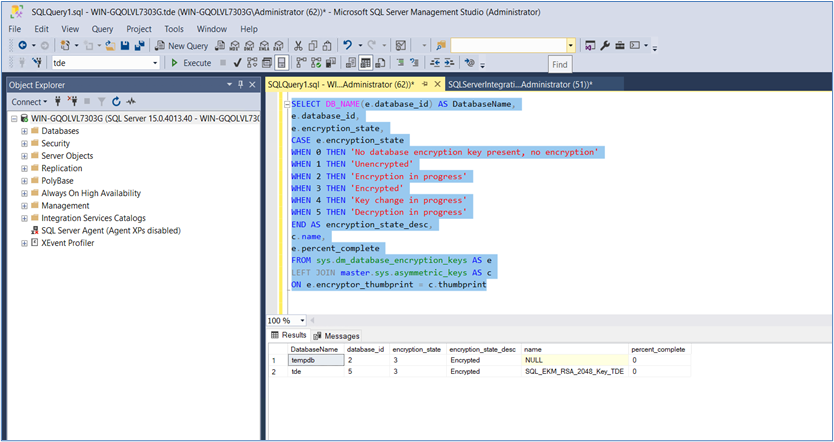
Execute the following query to verify the status of Transparent Data Encryption (TDE):
SELECT DB_NAME(e.database_id) AS DatabaseName,
e.database_id,
e.encryption_state,
CASE e.encryption_state
WHEN 0 THEN 'No database encryption key present, no encryption'
WHEN 1 THEN 'Unencrypted'
WHEN 2 THEN 'Encryption in progress'
WHEN 3 THEN 'Encrypted'
WHEN 4 THEN 'Key change in progress'
WHEN 5 THEN 'Decryption in progress'
END AS encryption_state_desc,
c.name,
e.percent_complete
FROM sys.dm_database_encryption_keys AS e
LEFT JOIN master.sys.asymmetric_keys AS c
ON e.encryptor_thumbprint = c.thumbprint
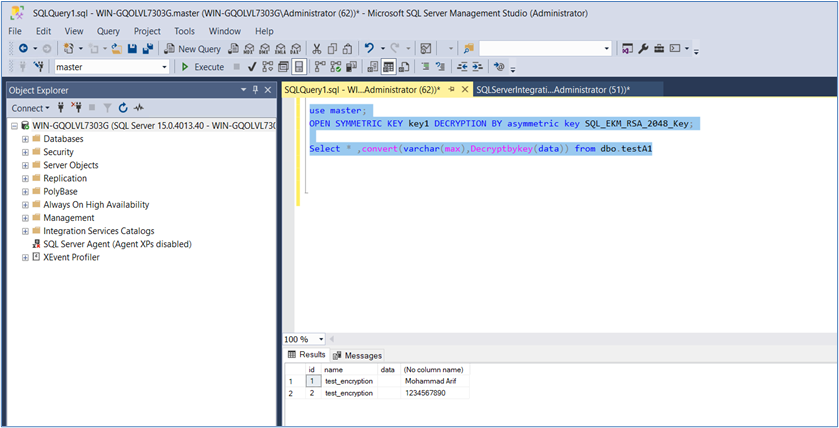
Validate key encryption operations using an asymmetric key stored on Luna HSM.
USE master;

OPEN SYMMETRIC KEY key1
DECRYPTION BY ASYMMETRIC KEY SQL_EKM_RSA_2048_Key;

SELECT *,
CONVERT(varchar(max), DecryptByKey(data))
FROM dbo.testA1;
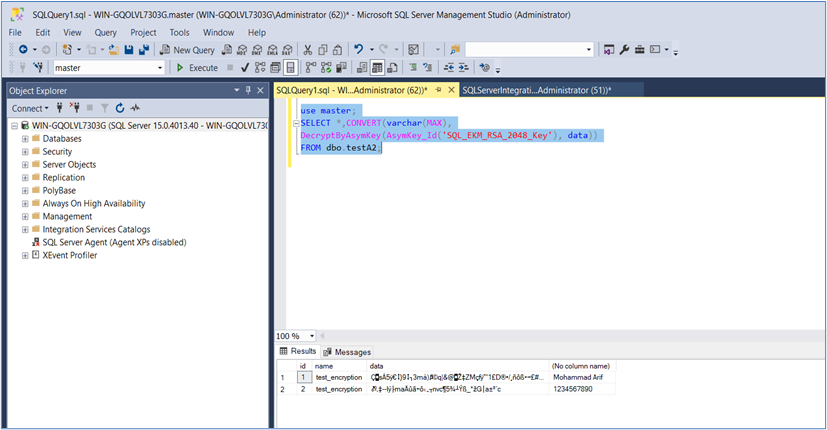
Validate column-level encryption using an asymmetric key stored on Luna HSM.
USE master;

SELECT *,
CONVERT(varchar(MAX),
DecryptByAsymKey(AsymKey_Id('SQL_EKM_RSA_2048_Key'), data))
FROM dbo.testA2;
Validate column-level encryption using a symmetric key stored on Luna HSM.
USE master;

SELECT *,
CONVERT(varchar(max), DecryptByKey(data))
FROM dbo.test;
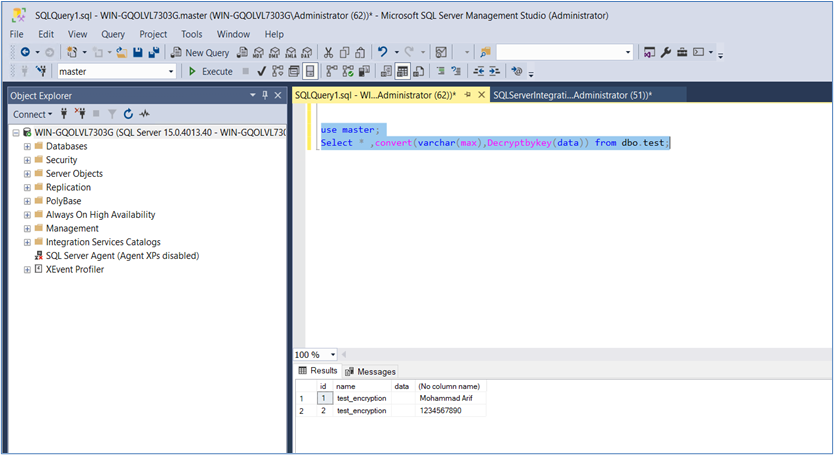
Ensure that all encrypted data is accessible after registering the upgraded Luna EKM v1.6 provider before proceeding to the next phase of the migration process.
Phase 2: Enforce FIPS-Approved Encryption Mechanisms
Encrypted data that was originally created using the RSA_PKCS mechanism must be migrated to the RSA_OAEP mechanism before upgrading the Luna HSM firmware to version 7.7.2 or later. Luna EKM v1.6 continues to support decryption of existing RSA_PKCS-encrypted data, but starting with firmware v7.7.2 the RSA_PKCS mechanism is restricted in FIPS mode. This phase migrates encrypted keys and data so that all encryption operations use the FIPS-approved RSA_OAEP mechanism.
Transparent Data Encryption (TDE)
The Database Encryption Key (DEK) must be re-encrypted using the existing asymmetric key stored in the HSM so that the new Luna EKM Provider performs the encryption using RSA_OAEP.
If you are using TDE-encrypted databases with Luna HSM, you must re-encrypt the Database Encryption Key (DEK) before upgrading to Luna Firmware v7.7.2 or higher. If encrypted database backups exist, restore the databases and re-encrypt the DEK before proceeding with the firmware upgrade. Starting with Luna Firmware v7.7.2, RSA_PKCS padding is restricted in FIPS mode. To maintain a supported and functional SQL Server integration, all TDE-encrypted databases must migrate to the RSA_OAEP mechanism using Luna EKM v1.6 prior to the firmware upgrade. Failure to re-encrypt the DEK before upgrading will result in the database becoming inaccessible because the upgraded firmware blocks the legacy RSA_PKCS padding mechanism required to decrypt the existing DEK.
Re-encrypt the Database Encryption Key (DEK) for the TDE database using the existing asymmetric key stored in the HSM.
USE TDE;
ALTER DATABASE ENCRYPTION KEY
ENCRYPTION BY SERVER ASYMMETRIC KEY SQL_EKM_RSA_2048_Key_TDE;
Check the status of the DEK and the Key Encryption Key (KEK).
GO
SELECT * FROM sys.dm_database_encryption_keys;
GO
Query the encryption state and completion percentage of database encryption.
SELECT
DB_NAME(e.database_id) AS DatabaseName,
e.database_id,
e.encryption_state,
CASE e.encryption_state
WHEN 0 THEN 'No database encryption key present, no encryption'
WHEN 1 THEN 'Unencrypted'
WHEN 2 THEN 'Encryption in progress'
WHEN 3 THEN 'Encrypted'
WHEN 4 THEN 'Key change in progress'
WHEN 5 THEN 'Decryption in progress'
END AS encryption_state_desc,
c.name,
e.percent_complete
FROM sys.dm_database_encryption_keys AS e
LEFT JOIN master.sys.asymmetric_keys AS c
ON e.encryptor_thumbprint = c.thumbprint;
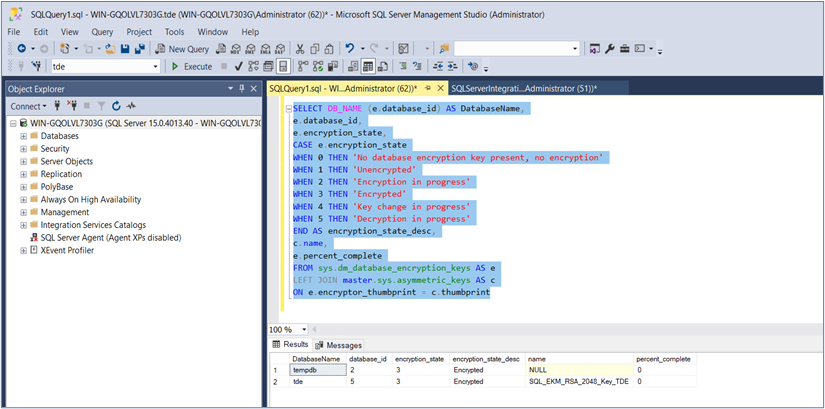
Symmetric keys encrypted by an asymmetric key on the HSM
If symmetric keys used for column encryption are protected by an asymmetric key stored in the HSM, the symmetric keys must be re-encrypted using a newly generated asymmetric key created through Luna EKM v1.6.
Before upgrading the HSM firmware to v7.7.2 or higher, you must re-encrypt all Symmetric Keys (Column Encryption Keys) that are currently protected using the legacy RSA_PKCS mechanism. Starting with Luna Firmware v7.7.2, RSA_PKCS is restricted in FIPS mode. To maintain access to encrypted keys and data, all Symmetric Keys protected by asymmetric keys on Luna HSM must migrate to the RSA_OAEP mechanism using Luna EKM v1.6 before performing the firmware upgrade. Failure to migrate the encrypted Symmetric Keys to RSA_OAEP prior to the upgrade will prevent SQL Server from accessing the keys, resulting in encrypted data becoming inaccessible after upgrading to firmware v7.7.2 or higher.
Open the symmetric key that is currently protected by the existing asymmetric key stored in the HSM.
USE master;
OPEN SYMMETRIC KEY key1 DECRYPTION BY ASYMMETRIC KEY SQL_EKM_RSA_2048_Key;
Create a new asymmetric key that will be used to re-encrypt the symmetric key.
CREATE ASYMMETRIC KEY SQL_New_EKM_RSA_2048_Key
FROM Provider LunaEKMProvider
WITH ALGORITHM = RSA_2048,
PROVIDER_KEY_NAME = 'New_EKM_RSA_2048_Key',
CREATION_DISPOSITION = CREATE_NEW;
Re-encrypt the symmetric key using the newly created asymmetric key.
ALTER SYMMETRIC KEY key1
ADD ENCRYPTION BY ASYMMETRIC KEY SQL_New_EKM_RSA_2048_Key;
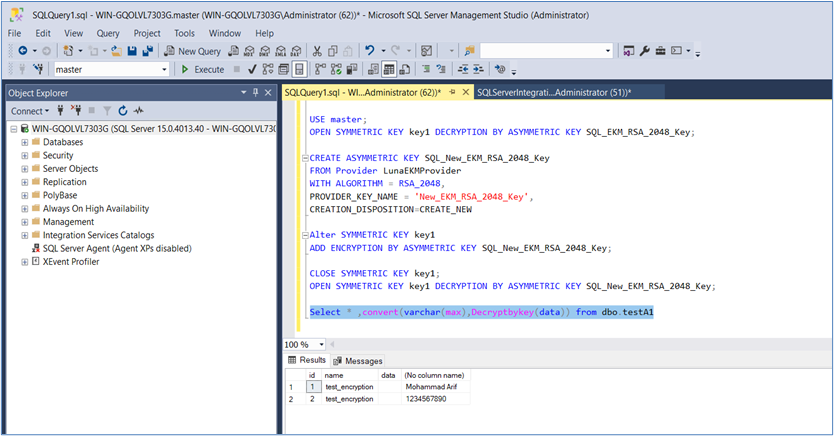
Close the existing symmetric key session and reopen it using the newly created asymmetric key. Execute the following SQL statements sequentially:
CLOSE SYMMETRIC KEY key1;
OPEN SYMMETRIC KEY key1
DECRYPTION BY ASYMMETRIC KEY SQL_New_EKM_RSA_2048_Key;
Validate that encrypted data can still be decrypted successfully.
SELECT *, CONVERT(varchar(max), DecryptByKey(data)) FROM dbo.testA1;
Column encryption using asymmetric keys on the HSM
When column-level encryption is performed directly with an asymmetric key stored in the HSM, the column data must be decrypted and re-encrypted so that the encryption operation uses the RSA_OAEP mechanism.
Before upgrading the HSM firmware to v7.7.2 or higher, you must re-encrypt all table column data currently protected using the legacy RSA_PKCS mechanism. Starting with Luna Firmware v7.7.2, RSA_PKCS is restricted in FIPS mode. To ensure continued access to encrypted data, all column data encrypted using asymmetric keys on Luna HSM must migrate to the RSA_OAEP mechanism using Luna EKM v1.6 before performing the firmware upgrade. Failure to migrate the encrypted column data to RSA_OAEP prior to the upgrade will result in the encrypted data becoming inaccessible after upgrading to firmware v7.7.2 or higher.
Add a temporary column that will store the decrypted values from the existing encrypted column.
ALTER TABLE dbo.testA2
ADD DecryptedData varchar(max);
Populate the temporary column with decrypted values.
UPDATE dbo.testA2
SET DecryptedData = DecryptByAsymKey(AsymKey_Id('SQL_EKM_RSA_2048_Key'), data);
Remove the existing encrypted column from the table.
ALTER TABLE dbo.testA2
DROP COLUMN data;
Create a new column that will store the data encrypted using the RSA_OAEP mechanism.
ALTER TABLE dbo.testA2
ADD data varchar(max);
Re-encrypt the decrypted values using the asymmetric key stored in the HSM.
UPDATE dbo.testA2
SET data = EncryptByAsymKey(AsymKey_Id('SQL_EKM_RSA_2048_Key'), DecryptedData);
Remove the temporary column that stored decrypted data.
ALTER TABLE dbo.testA2
DROP COLUMN DecryptedData;
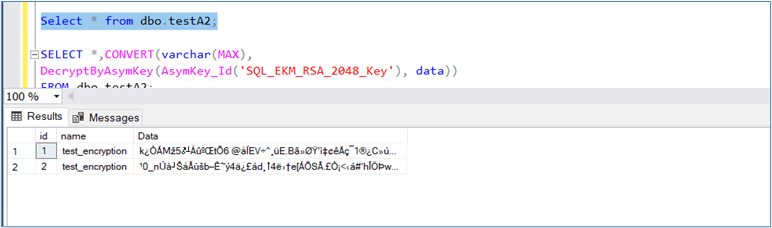
Verify that the encrypted column contains valid encrypted data.
SELECT * FROM dbo.testA2;
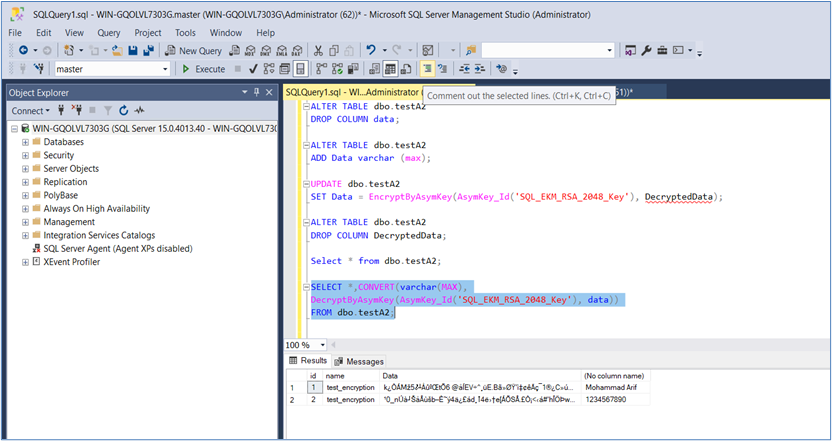
Validate that the encrypted column can be successfully decrypted.
SELECT *,CONVERT(varchar(MAX),
DecryptByAsymKey(AsymKey_Id('SQL_EKM_RSA_2048_Key'), data))
FROM dbo.testA2;
Column encryption using symmetric keys on the HSM
For tables that use symmetric AES keys stored in the HSM, no migration is required because symmetric encryption mechanisms are not affected by the RSA_PKCS restriction introduced in firmware v7.7.2.
Ensure that all encrypted databases, keys, and column-level encrypted data can be successfully decrypted after completing the migration to the RSA_OAEP mechanism before proceeding with the firmware upgrade.
Phase 3: Upgrade the Luna Firmware
After completing the previous phases, the Luna HSM environment integrated with SQL Server is ready for upgrade to Luna firmware version 7.7.2 or later. Perform the firmware upgrade using the standard Luna HSM firmware upgrade procedure. For detailed instructions, refer to the Luna firmware upgrade documentation or contact Thales support.
Once the firmware upgrade is complete, the SQL Server integration continues to operate normally in FIPS mode using the RSA_OAEP mechanism introduced in Luna EKM v1.6. This ensures compatibility with the stricter FIPS 140-3 requirements enforced starting with Luna firmware v7.7.2.
Before upgrading the HSM firmware to v7.7.2 or higher, you must re-encrypt all table column data, all encrypted keys, and all TDE Database Encryption Keys (DEKs) as described in the Enforce FIPS-Approved Encryption Mechanisms section. Starting with Luna Firmware v7.7.2, RSA_PKCS is restricted in FIPS mode. To maintain access to encrypted databases, encrypted keys, and encrypted column data, all existing encrypted data must migrate to the RSA_OAEP mechanism using Luna EKM v1.6 before performing the firmware upgrade. Failure to migrate all encrypted data to RSA_OAEP prior to the upgrade will result in encrypted data becoming inaccessible after upgrading to firmware v7.7.2 or higher.
After completing these steps, SQL Server integration continues to operate normally using Luna firmware v7.7.2 or later. By upgrading to Luna EKM v1.6 and migrating encryption mechanisms to RSA_OAEP, the environment remains fully functional and compliant with FIPS requirements.
Troubleshooting tips
Here are some troubleshooting tips for problems related to SQL Server and cryptographic operations.
Problem 1: Failed to verify Authenticode signature on DLL
Error Message: Failed to verify Authenticode signature on DLL 'C:\Program Files\SafeNet\LunaClient\EKM'.
Solution:
Visit http://www.verisign.com/support/roots.html and download all root certificates.
Install the downloaded certificate.
Import the certificate into the Trusted Root Certification Authorities store.
Problem 2: CREATE CRYPTOGRAPHIC PROVIDER fails with error code 1
Error Message: Cannot initialize cryptographic provider. Provider error code: 1. (Failure - Consult EKM Provider for details)
Solution:
Reboot the OS server.
Try to create the cryptographic provider again.
Problem 3: Unable to open symmetric key encrypted by asymmetric key
Error Message: An error occurred during decryption. Msg 15466, Level 16, State 28, Line 1.
Solution:
Download the cumulative update package for SQL Server provided by Microsoft.
Apply the cumulative update to resolve the decryption issue.
The cumulative update package can be found at https://support.microsoft.com/en-us/help/4342123/cumulative-update-10-for-sql-server-2017.
Problem 4: When Luna 7 HSM is configured in FIPS mode and used with Luna EKM version 1.5 or earlier, SQL Server may be unable to generate asymmetric keys on the HSM using the SQL Server key generation command.
CREATE ASYMMETRIC KEY SQL_EKM_RSA_2048_Key
FROM Provider LunaEKMProvider
WITH ALGORITHM = RSA_2048,
PROVIDER_KEY_NAME = 'EKM_RSA_2048_Key',
CREATION_DISPOSITION = CREATE_NEW
Solution:
Generate the key directly on the HSM using the CMU utility provided with the Luna Client, and then map the key in SQL Server.
Run the following command from a command prompt on the HSM client system:
cmu generatekeypair -label EKM_RSA_2048_Key -modulusBits=2048 -publicExp=65537 -sign=T -verify=T -encrypt=T -decrypt=T
After generating the key on the HSM, map the key in SQL Server using the following command:
CREATE ASYMMETRIC KEY SQL_EKM_RSA_2048_Key
FROM Provider LunaEKMProvider
WITH PROVIDER_KEY_NAME = 'EKM_RSA_2048_Key',
CREATION_DISPOSITION = OPEN_EXISTING
Once the key is created on the Luna HSM, it can be referenced in SQL Server using its mapped name. In this example, SQL_EKM_RSA_2048_Key becomes the SQL Server identifier for the key stored on the HSM and can be used for encryption and decryption operations.

