



Thales Authenticator Lifecycle Manager with Okta
This section provides the steps to integrate Thales Authenticator Lifecycle Manager with Okta. Before proceeding with the integration, ensure to complete the following prerequisites:
-
An Okta administrator account is required.
-
Users for whom FIDO2 authentication will be enabled must already exist in Okta.
-
Multi-Factor Authentication must be enabled for the users.
The integration requires:
Creating an application in Okta
Perform the following steps to create an application in Okta:
-
Log in to Okta as an administrator.
-
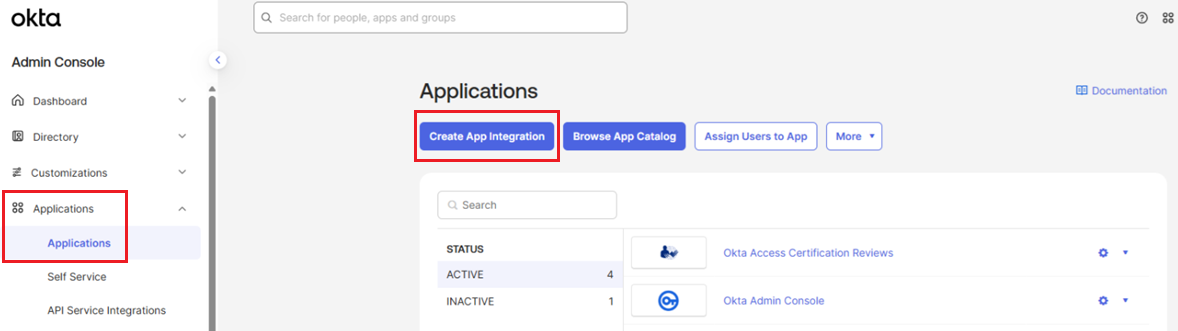
In the left pane, go to Applications > Applications, and in the right pane, click Create App Integration.
-
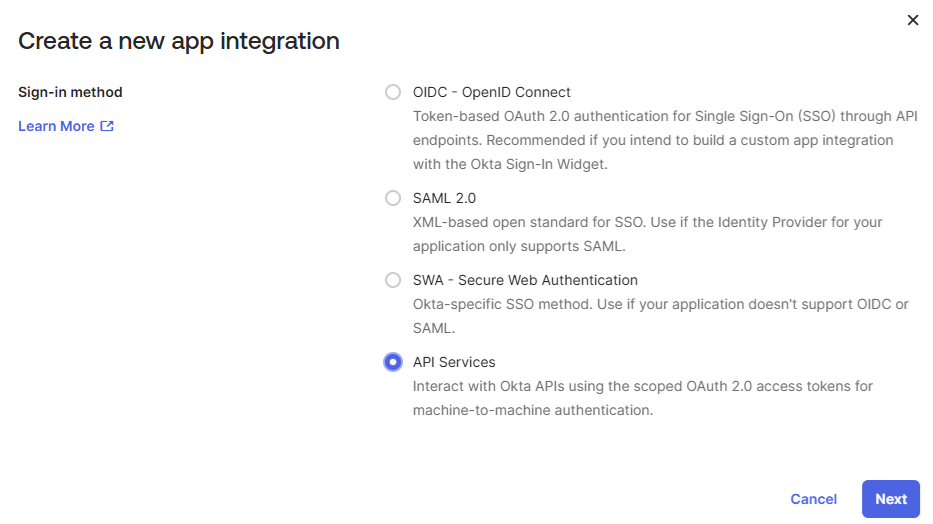
The Create a new app integration window appears, listing the available sign‑in methods. Select the API Services sign‑in method, and click Next.
-
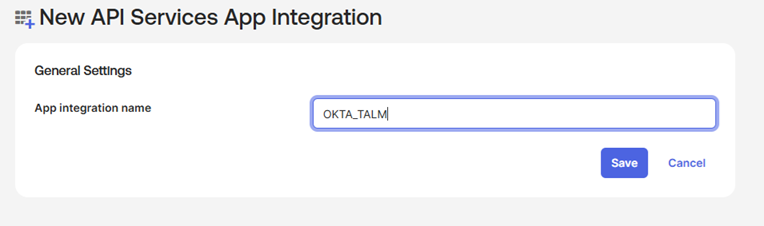
Under New API Services App Integration, in the App integration name field, enter a unique name for the application (for example, OKTA_TALM), and click Save.
-
Under the application (for example, OKTA_TALM), perform the following steps:
-
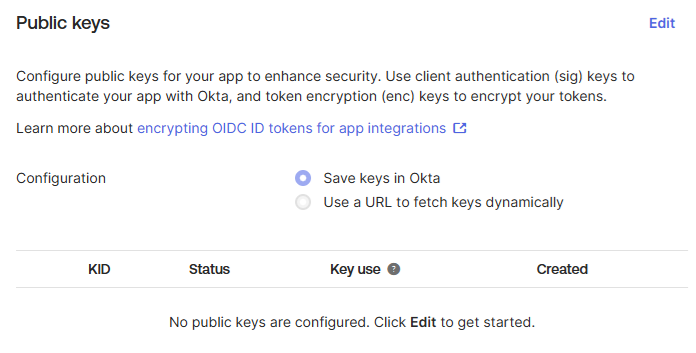
Under Public Keys, perform the following steps to create a public key:
-
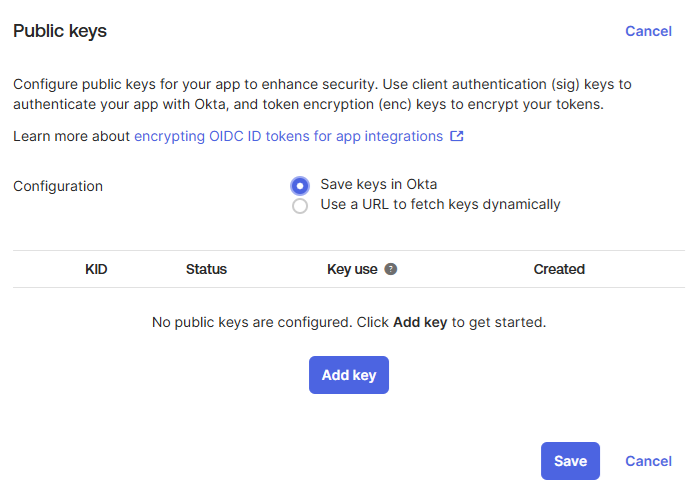
Click Edit
-
Click Add key.
-
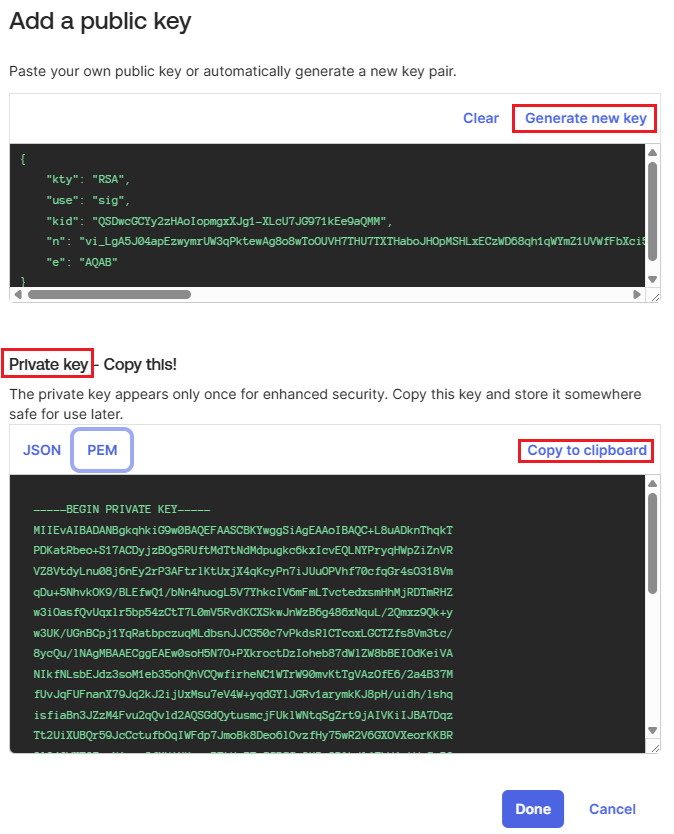
Under Add a public key, click Generate new key. Then, under Private key, go to the PEM tab. click Copy to clipboard to copy the private key, and store it in a secure location.
You will need the private key while configuring Okta in Thales Authenticator Lifecycle Manager.
-
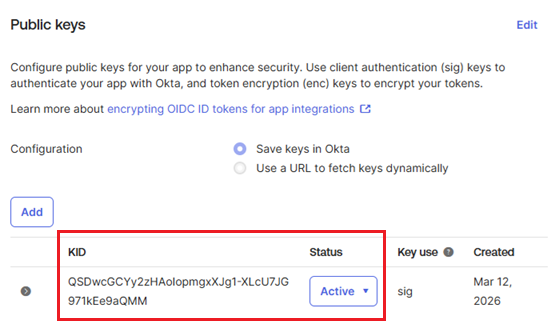
Under Public Keys, click Save.
The public key is created with an Active status.
-
-
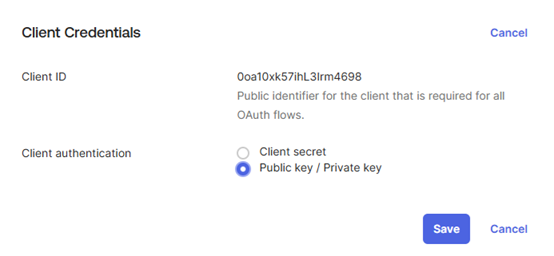
Under Client Credentials, perform the following steps to update the client credentials:
-
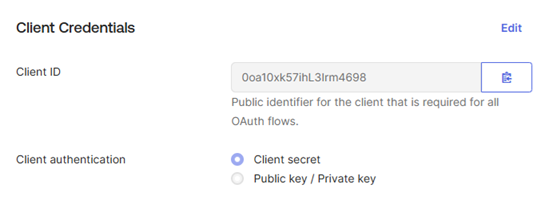
Click Edit.
-
In the Client authentication field, select the Public key / Private key option.
-
Click Save to save the changes.
-
-
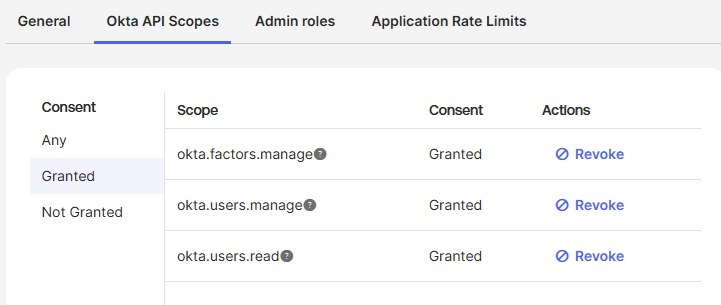
Go to the Okta API Scopes tab, under Actions, click Grant for the okta.factors.manage, okta.users.manage, and okta.users.read scopes.
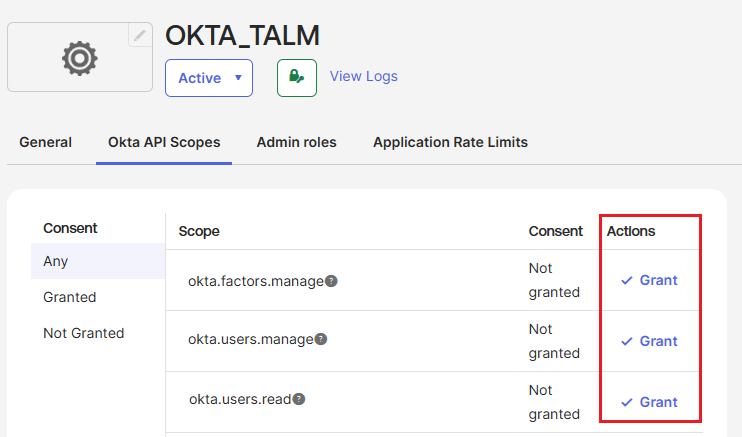
The Consent for these scopes is updated to Granted.
-
-
Perform the following steps to add an application administrator and assign the required roles
-
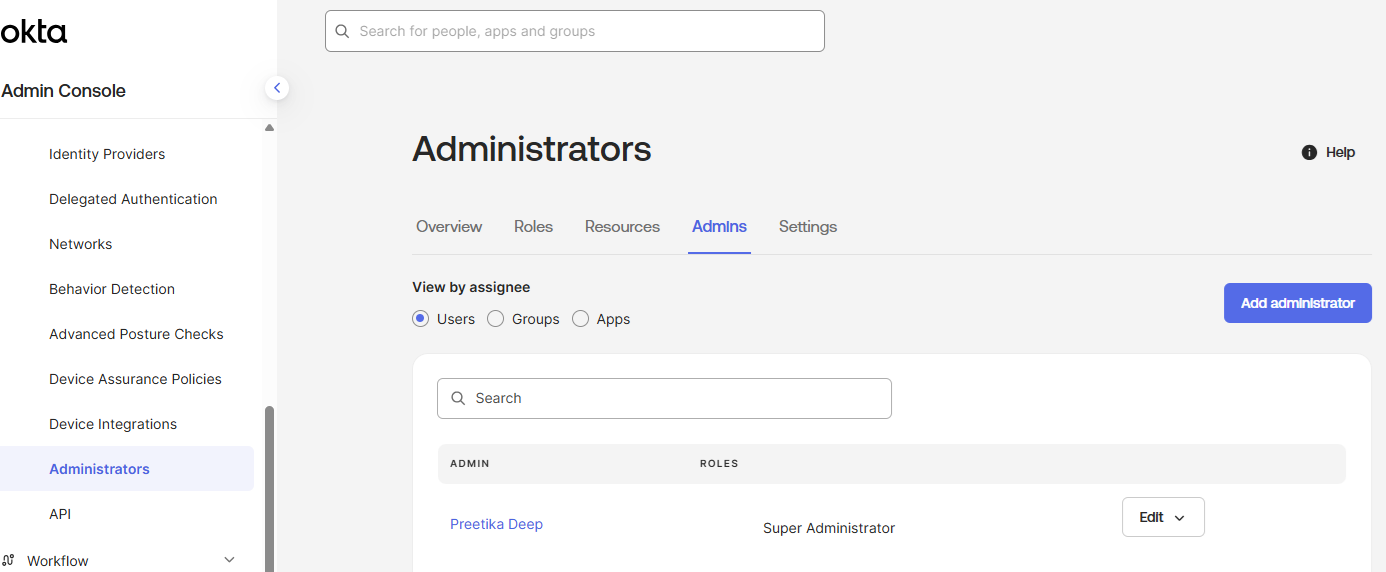
In the left pane, go to Security > Administrators, and in the right pane, go to the Admins tab.
-
Click Add administrator.
-
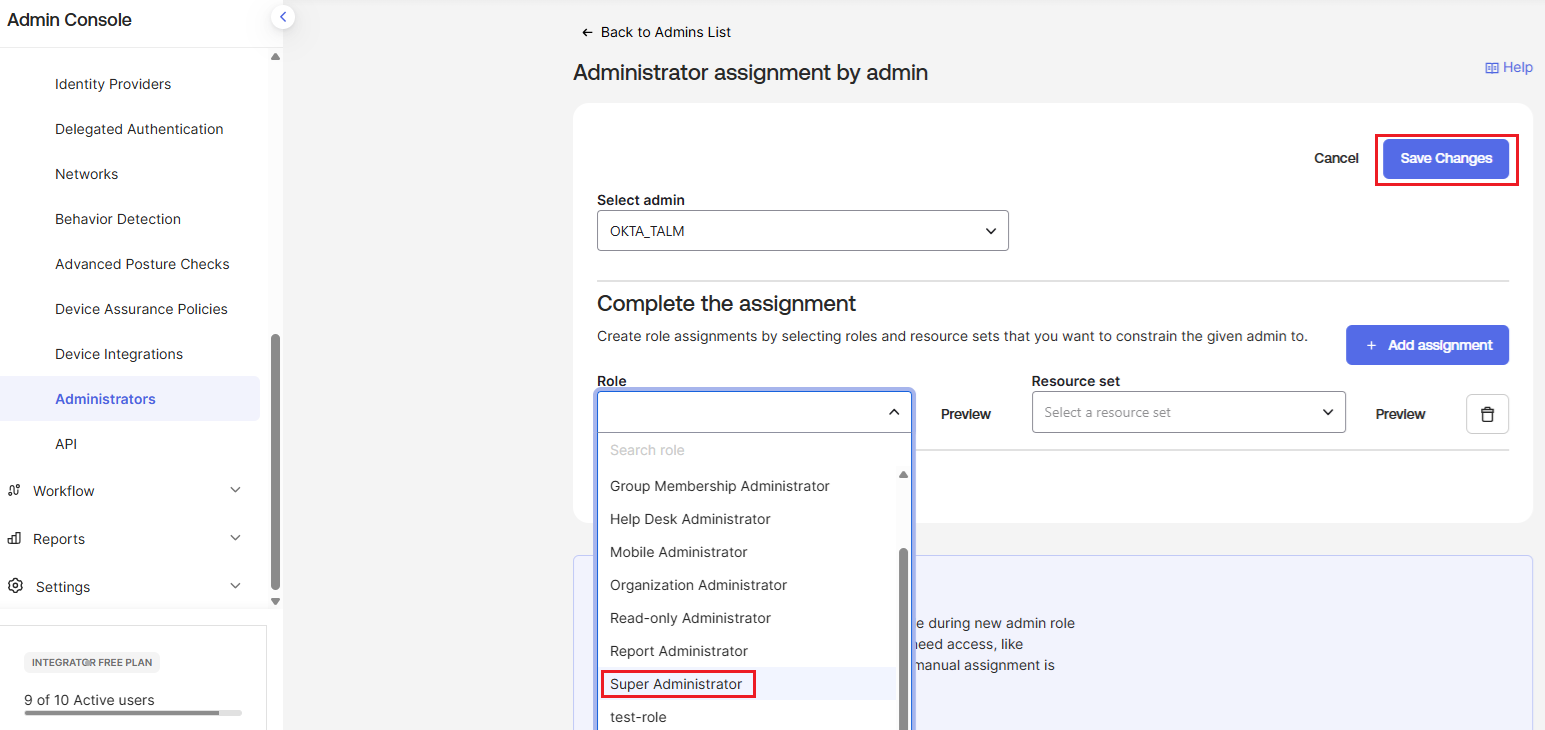
Under Administrator assignment by admin, perform the followig steps:
-
In the Select admin field, select the name of the application (for example, OKTA_TALM).
-
Under Complete the assignment > Role, select the Super Administrator role.
-
Click Save Changes.
-
-
Obtain parameters' values
To configure Okta in Thales Authenticator Lifecycle Manager, you need to obtain the values of the following parameters:
-
Client ID (Application ID)
-
Key ID
-
API URL
-
Authorization URL
Perform the following steps:
-
Under the application (for example, OKTA_TALM), go to the General tab.
-
Under Client Credentials, copy the Client ID by clicking the Copy to clipboard icon
 and paste it into a text editor.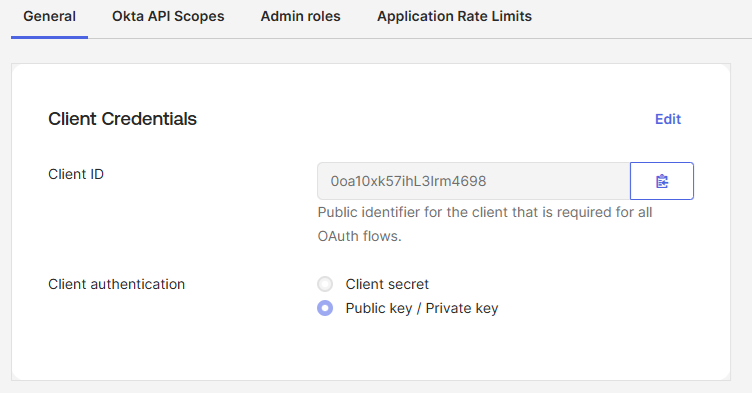
-
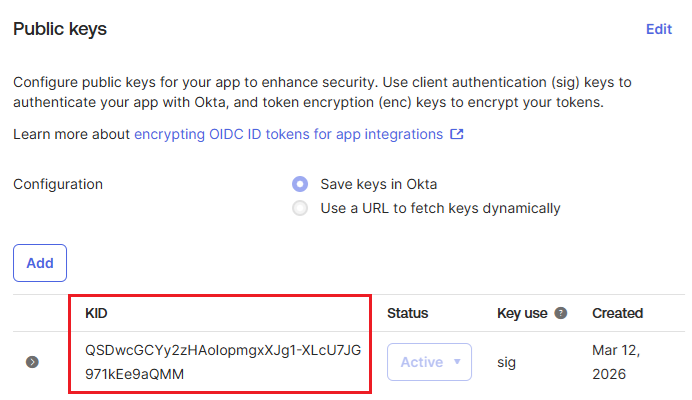
Under Public Keys, copy the value of KID, and store it in a secure location.
-
Derive the API URL and Authorization URL using the Okta domain that is available in the user account information. Perform the following steps:
-
In the admin console, click your username in the upper‑right corner. The dropdown displays your Okta domain (for example, integrator-5476601.okta.com).
-
Use the Okta domain to derive the required URLs.
URL Type Structure Example API URL https:// <Okta Domain>/api/v1https://integrator-5476601.okta.com/api/v1 Authorization URL https:// <Okta Domain>/oauth2/v1/authorizehttps://integrator-5476601.okta.com/oauth2/v1/authorize 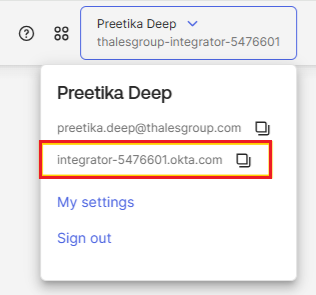
After obtaining the required values, enter them in the Thales Authenticator Lifecycle Manager console while adding Okta as an IDP. Once the values are entered, select Test Connection to confirm that the connection is successful. For detailed instructions, refer to the Configure Okta section.
-

