



Thales Authenticator Lifecycle Manager with PingOne
This section provides the steps to integrate Thales Authenticator Lifecycle Manager with PingOne. Before proceeding with the integration, ensure to complete the following prerequisites:
-
A PingOne administrator account is required.
-
Users for whom FIDO2 authentication will be enabled must already exist in PingOne.
-
Multi-Factor Authentication must be enabled for the users.
The integration requires:
-
Obtaining parameters' values required to configure PingOne in Thales Authenticator Lifecycle Manager
Creating an Application in PingOne
Perform the following steps to create an application in PingOne:
-
Log in to PingOne as an administrator.
-
In the left pane, go to Applications > Applications, and in the right pane, click the
 icon.
icon.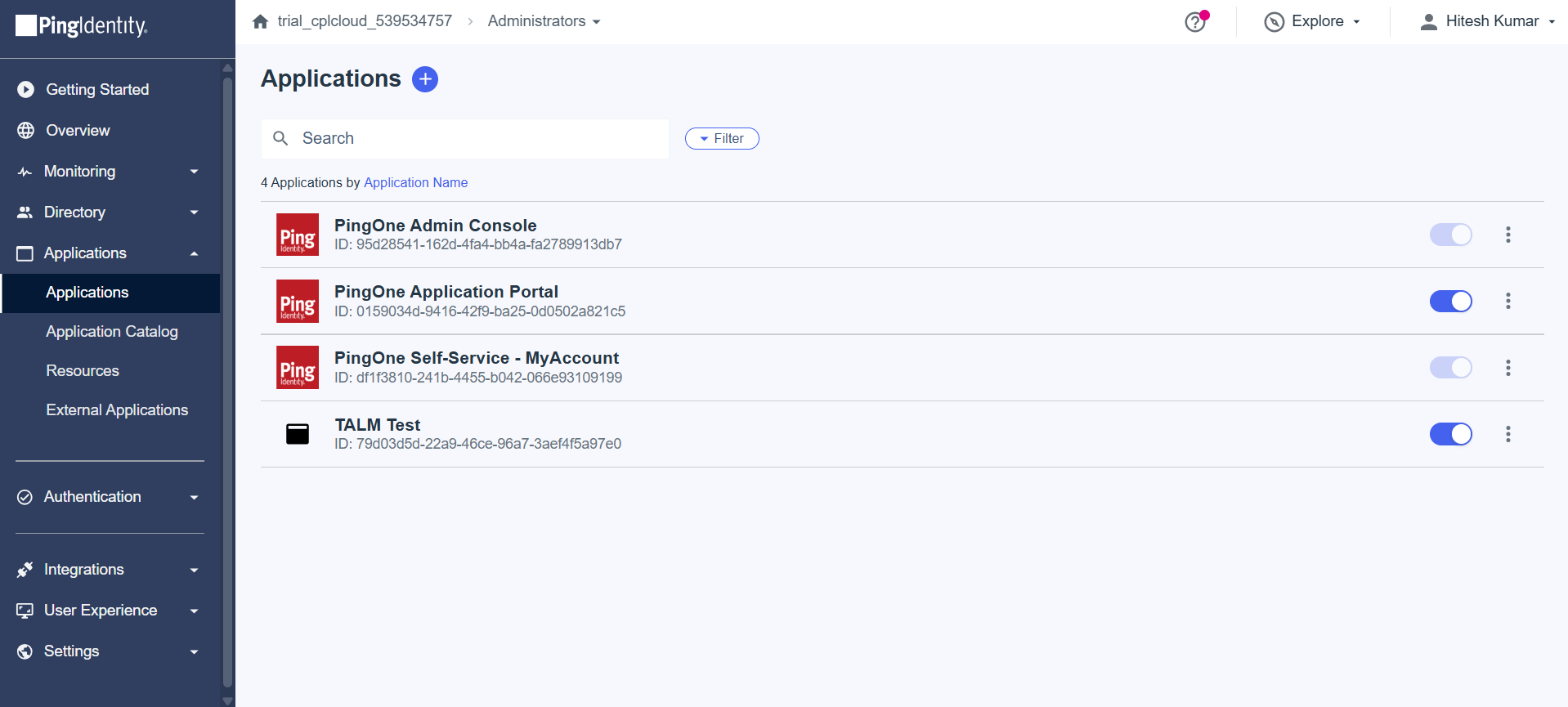
-
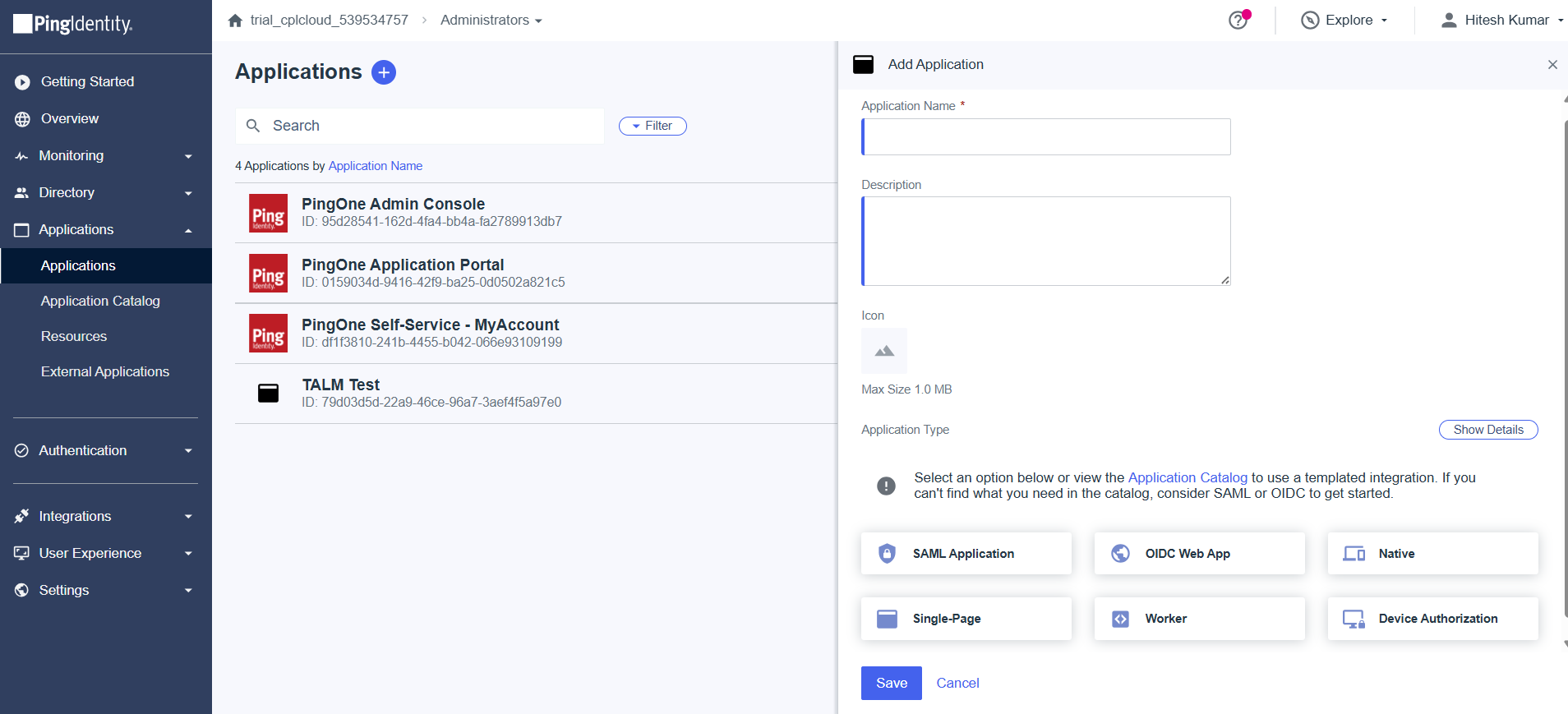
Under Add Application, perform the following steps:
-
In the Application Name field, enter a unique name for the application (for example, PingOne_TALM).
-
In the Description field, enter a description of the application.
-
Under Application Type, select the worker tile.
-
Click Save.
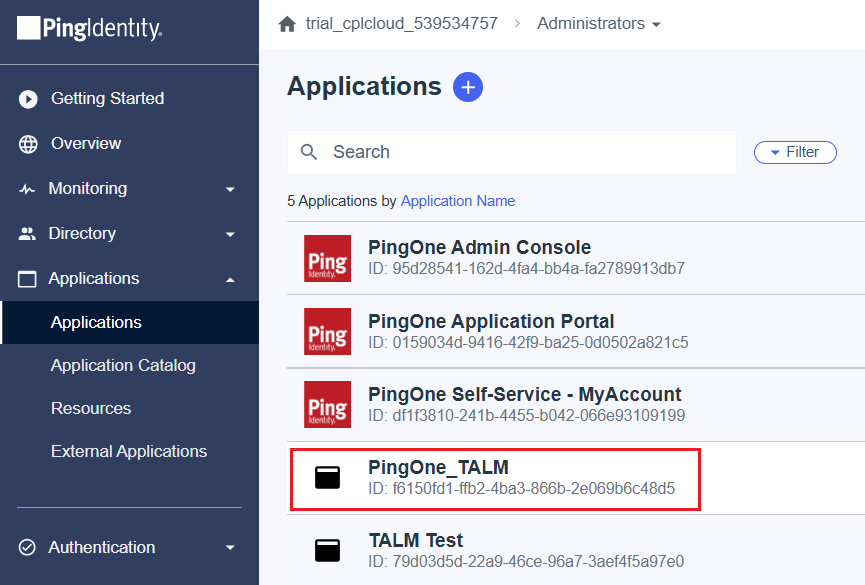
The application (for example, PingOne_TALM) is successfully added and listed under Applications.
-
-
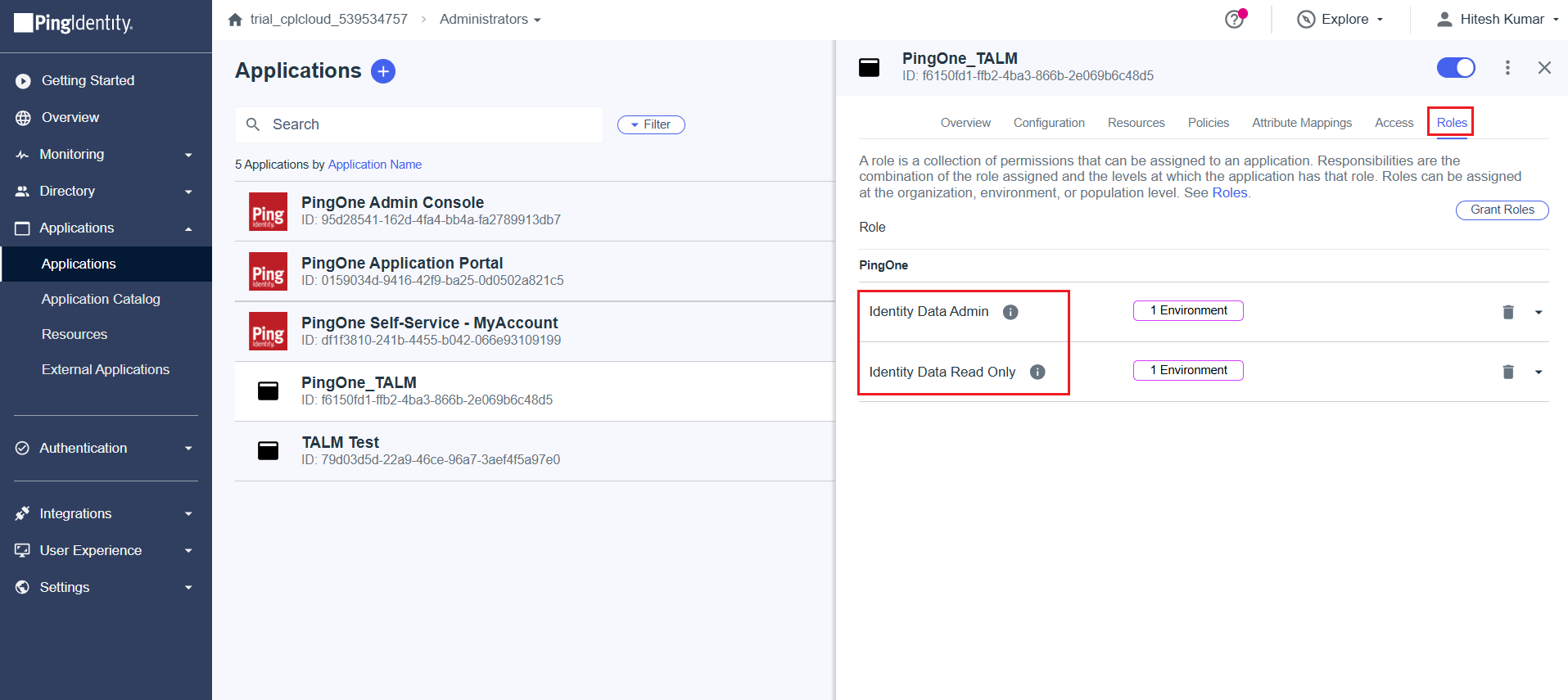
Select the newly created application.
-
Go to the Roles tab, click Grant Roles, and assign the following roles to the application:
-
Identity Data Admin
-
Identity Read Only
-
Obtain Parameters' Values
To configure PingOne in Thales Authenticator Lifecycle Manager, you need to obtain the values of the following parameters:
-
Client ID (Application ID)
-
Environment ID
-
Client Secret
Perform the following steps:
-
Under the application (for example, PingOne_TALM), go to the Overview tab.
-
Copy the values of the Environment ID and Client ID by clicking on the Copy to clipboard icon
 and paset them in a text editor.
 -
Copy the value of the Client Secret field by clicking on the Copy to clipboard icon
and store it in a secure location.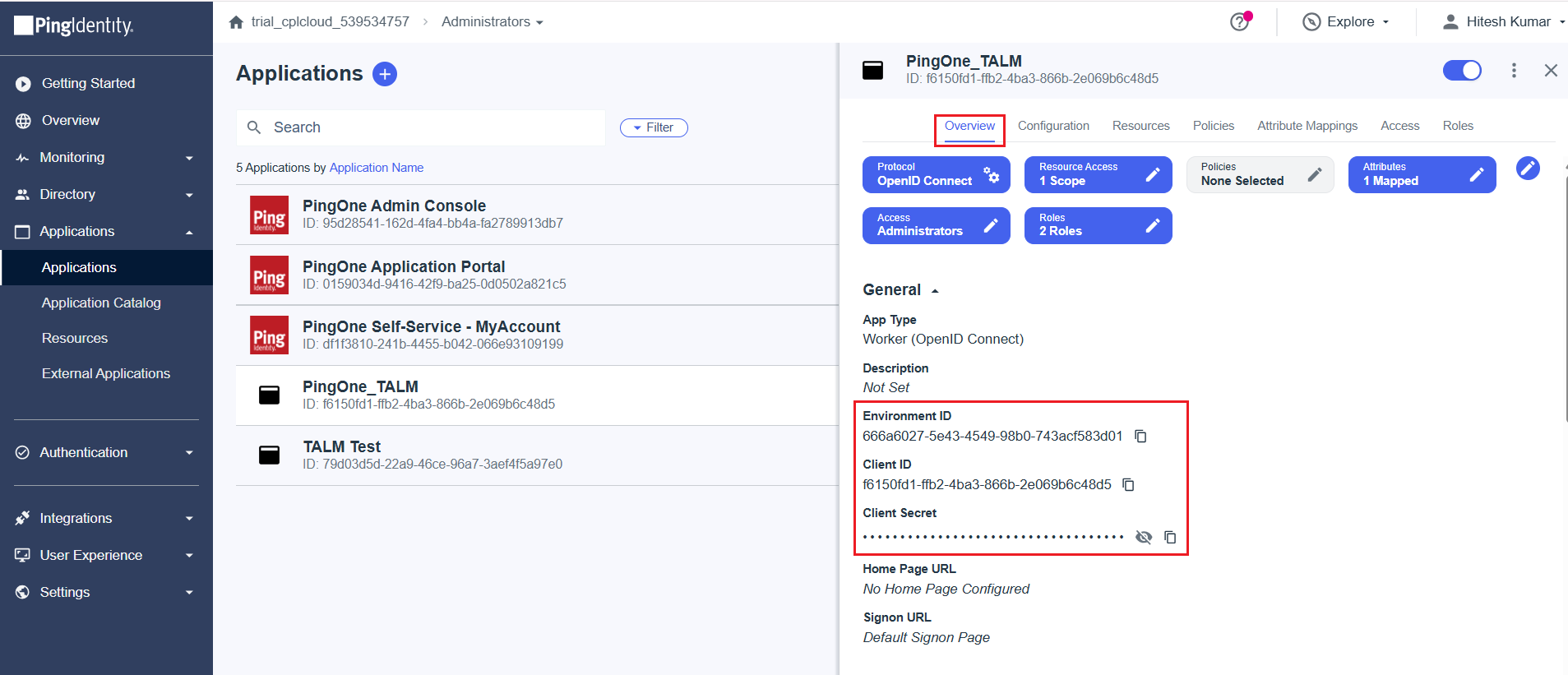
After obtaining the required values, enter them in the Thales Authenticator Lifecycle Manager console while adding PingOne as an IDP. Once the values are entered, select Test Connection to confirm that the connection is successful. For detailed instructions, refer to the Configure PingOne section.

