



Thales Authenticator Lifecycle Manager with SafeNet Trusted Access
This section provides the steps to integrate Thales Authenticator Lifecycle Manager (TALM) with SafeNet Trusted Access (STA). The integration requires:
Enable FIDO-based Authentication in STA
Prerequisites
-
Users for whom FIDO-based authentication will be enabled must already exist in STA.
-
A STA or STA Premium plan is required.
Perform the following steps to enable the FIDO-based authentication in STA:
-
Log in to the STA Access Management console.
-
On the STA Access Management console, go to the SETTINGS tab.
-
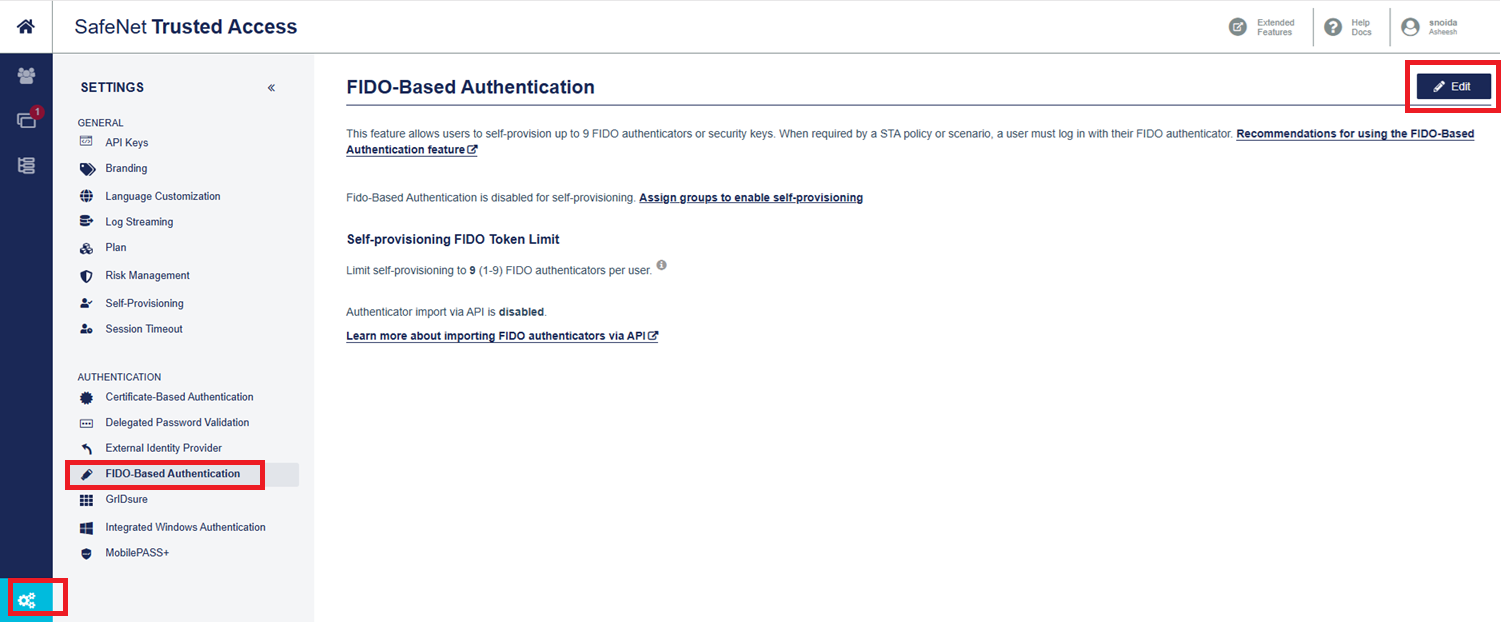
In the left pane, under AUTHENTICATION, select FIDO-Based Authentication, and in the right pane, select Edit.
-
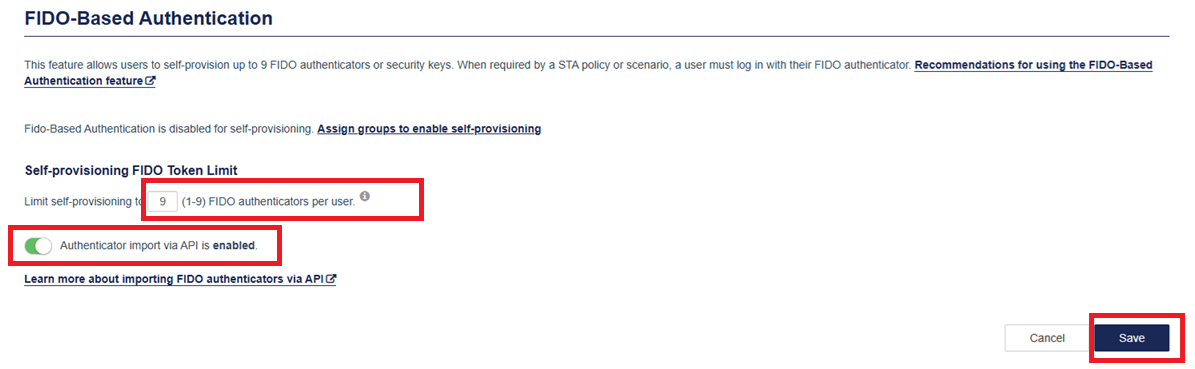
Under Self-provisioning FIDO Token Limit, perform the following steps:
-
Enter the maximum number of FIDO authenticators that a user can enroll.
-
Turn on the Authenticator import via API toggle.
-
Select Save.
-
-
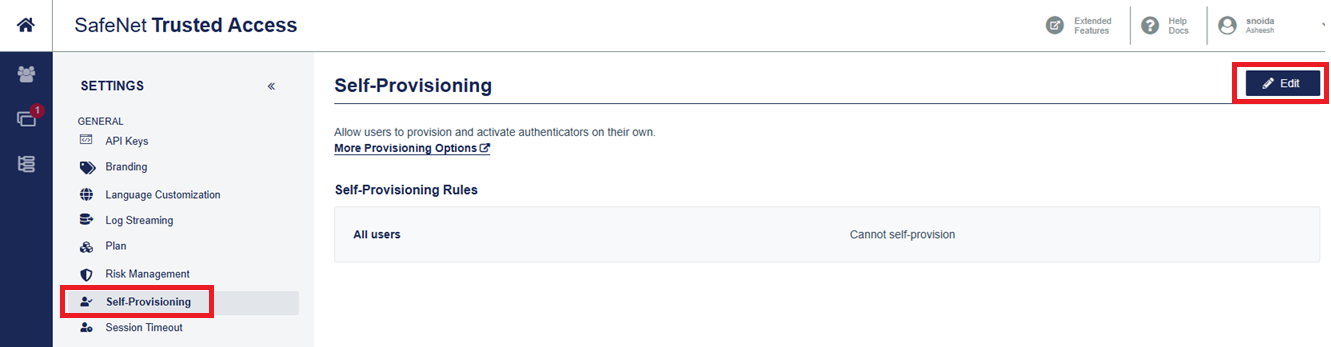
In the left pane, under GENERAL, select Self-Provisioning, and in the right pane, select Edit.
-
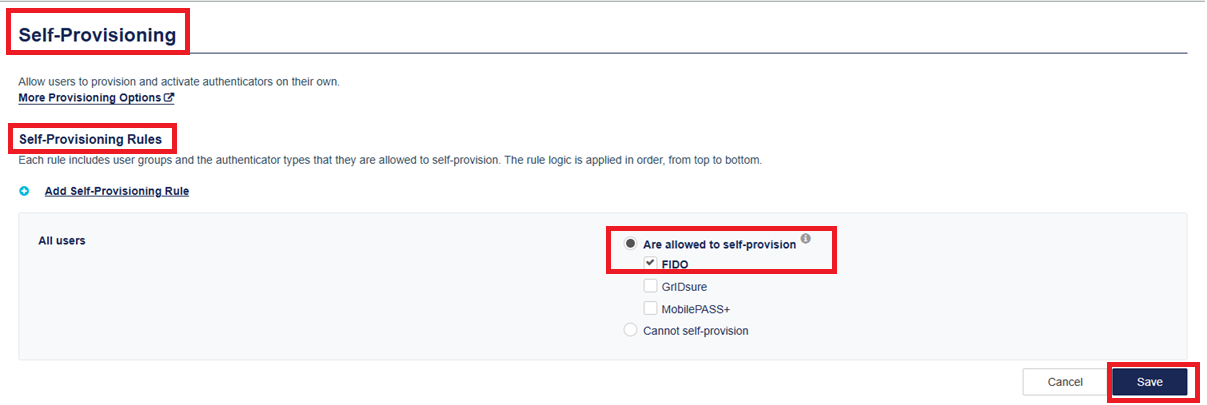
Under Self-Provisioning > Self-Provisioning Rules > Are allowed to self-provision, select FIDO, and click Save.
-
Perform the following steps to add FIDO authentication to policies:
-
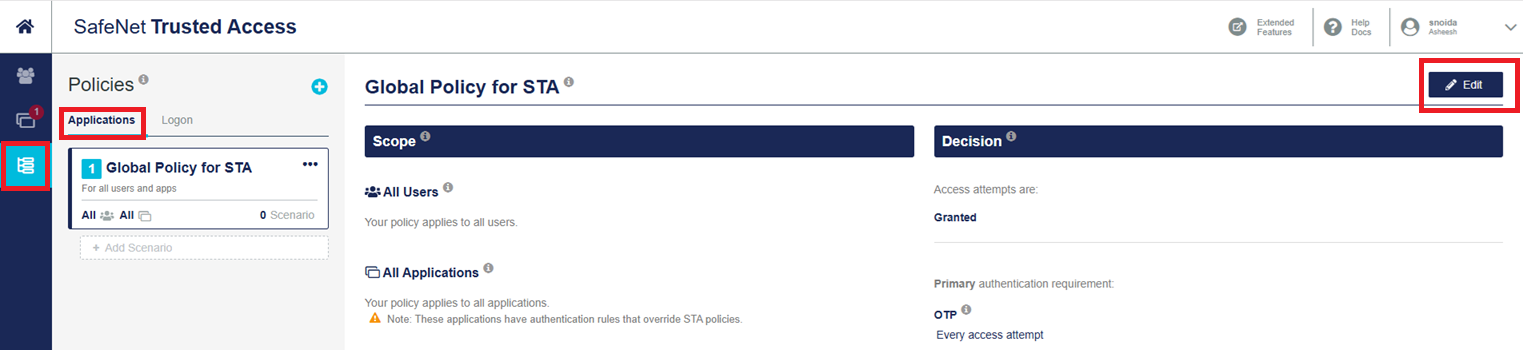
On the STA Access Management console, select Policies.
-
Add a policy or scenario, or select a policy or scenario to edit.
-
Select the users and applications.
Note
Default is for all users and all applications.
-
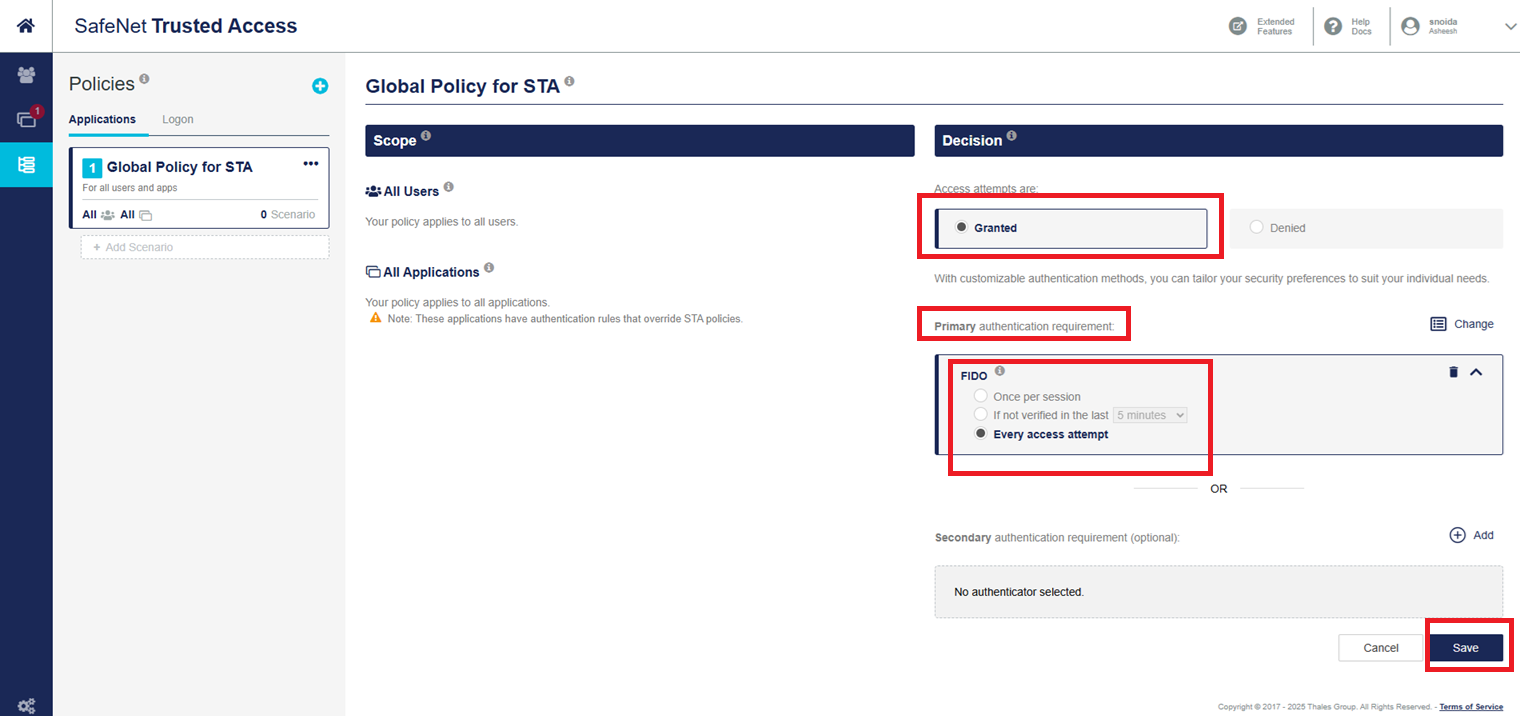
Under Decision, select FIDO, and then select how often you want users to authenticate with their FIDO token (for example, Every access attempt), and select Save.
Note
The FIDO option is available only if FIDO is enabled for some users under Settings > FIDO.
-
For more information on enabling FIDO-based authentication and adding it to policies, refer to the FIDO authentication documentation.
Obtain the STA API Key and API URL
To configure STA in Thales Authenticator Lifecycle Manager, you need to obtain STA API key and API URL. Perform the following steps:
-
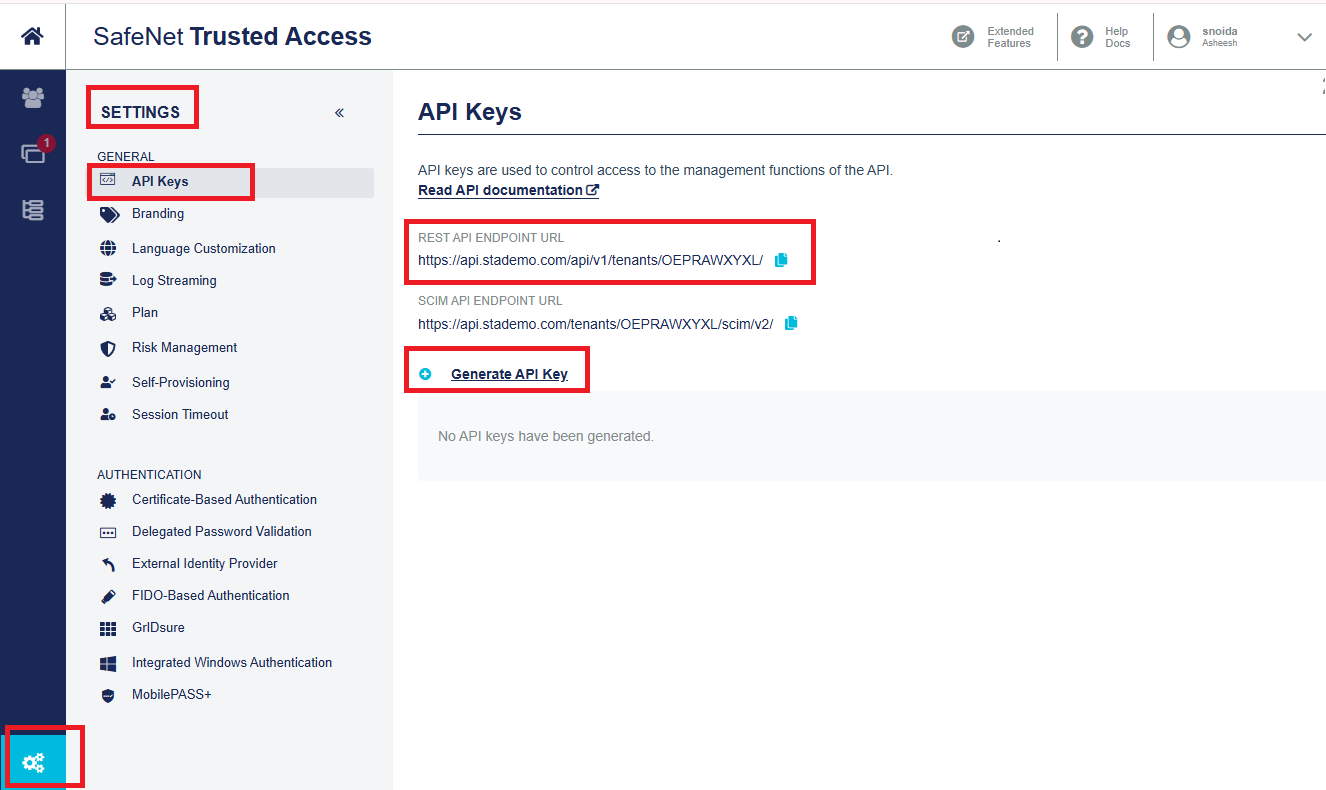
On the STA Access Management console, select SETTINGS > API Keys.
-
Select Generate API Key.
-
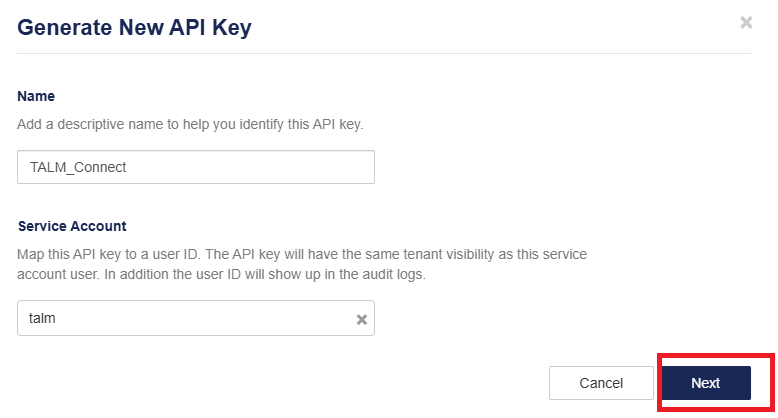
On the Generate New API Key dialog box, perform the following steps:
-
In the Name field, enter a name for the key.
-
In the Service Account field, search for the user ID to associate with the API key. Each API key can be associated with only one service account.
-
Select Next.
-
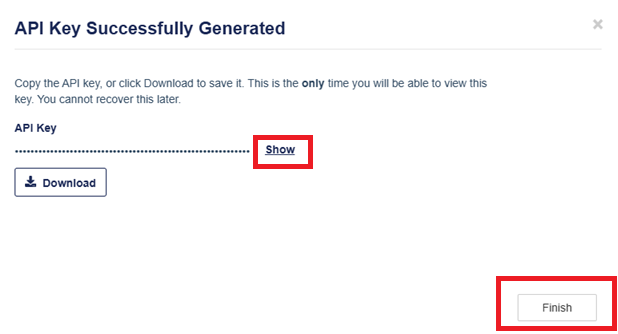
The API key is successfully generated. Select Show to display the API key.
Note
API keys are not stored on the STA Access Management console, and cannot be viewed or downloaded later. So you need to either copy or download the API key.
-
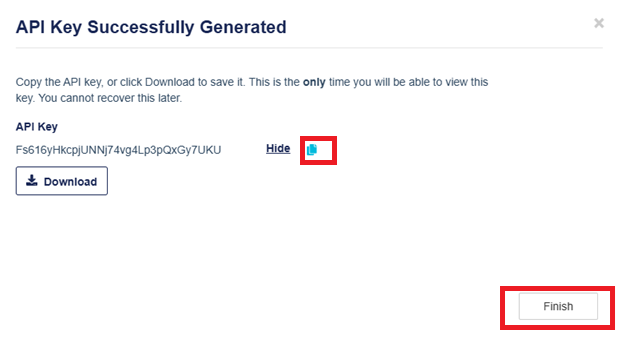
Select the Copy to clipboard icon and paste the API key into a text editor. Click Finish.
-
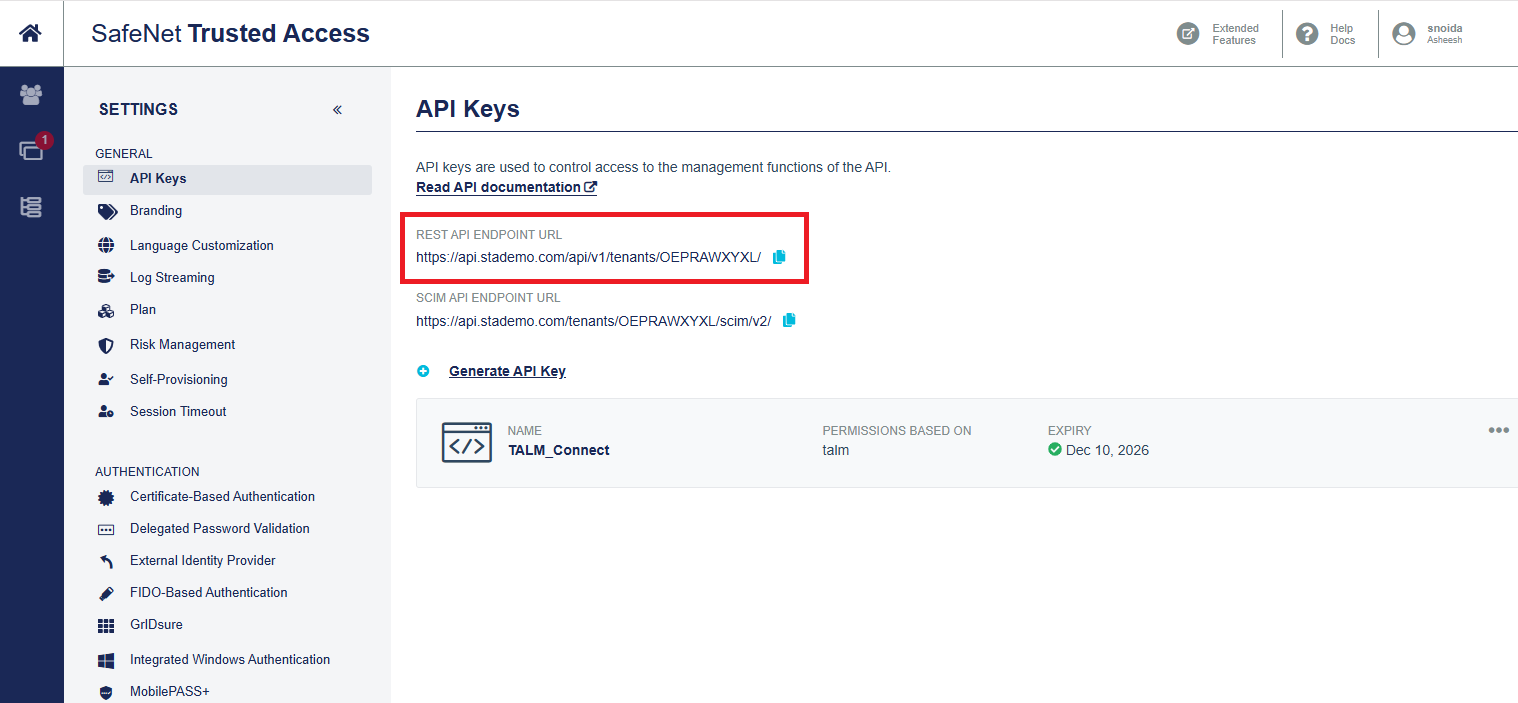
The new API key is successfully added and listed under API Keys.
-
To obtain the STA API URL, copy the REST API ENDPOINT URL and paste it into the text editor.
Note
For more information on generating STA API keys, refer to the Generate API keys documentation.
After obtaining the required values, enter them in the Thales Authenticator Lifecycle Manager console while adding STA Identity Provider. Once the values are entered, select Test Connection to confirm that the connection is successful. For detailed instructions, refer to the Configure STA Identity Provider section.
-

