



Install and upgrade SafeNet Agent for Microsoft Outlook Web App
Authentication modes
SafeNet Agent for Microsoft Outlook Web App (OWA) supports two modes of operation:
-
Standard authentication mode enables a single-stage login process where users enter both Microsoft domain credentials and SafeNet credentials in the OWA login page.
-
Split authentication mode enables a two-stage login process. In the first stage, users provide their Microsoft credentials. In the second stage, users provide their SafeNet credentials. This mode allows administrators to control authentication dialogs based on Microsoft groups or authenticator types (such as GrIDsure). This is the preferred mode when migrating from static to one-time passwords.
By default, split authentication mode is enabled. You can modify the authentication mode after installation using SafeNet Agent for Microsoft OWA.
Set authentication mode
You can set the authentication mode in SafeNet Agent for Microsoft OWA, on the Authentication tab.
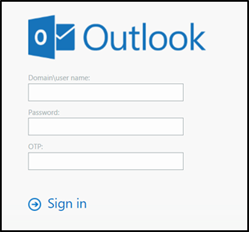
Standard authentication mode - hardware/software
- Open SafeNet Agent for Microsoft OWA in your browser.
- Enter Domain/User Name, Password, and OTP, and click Sign in.
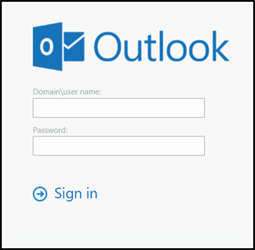
Split authentication mode
- Open SafeNet Agent for Microsoft OWA in your browser.
- Enter Domain/User Name and Password, and click Sign in.
GrIDsure
-
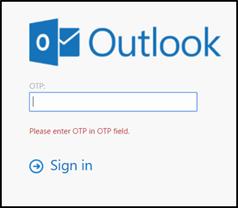
If configured for GrIDsure, do the following:
-
Click Sign In (leaving the OTP field empty).
-
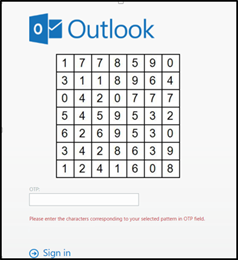
Enter the GrIDsure OTP, derived from your grid pattern, and click Sign in.
-
SMS challenge
- If your system is configured to send OTP via SMS, enter the authentication code received on your phone and click Sign in.
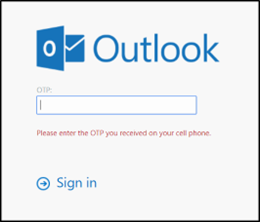
Challenge-response
-
If configured to work with Challenge Response, following login (in either Standard Authentication Mode or Split Authentication Mode), you will be prompted to respond to a challenge.
-
Send the challenge code, as displayed on the screen, to the designated recipient in your organization (typically System Administrator or Help Desk).
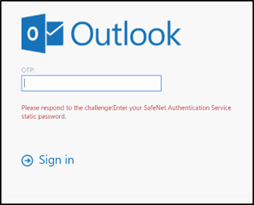
In return, you will receive a response code.
-
Enter the response code into the OTP field and click Sign in.
Prerequisites
-
Ensure that TCP port 80 or 443 is open on the Exchange Server, which would act as a gateway of communication between SafeNet Agent for Microsoft OWA and the SafeNet solution.
-
Administrative rights to the Windows system are required during the installation of SafeNet Agent for Microsoft OWA.
-
Download the Exchange Agent installation package. A link to the agents and other software can be found on the Snapshot tab in the References module for users of the SafeNet server.
Installing SafeNet Agent for Microsoft OWA
Note
Always work in Run as administrator mode when installing, configuring, upgrading, and uninstalling the agent.
Always disable the agent first, and then uninstall, if required.
To install SafeNet Agent for Microsoft OWA:
-
Log in to the Microsoft Exchange server.
-
Locate and execute the following installation file:
SafeNet Agent for Microsoft Outlook Web App.exe -
On the Welcome to the InstallShield Wizard for SafeNet Agent for Microsoft Outlook Web App window, click Next.
-
On the License Agreement window, read the software license agreement and to proceed, select I accept the terms in the license agreement, and click Next.
-
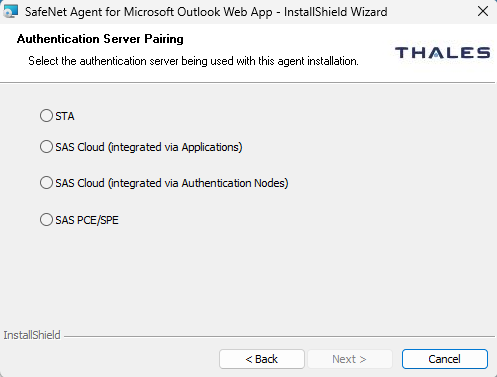
On the Authentication Server Pairing window, select the Authentication Server type, SAS Cloud (integrated via Authentication Nodes) or SAS PCE/SPE and click Next.
-
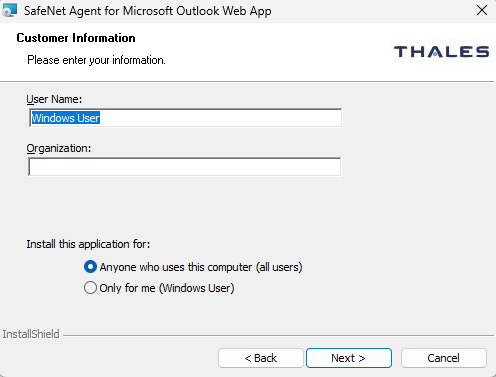
On the Customer Information window, perform the following steps:
-
In the User Name field, enter your user name.
-
In the Organization field, enter the name of your organization.
-
Click Next.
Note
To determine who will have access to the application, select one of the following:
-
Anyone who uses this computer (all users)
-
Only for me (Windows User)
-
-
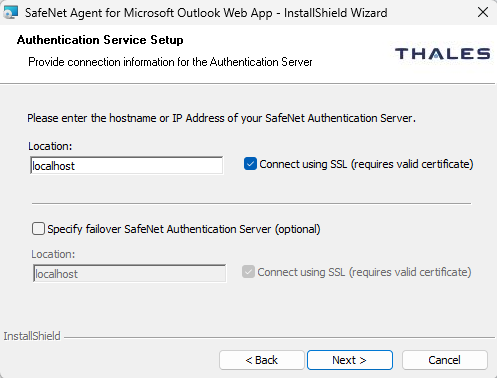
On the Authentication Service Setup window, enter the following details:
-
In the Location field, enter the hostname or IP address of the primary SafeNet server.
-
Select Connect using SSL if SafeNet server is configured to accept incoming SSL connections.
-
If a failover server is available, select the associated checkbox and add the hostname or IP address of a failover SafeNet server.
-
-
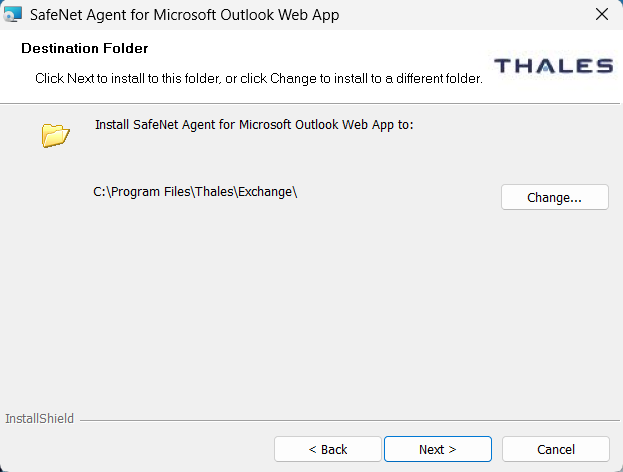
On the Destination Folder window, perform one of the following steps:
-
To change the installation folder, click Change and navigate to the required folder, and then click Next.
-
To accept the default installation folder as displayed, click Next.
-
-
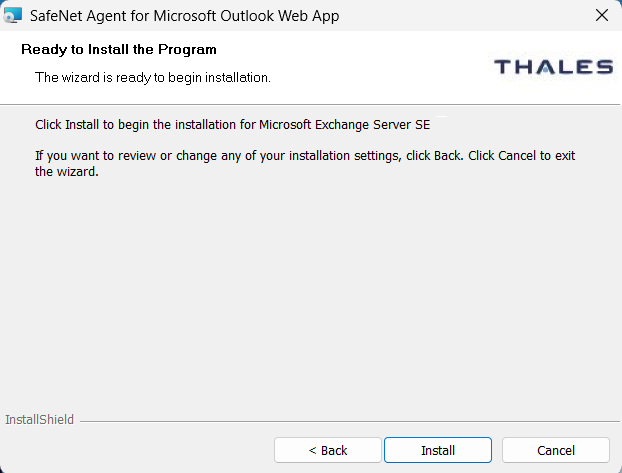
On the Ready to Install the Program window, click Install.
-
Once the installation is completed, the InstallShield Wizard Completed window is displayed. Click Finish to exit the wizard.
Upgrading SafeNet Agent for Microsoft OWA
SafeNet Agent for Microsoft OWA supports upgrade from 2.1.2 (and later). For upgrade, the configurations from the older version must be saved, and then imported into the new installation.
Direct upgrade from versions prior to 2.1.2 to the latest version of the agent is not supported. The earlier versions can be migrated to the latest version of SafeNet Agent for Microsoft OWA. For migrating from one version to another, see Migrating SafeNet Agent for Microsoft OWA using previous configurations.
Note
Disable the agent from the management console before proceeding with the upgrade.
Agent interaction with Microsoft Exchange Server upgrades
During Microsoft Exchange Server upgrades (Cumulative Updates or Subscription Edition), configuration files may be overwritten; therefore, disable and then re-enable the SafeNet Agent for Microsoft OWA from the agent's administrator interface.
Migrating SafeNet Agent for Microsoft OWA
In the existing setup of the agent, perform the following steps:
-
Open the SafeNet Agent for Microsoft Outlook Web App Manager and navigate to File > Export Current Configuration. A file of the settings (
Backup.bsidConfig) is created.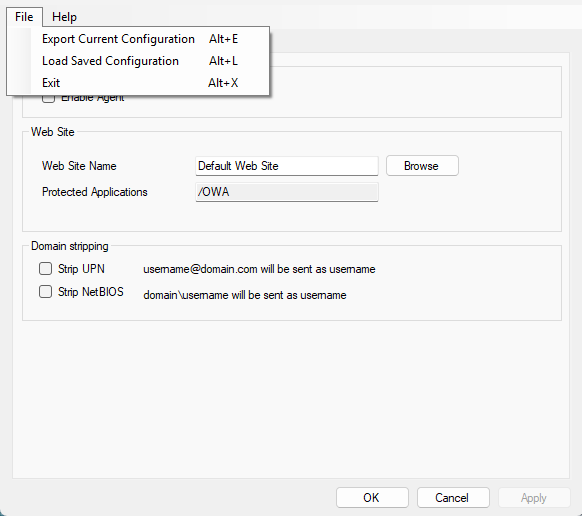
-
Make a copy of the
Backup.bsidConfigfile, and save it to the new environment. -
Edit the Backup.bsidConfig file in the new environment and replace all occurrences of “Gemalto” with “Thales”. This is required because the installation directory name has been changed from “Gemalto” to “Thales". Save the file after making these changes.
Note
This step applies only when migrating an existing SafeNet Agent for Microsoft OWA to version 3.0.0 or above.
-
Install the agent on the new environment.
-
Open the newly installed SafeNet Agent for Microsoft Outlook Web App Manager, and navigate to File > Load Saved Configuration.
-
Import the configuration file (as saved in step 2). Navigate to the saved file,
Backup.bsidConfig, click Open and import the configuration into the agent. -
Click Apply to apply the settings.
Note
Upgrades or migration of the SafeNet Agent for Microsoft OWA will only work for the same agent type.
SafeNet Agent for Microsoft Outlook Web App Manager
The SafeNet Agent for Microsoft Outlook Web App Manager allows modification of various features available within SafeNet Agent for Microsoft OWA.
Policy tab
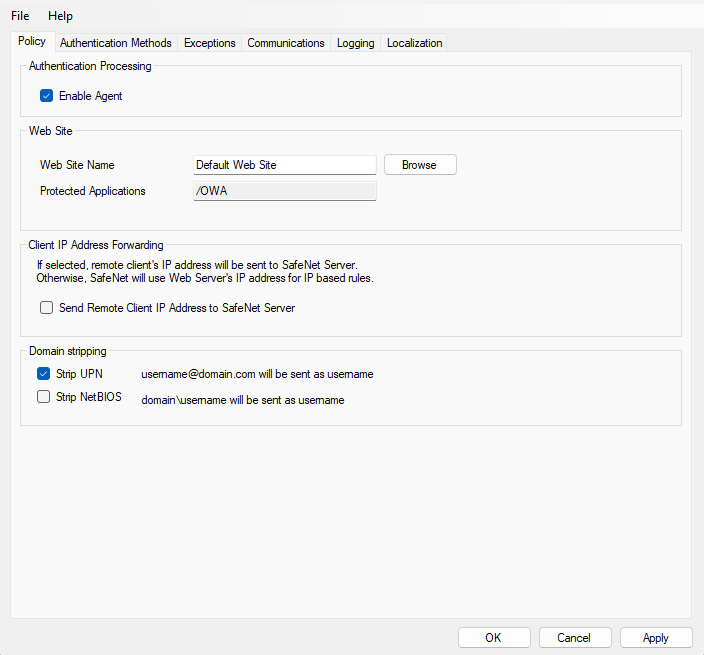
The Policy tab deals with enabling SafeNet Agent for Microsoft OWA and defining the website settings.
Authentication Processing Group
-
Enable Agent: Turns SafeNet Agent for Microsoft OWA On or Off.
Default: Disabled
Web Site Group
-
Web Site Name: Allows selection of the Exchange Server website.
Default: Default Web Site
-
Protected Applications: Specifies the OWA directory on the Exchange Server.
Default:
/owa
Client IP Address Forwarding Group
If selected, the remote client IP address will be sent to the SafeNet solution. Otherwise, the web server's IP Address will be used.
Default: Enabled
Domain Stripping
-
Strip realm from UPN: (
username@domain.comwill be sent as username) Select the checkbox if the SafeNet server username is required without the suffix@domain. -
Strip NetBIOS prefix: (
domain\usernamewill be sent as username) Select the checkbox if the SafeNet server username is required without the prefix \domain.
Note
The realm-stripping feature applies to SafeNet server usernames only. Active Directory usernames are not affected.
Authentication Methods Tab
The Authentication Methods tab allows selection of the login authentication method and web page authentication layout as will be presented to the user.
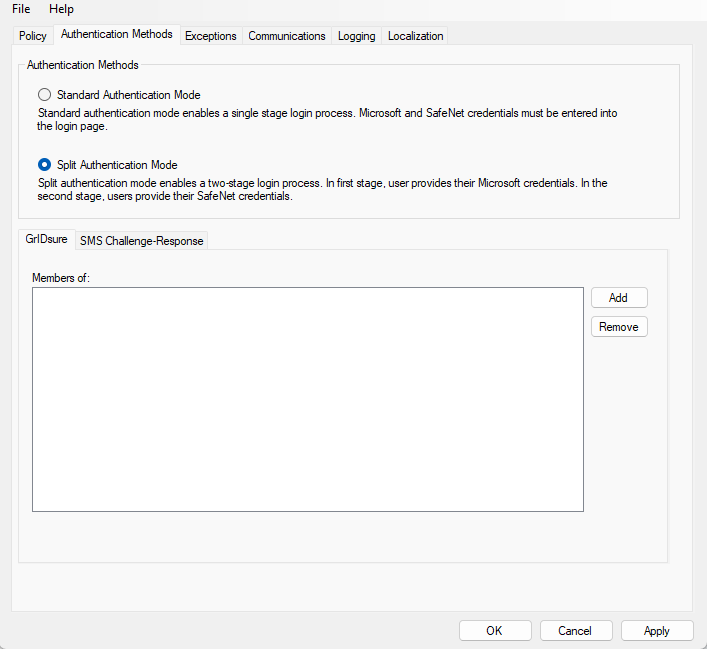
Authentication Methods Group
-
Standard Authentication Mode: As explained earlier, this mode enables a single-step login process. Microsoft and SafeNet credentials must be entered into a single login page.
Default: Disabled
The Standard Authentication Mode provides the option to select one of two login templates:
-
Hardware, Software, GrIDsure and SMS Challenge Token Detection: This is the default option. Domain\Username, Password, and OTP fields will be displayed.
-
Hardware and Software Token Detection: Domain/Username, Password, and OTP fields will be displayed.
-
-
Split Authentication Mode: As explained earlier, this mode enables a two-stage login process. In the first stage, users provide their Microsoft credentials. In the second stage, users provide their SafeNet credentials.
Default value: Enabled
The Split Authentication Mode provides the following advantages over Standard Authentication Mode:
- Microsoft group exclusions may be used to migrate users gradually from static passwords to a combination of static and one-time passwords.
- Allow administrators to specify (via Microsoft Groups) users who have been provided with GrIDsure or SMS Challenge-response authenticators. This allows for a seamless login experience as the agent displays exactly what is required from the user.
-
GrIDsure Tab (Optional): Allows an administrator to specify a Microsoft group, which contains SafeNet server users who have been assigned a GrIDsure authenticator. When the agent detects a user within this group, it will automatically display a GrIDsure grid after they have provided valid Microsoft credentials.
-
SMS Challenge-Response Tab (Optional): Allows an administrator to specify a Microsoft group that contains SafeNet server users who have been assigned an SMS Challenge-response authenticator. When the agent detects a user within the group, it will automatically provide them with an OTP via SMS after they have provided valid Microsoft credentials.
Exceptions Tab
The Exceptions tab allows specific Microsoft groups or network traffic to bypass SafeNet authentication. By default, all users are required to perform SafeNet authentication unless otherwise defined by exclusion.
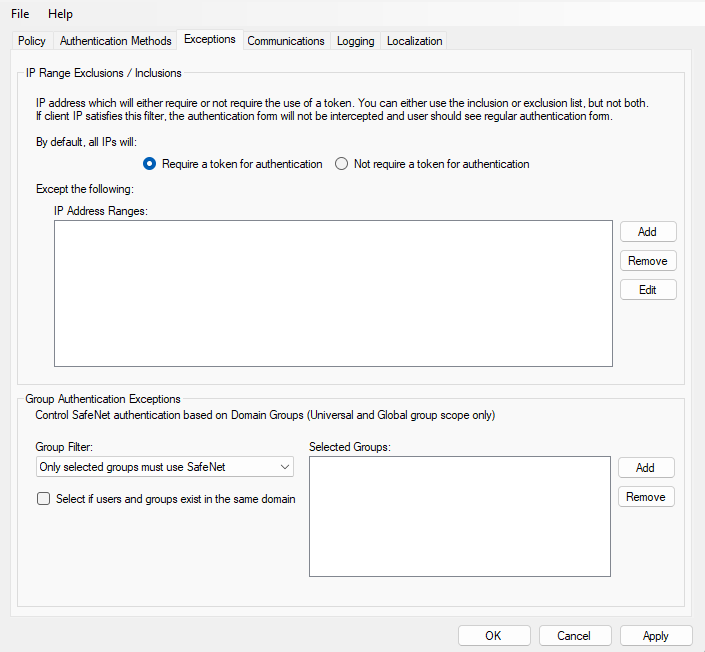
IP Range Exceptions / Inclusions Group
It allows an administrator to define which network traffic requires SafeNet authentication.
Group Authentication Exceptions Group
Note
While adding Security Groups, the groups having the Domain Local scope will not be visible in the OWA Manager. Only the universal and global domain groups will be visible.
-
Group Filter and Selected Groups: Group authentication exceptions omit single or multiple domain groups from performing SafeNet authentication. Only one group filter option is valid at any given time; it cannot overlap with another group authentication exception.
Default value: Everyone must use SafeNet
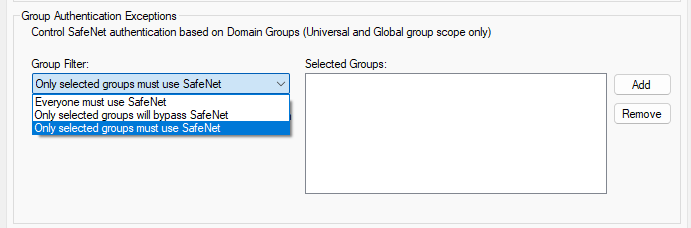
The following group authentication exceptions are available:
-
Everyone must use SafeNet: All users must perform SafeNet authentication.
-
Only selected groups will bypass SafeNet: All users are required to perform SafeNet authentication, except the defined Microsoft Groups.
-
Only selected groups must use SafeNet: All users are not required to perform SafeNet authentication, except the defined Microsoft Groups. Adding a group authentication exception entry will display the following window:
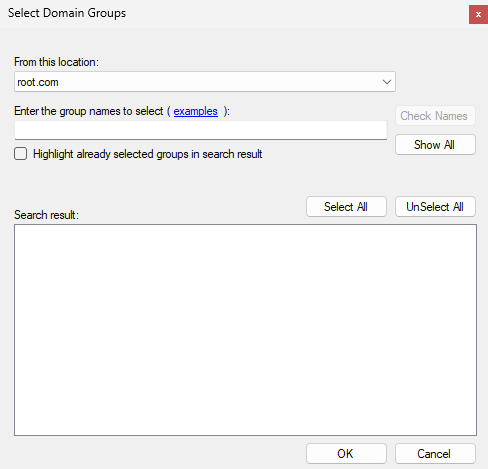
The following provides the field descriptions:
-
From this location: Select the location from which the results will be searched.
-
Enter the group name to select, used in conjunction with Check Names or Show all. It allows searching Microsoft groups.
-
Highlight already selected groups in search results: If a Microsoft group is configured in the exception, selecting this checkbox will make it appear as a highlighted entry.
-
-
Select if users and groups exist in the same domain: The checkbox ensures that the child domain is also effectively searched for users and groups. If selected, the group exclusions functionality will search and apply authentication exceptions even if both users and groups exist in the child domain. If the checkbox is cleared, exceptions will only be applied if both users and groups exist in the parent domain.
Default value: Clear
Communications Tab
This tab deals with the various SafeNet server connection options.
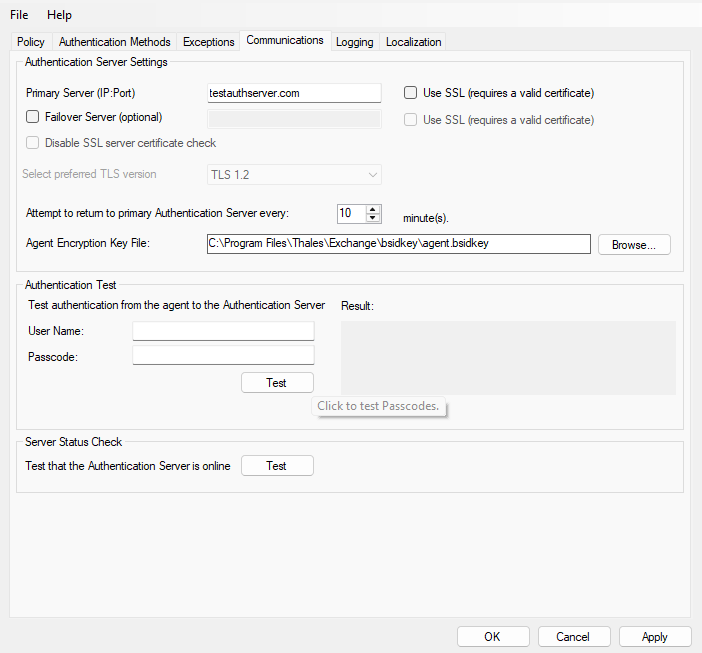
Authentication Server Settings Group
-
Primary Server (IP:Port): It is used to configure the IP address/hostname of the primary SafeNet server.
Default: Port 80
Alternatively, Use SSL checkbox can also be selected.
Default TCP port for SSL requests: 443
-
Failover Server (Optional): It is used to configure the IP address/hostname of the failover SafeNet server.
Default: Port 80
Alternatively, Use SSL checkbox can also be selected.
Default TCP port for SSL requests: 443
-
Disable SSL server certificate check: Select the checkbox to disable the SSL server certificate error check.
The SSL certificate check is enabled by default. This option enables you to disable the SSL server certificate error check. This supports backward compatibility for customers using the on-premises deployment of SafeNet server, within a well-controlled network where self-signed certificates are used and cannot be properly validated by SafeNet Agent for Microsoft OWA.
Note
We strongly recommend the use of SSL certificates.
-
Select preferred TLS version: Configure the agent communication to use TLS.
When the TLS option is selected the agent forces a secured TLS-based channel for processing authentication requests to SafeNet server. This is required as a consequence of the reported POODLE vulnerability in SSL.
-
Attempt to return to primary Authentication Server every: It sets the Primary Authentication server retry interval. This setting only takes effect when the agent is using the Failover Server.
-
Communication Timeout: It sets the maximum timeout value for authentication requests sent to the SafeNet server.
-
Agent Encryption Key File: It is used to specify the location of the SafeNet Agent Key File.
Note
If the SafeNet Agent Key File is changed, close and reopen the SAS Exchange Agent Configuration Tool to apply changes.
Authentication Test Group
It allow administrators to test authentication between the agent and the SafeNet server.
Server Status Check Group
It performs a test to verify a connection to the SafeNet server.
Logging Tab
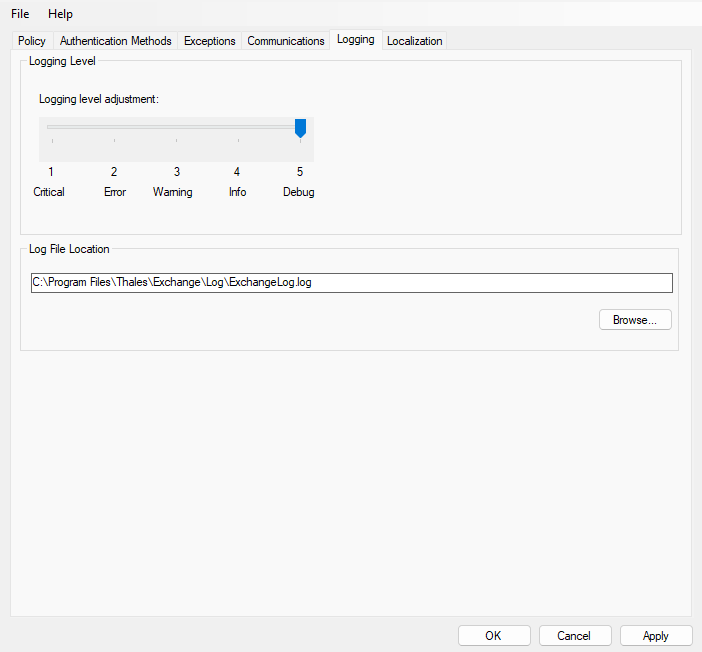
Logging Level Group
It allow administrators to adjust the logging level. For log levels 1, 2, and 3, only the initial connection between the agent and the server, and any failed connection attempts, are logged. Drag the pointer on the Logging level adjustment scale to the required level:
1 – Critical: Very severe error events that might cause the application to terminate.
2 – Error: Error events that prevent normal program execution, but might still allow the application to continue running.
3 – Warning: Potentially harmful error events.
4 – Info: Informational error events that highlight the progress of the application.
5 – Debug: Detailed tracing error events that are useful to debug an application. (Default)
Log File Location Group
It allow administrators to specify the location where log files will be saved. The log file is rotated on a daily basis. The default location is C:\Program Files\Thales\exchange\log\Exchange.log.
Localization Tab
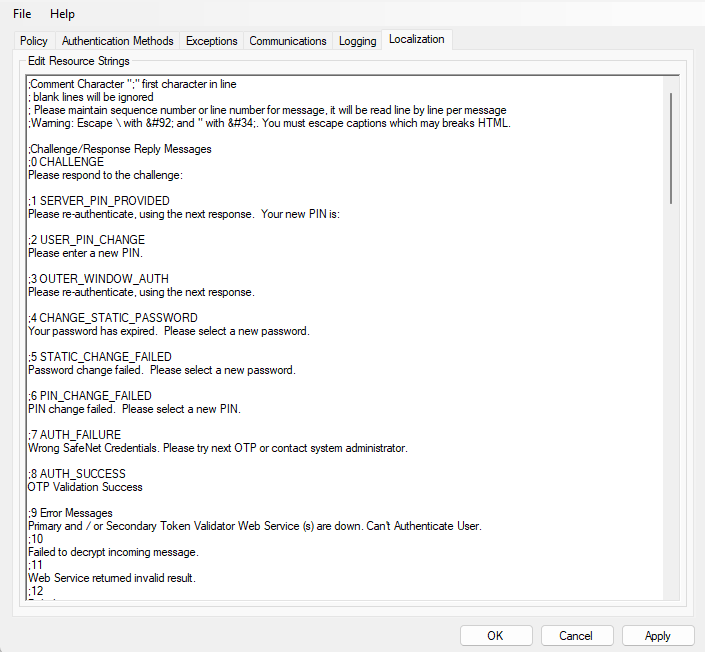
The settings on this tab represent the prompts and information messages provided by SafeNet Agent for Microsoft OWA. These can be modified as necessary to improve usability. The Messages.txt file can be manually modified outside of the SafeNet Microsoft Exchange Manager. This file can be found at the following location:
C:\Program Files\Thales\Exchange\LocalizedMessages

