



Microsoft Entra ID Setup
Configuring Entra ID requires:
Registering an Application and Setting up its Permissions
Entra ID requires application registration because the Microsoft identity platform handles identity and access management (IAM) only for registered applications. Registering the application establishes a trust relationship between your application and the identity provider, the Microsoft identity platform.
Perform the following steps:
-
Log in to the Microsoft Entra admin center as a Cloud Application Administrator.
-
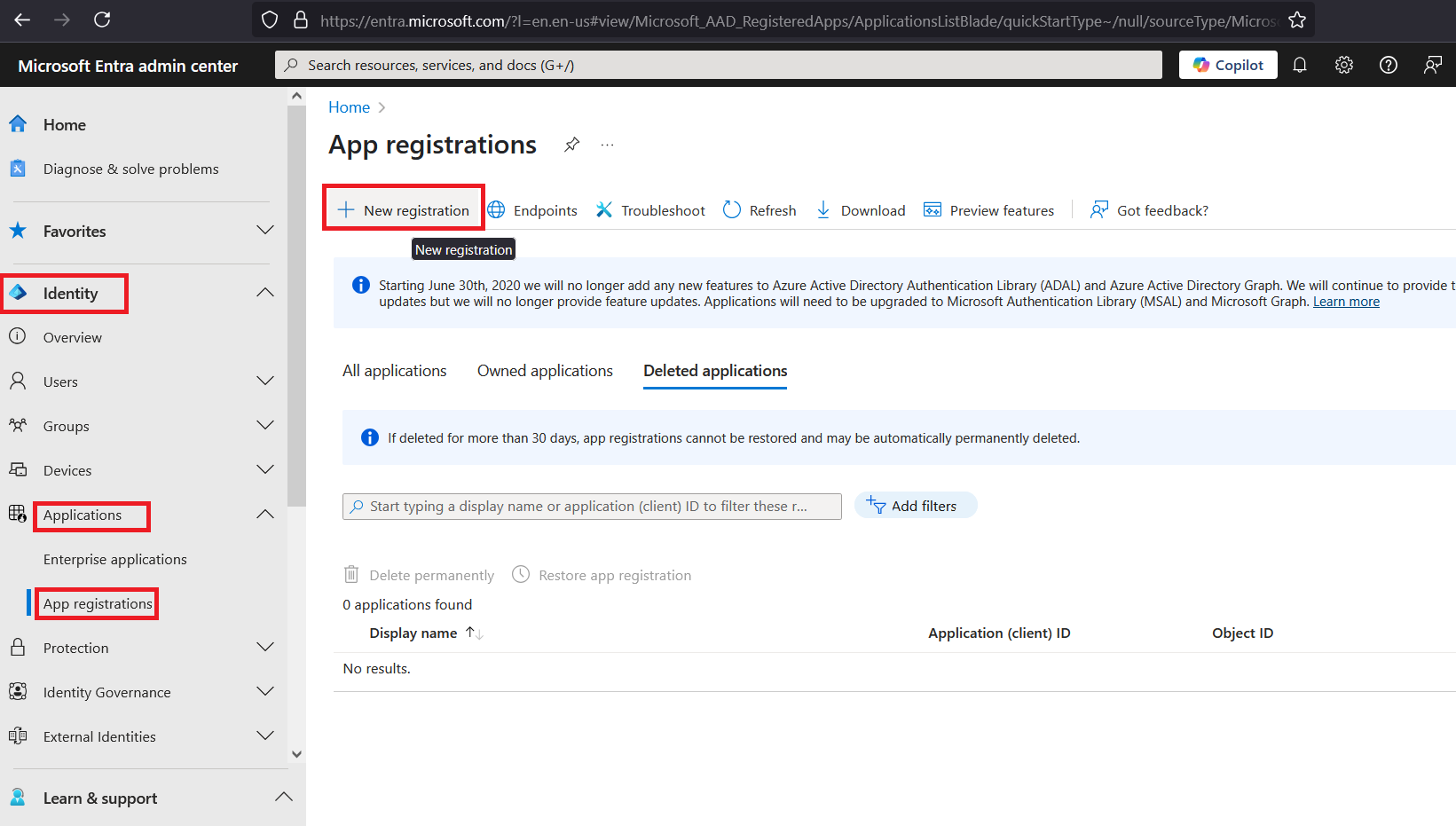
In the left pane, click Entra ID > App registrations, and in the right pane, click New registration.
-
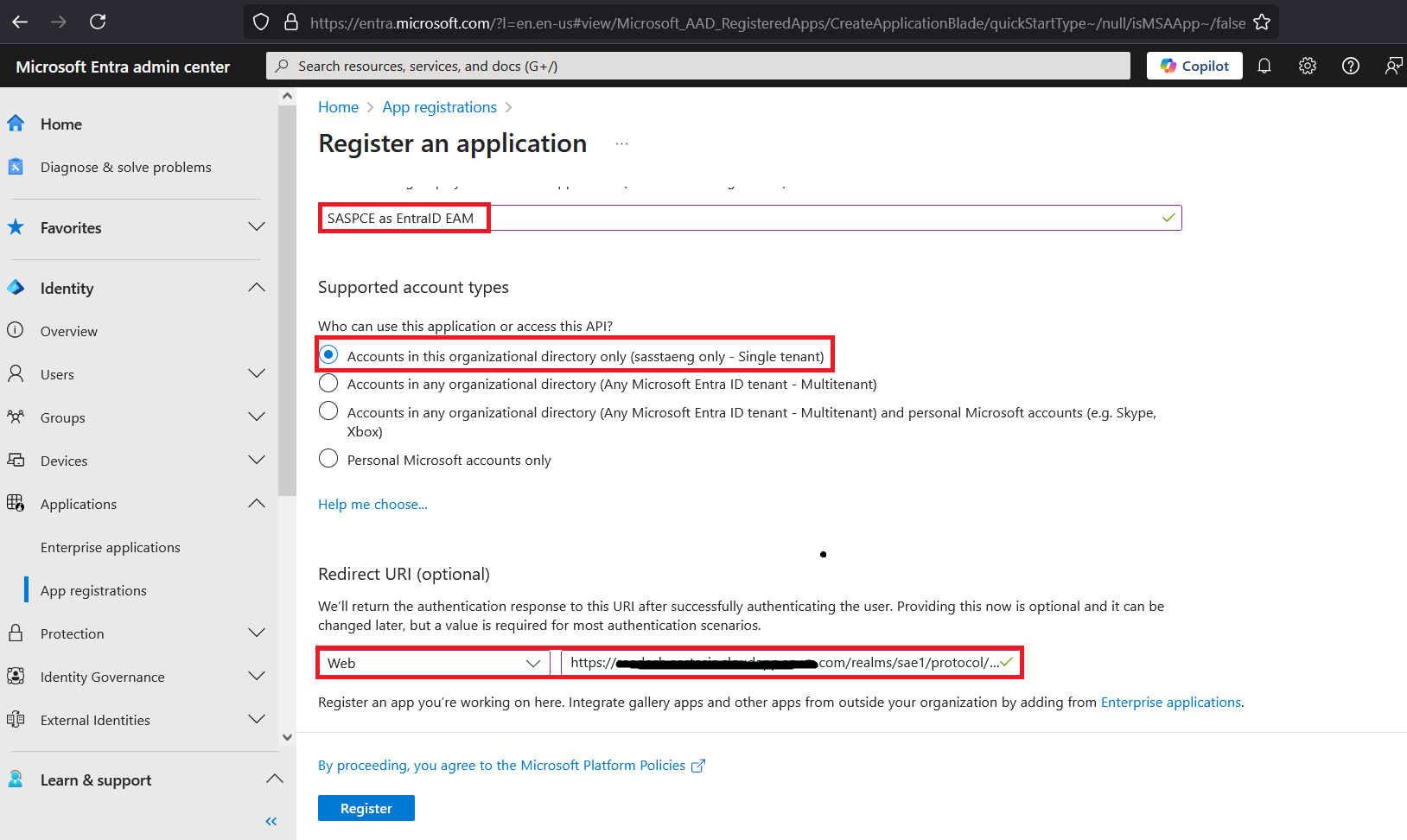
In the right pane, under Register an application, perform the following steps:
-
In the Name field, enter a display name for the application (for example, SafeNet).
-
Under Supported account types, select one of the following account types to grant application access to its users:
-
Accounts in this organizational directory only (Integration only - Single tenant)
-
Accounts in any organizational directory (Any Entra ID tenant - Multitenant)
-
-
Under Redirect URI, from the drop-down list, select Web and in the field, paste the authorization endpoint URL obtained in step 4 of the Configuring the SafeNet Access Exchange Realm section.
-
Click Register.
-
-
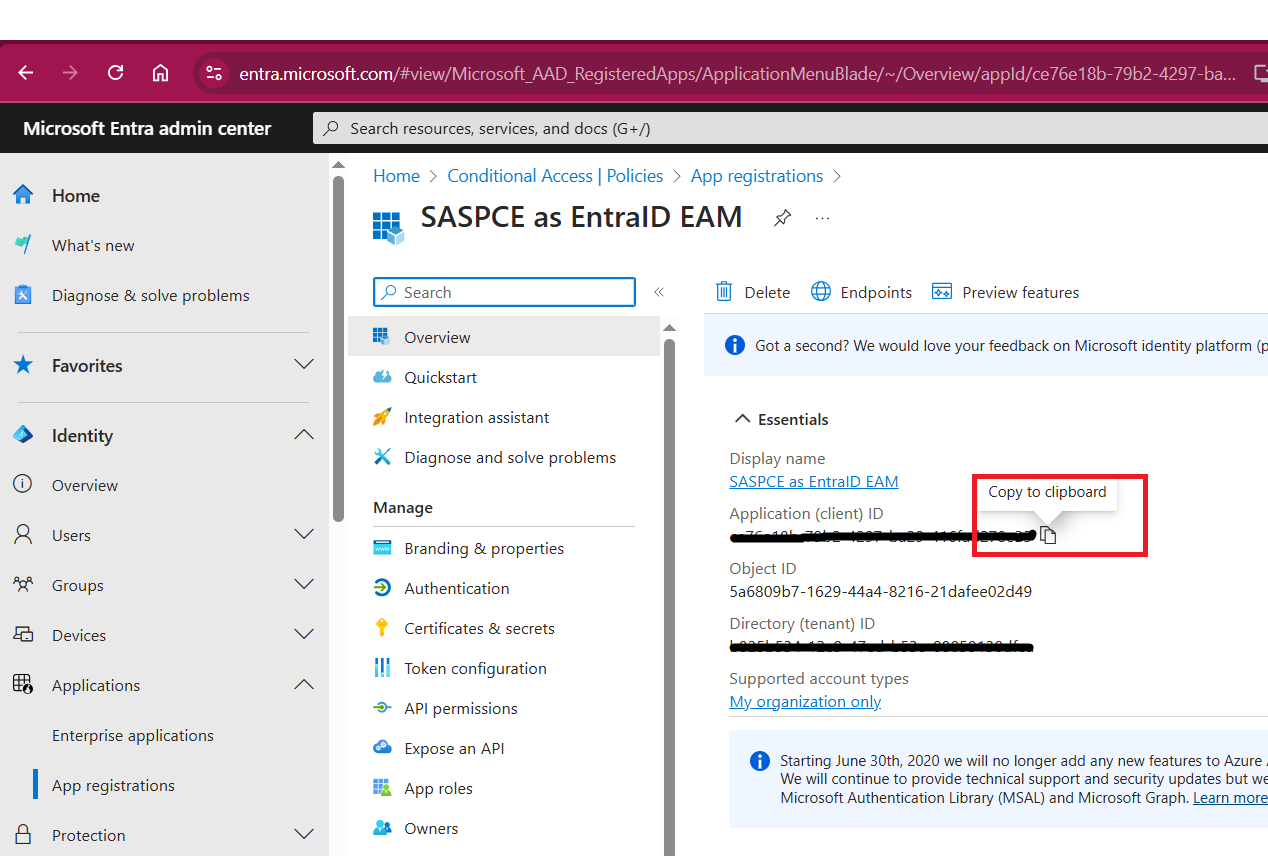
Under the Overview section of the newly added application, copy the Application (client) ID and paste it in a text editor. You will need this value when configuring SAS PCE as an external MFA.
-
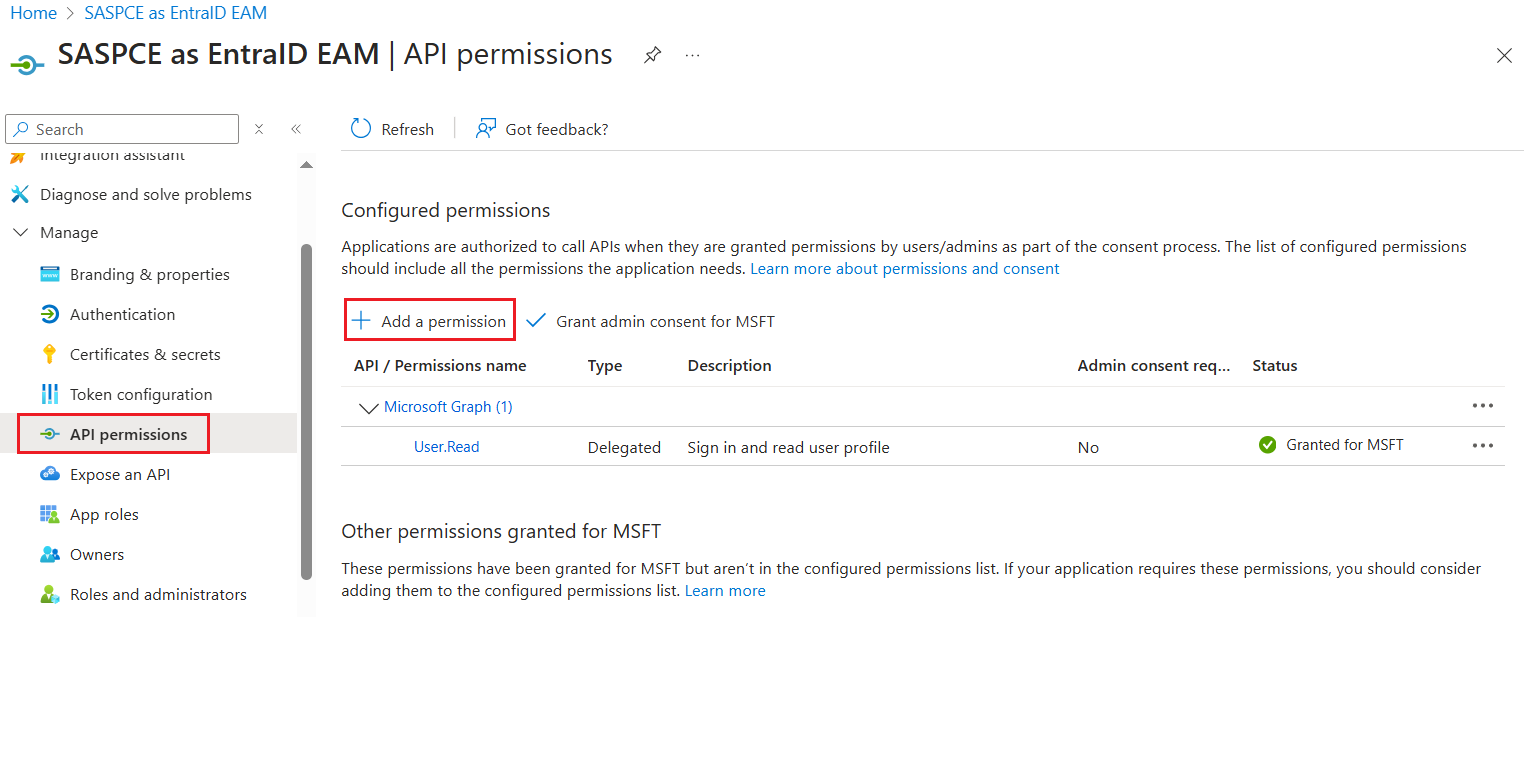
In the left pane, under Manage, click API permissions.
-
In the right pane, perform the following steps:
-
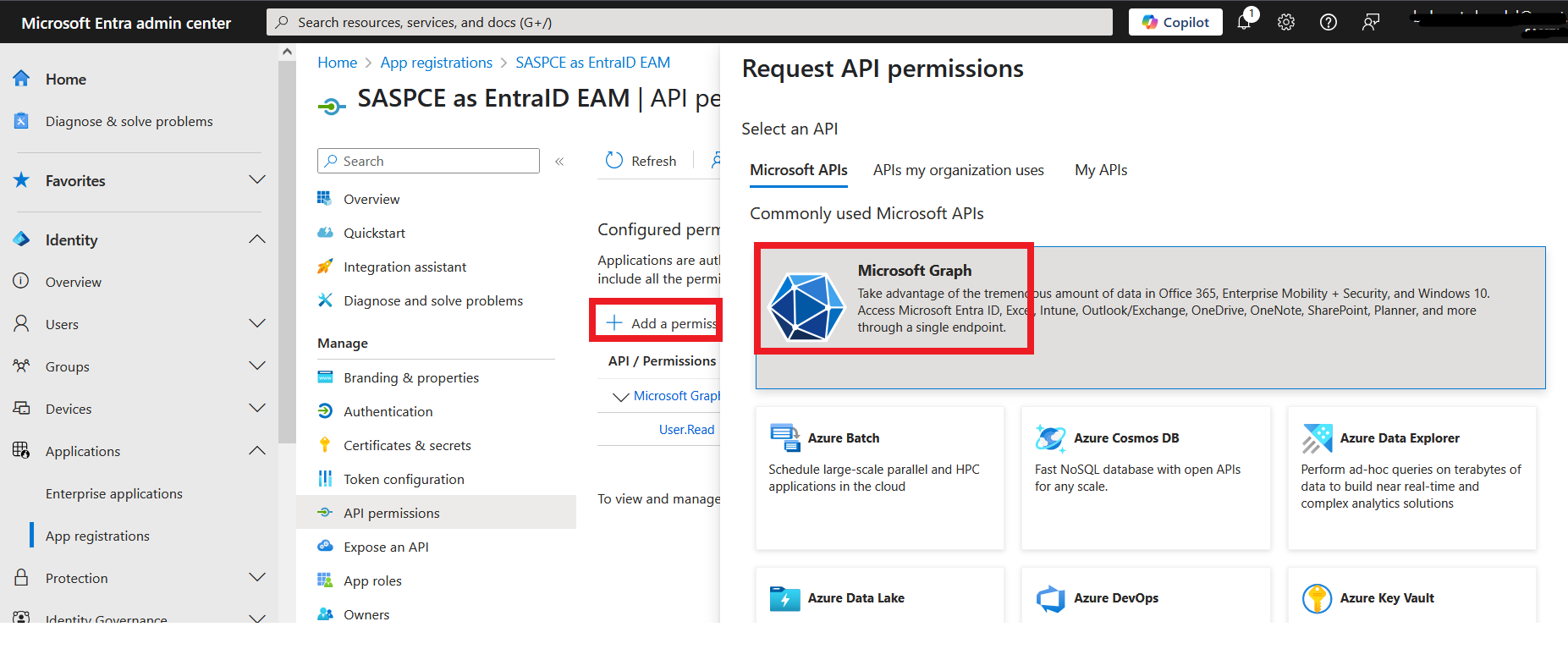
Under Configured permissions, click Add a permission.
-
On the Request API permissions window, on the Microsoft APIs tab, select the Microsoft Graph tile.
-
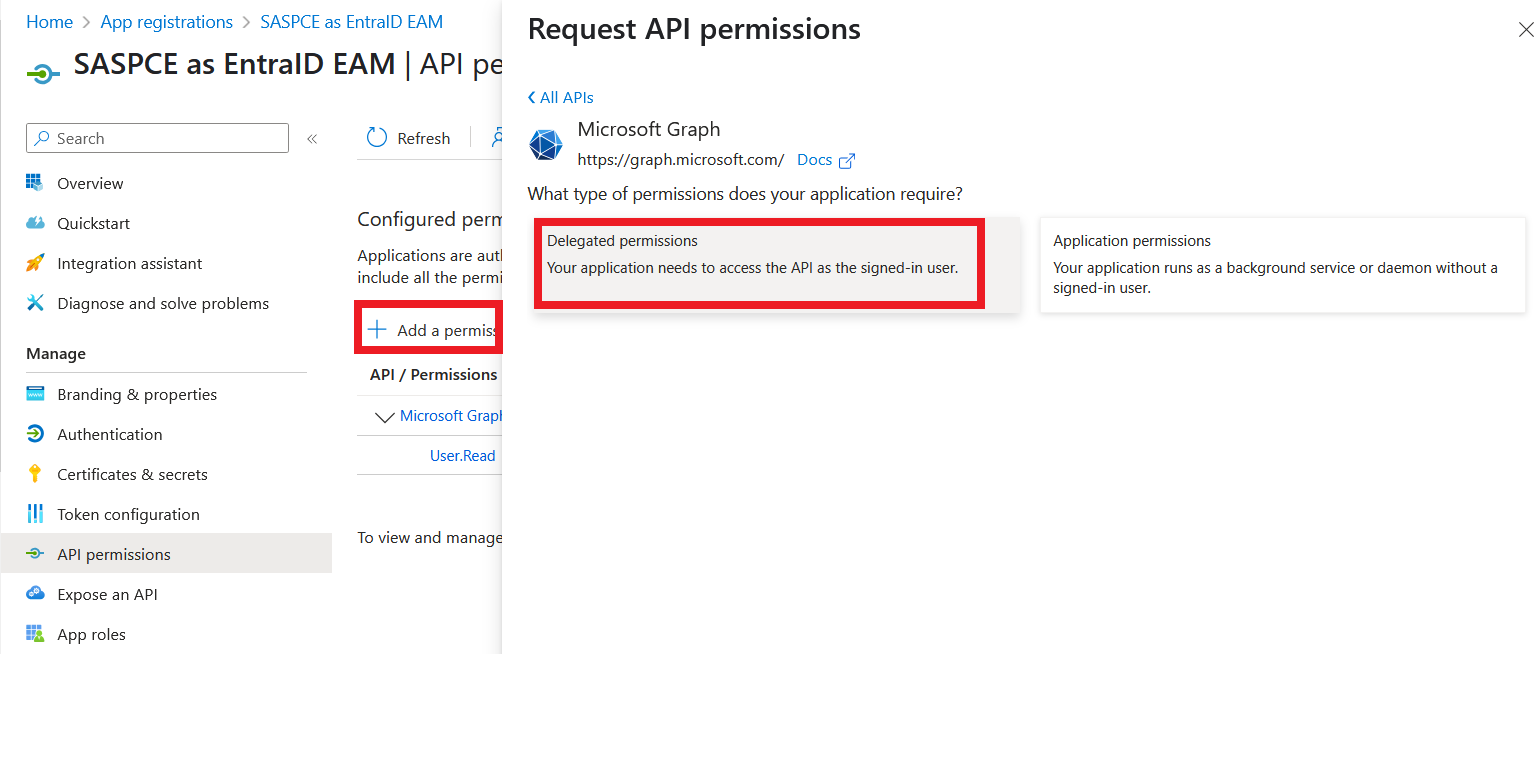
Under Microsoft Graph, select the Delegated permissions tile.
-
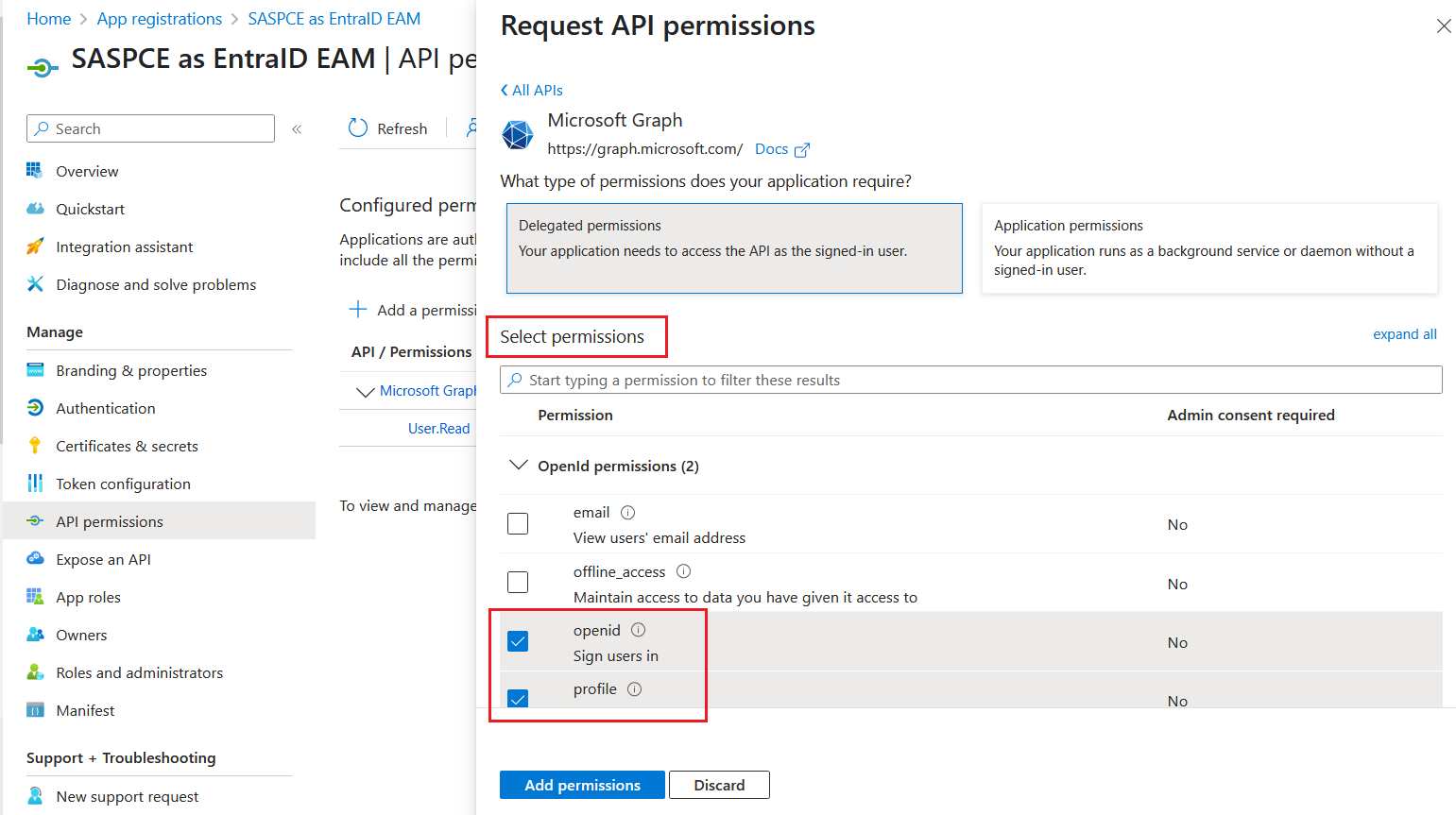
Under Select permissions, search and select the following permissions, and click Add permissions:
-
User.Read
-
openid
-
profile
-
-
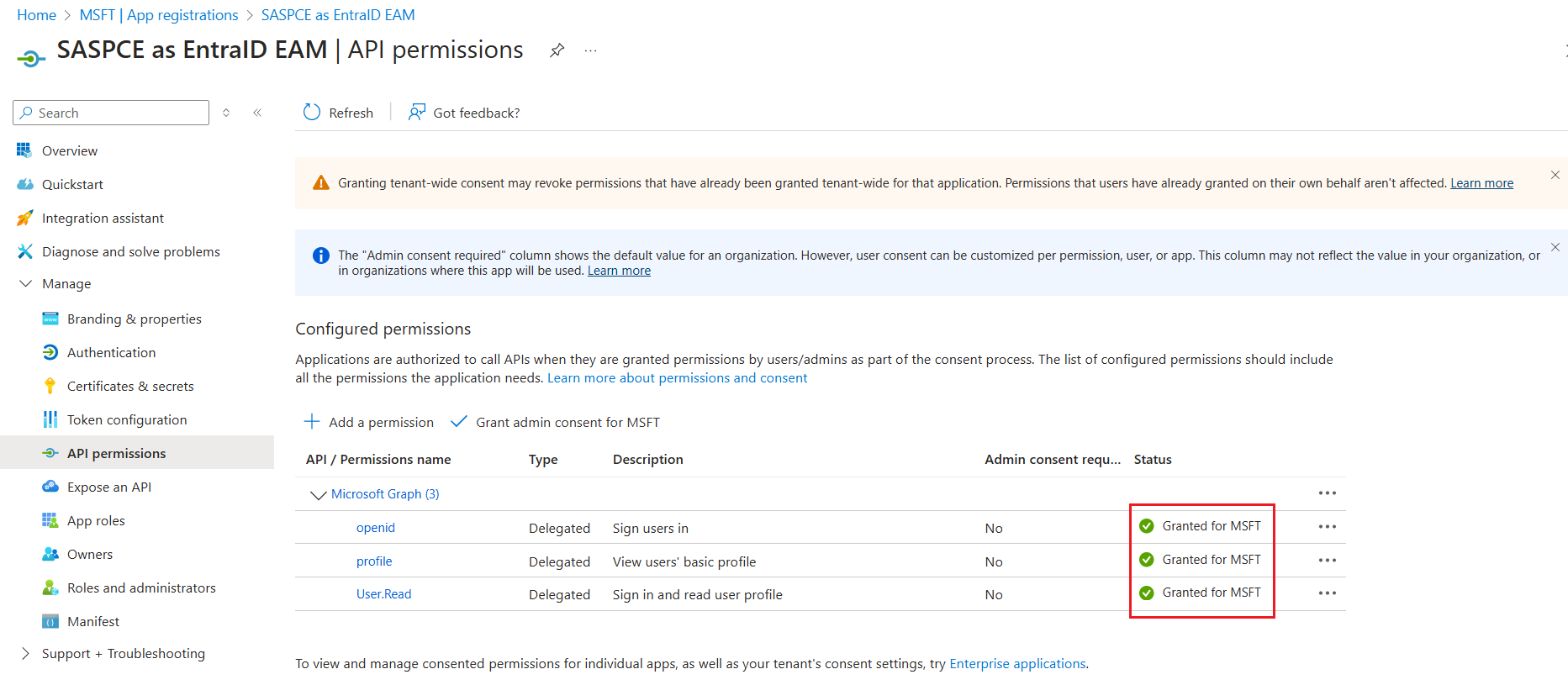
Click Grant admin consent for <tenant_name>.
-
Under Grant admin consent confirmation, click Yes. The permissions' Status will be changed to Granted.
-
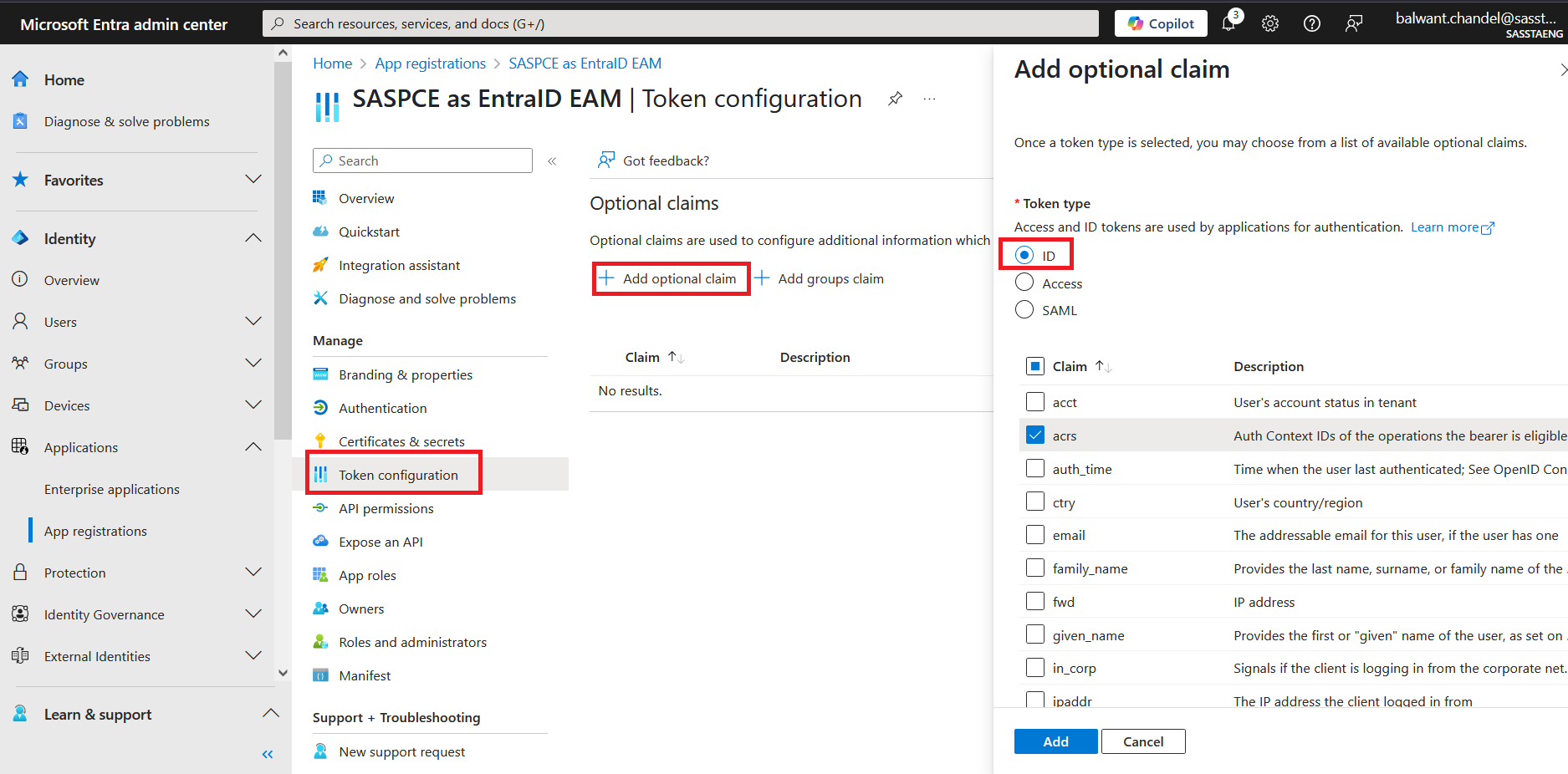
In the left pane, under Manage, click Token configuration, and then click Add optional claim.
-
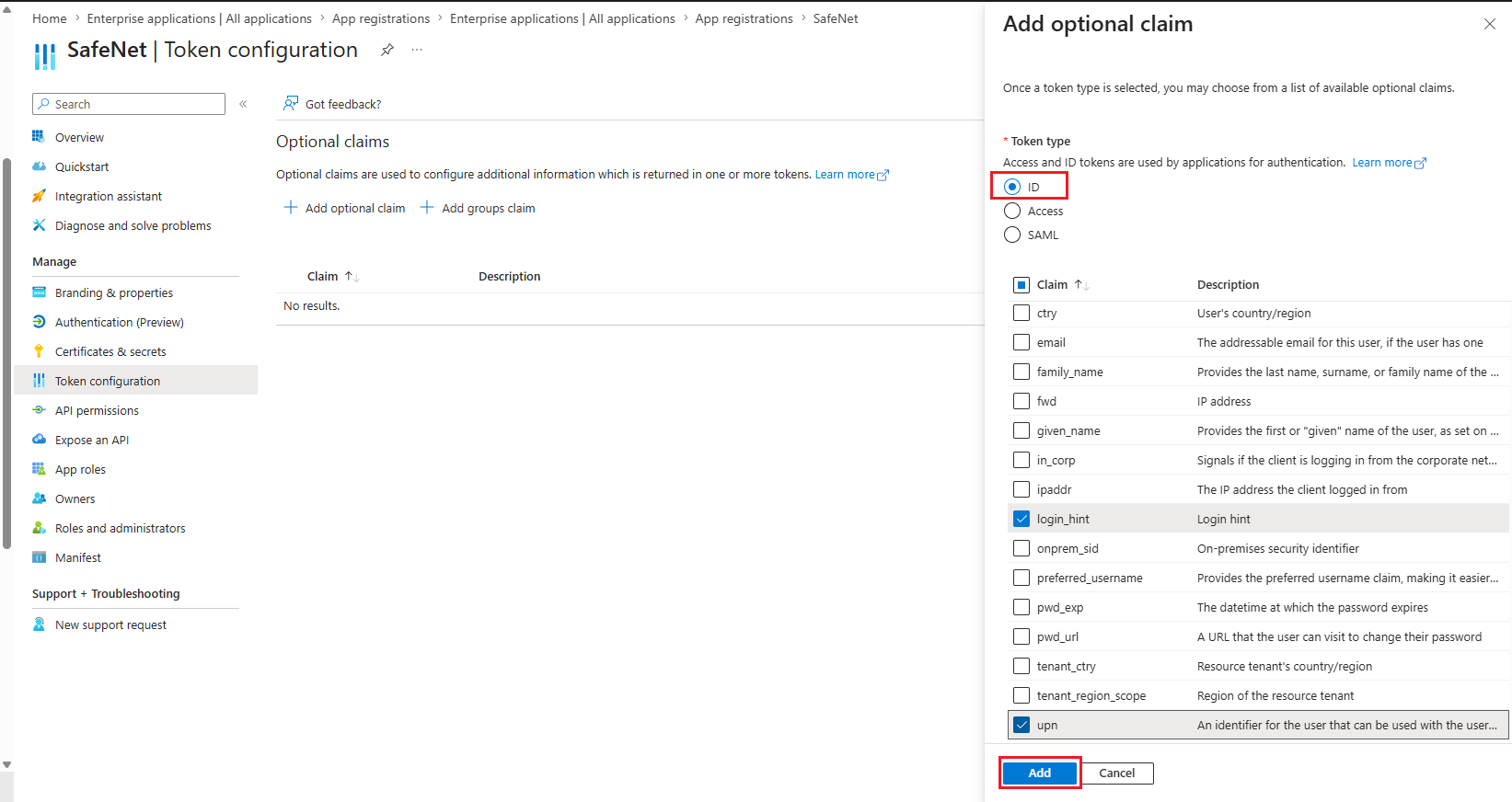
In the right pane, under Add optional claim, select the ID token type and perform the following steps:
-
Select the acrs, login_hint, and upn claims.
-
Click Add to add the claims.
-
-
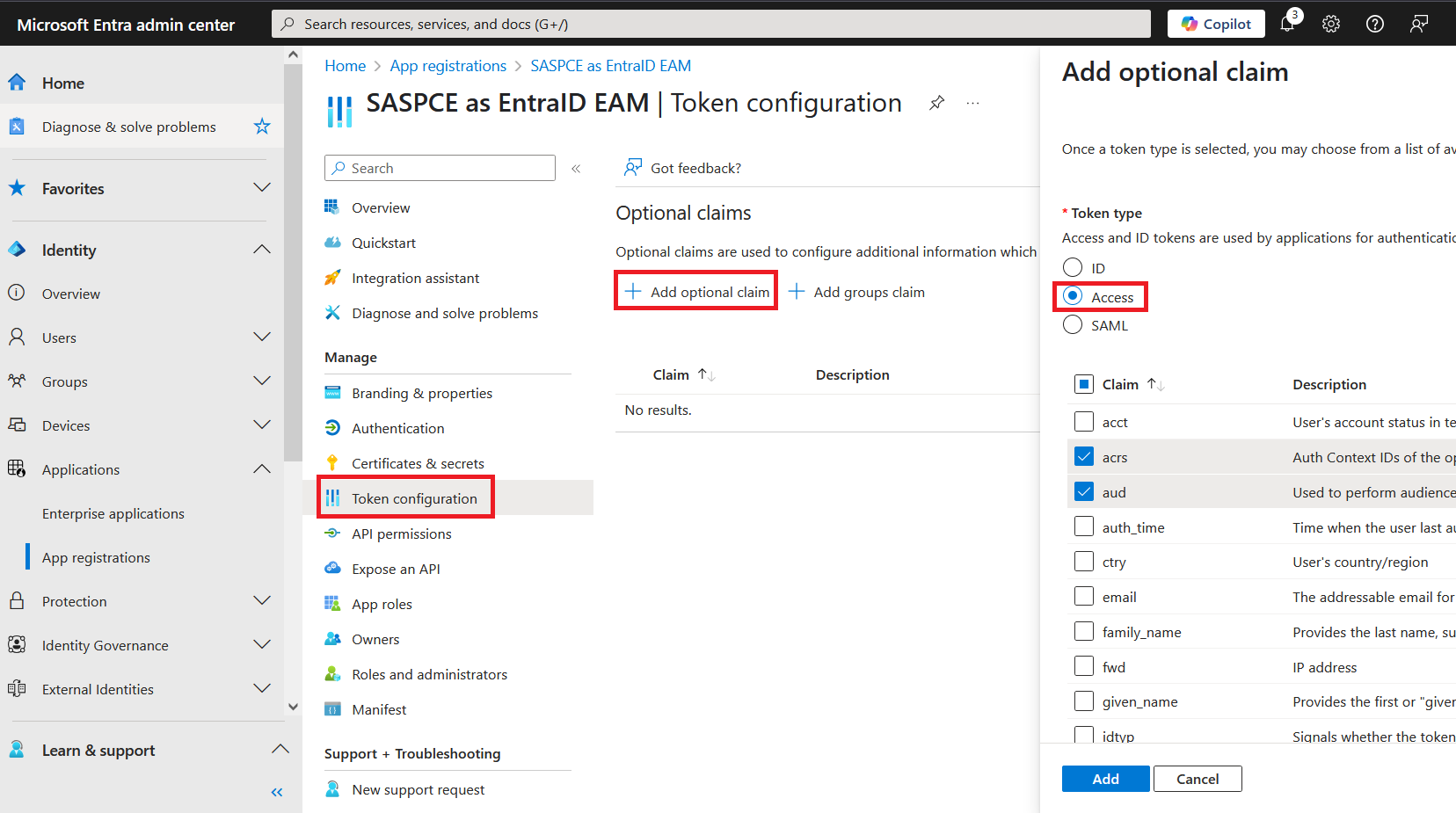
Under Token type, select the Access token option and perform the following steps:
-
Select the acrs, aud, and upn claims.
-
Click Add to add the claims.
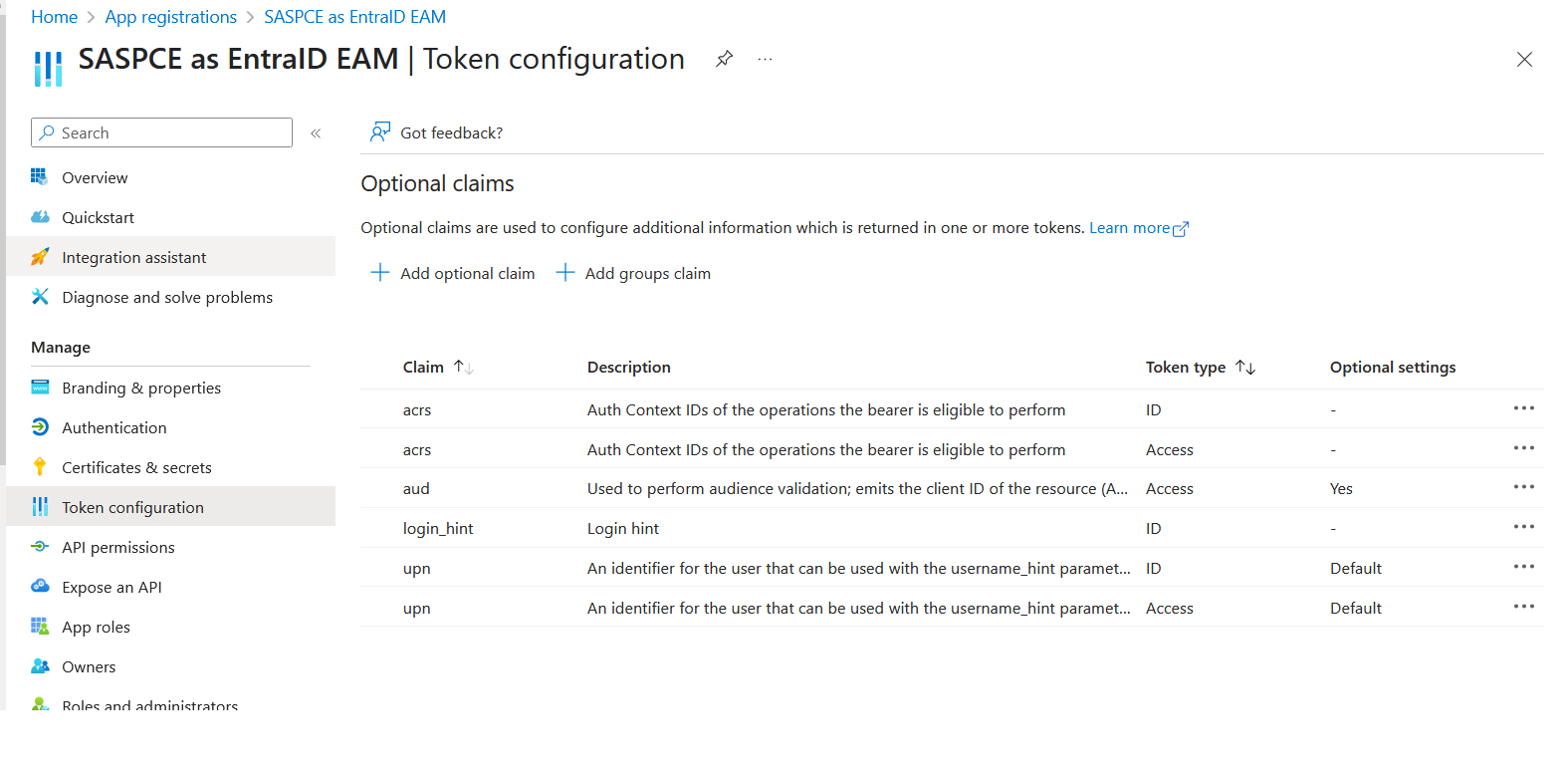
The claims for both the Access and ID tokens are added as shown in the screenshot below:
-
-
Configuring SAS PCE as an External MFA
Perform the following steps to configure SAS PCE as an external MFA:
-
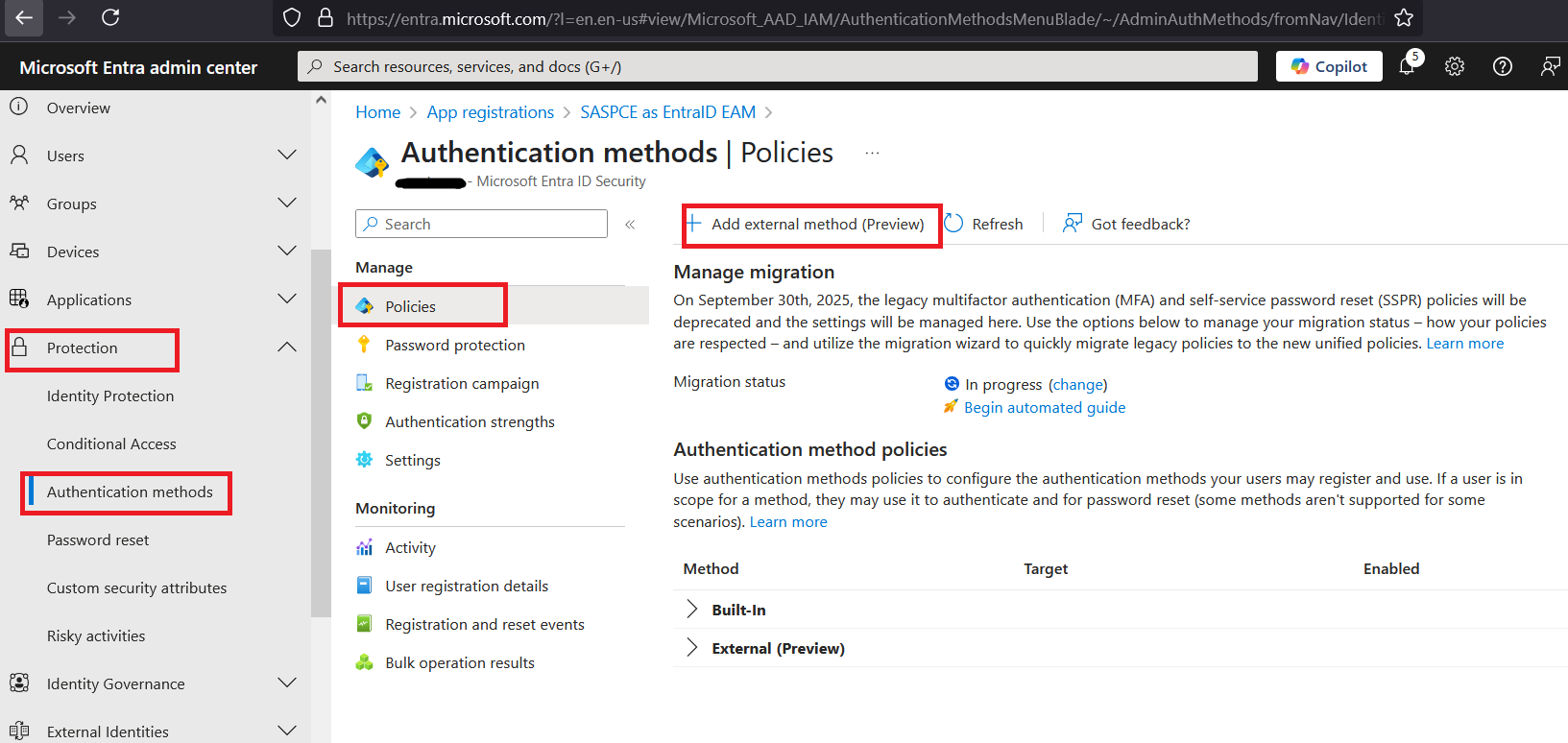
In the Microsoft Entra admin center, in the left pane, select Entra ID > Authentication methods > Policies, and then select Add External MFA.
-
Under Properties, enter a method name in the Name field, and then complete the following fields:
Field Description Name Enter a display name for the external MFA method. Client ID Enter the CLIENT ID value obtained in step 4 (c) of the Configuring an Entra ID Client section. Discovery Endpoint Enter the OIDC Discovery Endpoint URL obtained in step 4 of the Configuring the SafeNet Access Exchange Realm section. App ID Enter the Application (client) ID obtained in step 4 of the Registering an Application and Setting up its Permissions section. 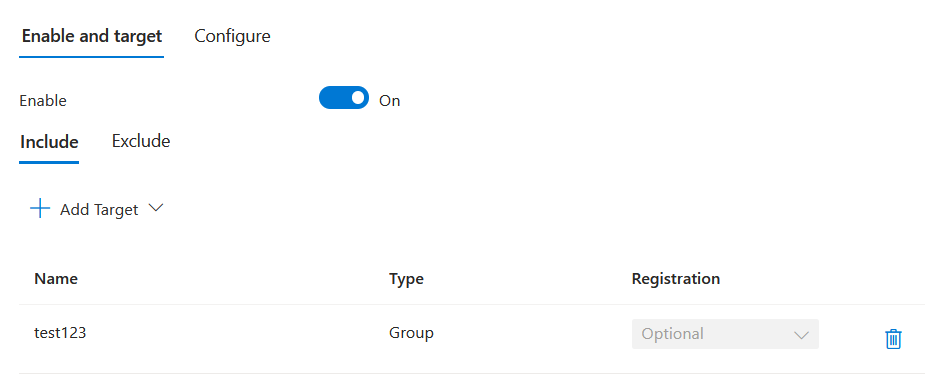
-
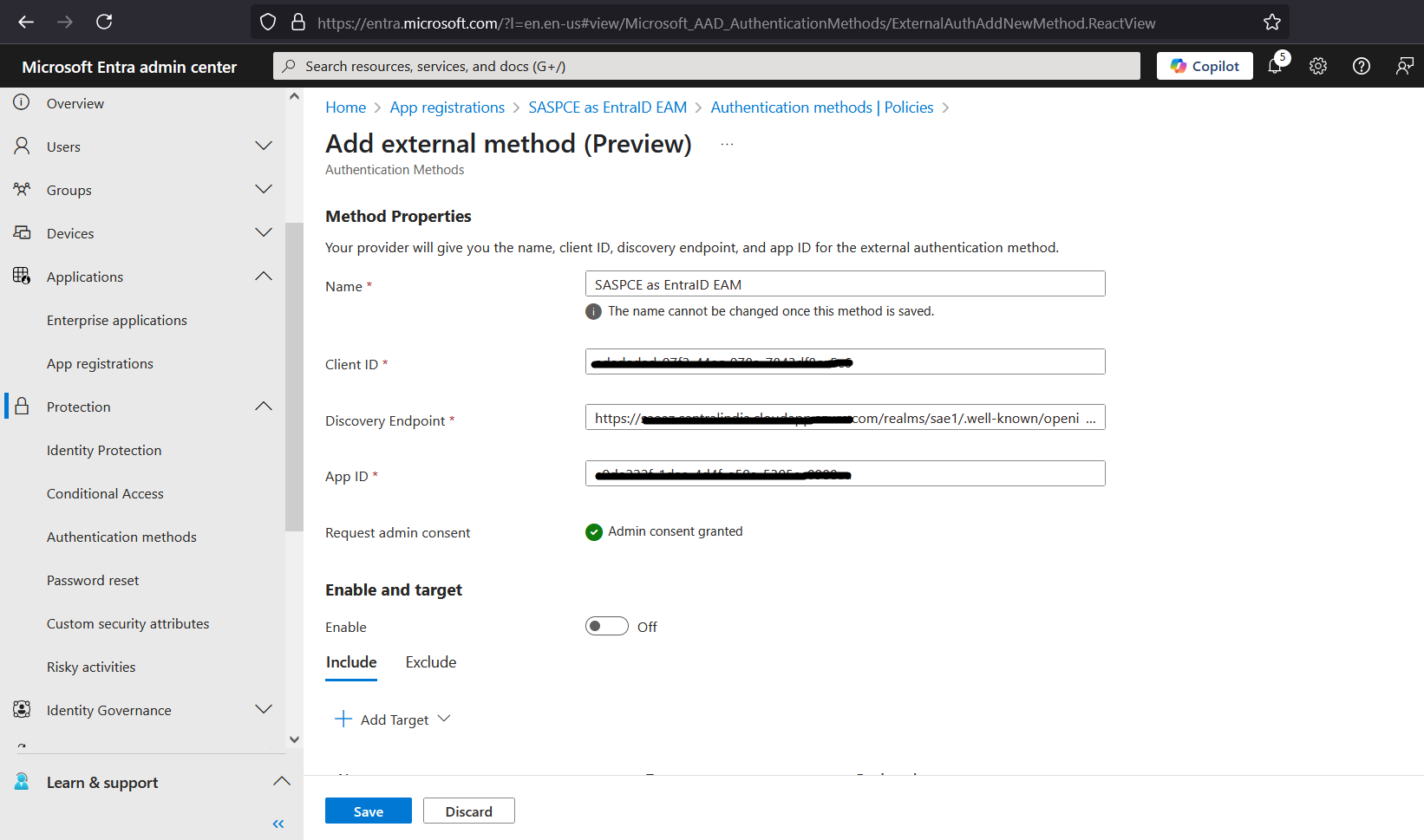
Under Enable and target, turn on the Enable toggle, and then go to the Include or Exclude tabs to enable or disable users or groups, respectively.
Note
As a best practice, exclude global administrator accounts or groups unless they are required.
-
Click Save to save the external MFA configuration.
-
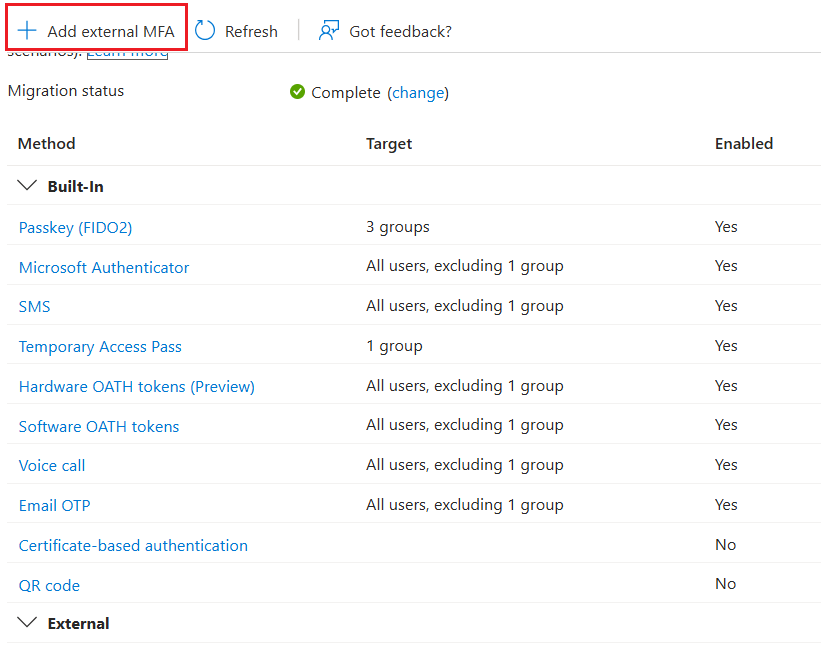
Under Authentication methods > Policies, verify that the external MFA you configured is listed and its status is set to Enabled.
Creating a Conditional Access Policy
-
In the Microsoft Entra admin center, in the left pane, select Entra ID > Conditional Access > Policies, and then click New policy.
-
In the Name field, enter a policy name.
Note
As a best practice, exclude global administrator groups.
-
Under Assignments, select Users or agents (Preview), and then perform the following steps:
-
On the Include tab, select the Select users and groups option, and then select the Users and groups check box.
-
Under Select users and groups, search for and select the users and groups to which you want to apply the policy, and then click Select.
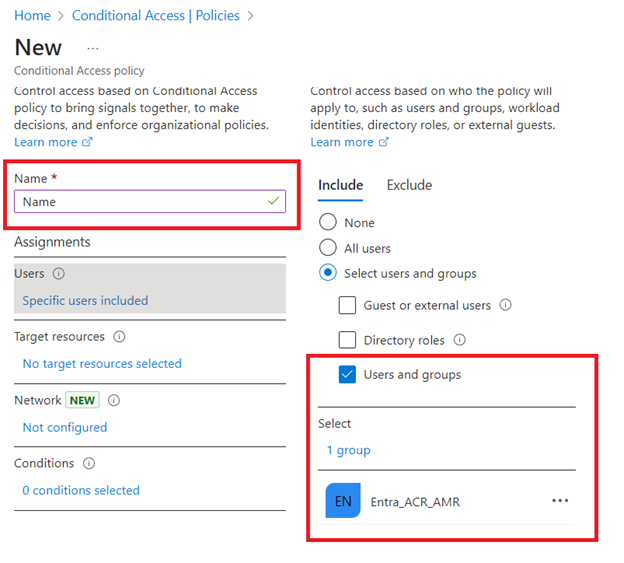
-
-
Select Target resources, select the Select resources option, and then under Resources, select the application to protect with SAS PCE as the external MFA (for example, Office 365), and click Select.
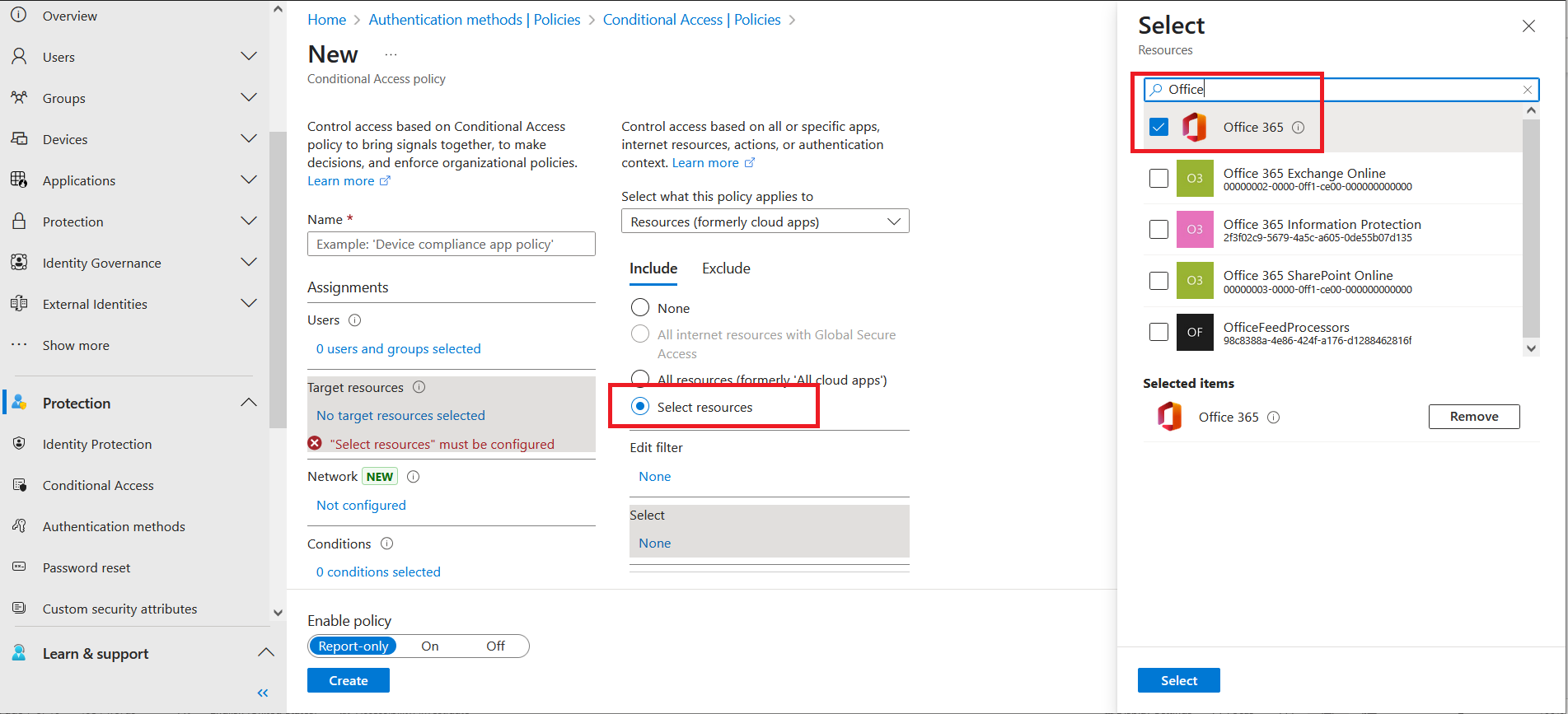
-
Under Access controls, select Grant, and then perform the following steps:
-
Select the Grant access option, select the Require multifactor authentication check box, and then click Select.
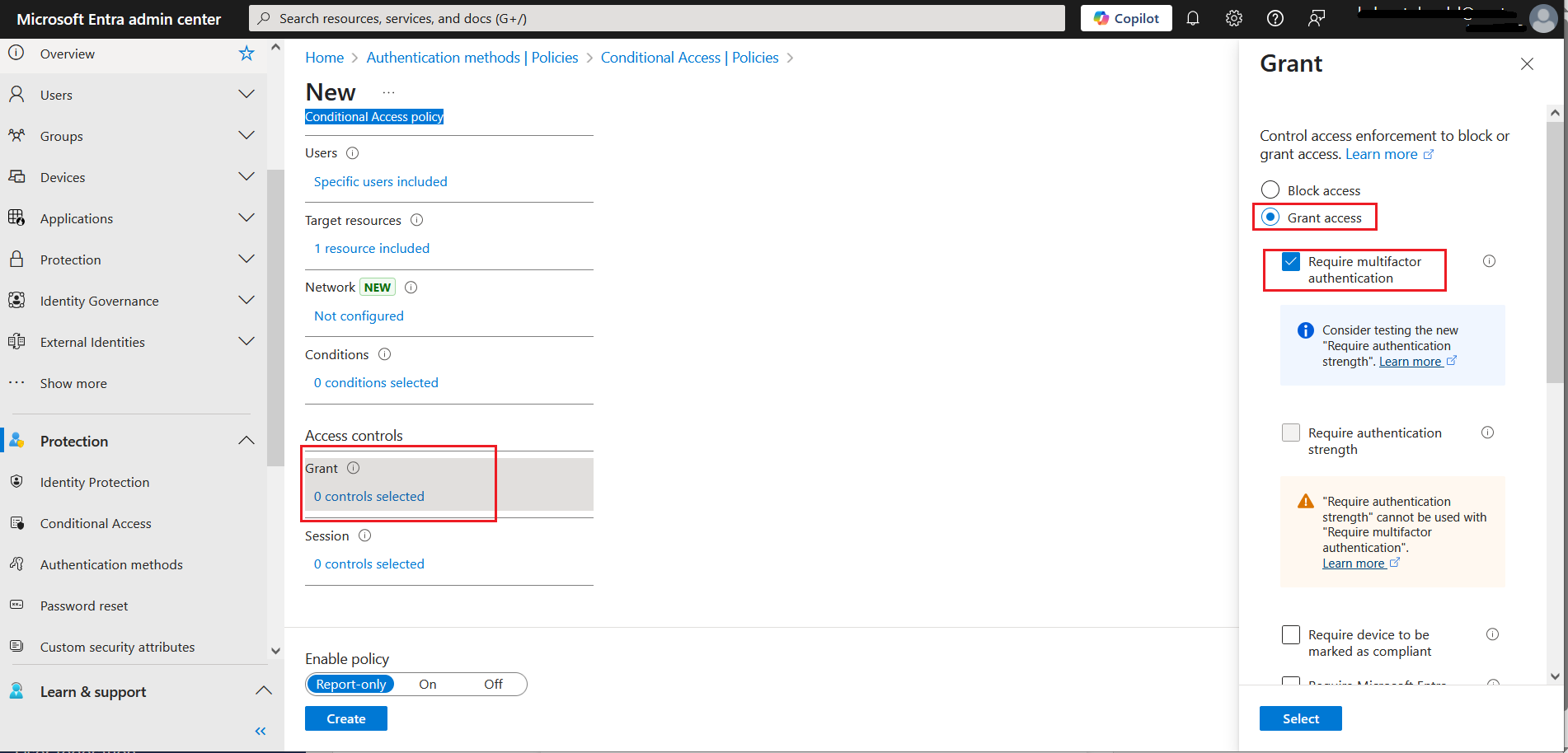
-
Under For multiple controls, select the Require one of the selected controls option, and then click Select.
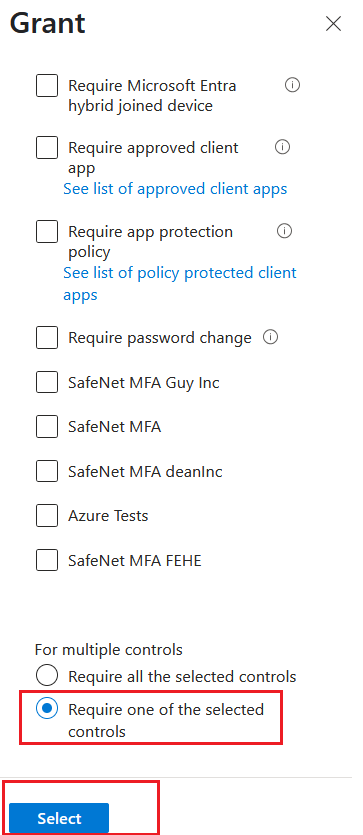
-
-
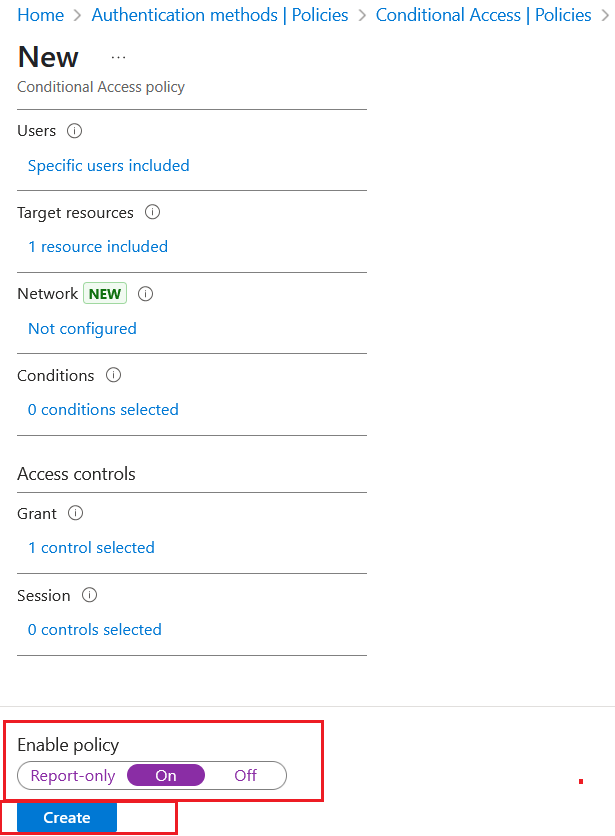
Under Enable policy, set the toggle to On, and then select Create to create the conditional access policy.
Note
You can initially set Enable policy to Report-only to monitor the policy behavior without enforcing it. After verifying the policy is working as expected, switch it to On to enforce the MFA requirement.
Optimize the New User Authentication Journey
Note
According to Microsoft documentation, if no other authentication methods are enabled, a user can select external MFA and is redirected to the external authentication provider to complete authentication.
To ensure users are redirected directly to SAS PCE without being prompted to choose from multiple authentication methods, apply the following configuration in Entra ID:
-
In the Microsoft Entra admin center, in the left pane, select Entra ID > Authentication methods > Policies.
-
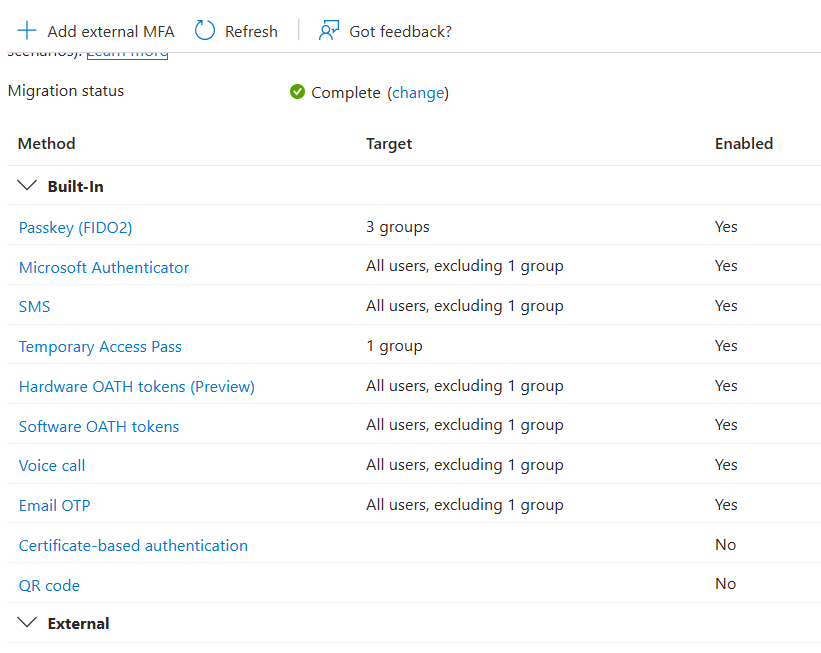
For each of the following built-in authentication methods, exclude the target user group and ensure that only the external MFA (SAS PCE) method is enabled and targeted to your group:
- Microsoft Authenticator
- SMS
- Voice call
- Hardware OATH tokens
- Software OATH tokens
- Email OTP
-
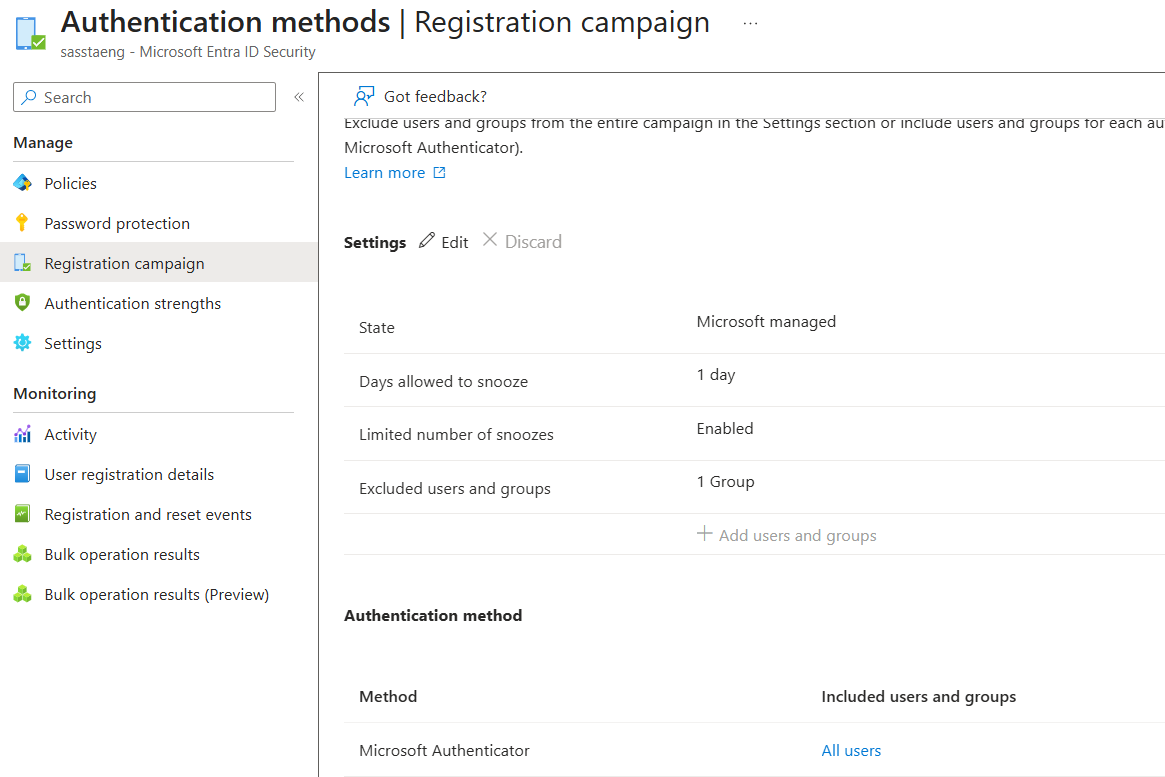
In the left pane, select Entra ID > Authentication methods > Registration campaign. Under Settings, exclude your target group from the Microsoft Authenticator registration campaign. This prevents users from being prompted to register Microsoft Authenticator as a sign-in method.
With this configuration, users in the target group are automatically redirected to SAS PCE to complete the external MFA authentication, without being prompted to select from multiple methods.

