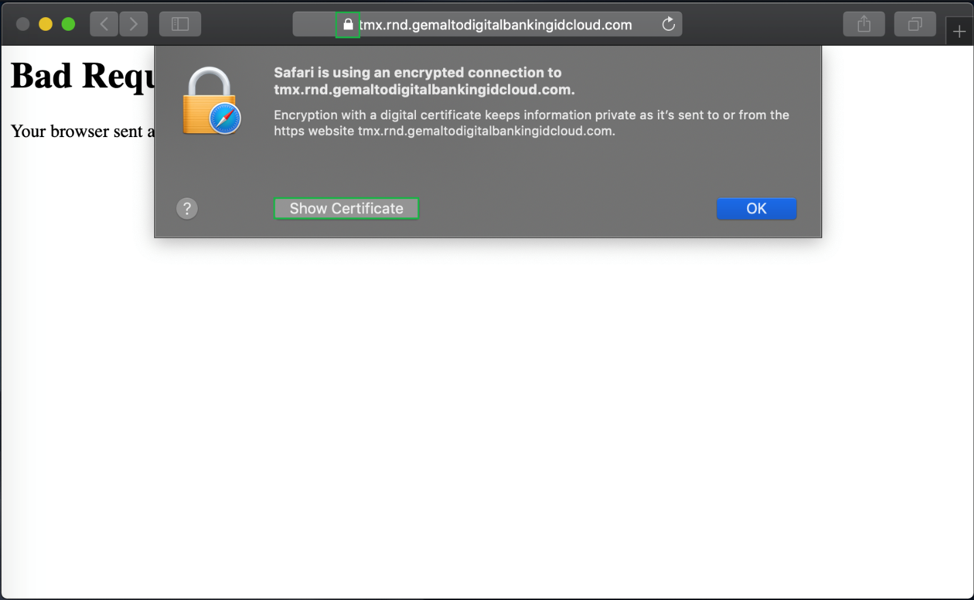
Exporting ThreatMetrix Certificate from Browser
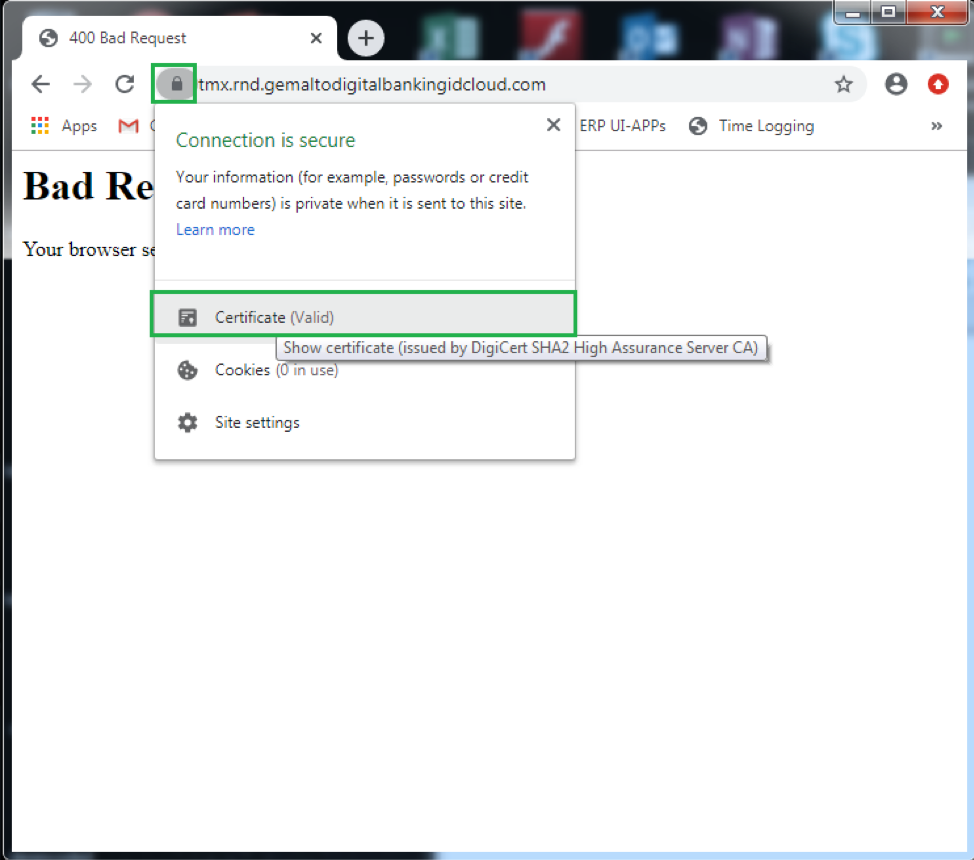
- Open the host site on Chrome
- Click ‘Lock’ icon in front of the URL
- Click to View the certificate
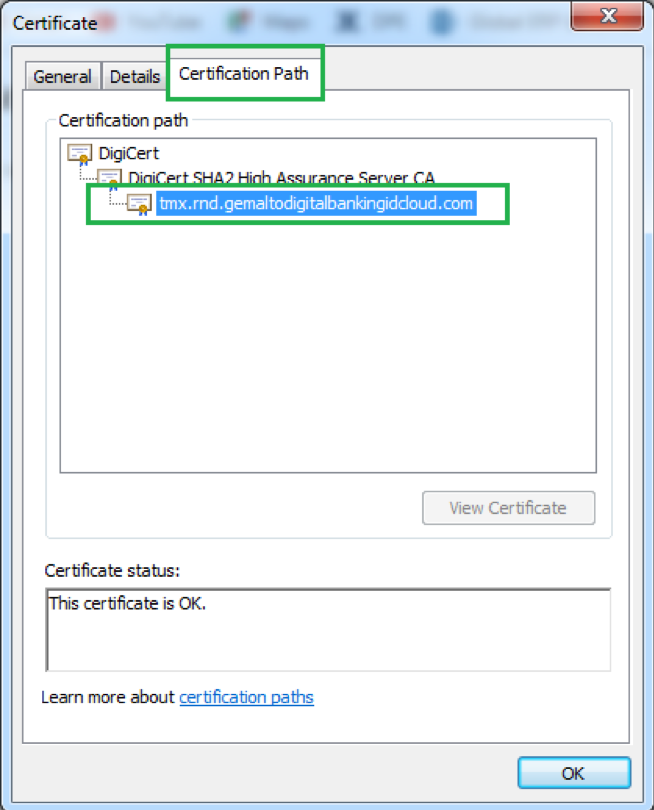
- Click ‘Certification Path’ and select the leaf certificate
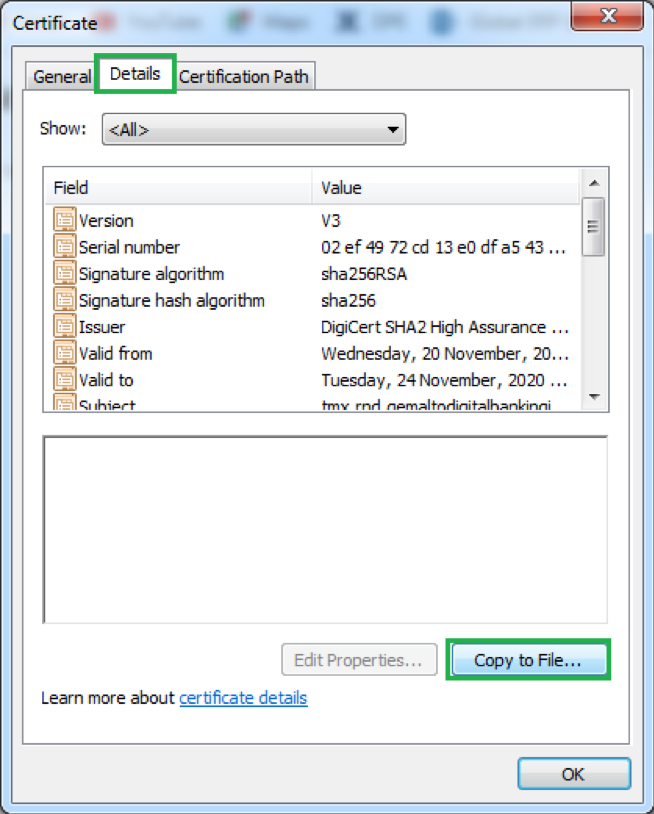
- Click ‘Details’ and click ‘Copy to File…’
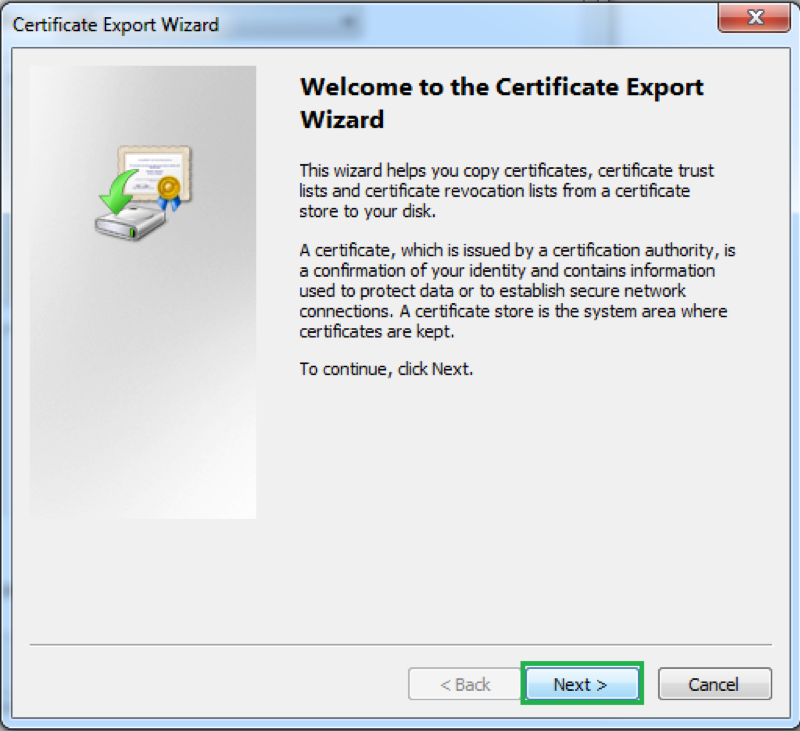
- Click ‘Next’
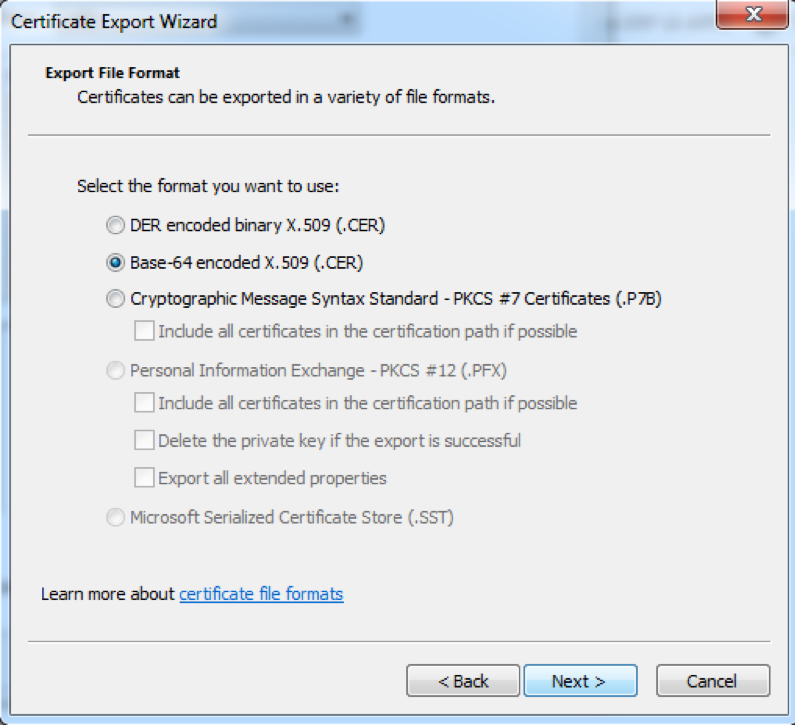
- Select the format of the exported certificate.
Note: on iOS it must be provided as DER encoded binary. The SDK expects raw bytes to be passed which must be DER encoded. On Android, DER encoded binary and Base-64 encoded are supported. The SDK expects X509Certificate Object which can be created from either of the format.
- Click ‘Next’, browse the location and specify the file name and save.
- Similar procedure can be followed on different browsers in which the User Interface may differ slightly.
Export from Safari for Mac user
- Open the host site on Safari
- Click ‘Lock’ icon in front of the URL
- Click ‘Show Certificate’ to View the certificate