User Interface
The administration utility is presented as a Graphical User Interface (GUI), which is divided into three main areas. These are:
>The Menu Bar – shown along the top of the utility. All available utility commands can be activated via these menus.
>The Active Adapters display pane – shows all hardware HSMs found on the host system and their associated keysets. These are represented as a hierarchical tree view, with HSMs being the highest member and keysets or keyset spaces shown beneath each HSM.
>The Details pane – broken up into two sub-groups and displays the following information.
| Adapter Details | |
|---|---|
| Initialized | Shows whether the currently selected HSM has been initialized. Values are either TRUE or FALSE. |
| Serial Number | The serial number of the selected HSM. |
| Battery Status | Indicates the charge of the onboard battery of the selected HSM. This may either be GOOD or LOW. If this indicates LOW, the selected HSM may not be able to retain stored key information in the event of a system power failure. The HSM should be returned to your nearest SafeNet service centre for battery replacement. See Support Contacts. |
| Board Revision | Shows the hardware revision of the currently selected HSM. |
| Firmware Revision | Shows the firmware revision of the currently selected HSM. |
| Cprov Revision | Shows the revision of SafeNet ProtectToolkit-C found on the currently selected HSM. This is a software component which forms part of the HSM firmware. This value may need to be quoted when contacting Thales support. |
| Transport Mode | Shows the transport mode which is set for the currently selected HSM. This value will be either “None”, “Single”, or “Continuous”. Refer below for details. |
| Clock (GMT) | Shows date and time (GMT) on the currently selected HSM. |
| Clock (local) | Shows the local date and time on the currently selected HSM. |
| Event Log Count | Gives a total for the number of event log entries on the currently selected HSM. |
| Event Log Full | Shows if the event log is full and needs purging. This value may be either “FALSE”, indicating that there is available space in the log, or “TRUE”, indicating that the log is full. |
| System Details | |
|---|---|
| Application Count | Shows the number of applications which are currently accessing the SafeNet ProtectToolkit-M system. This value may show as “UNAVAILABLE” which denotes that the firmware on the selected HSM does not support application counting. |
| Total Session Count | Shows the number of open sessions to the SafeNet ProtectToolkit-M system. |
Password Entry Dialog Boxes
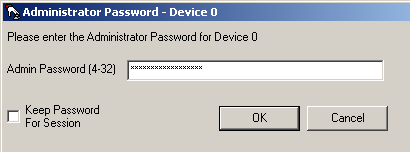
Most actions performed within the administration utility will require entry of the device administrator password. The device administrator password is case-sensitive and may consist of any alphanumeric characters, between 4 and 32 characters in length.
Figure 1: Device administrator password entry dialog box
Keep Password Feature
The utility can remember the device administrator password for the duration of the session. This eliminates the need to repeatedly enter the password for multiple operations.
To enable this feature, check the box next to Keep Password For Session when entering the device administrator password.
CAUTION! When this feature is enabled, take care not to leave the administration utility unattended. To ensure that unauthorized people do not obtain management access to HSMs, close the administration utility once you have finished with your task.
Keyboard Shortcuts
All available menu items may be activated via keyboard shortcuts. The menu bar can be selected by pressing the [Alt] key. Commands may then be selected by pressing the first unique letter of the required command. For example: [Alt] followed by [A] will open the Adapter menu.
There are also a number of key combination shortcuts which will immediately activate a command:
>CTRL+I = Initialize HSM
>CTRL+A = Allocate Keyset Space
>CTRL+V = View Event Log
>CTRL+P = Change Admin Password
>CTRL+U = Upgrade Firmware
>CTRL+T = Tamper HSM
>CTRL+D = De-allocate Space
>CTRL+K = Create Keyset
Context Menus
Right-clicking on an item in the Active Adapters display pane will bring up a context menu showing available commands specific to that item.
For details about these commands, please refer to the section appropriate to the menu in question.